Configure a PingOne App to Use a DaVinci Flow Policy
You need to begin in DaVinci, and create the DaVinci application, the DaVinci flow, and the flow policy on the application. Refer to How to create a flow for instructions. You’ll need the DaVinci flow policy ID to define the PingOne application’s flow policy assignment property.
DaVinci flow settings configuration
DaVinci flows invoked using a PingOne authorize request require special configuration. In DaVinci, when you create your flow, on the flow’s Settings screen, you must toggle on the PingOne Flow property located on the General tab.
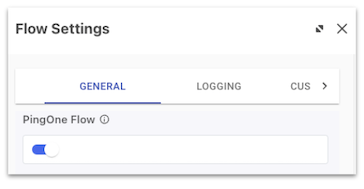
Setting this property indicates that the flow is a PingOne flow, enabling it to be included in PingOne flow policies and launched directly from PingOne.
PingOne endpoints
This activity shows you how to create a PingOne application, find and associate a DaVinci flow policy with the application, and initiate the flow using a PingOne authorize request. This scenario illustrates the following common operations supported by the PingOne APIs:
-
Create the application.
-
Assign a DaVinci flow policy to the application.
-
Create the PingOne authorize request.
To create the application and flow policy, the following tasks must be completed successfully:
-
Make a
POSTrequest to/environments/{{envID}}/applicationsto add a new application to the specified environment. -
Make a
GETrequest to/environments/{{envID}}/flowPoliciesto return the list of DaVinci flow policies that can be associated with the PingOne application. -
Make a
POSTrequest to/environments/{{envID}}/applications/{{appID}}/flowPolicyAssignmentsto assicn a DaVinci flow policy to the application. -
Make a
GETrequest to/{{envID}}/as/authorizeto obtain an authorization grant. This request starts the authorization flow using the DaVinci flow policy you assigned to the PingOne application.
Click the Run in Postman button below to fork, or download and import, the Postman collection for this workflow to your workspace.