Step 4: Copy Worker app credentials
While still in the application information page for your new Worker app, you’ll get the Worker app credentials, and enable the Worker app.
-
Select the Overview tab. The general information for your Worker app is displayed. In particular, you’ll see the Environment ID, and the credentials for your Worker app: the Client ID, and Client Secret.
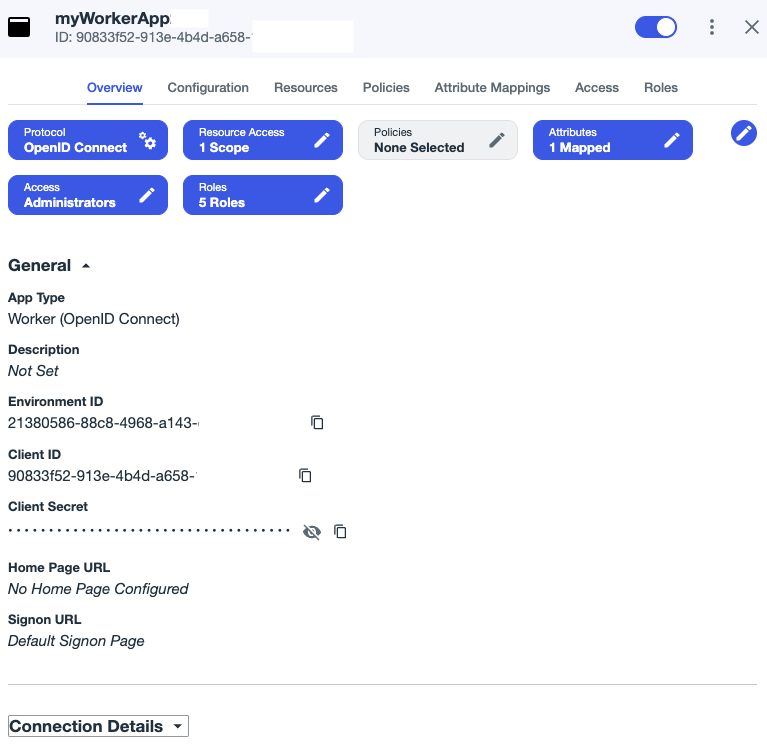
(The Connection Details information isn’t shown here for brevity.)
-
Copy the Client ID and Client Secret values for your Worker app. You’ll need these credentials when obtaining an admin access token in the subsequent workflow to create your test environment.
-
Also copy the Environment ID. You’ll need this because this is the environment in which you created the Worker app. When you need to get an access token for your Worker app, as you will in the next workflows, this is the environment you’ll specify for the request.
-
Click the toggle at the upper right to enable the application. The Worker app is saved, and you can now close the application information page.
|
These credentials apply only to the Worker app, and at this point, not to any PingOne admin user. An admin user will need the same roles and permissions for the credentials to be available. We’ll show you how to assign the roles and permissions necessary to an admin user when you get to the create a test environment workflow. |
You’re now all set to use the PingOne APIs in the next workflows.