PingOne MFA Native SDK flows
Pairing - automatic enrollment
The automatic enrollment flow requires as little as one extra step from the user. The first time the user logs into an application which has an embedded PingOne Native SDK component, they are asked if they wish to trust that device. Once they approve, PingOne works behind the scenes, without requiring anything else from the user.
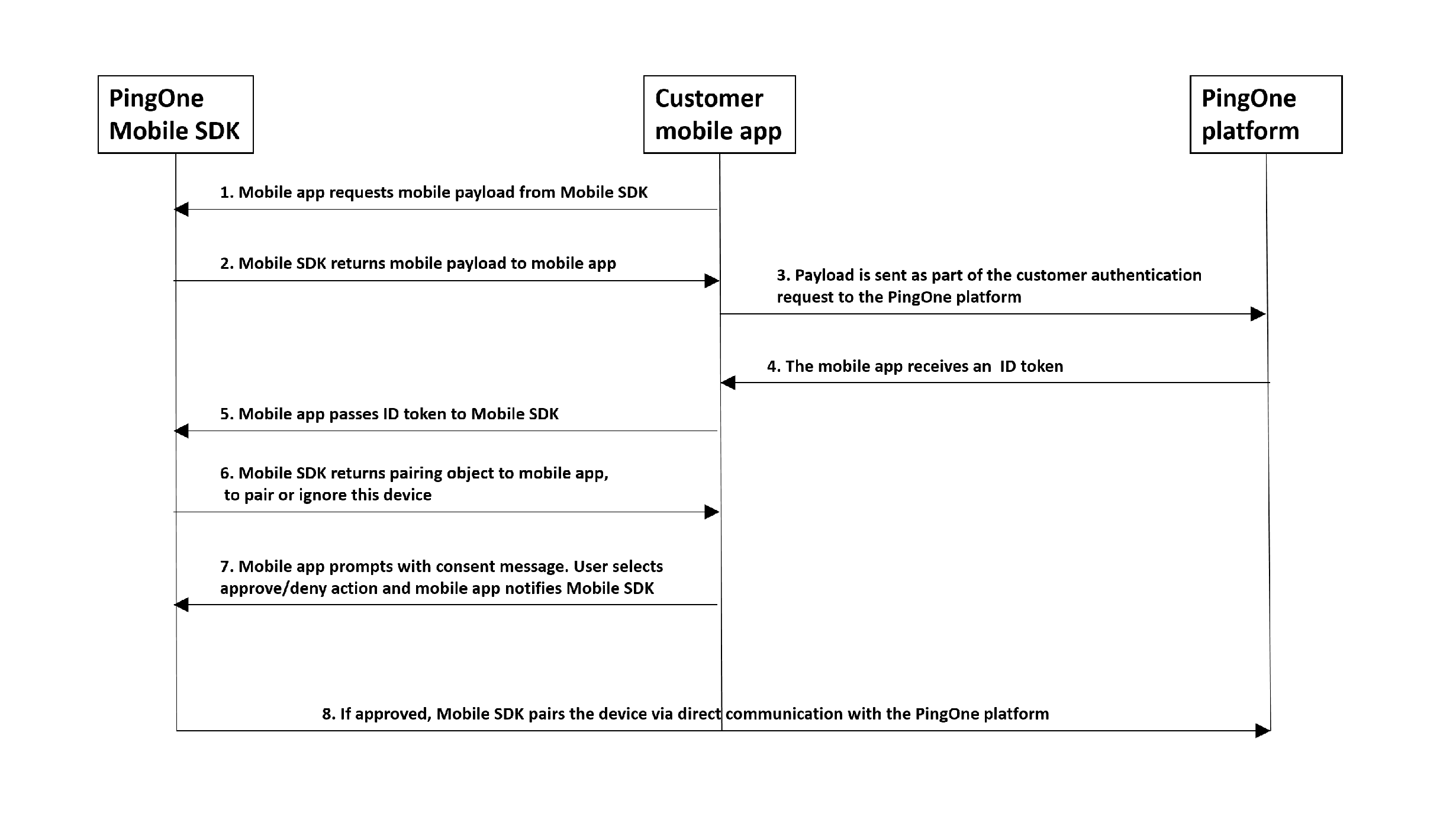
During user authentication, a native app communicates with the PingOne platform to generate a token. The token allows pairing the device to the user in the context of a customer application. The user is not required to type or scan anything.
-
The user is identified on the customer native application, usually with a unique user identifier, for example, a username.
-
The PingOne Native SDK returns a native payload to the customer native application. The payload is a small data package created by the PingOne Native SDK component, which is used as part of the device’s authorization.
-
The customer native application sends an authentication request to the PingOne Platform, including the native payload.
-
The customer native application receives an ID token.
-
The customer native application passes the ID token to the PingOne Native SDK.
-
The PingOne Native SDK returns a pairing object to the customer native application, to pair or ignore the device.
-
The customer native application prompts the user for the approve or deny action via a dialog. Based on the user’s choice, the customer native application notifies PingOne Native SDK.
-
The PingOne Native SDK completes the transaction accordingly, by communicating directly with PingOne Platform.
|
Note: If you have enabled auto-enrollment, there may be situations where authentication succeeds but registration is unsuccessful for various reasons. One such scenario would be a situation where you have limited the number of authentication methods that a user can define, and when the user authenticated with your mobile application, they passed the maximum number of allowed methods. Keep in mind that in such cases, the user will not be aware that registration has failed. |
Implement automatic pairing of native app as MFA authenticator app
In order to enable automatic pairing of a native app as an MFA authenticator app, there are several tasks that must be coordinated between admin and developers.
In brief, you will do the following:
-
Create a native application with Authenticator configuration.
-
Configure a sign-on policy containing an MFA step that references an MFA policy where the native application is configured as an authenticator.
-
Assign the sign-on policy to the native app.
-
Write code in the application to support automatic app enrollment.
Follow the detailed steps below:
Supply the relevant details for the admin to do the following in the PingOne admin console:
Admin tasks
-
Create a native app. Refer to Add an application - Native.
-
In Edit an application, on the Mobile tab:
-
Add the Package name (Android) and Bundle ID (iOS) of your native application.
-
Configure the push credentials per platform.
-
-
Create a new MFA policy.
-
In the MFA policy, use the Add Application option to select the name of your mobile app. In the settings for the app you added, select the Auto Enrollment option.
-
Create a sign-on policy, and add an MFA step. Refer to Add an authentication policy.
-
In the MFA step, select the MFA policy that you configured. Also, if you want to allow automatic enrollment even if the user does not have any existing paired devices, set the "NONE OR INCOMPATIBLE METHODS" setting to Bypass.
-
Return to the Applications page and edit your mobile application. On the Policies tab, choose the sign-on policy that you created. This is necessary so that the authenticator element of your application will be launched when users try to access the application.
Developer tasks
In your native application code (also described in the iOS and Android README.md files, refer to PingOne Native SDK for iOS or PingOne Native SDK for Android):
-
Get the native payload from the SDK (
PingOne.generateMobilePayload()) -
Pass the received payload of the OIDC request to the authorization service, as the
mobilePayloadquery parameter. -
Call
processIdToken()with the token you received from PingOne platform. -
If automatic pairing is triggered (i.e. the user was not already paired with the device),
processIdToken()will return a pairing object withapprove()anddeny()functions. Callingapprove()will pair the user with the device.
Automatic device authorization
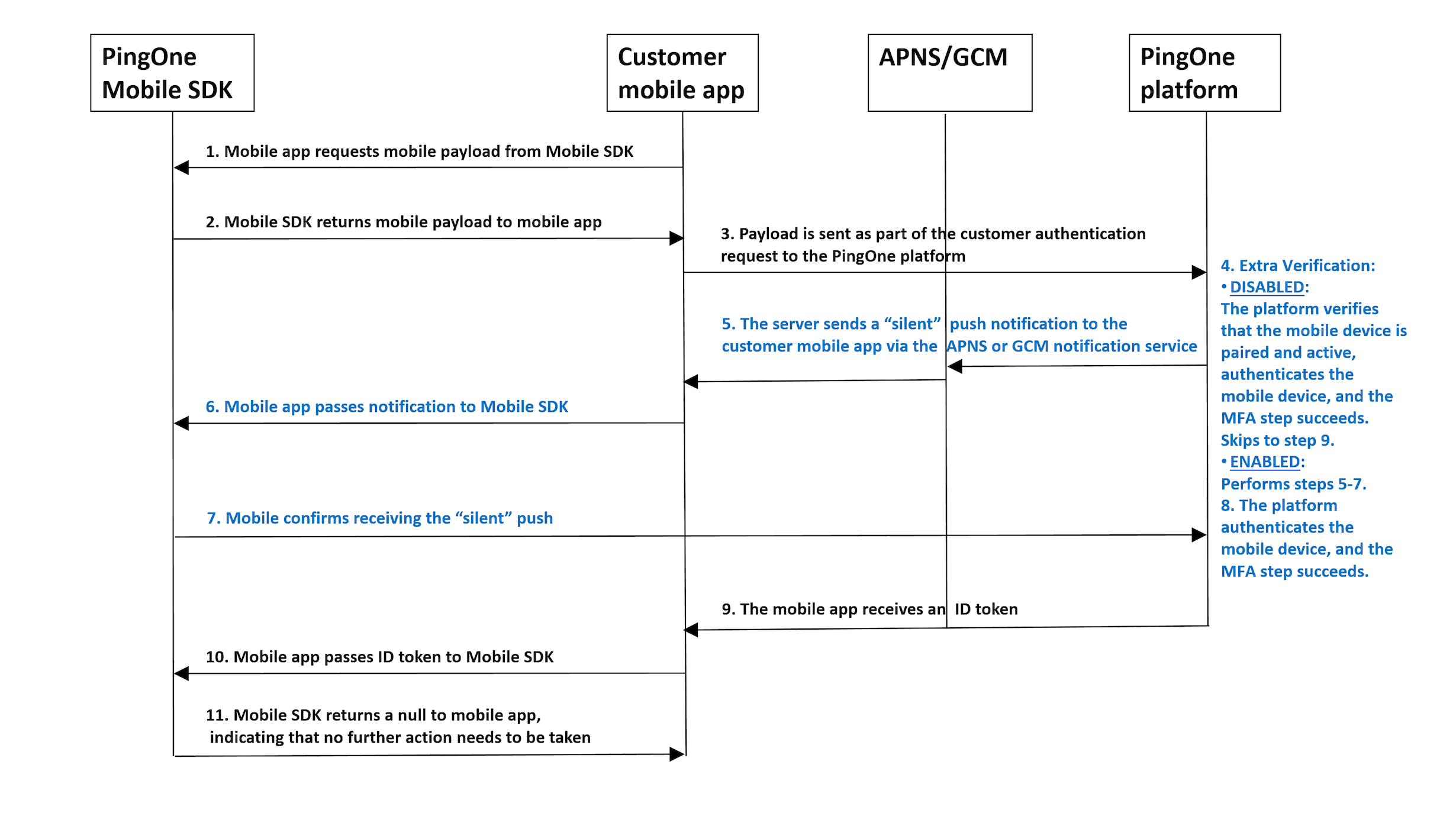
During automatic device authorization, a native app communicates with the PingOne platform to generate a token. The token allows authenticating the user device in the context of a customer application. The user is not aware of this, and is not required to type or scan anything.
-
The customer native app requests a native payload from the PingOne Native SDK.
-
The PingOne Native SDK returns a native payload to the customer native application.
-
The customer native application sends an authentication request to the PingOne Platform, including the native payload.
-
If the platform’s authentication flow (sign-on policy) contains an MFA step, and extra verification is disabled, the platform verifies that the native device is paired and active, authenticates the native device, and the MFA step succeeds. The flow skips to step 9.
-
The platform verifies that the native device is paired and active and sends a "silent" push notification to the native application via the APNS/GCM notification service.
-
The native application passes the "silent" notification to the PingOne Native SDK.
-
The PingOne Native SDK acknowledges receiving the "silent" push by sending a confirmation directly to the PingOne platform.
-
The platform authenticates the native device, and the MFA step succeeds.
-
The customer native application receives an ID token from the PingOne Platform.
-
The customer native application passes the ID token to the PingOne Native SDK.
-
The PingOne Native SDK returns null to the customer native application, indicating that authorization has completed and no further action needs to be taken.
Implement automatic device authorization
Admin tasks
The admin configuration that was implemented for automatic enrollment, is applied to automatic device authorization.
-
Create a native app, or edit an existing app. Refer to Add an application - Native.
-
In Edit an application, on the Mobile tab:
-
Add the Package name (Android) and Bundle ID (iOS) of your native application.
-
Configure the push credentials per platform.
-
-
Create a new MFA policy.
-
In the MFA policy, use the Add Application option to select the name of your mobile app. In the settings for the app you added, enable Device Authorization. In the Extra Verification drop-down list, you can optionally select Permissive or Restrictive. For details on these two options, refer to Adding an MFA policy.
-
Create a sign-on policy, and add an MFA step. Refer to Add an authentication policy.
-
In the MFA step, select the MFA policy that you configured.
-
Return to the Applications page and edit your mobile application. On the Policies tab, choose the sign-on policy that you created. This is necessary so that the MFA policy you configured and included in the sign-on policy will be applied when users try to access the application.
Developer tasks
In your native application code (also described in the iOS and Android README.md files, refer to PingOne Native SDK for iOS or PingOne Native SDK for Android):
-
Get the native payload from the SDK (
PingOne.generateMobilePayload()) -
Pass the received payload of the OIDC request to the authorization service, as the
mobilePayloadquery parameter. -
Call
processIdToken()with the token you received from PingOne platform. -
If device authorization is triggered (i.e. verification that the user’s device is already paired and active),
processIdToken()will return null, indicating that authorization has completed and no further action needs to be taken.
Authentication code flow
The authentication code flow enables users to sign on without any data entry, such as providing a username, password, or entering a one-time passcode. The user scans the code, and if successful, gains access to an application’s services.
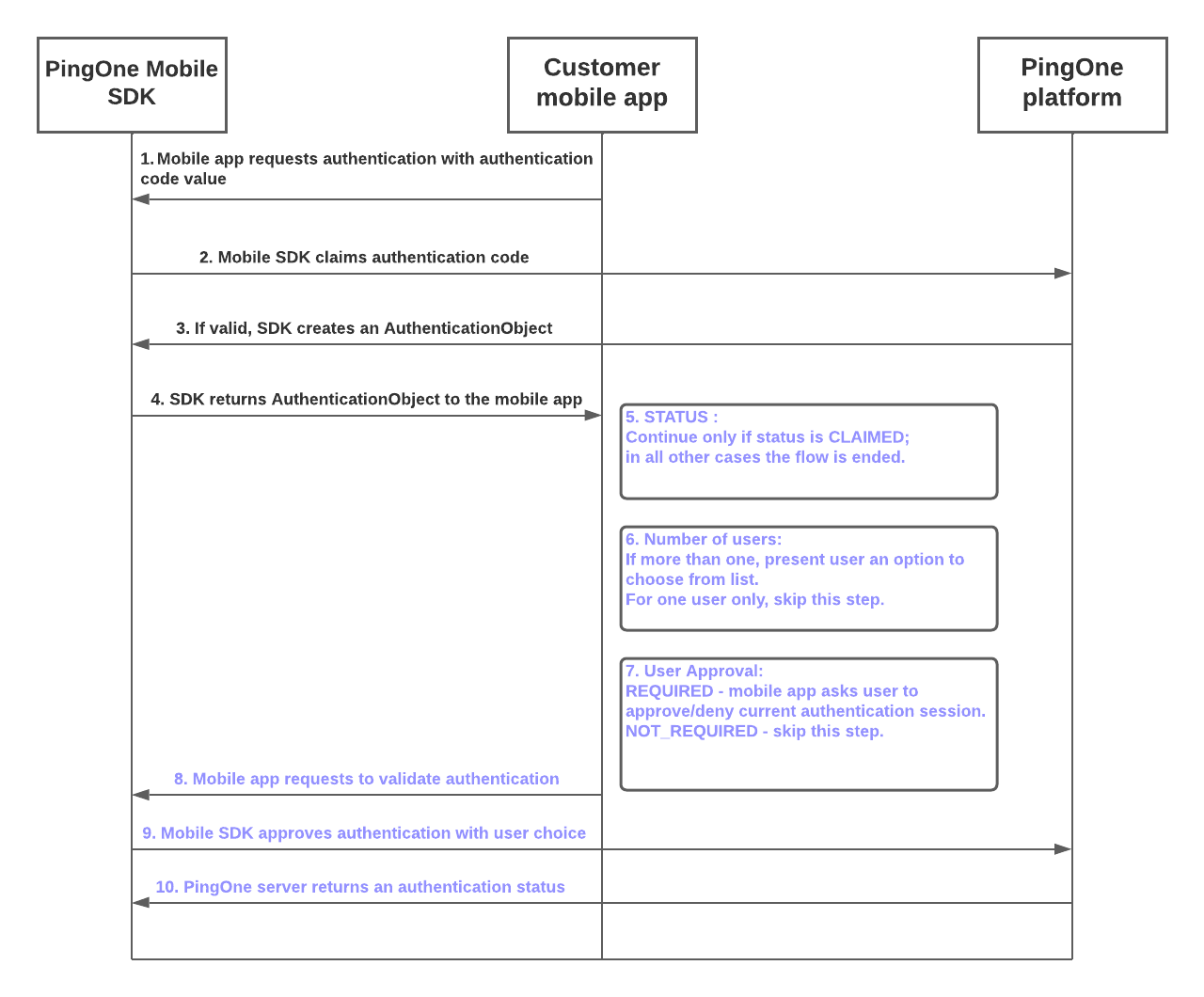
During an authentication code flow, a native app communicates with the PingOne platform to initiate authentication with an authentication code, which can be a QR code. The flow starts with a call to the Create Authentication Code endpoint. The Mobile SDK validates the code value and returns an AuthenticationObject to the mobile app.
-
The customer mobile app requests an authentication code flow from the PingOne Mobile SDK.
-
The Mobile SDK requests validation of the authentication code value from the PingOne platform.
-
If the authentication code value is validated by the PingOne platform, the Mobile SDK creates an
AuthenticationObject. -
The Mobile SDK returns the
AuthenticationObjectto the customer mobile app. -
If the
statusproperty value of theAuthenticationObjectisCLAIMED, the flow continues. For all otherstatusvalues, the flow ends. -
If the number of users is two or more, the flow presents the user with an option to choose a specific user from the list. If the
AuthenticationObjectspecifies only one user, the flow continues without requiring this step. -
If the user approval setting has a value of
REQUIRED, the mobile app prompts the user to approve or deny the current authentication session. If user approval is set toNOT_REQUIRED, the authentication flow skips this step. -
The customer mobile app makes a validation request to the Mobile SDK.
-
The Mobile SDK claims authentication with the selected user and queries the PingOne server.
-
The PingOne server returns an authentication status.
Implement an authentication code flow
Admin tasks
To configure direct triggering of the mobile application in an authentication code flow:
-
Create a native app, or edit an existing app. Refer to Add an application - Native.
-
Use the Authenticator tab to allow mobile authentication for the app. If your organization uses the PingOne MFA SDK to allow authentication with a QR code in certain flows, the admin can optionally configure a universal link or schema app link to enable direct triggering of the mobile application when scanning a QR code with a QR scanner. Refer to Editing an application - Native.
Developer tasks
In your native application code (also described in the iOS and Android README.md files, refer to PingOne Native SDK for iOS or PingOne Native SDK for Android):
-
Pass the retrieved authentication code to the mobile SDK by calling
PingOne.authenticate(). -
Parse the retrieved
AuthenticationObject. If the status field equalsCLAIMED, proceed to the next step. -
If the number of users is more than one and/or the value of the field
needsApprovalequalsREQUIRED, theAuthenticationObjectwill containapprove()anddeny()options. -
Call the
approve()method of theAuthenticationObjectwith the correspondinguserIdto complete the authentication.
Automatic unpairing of device if mobile app uninstalled
If a user who has already paired a device uninstalls the mobile app, PingOne responds to the unanswered push by automatically unpairing the device and removing it from the user’s device list.
This mechanism uses the response received from the Google and Apple notification servers.
Note that Apple does not guarantee a specific response to push notifications after an application is uninstalled, so this feature may not always work on iOS devices.
In situations where an unregistered response is not received from the Google or Apple notification server, MFA flows will continue to prompt for push confirmation, and this may result in a status of PUSH_CONFIRMATION_TIMED_OUT.