Pairing in a DaVinci flow on Android
PingOne Android
Before a device can receive push notifications, generate OATH one-time passcodes, or perform automated authentication it must be registered with PingOne MFA. This registration is called pairing.
The Orchestration SDK supports an automated pairing method by using the pingonemfa module, and a specialized DaVinci flow that leverages the PingOne MFA connector.
This DaVinci flow returns a MOBILE_PAIRING collector, and the pingonemfa module pairs the device behind the scenes, reporting the result back to the flow when your app submits the node.
If the device is already paired, the same process authenticates the device instead.
Creating the pairing flow
Build the pairing flow in the DaVinci admin console using the PingOne connector and the PingOne MFA connector:
-
Find the user — add a Find User capability from the PingOne connector to look up the user to pair. The capability takes an identifier such as a username or email address, and returns the matched user profile, including the user’s
id. -
Create the pairing key — add a Create Pairing Key capability from the PingOne MFA connector, and map the user’s
idfrom the Find User node to its User ID input. The capability generates a one-time pairing key and returns the key’scodeandidin its response. -
Pair the device — add a Pair Mobile Device With Pairing Key capability from the PingOne MFA connector, and map the values returned by the Create Pairing Key node to its inputs:
Input Value Pairing Key
The
codefrom the Create Pairing Key nodePairing Key ID
The
idfrom the Create Pairing Key nodeThe result resembles the following:
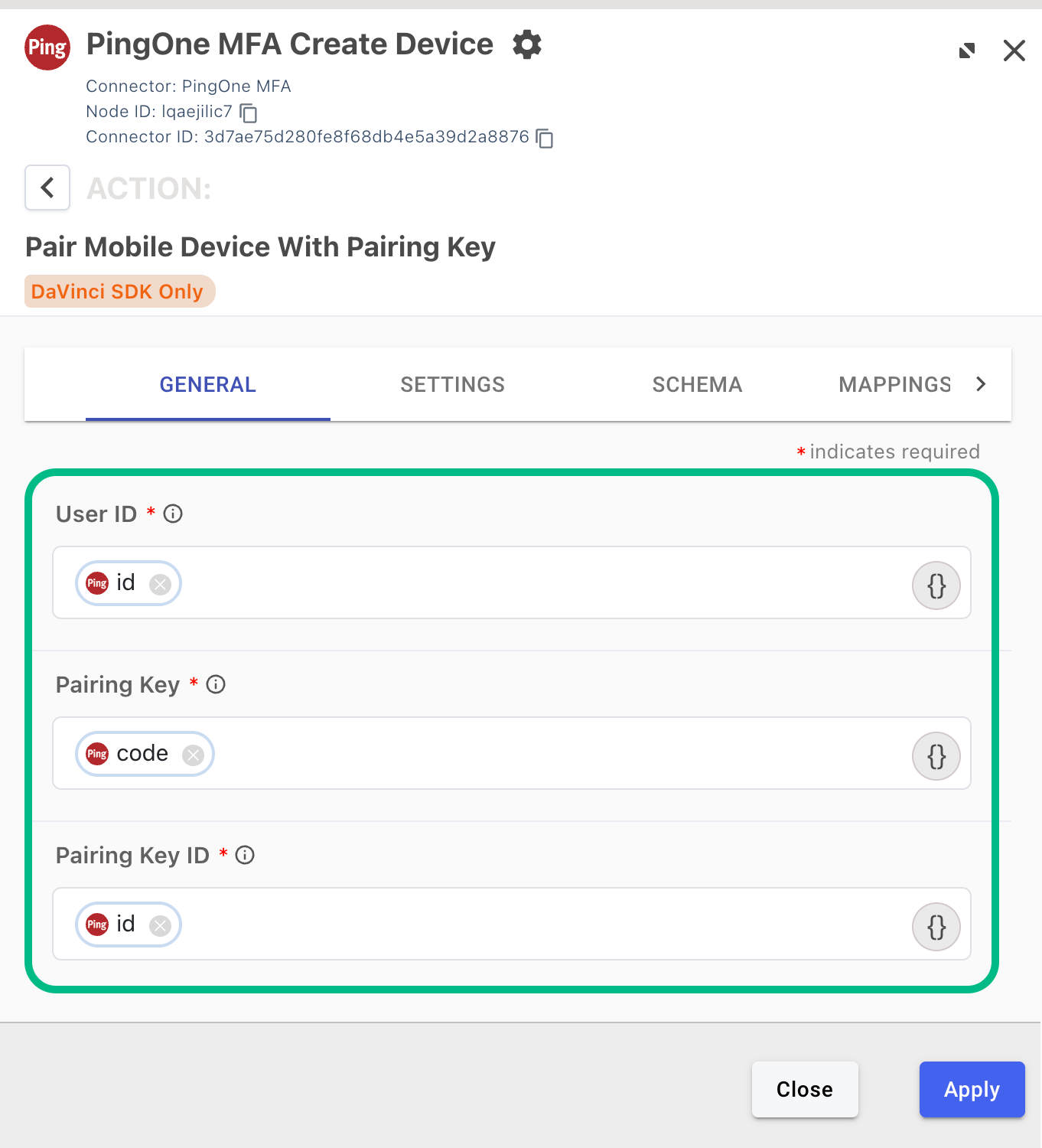 Figure 1. Configuring the Pair Mobile Device With Pairing Key capability.
When the flow reaches this node, it pauses and returns the
MOBILE_PAIRINGcollector to your app, which pairs the device. -
Complete the flow
-
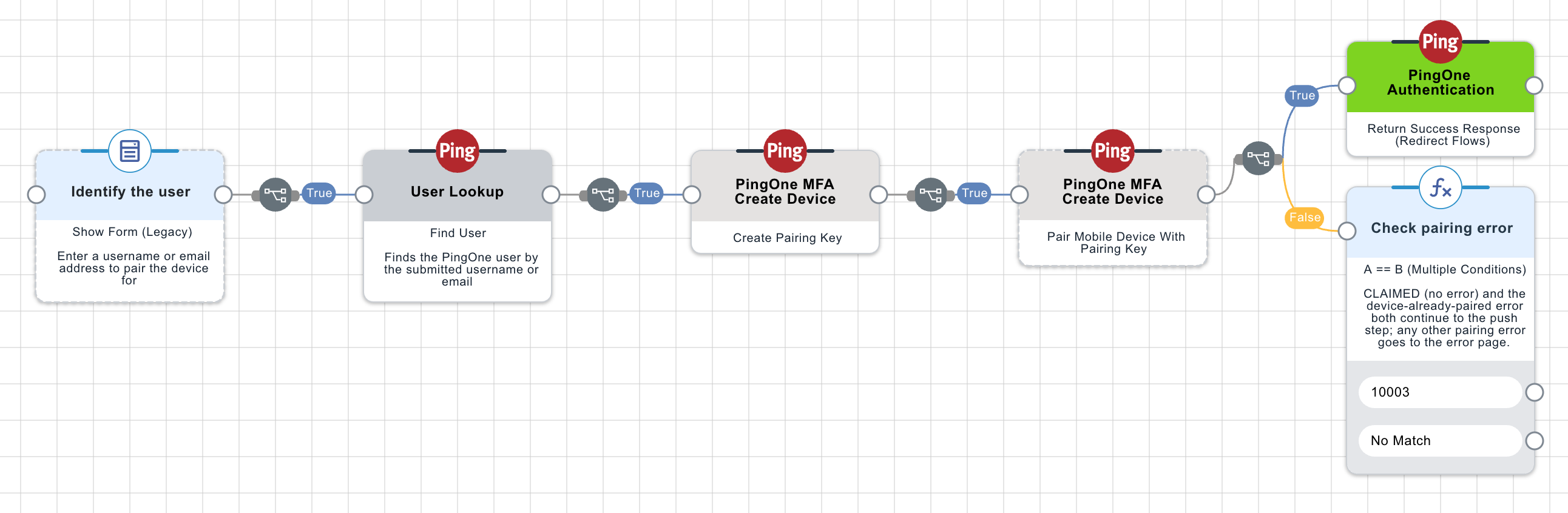
Add a PingOne Authentication connector node with the Return Success Response (Redirect Flows) capability, and connect the
Truepath of the Pair Mobile Device With Pairing Key node to it.The PingOne MFA connector verifies the pairing result server-side before the flow resumes, so a
trueresult means the device is paired and ready to receive push notifications and OATH challenges. -
Connect the
falsepath to a function node that reports the failure. The failure payload contains the native PingOne MFA SDK error code and message.Some of the error codes you may encounter are as follows:
Code Meaning 10003
Server error, for example the PingOne MFA service is unreachable or returned an unexpected response.
10004
No network connectivity on the device.
10005
Problem with the pairing key, for example the key is invalid, expired, or has already been claimed.
10006
Problem with the application ID, for example the app is not registered in the PingOne environment.
10007
The device is already paired in a different regional data center.
10013
A pairing operation is already in progress.
10017
Failed to establish trust with the PingOne MFA server.
See PingOne MFA SDK error codes in the PingOne Platform API documentation for the complete list.
-
The resulting flow resembles the following:
Registering the collector
To process the MOBILE_PAIRING collector, your app registers the module’s MobilePairingCollector with the DaVinci collector factory. Unlike the collectors built in to the Orchestration SDK DaVinci module, the pingonemfa module is a separate add-on module, so the DaVinci module does not register its collectors for you.
In most apps no extra code is required: when you add the pingonemfa module as a dependency, an AndroidX app startup initializer registers MobilePairingCollector for you.
Only if your app disables automatic initialization do you need to register the collector manually before starting any DaVinci flow:
CollectorFactory.register("MOBILE_PAIRING", ::MobilePairingCollector)Handling the pairing collector
The pairing collector works like other collectors in your flow, but it needs no user input.
The collector receives the pairing key from the DaVinci flow automatically, so all your app has to do is call collect() to start the pairing, display a loading indicator while it runs, and call node.next() when it completes.
Under the hood, collect() calls the module’s PingOneMFA.pair() function with the pairing key from the flow: collect() is a suspend function, so call it from a coroutine, for example viewModelScope.launch or a Compose LaunchedEffect.
// Inside your collector rendering loop for a DaVinci node:
when (val collector = node.collectors.firstOrNull { it is MobilePairingCollector }) {
    is MobilePairingCollector -> {
        // Show a spinner while the pairing is in flight
        showSpinner()

        // collect() starts the pairing
        val result = collector.collect()

        hideSpinner()
        result.onSuccess {
            // Pairing key claimed — submit the node
            node.next()
        }.onFailure { e ->
            // Show the error locally, then submit the node so the
            // collector reports the failure to the flow
            showError(e.message)
            node.next()
        }
    }
}|
If you want to pair a device outside of a DaVinci flow, you can call Learn more in Pairing with a QR code or pairing key. |
Allowing users to cancel pairing
While the spinner is showing, you can offer a Cancel or Back button so users can skip pairing.
If the user cancels, call cancel() on the collector, then call node.next() as usual:
collector.cancel()
// Then call node.next() as usual
The module reports the cancellation to the DaVinci flow as a failure with the code USER_CANCELLED, and the flow continues down its failure path.
Calling cancel() does not stop a pairing that the PingOne MFA native SDK has already started; that pairing request runs to completion in the background and its result is discarded, so the cancellation is what the flow sees.