Suspending and resuming authentication with magic links
PingOne Advanced Identity Cloud PingAM Android iOS JavaScript React Native
The Orchestration SDKs allow you to implement Suspended Authentication. This feature lets you pause a user’s progress through an authentication journey and resume it later from the same point.
When you suspend the authentication tree, the SDK saves any input provided during authentication. When you resume the tree, the SDK restores this input. This allows the user to continue the authentication journey after closing the browser, using a different browser, or even on a different device.
When you suspend an authentication journey, the server provides the user with a URL containing a unique ID. This ID allows them to resume their authentication. This unique identifier is single-use. These URLs are sometimes referred to as "magic links".
|
The "magic link" represents a user’s authentication journey up to the point it was paused. Ensure you use appropriate additional authentication in the remainder of a suspended authentication journey. |
Typical use cases include multi-factor authentication and email verification during progressive profile completion.
Configuring servers suspend and resume authentication
To suspend and resume authentication within your application, configure your server as follows:
-
Enable outgoing email.
The server emails the resume URI link to the user, who clicks it to resume their journey.
Select your server below for instructions on enabling outgoing email:
- PingOne Advanced Identity Cloud
-
Configuring email in the PingOne Advanced Identity Cloud documentation.
- PingAM
-
Configuring outbound email in the PingIDM documentation.
You must configure PingAM alongside PingIDM as part of a Ping Advanced Identity Software deployment to suspend authentication.
A standalone PingAM instance will not work.
-
Add an Email Suspend Node to your authentication journey.
For more information, see Suspended authentication in the PingAM documentation.
-
Configure the URI your server uses to form the magic link.
-
Use the custom domain assigned to your server as the basis for magic links.
-
If you have a JavaScript app acting as the login UI, use that URI instead.
-
For Android and iOS (including React Native) apps, use the custom URI scheme registered for your app’s deep links, for example
myapp://example.com.
Enter the correct URI in the External Login Page URL property, in the realm’s General authentication settings.
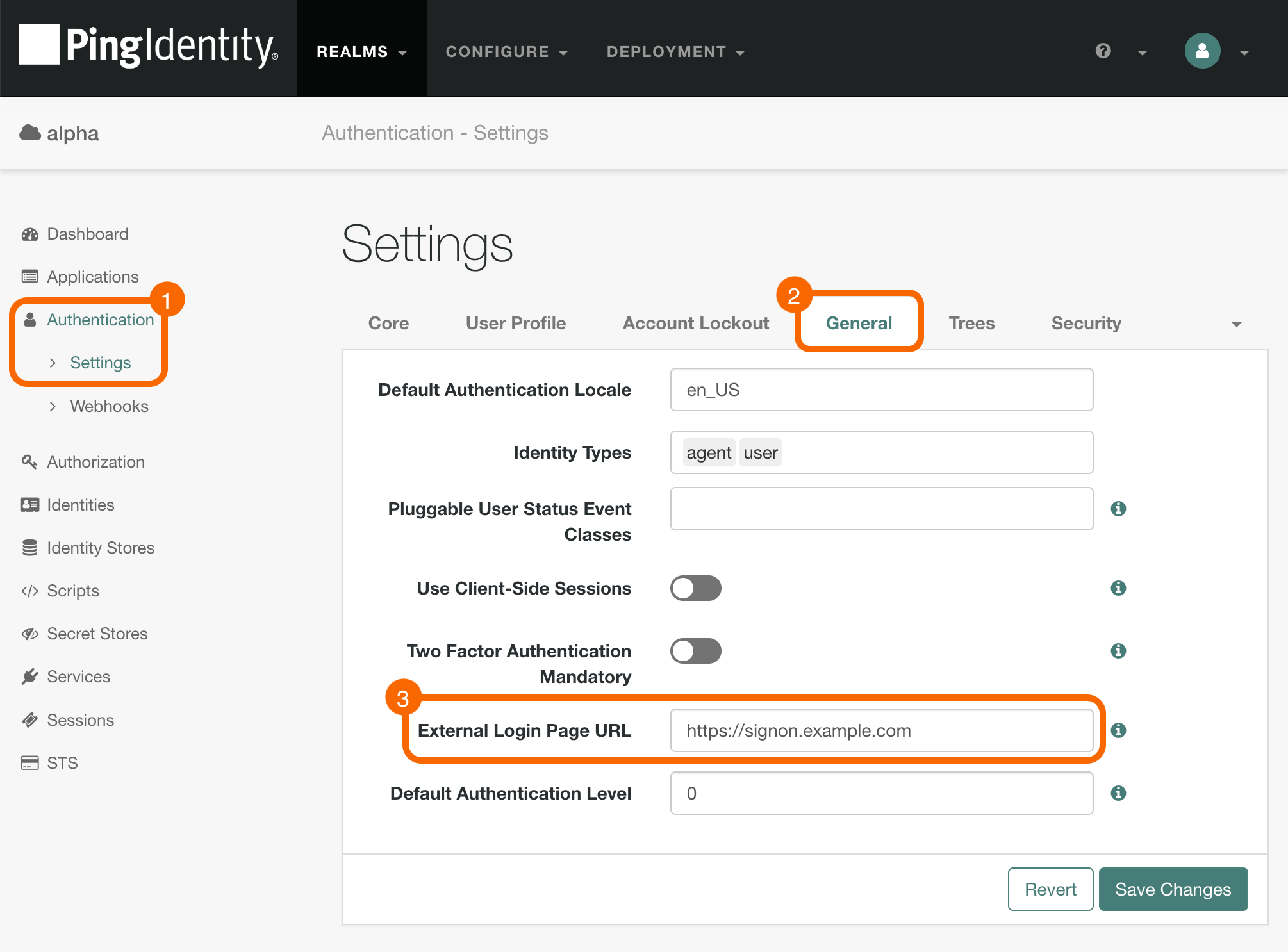 Figure 1. Configuring the External Login Page URL property in PingAM and Advanced Identity Cloud
Learn more about the property by selecting your server below:
- PingOne Advanced Identity Cloud
-
Core authentication attributes > General > External Login Page URL.
- PingAM
-
Core authentication attributes > General > External Login Page URL.
-
Handling the suspended authentication callback
The Orchestration SDKs receive a SuspendedTextOutputCallback when they reach the Email suspend node:
{
    "type": "SuspendedTextOutputCallback",
    "output": [{
        "name": "message",
        "value": "An email has been sent to the address you entered. Click the link in that email to proceed."
    }, {
        "name": "messageType",
        "value": "0"
    }]
}
Your application should display the message field, which instructs the user on how to proceed.
The journey is now suspended, and the server sends the magic link to the user.
The Orchestration SDKs resume authentication by responding to this link when the user clicks it. The client returns the value, which includes a unique, one-time-use identifier, to the server and continues the journey.