Before you begin
PingOne Advanced Identity Cloud PingAM Android iOS
To integrate OATH-based MFA into your apps you must first configure an authentication journey in your server.
The journey registers the client to the user’s profile if they have not done so already, then requests a one-time password from the device.
Follow the instructions to create the required authentication journey in your server:
-
Advanced Identity Cloud
-
Self-managed PingAM server
-
In the Advanced Identity Cloud admin UI
-
Select the realm that will contain the authentication journey.
-
Select Journeys, and click New Journey.
-
Enter a name for your tree in Name page; for example,
MFAwithOATH -
In Identity Object, select the identity type that will be authenticating, for example
Alpha realm - Users. -
Click Save.
The authentication journey designer page is displayed with the default Start, Failure, and Success nodes.
-
-
Add the following nodes to the designer area:
-
Connect the nodes as shown:
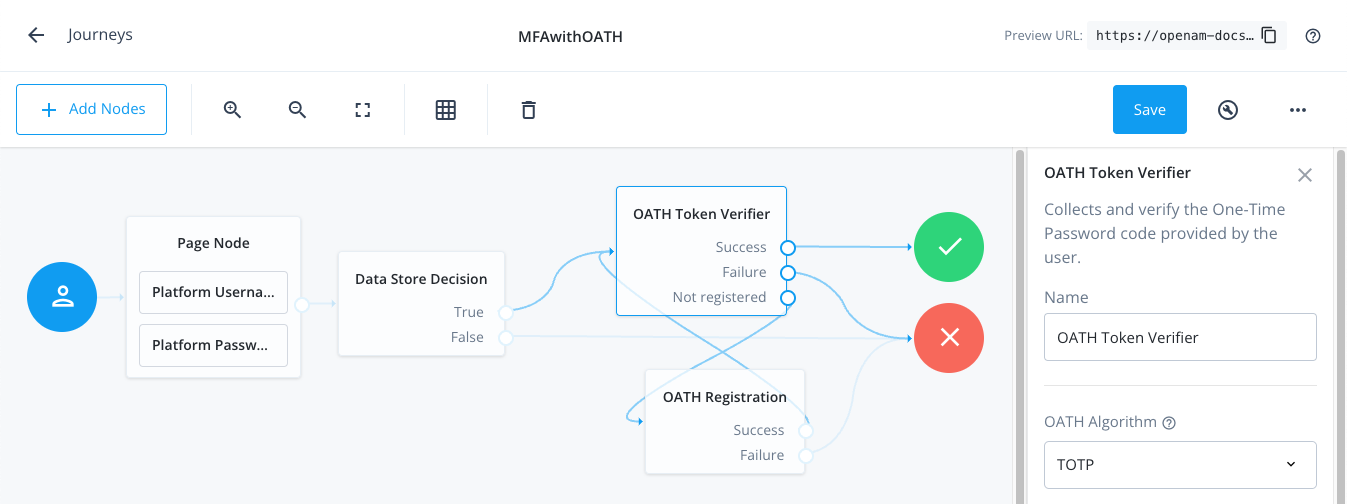 Figure 1. Connect the nodes to identify the user, then verify their OATH token.
 -
Ensure that the OATH Token Verifier node and the OATH Registration node or Combined MFA Registration node are using the same value for OATH Algorithm.
For example, select
TOTP. -
Save your changes.
-
In the AM admin UI:
-
Select the realm that will contain the authentication tree.
-
Select Authentication > Trees, and click Create Tree.
-
Enter a name for your tree in the New Tree page; for example,
MFAwithOATH, and click Create.The authentication tree designer page is displayed with the default Start, Failure, and Success nodes.
-
-
Add the following nodes to the designer area:
-
Connect the nodes as shown:
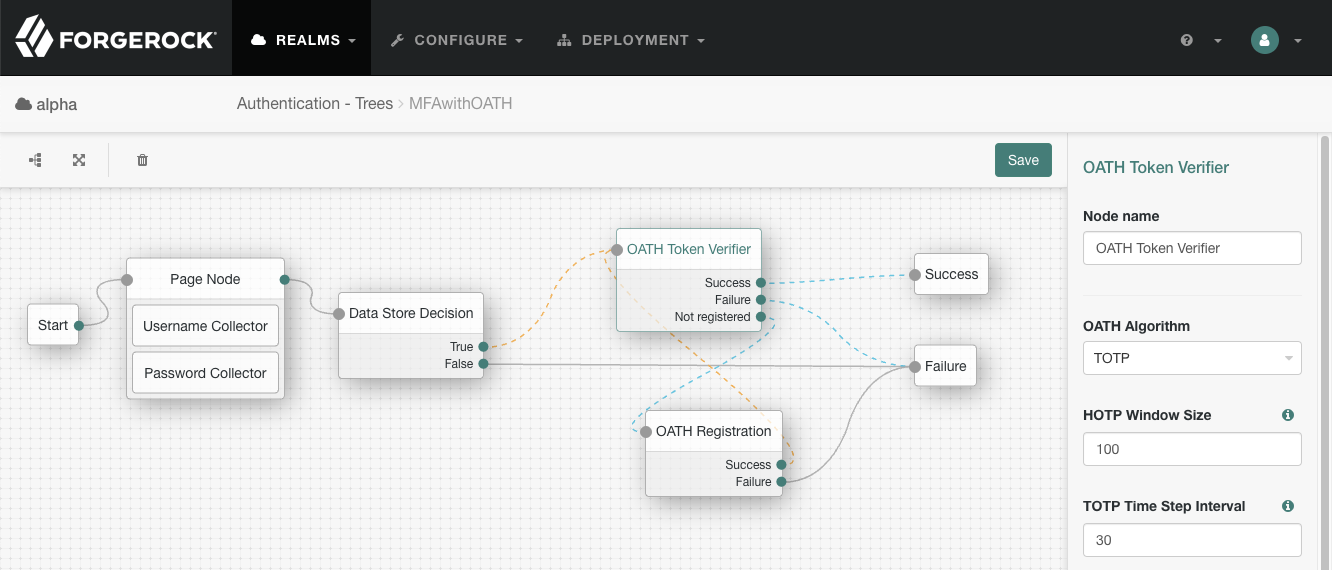 Figure 2. Connect the nodes to identify the user, then verify their OATH token.
 -
Ensure that the OATH Token Verifier node and the OATH Registration node or Combined MFA Registration node are using the same value for OATH Algorithm.
For example, select
TOTP. -
Save your changes.
The tree you create is a simple example for the purposes of demonstrating a basic OATH authentication journey. In a production environment, you could include additional nodes, such as:
- Get Authenticator App node
-
Provides links to download the ForgeRock Authenticator for Android and iOS.
- MFA Registration Options node
-
Provides options for users to register a multi-factor authentication device, get the authenticator app, or skip the registration process.
- Opt-out Multi-Factor Authentication node
-
Sets an attribute in the user’s profile which lets them skip multi-factor authentication.
- Recovery Code Display node
-
Lets a user view recovery codes to use in case they lose or damage the authenticator device they register.
- Recovery Code Collector Decision node
-
Lets a user enter their recovery codes to authenticate in case they have lost or damaged their registered authenticator device.
- Retry Limit Decision node
-
Lets a journey loop a specified number of times, for example, to allow a user to retry entering their OATH token.