Orchestration SDKs

Try out the Journey module for Android

PingOne Advanced Identity Cloud PingAM Android


In this quick start tutorial you configure the kotlin-journey sample application to connect to your PingOne Advanced Identity Cloud tenant or PingAM server to authenticate a user.

The sample supports many of the callbacks used by authentication journeys in Advanced Identity Cloud and PingAM, including advanced use cases such as Device Binding, FIDO authentication, external IdP integration, and PingOne Protect.

What does the kotlin-journey sample support?
Feature Supported by sample

Orchestration

  • Advanced Identity Cloud/PingAM - Journeys

Implementation

  • Embedded

Language

  • Kotlin

Callbacks

  • BooleanAttributeInputCallback

  • ChoiceCallback

  • ConfirmationCallback

  • ConsentMappingCallback

  • DeviceBindingCallback

  • DeviceProfileCallback

  • DeviceSigningVerifierCallback

  • FidoAuthenticationCallback

  • FidoRegistrationCallback

  • IdPCallback

  • KbaCreateCallback

  • NameCallback

  • NumberAttributeInputCallback

  • PasswordCallback

  • PingOneProtectEvaluationCallback

  • PingOneProtectInitializeCallback

  • PollingWaitCallback

  • RecaptchaEnterpriseCallback

  • SelectIdpCallback

  • StringAttributeInputCallback

  • TermsAndConditionsCallback

  • TextInputCallback

  • TextOutputCallback

  • ValidatedCreatePasswordCallback

  • ValidatedCreateUsernameCallback

Integrations

  • PingOne Protect

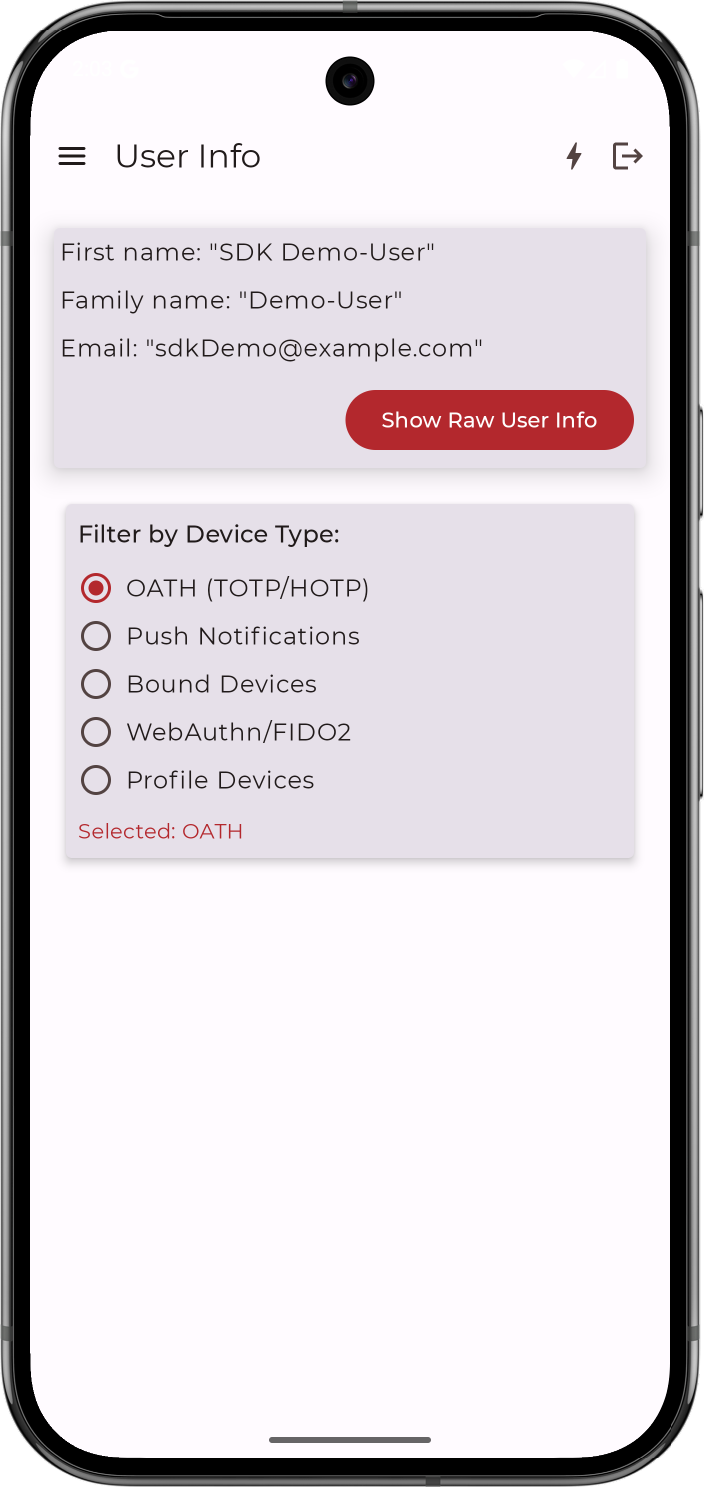
kotlin journey user info
Figure 1. Viewing userinfo for an account in the Android sample app.

The app steps through a simple authentication journey and returns a session token. The app is then able to obtain user info from the server, and finally sign out to terminate the session.

Before you begin

Before you begin this tutorial ensure you have set up your PingOne Advanced Identity Cloud tenant or PingAM server with the required configuration.

For example, you will need an OAuth 2.0 client application set up, as well as an authentication journey for the app to navigate.

Step 1. Download the samples

To start this tutorial, you need to download the SDK sample apps repo, which contains the projects you will use.

Step 2. Configure connection properties

In this step, you configure the "kotlin-journey" sample app to connect to the OAuth 2.0 application you created in PingOne Advanced Identity Cloud or PingAM.

Step 3. Test the app

In this step, you will test your application.

You run it in the emulator or on your Android device, perform authentication with a demo user, obtain OAuth 2.0 tokens, and then sign out.