Step 3. Test the app
PingOne Advanced Identity Cloud Android
In the following procedure, you run the sample app that you configured in the previous step. The app performs a centralized login on your PingOne Advanced Identity Cloud instance.
Log in as a demo user
-
In Android Studio, select Run > Run 'oidc'.
The Android emulator launches the default browser and starts the authentication journey:
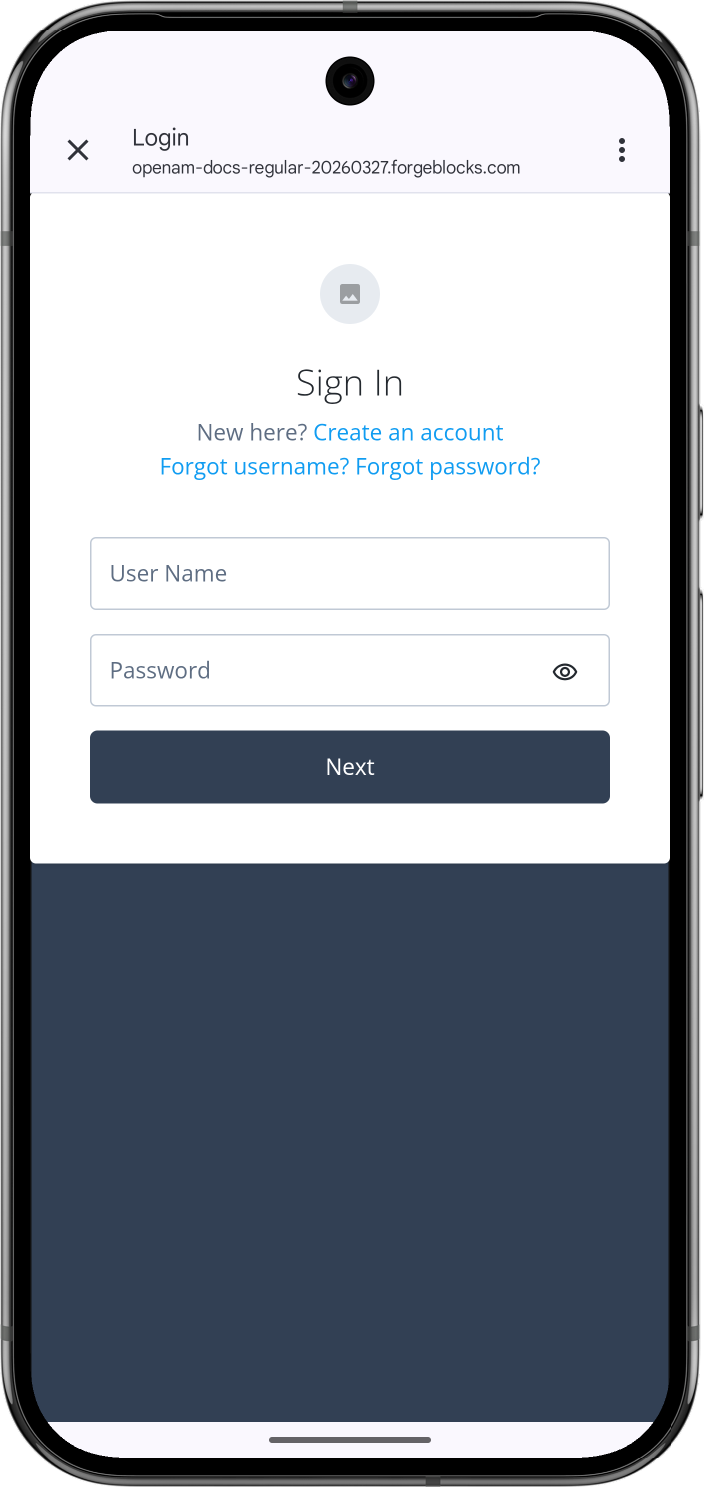 Figure 1. Starting the default authentication journey in the 'kotlin-oidc' sample app
 -
Sign on as a demo user:
-
Name:
demo -
Password:
Ch4ng3it!
If authentication is successful the app displays user info:
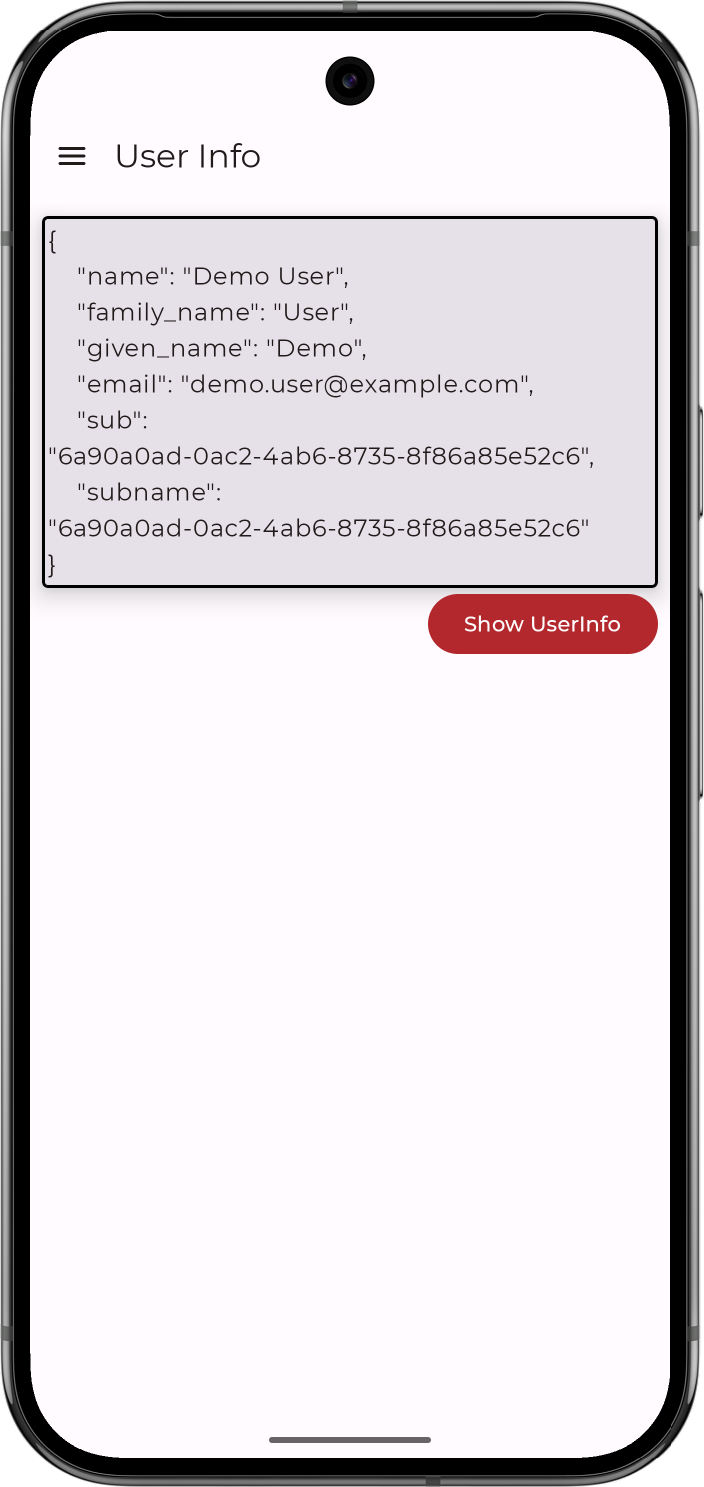 Figure 2. Showing user info in the 'kotlin-oidc' sample app
 -
-
Tap the menu icon (), and then tap Show Token.
The app displays the user’s access and refresh tokens, if issued:
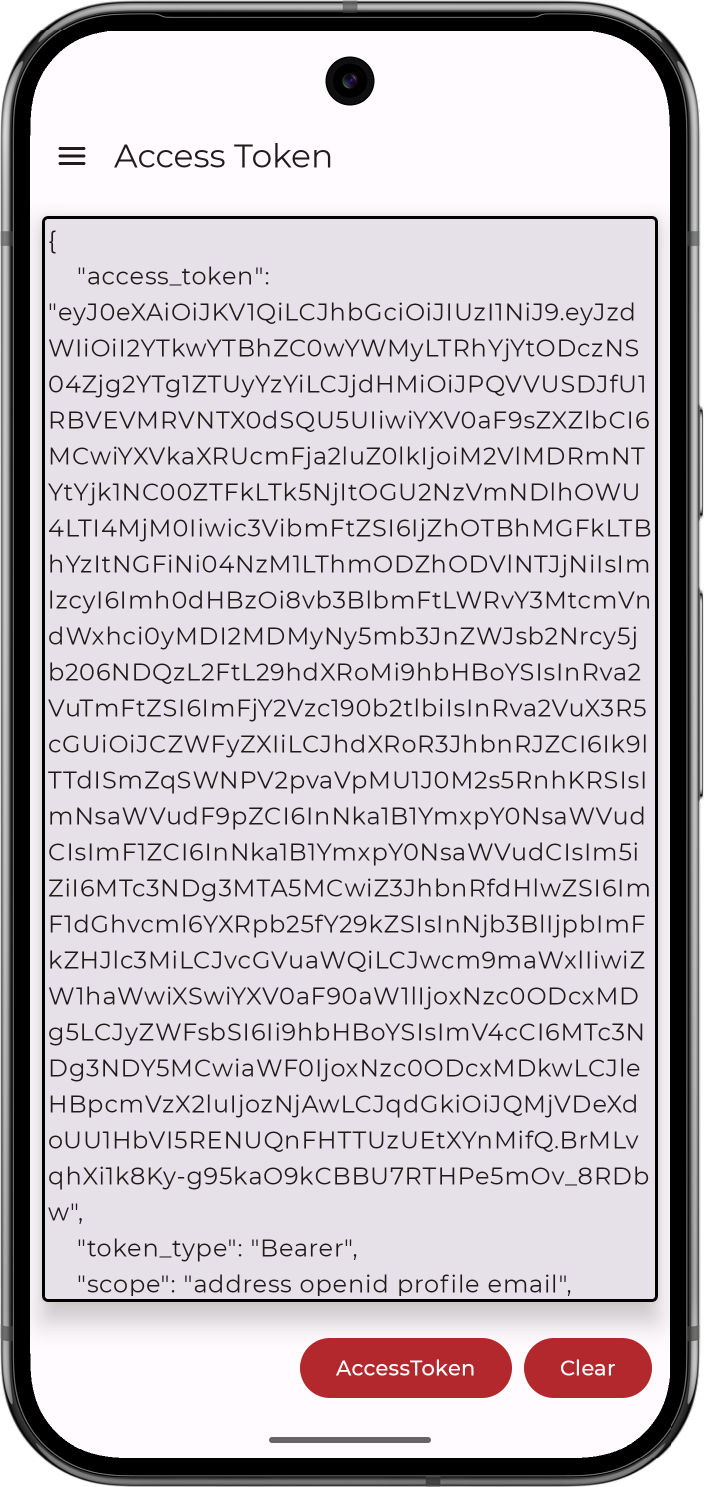 Figure 3. Showing access tokens in the 'kotlin-oidc' sample app
 -
Tap the menu icon (), and then tap Logout.
The app logs the user out of PingOne Advanced Identity Cloud, revokes the tokens, and returns to the start of the default authentication journey.