Configuring Android apps for OIDC sign-on
PingOne PingOne Advanced Identity Cloud PingAM OIDC-compliant servers Android
You can configure your Android apps to use your authorization server’s UI, or your own web application, for sign-on requests.
When a user attempts to sign on to your app it redirects them to the central sign-on UI. After the user authenticates, the authorization server redirects them back to your application or site.
Changes to authentication journeys or flows on your authorization server are available to all your apps that use the OIDC sign-on method, without the need to rebuild or redistribute the app. Likewise, any rebranding applied to your central sign-on UI is reflected immediately in your client apps.
Your app doesn’t need to access user credentials directly, just the result of the authentication from the server—usually an access token.
To configure an Android app to perform OIDC sign-on, complete each of the following steps:
Before you begin
You need to prepare your server for OIDC sign-on. Select your server from the options below and complete the tasks before proceeding to configure your application.
-
PingOne
-
Advanced Identity Cloud
-
AM
-
PingFederate
This tutorial requires you to configure your PingOne server as follows:
Task 1. Create a demo user
The samples and tutorials in this documentation often require that you have an identity set up so that you can test authentication.
To create a demo user in PingOne, follow these steps:
-
Log in to your PingOne administration console.
-
In the left panel, navigate to Directory > Users.
-
Next to the Users label, click the plus icon ().
PingOne displays the Add User panel.
-
Enter the following details:
-
Given Name =
Demo -
Family Name =
User -
Username =
demo -
Email =
demo.user@example.com -
Population =
Default -
Password =
Ch4ng3it!
-
-
Click Save.
Task 2. Register a public OAuth 2.0 client
To register a public OAuth 2.0 client application in PingOne for use with the Orchestration SDKs for Android and iOS, follow these steps:
-
Log in to your PingOne administration console.
-
In the left panel, navigate to Applications > Applications.
-
Next to the Applications label, click the plus icon ().
PingOne displays the Add Application panel.
-
In Application Name, enter a name for the profile, for example
sdkNativeClient -
Select Native as the Application Type, and then click Save.
-
On the Configuration tab, click the pencil icon ().
-
In Grant Type, select the following values:
Authorization CodeRefresh Token -
In Redirect URIs, enter the following values:
com.example.demo://oauth2redirect -
In Token Endpoint Authentication Method, select
None. -
In the Advanced Settings section, enable Terminate User Session by ID Token.
-
Click Save.
-
-
On the Resources tab, next to Allowed Scopes, click the pencil icon ().
-
In Scopes, select the following values:
emailphoneprofileThe openidscope is selected by default.The result resembles the following:
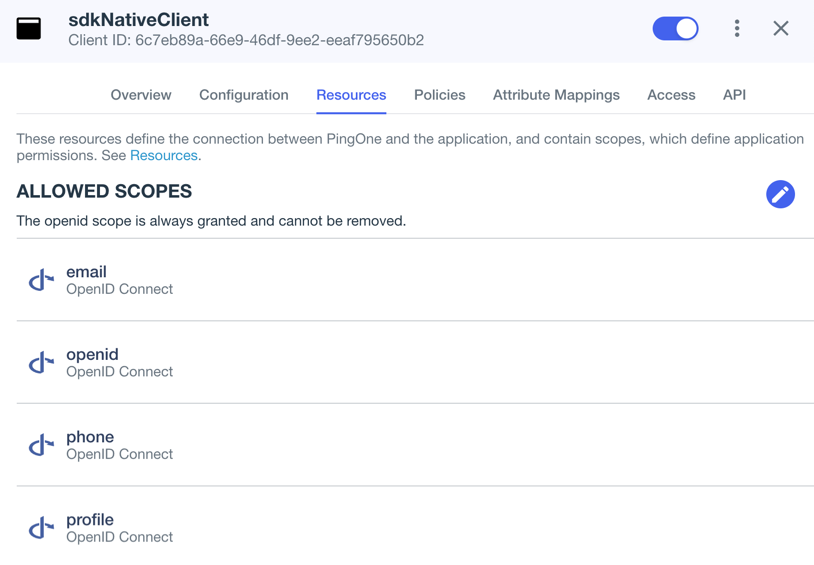 Figure 1. Adding scopes to an application.
-
-
Optionally, on the Policies tab, click the pencil icon () to select the authentication policies for the application.
Applications that have no authentication policy assignments use the environment’s default authentication policy to authenticate users.
If you have a DaVinci license, you can select PingOne policies or DaVinci Flow policies, but not both. If you do not have a DaVinci license, the page only displays PingOne policies.
To use a PingOne policy:
-
Click Add policies and then select the policies that you want to apply to the application.
-
Click Save.
PingOne applies the policies in the order in which they appear in the list. PingOne evaluates the first policy in the list first. If the requirements are not met, PingOne moves to the next one.
For more information, see Authentication policies for applications.
To use a DaVinci Flow policy:
-
You must clear all PingOne policies. Click Deselect all PingOne Policies.
-
In the confirmation message, click Continue.
-
On the DaVinci Policies tab, select the policies that you want to apply to the application.
-
Click Save.
PingOne applies the first policy in the list.
-
-
Click Save.
-
Enable the OAuth 2.0 client application by using the toggle next to its name:
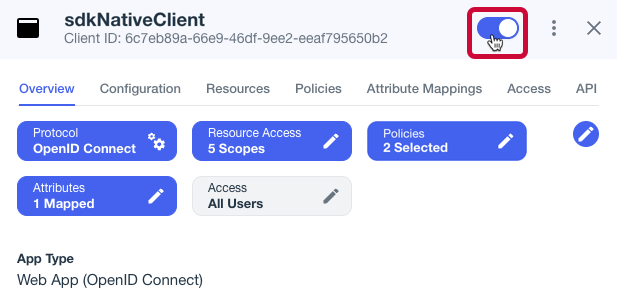 Figure 2. Enable the application using the toggle.
The application is now configured to accept client connections from and issue OAuth 2.0 tokens to the Android and iOS PingOne example applications and tutorials covered by this documentation.
This tutorial requires you to configure your PingOne Advanced Identity Cloud tenant as follows:
Task 1. Create a demo user
The samples and tutorials in this documentation often require that you have an identity set up so that you can test authentication.
To create a demo user in PingOne Advanced Identity Cloud, follow these steps:
-
Log in to your PingOne Advanced Identity Cloud tenant.
-
In the left panel, click Identities > Manage.
-
Click New Alpha realm - User.
-
Enter the following details:
-
Username =
demo -
First Name =
Demo -
Last Name =
User -
Email Address =
demo.user@example.com -
Password =
Ch4ng3it!
-
-
Click Save.
Task 2. Register a public OAuth 2.0 client
Public clients do not use a client secret to obtain tokens because they are unable to keep them hidden. The Orchestration SDKs commonly use this type of client to obtain tokens, as they cannot guarantee safekeeping of the client credentials in a browser or on a mobile device.
To register a public OAuth 2.0 client application for use with the SDKs in PingOne Advanced Identity Cloud, follow these steps:
-
Log in to your PingOne Advanced Identity Cloud tenant.
-
In the left panel, click Applications.
-
Click Custom Application.
-
Select OIDC - OpenId Connect as the sign-in method, and then click Next.
-
Select Native / SPA as the application type, and then click Next.
-
In Name, enter a name for the application, such as
Public SDK Client. -
In Owners, select a user that is responsible for maintaining the application, and then click Next.
When trying out the SDKs, you could select the demouser you created previously. -
In Client ID, enter
sdkPublicClient -
Select Configure for SDK Sample Apps.
-
Click Create Application.
PingOne Advanced Identity Cloud creates the application and displays the details screen.
-
On the Sign On tab:
-
In Sign-In URLs, ensure the following values appear, or add them if they don’t:
com.example.demo://oauth2redirecthttps://demo.example.com/oauth2redirectAlso add any other domains where you host SDK applications. -
In Grant Types, ensure the following values appear:
Authorization CodeRefresh Token -
In Scopes, ensure the following values appear:
openid profile email address
-
-
Click Show advanced settings, and on the Authentication tab, confirm the following properties:
-
In Token Endpoint Authentication Method, select
none. -
In Client Type, select
Public. -
Enable the Implied Consent property.
-
-
Click Save.
The application is now configured to accept client connections from and issue OAuth 2.0 tokens to the example applications and tutorials covered by this documentation.
Task 3. Configure the OAuth 2.0 provider
The provider specifies the supported OAuth 2.0 configuration options for a realm.
To ensure the PingOne Advanced Identity Cloud OAuth 2.0 provider service is configured for use with the Orchestration SDKs, follow these steps:
-
In your PingOne Advanced Identity Cloud tenant, navigate to Native Consoles > Access Management.
-
In the left panel, click Services.
-
In the list of services, click OAuth2 Provider.
-
On the Core tab, ensure Issue Refresh Tokens is enabled.
-
On the Consent tab, ensure Allow Clients to Skip Consent is enabled.
-
Click Save Changes.
This tutorial requires you to configure your AM server as follows:
Task 1. Create a demo user
The samples and tutorials in this documentation often require that you have an identity set up so that you can test authentication.
To create a demo user in PingAM, follow these steps:
-
Log in to the PingAM admin UI as an administrator.
-
Navigate to Identities, and then click Add Identity.
-
Enter the following details:
-
User ID =
demo -
Password =
Ch4ng3it! -
Email Address =
demo.user@example.com
-
-
Click Create.
Task 2. Register a public OAuth 2.0 client
Public clients do not use a client secret to obtain tokens because they are unable to keep them hidden. The Orchestration SDKs commonly use this type of client to obtain tokens, as they cannot guarantee safekeeping of the client credentials in a browser or on a mobile device.
To register a public OAuth 2.0 client application for use with the SDKs in AM, follow these steps:
-
Log in to the PingAM admin UI as an administrator.
-
Navigate to Applications > OAuth 2.0 > Clients, and then click Add Client.
-
In Client ID, enter
sdkPublicClient. -
Leave Client secret empty.
-
In Redirection URIs, enter the following values:
com.example.demo://oauth2redirecthttps://demo.example.com/oauth2redirect
Also add any other domains where you will be hosting SDK applications. -
In Scopes, enter the following values:
openid profile email address -
Click Create.
PingAM creates the new OAuth 2.0 client, and displays the properties for further configuration.
-
On the Core tab:
-
In Client type, select
Public. -
Disable Allow wildcard ports in redirect URIs.
-
Click Save Changes.
-
-
On the Advanced tab:
-
In Grant Types, enter the following values:
Authorization Code Refresh Token -
In Token Endpoint Authentication Method, select
None. -
Enable the Implied consent property.
-
-
Click Save Changes.
Task 3. Configure the OAuth 2.0 provider
The provider specifies the supported OAuth 2.0 configuration options for a realm.
To ensure the PingAM OAuth 2.0 provider service is configured for use with the Orchestration SDKs, follow these steps:
-
Log in to the PingAM admin UI as an administrator.
-
In the left panel, click Services.
-
In the list of services, click OAuth2 Provider.
-
On the Core tab, ensure Issue Refresh Tokens is enabled.
-
On the Consent tab, ensure Allow Clients to Skip Consent is enabled.
-
Click Save Changes.
This tutorial requires you to configure your PingFederate server as follows:
Task 1. Register a public OAuth 2.0 client
OAuth 2.0 client application profiles define how applications connect to PingFederate and obtain OAuth 2.0 tokens.
To allow the Orchestration SDKs to connect to PingFederate and obtain OAuth 2.0 tokens, you must register an OAuth 2.0 client application:
-
Log in to the PingFederate administration console as an administrator.
-
Navigate to .
-
Click Add Client.
PingFederate displays the Clients | Client page.
-
In Client ID and Name, enter a name for the profile, for example
sdkPublicClientMake a note of the Client ID value, you will need it when you configure the sample code.
-
In Client Authentication, select
None. -
In Redirect URIs, add the following:
com.example.demo://oauth2redirecthttps://demo.example.com/oauth2redirect
Also add any other URLs where you host SDK applications.
Failure to add redirect URLs that exactly match your client app’s values can cause PingFederate to display an error message such as
Redirect URI mismatchwhen attempting to end a session by redirecting from the SDK. -
In Allowed Grant Types, select the following values:
Authorization CodeRefresh Token -
In the OpenID Connect section:
-
In Logout Mode, select Ping Front-Channel
-
In Front-Channel Logout URIs, add the following:
com.example.demo://oauth2redirecthttps://demo.example.com/oauth2redirect
Also add any other URLs that redirect users to PingFederate to end their session.
Failure to add sign off URLs that exactly match your client app’s values can cause PingFederate to display an error message such as
invalid post logout redirect URIwhen attempting to end a session by redirecting from the SDK. -
In Post-Logout Redirect URIs, add the following:
com.example.demo://oauth2redirecthttps://demo.example.com/oauth2redirect
-
-
Click Save.
After changing PingFederate configuration using the administration console, you must replicate the changes to each server node in the cluster before they take effect.
In the PingFederate administration console, navigate to System > Server > Cluster Management, and click Replicate.
The application is now configured to accept client connections from and issue OAuth 2.0 tokens to the Orchestration SDK PingFederate example applications and tutorials covered by this documentation.
Task 2. Configure CORS
Cross-origin resource sharing (CORS) lets user agents make cross-domain server requests. In PingFederate, you can configure CORS to allow browsers or apps from trusted domains to access protected resources.
To configure CORS in PingFederate follow these steps:
-
Log in to the PingFederate administration console as an administrator.
-
Navigate to .
-
In the Cross-Origin Resource Sharing Settings section, in the Allowed Origin field, enter any DNS aliases you use for your SDK apps.
This documentation assumes the following configuration:
Property Values Allowed Origincom.example.demo://oauth2redirect -
Click Save.
After changing PingFederate configuration using the administration console, you must replicate the changes to each server node in the cluster before they take effect.
In the PingFederate administration console, navigate to System > Server > Cluster Management, and click Replicate.
Your PingFederate server is now able to accept connections from origins hosting apps built with the Orchestration SDKs.
Step 1. Configuring your app to handle redirects
After completing authentication in the browser, the server redirects the user back to your application, by using the value of the redirect_uri parameter.
You need to configure your app to open and accept the data the server sends as part of the redirect.
There are two methods for configuring an Android app to handle redirect URIs. To ensure that only your app is able to obtain authorization tokens during OIDC sign-on we recommend you configure it to use Android App Links.
If you don’t want to implement Android App Links, you can instead use a custom scheme for your redirect URIs.
-
Android App Links / HTTPS
-
Custom Scheme
You can configure your Android app to open and handle redirects that match the base domain of your authorization server, and use the HTTPS protocol.
Using this method, your redirect URI will resemble the following:
https://demo.example.com/oauth2redirect
To configure App Links in an Android application, perform the following steps:
-
In your application, configure the Orchestration SDK
browsermodule to use the HTTPS scheme for capturing redirect URIs, by adding an<intent-filter>forcom.pingidentity.browser.CustomTabActivityto yourAndroidManifest.xml:AndroidManifest.xml<activity android:name="com.pingidentity.browser.CustomTabActivity" android:exported="true" android:launchMode="singleTop"> <intent-filter android:autoVerify="true"> <action android:name="android.intent.action.VIEW" /> <category android:name="android.intent.category.DEFAULT" /> <category android:name="android.intent.category.BROWSABLE" /> <data android:scheme="https" /> <data android:host="demo.example.com" /> <data android:path="/oauth2redirect" /> </intent-filter> </activity>-
You must set
android:autoVerifytotrue. This instructs Android to verify the specified host against theassetlinks.jsonfile you update in the next step. -
Specify the
scheme,hosts, andpathparameters to use in your redirect URIs. The host value must match the domain where you upload theassetlinks.jsonfile.
To learn more about intents, refer to Add intent filters in the Android Developer documentation.
-
-
For Android 11 or higher, add the following to the
AndroidManfest.xmlfile:AndroidManifest.xml<queries> <intent> <action android:name="android.intent.action.VIEW" /> <category android:name="android.intent.category.BROWSABLE" /> <data android:scheme="https" /> </intent> </queries> -
Create or update a Digital Asset Links (
assetlinks.json) file that associates your app with your domain.You must host the file in a
.well-knownfolder on the same host that you entered in the intent filter earlier.The file will resemble the following:
https://demo.example.com/.well-known/assetlinks.json[ { "relation": [ "delegate_permission/common.handle_all_urls", ], "target": { "namespace": "android_app", "package_name": "com.example.demo", "sha256_cert_fingerprints": [ "c4:15:c8:f1:...:fe:ce:d7:37" ] } } ]-
To learn more, refer to Associate your app with your website in the Android Developer documentation.
-
-
Upload the completed file to the domain that matches the host value you configured in the earlier step.
For information on uploading an
assetLinks.jsonfile to an Advanced PingOne Advanced Identity Cloud instance, refer to Upload an Android assetlinks.json file.
You can configure your Android app to open and handle redirects that use a custom scheme, rather than HTTPS.
Using this method, your redirect URI will resemble the following:
com.example.demo://oauth2redirect
To configure a custom scheme in an Android application, perform the following steps:
-
Add the custom scheme your app will use to your
gradle.build.ktsfile:android { defaultConfig { manifestPlaceholders["appRedirectUriScheme"] = "com.example.demo" } }The custom scheme consists of the string before the colon (
:) character in the URI. -
For Android 11 or higher, add the following to the
AndroidManfest.xmlfile:<queries> <intent> <action android:name="android.intent.action.VIEW" /> <category android:name="android.intent.category.BROWSABLE" /> <data android:scheme="com.example.demo" /> </intent> </queries>
Step 2. Installing modules
For OIDC sign-on, you need these modules:
-
oidc -
browser
To install these modules into your Android app:
-
In the Project tree view of your Android Studio project, open the
build.gradle.ktsfile. -
In the
dependenciessection, add theoidcandbrowsermodules as dependencies:dependencies { implementation("com.pingidentity.sdks:oidc:2.1.0") implementation("com.pingidentity.sdks:browser:2.1.0") }
Step 3. Configuring connection properties
Configure the oidc module to connect to your OpenID Connect 1.0-compliant authorization server.
There are two methods for configuring the oidc module:
- Full configuration
-
Use the Kotlin builder DSL to access all available settings, including Android-specific options such as custom HTTP clients and storage configuration.
- Common JSON configuration
-
Use a shared key-value structure that works identically across Android, iOS, and JavaScript, letting you load a single config file across platforms.
Full configuration
oidc moduleval oidcClient = OidcWebClient {
logger = Logger.STANDARD
module(com.pingidentity.oidc.module.Oidc) {
discoveryEndpoint =
"https://auth.pingone.ca/3072206d-c6ce-ch15-m0nd-f87e972c7cc3/as/.well-known/openid-configuration"
clientId = "6c7eb89a-66e9-ab12-cd34-eeaf795650b2"
redirectUri = "https://demo.example.com/oath2redirect"
scopes = mutableSetOf("openid", "email", "address", "profile", "phone")
par = true
}
}Common JSON configuration
You can provide the same OIDC configuration as a JSON object, which lets you share a single config file across Android, iOS, and JavaScript.
OidcWebClient from a JSON objectval oidcClient = OidcWebClient(buildJsonObject {
put("timeout", 30000) // milliseconds
put("log", "WARN")
putJsonObject("oidc") {
put("clientId", "6c7eb89a-66e9-ab12-cd34-eeaf795650b2")
put("discoveryEndpoint",
"https://auth.pingone.ca/3072206d-c6ce-ch15-m0nd-f87e972c7cc3/as/.well-known/openid-configuration")
putJsonArray("scopes") { add("openid"); add("profile"); add("email") }
put("redirectUri", "com.example.demo://oauth2redirect")
put("par", true)
}
}).getOrThrow()Optionally, you can store this JSON in a file alongside your app and load it at runtime so the same file can be shared across platforms.
JSON configuration supports the common properties that work across all platforms.
|
The JSON factory and the native If you need Android-specific settings such as |
Configuration property reference
The following properties are available when configuring the oidc module for Android.
The JSON property column shows the equivalent key when using JSON configuration.
| Property | JSON property | Description | Required? | ||||||
|---|---|---|---|---|---|---|---|---|---|
|
|
The logger the module uses to output messages. Choose from Learn more in Customizing logging on Android. In JSON configuration, use the |
No |
||||||
|
|
A timeout, in milliseconds, for each request that communicates with the server. For example, for 30 seconds specify When using JSON configuration, specify |
No |
||||||
|
|
An optional space-separated list of Authentication Context Class Reference ( The server can use these values to help determine how the user should be authenticated as part of the OIDC flow. Before you specify an
|
No |
||||||
|
|
The client ID of your OAuth 2.0 application. For example, |
Yes |
||||||
|
|
The How do I find my PingOne .well-known URL?To find the
How do I form my PingFederate .well-known URL?To form the
How do I find my PingOne Advanced Identity Cloud
|
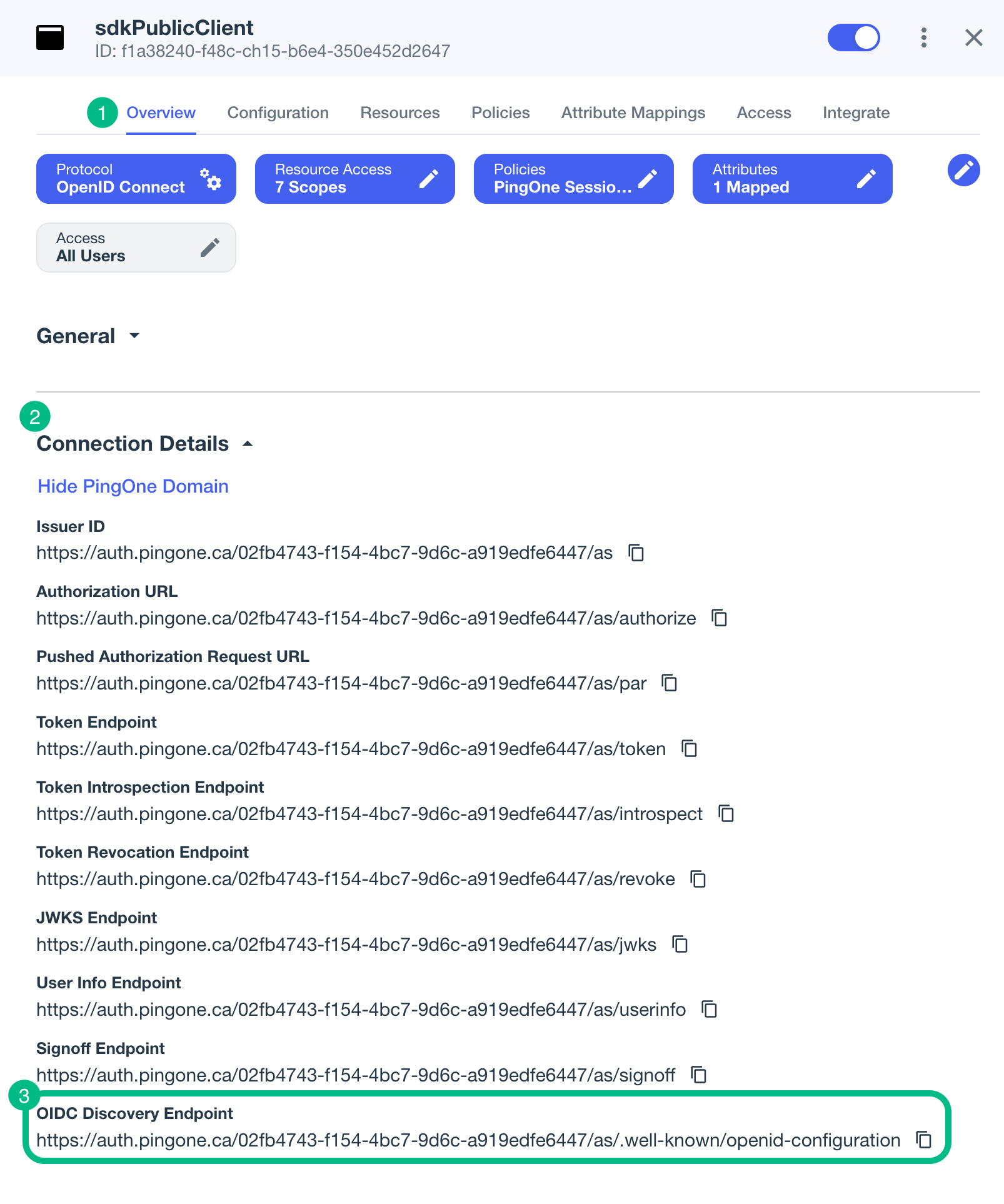
|
If you are using a custom domain, your
Learn more in Access OIDC configuration discovery endpoint. |
How do I find my PingAM .well-known URL?
To form the .well-known URL for an PingAM server, concatenate the following information into a single URL:
-
The base URL of the PingAM component of your deployment, including the port number and deployment path.
For example,
https://openam.example.com:8443/openam -
The string
/oauth2 -
The hierarchy of the realm that contains the OAuth 2.0 client.
You must specify the entire hierarchy of the realm, starting at the Top Level Realm. Prefix each realm in the hierarchy with the
realms/keyword.For example,
/realms/root/realms/customersIf you omit the realm hierarchy, the top level
ROOTrealm is used by default. -
The string
/.well-known/openid-configuration
For example, https://auth.pingone.ca/3072206d-c6ce-ch15-m0nd-f87e972c7cc3/as/.well-known/openid-configuration
Yes
loginHint
oidc.loginHint
An optional string that lets the server know what identifier the user might use to authenticate with.
The server can use this to pre-populate a sign-on form, or to customize the UI to match a particular brand or organization.
The Orchestration SDK sends this as the login_hint parameter in the authentication request, as per the specification.
No
par
oidc.par
Whether to use Pushed Authorization Requests (PAR) for communicating with the authorization server.
Learn more in Securing OIDC sign-on with Pushed Authorization Requests.
No
redirectUri
oidc.redirectUri
The redirect URI as configured in the OAuth 2.0 client profile.
This value must exactly match one of the values configured in your OAuth 2.0 client.
App link / HTTPS redirect URI: https://demo.example.com/oauth2redirect
Custom scheme redirect URI: com.example.demo://oauth2redirect
Yes
scopes
oidc.scopes
The scopes you added to your OAuth 2.0 application.
For example, "openid", "email", "address", "profile", "phone"
Yes
additionalParameters
oidc.additionalParameters
Add any additional key-value query parameters your environment might require to complete an OAuth 2.0 flow.
No
display
oidc.display
How the authorization server should display the authentication UI.
page-
Full-page redirect (default).
popup-
Pop-up window.
touch-
Optimized for touch-based devices.
wap-
Optimized for WAP/mobile browsers.
No
nonce
oidc.nonce
A value to associate with the ID token to prevent replay attacks.
If not set, the SDK generates a nonce automatically.
No
prompt
oidc.prompt
Controls whether the authorization server prompts the user for re-authentication or consent.
none-
No UI; returns an error if interaction is required.
login-
Force re-authentication.
consent-
Request consent even if previously granted.
select_account-
Prompt to select an account.
No
refreshThreshold
oidc.refreshThreshold
The number of seconds before token expiry at which the SDK proactively refreshes the token.
Defaults to 0, meaning the SDK refreshes only when the token has expired.
No
signOutRedirectUri
oidc.signOutRedirectUri
The URI to redirect to after sign-out.
Maps to the post_logout_redirect_uri parameter in the end-session request.
This value must be registered in your OAuth 2.0 client.
No
uiLocales
oidc.uiLocales
Space-separated BCP 47 language tags indicating the preferred display language for the authorization server’s UI.
For example, en-US fr
No
Learn more about OAuth 2.0 authentication request parameters in Authentication Request, in the OpenID Connect Core 1.0 specification.
Step 4. Starting the OAuth 2.0 flow
The oidc module provides the authorize() method, which launches the web browsers and starts the OAuth 2.0 flow.
authorize() methodoidcClient.authorize()
.onSuccess { user ->
...
}.onFailure { throwable ->
...
}|
You can inject or override OAuth 2.0 parameters, and pass custom key-pair values when starting the OAuth 2.0 flow with the Adding parameters when using the
authorize() methodIf you’ve already set a value using a dedicated configuration property, such as |
Step 5. Obtaining an Access Token
After successfully starting the OAuth 2.0 flow and authenticating the user, the server redirects control back to your application. Your application receives the OAuth 2.0 code and state parameters it needs to continue the flow and obtain an access token.
To obtain an access token on behalf of a user, follow these steps:
-
Create an object that represents a user’s authentication session by using the
user()method:Create a user object by calling theuser()methodval user = oidcClient.user() -
Retrieve a token on behalf of the user by calling the
token()method on youruserobject, and handle the result:Obtain an access token for a user by callinguser.token()and handle the resultwhen (val result = user.token()) { is Result.Failure -> { when (result.value) { is OidcError.ApiError -> TODO() is OidcError.AuthenticationRequired -> TODO() is OidcError.AuthorizeError -> TODO() is OidcError.NetworkError -> TODO() is OidcError.Unknown -> TODO() } } is Result.Success -> { val accessToken = result.value } }
Step 6. Revoking tokens and signing out
You can call the following methods on your user object to revoke OAuth 2.0 tokens, and sign out the user from the server:
user.revoke()-
Revokes the OAuth 2.0 tokens on the server, and deletes them from storage.
user.logout()-
Removes an session tokens the user may have, and contacts the server to end the user’s session.
Step 7. Customizing browser tabs
The OIDC module uses Auth Tabs for OIDC sign-on where possible, and falls back to use a custom tab if not.
You can customize aspects of how both of these appear in your app:
- Auth tabs
-
Auth Tabs provide enhanced security features for OAuth 2.0 flows and are automatically used when supported by the device and when the redirect URI uses a custom scheme.
Learn more in Simplify authentication using Auth Tab in the Chrome for Developers documentation.
To customize the auth tab, add your preferred configuration to
BrowserLauncher.authTabCustomizerbefore you callauthorize(), as follows:Customizing auth tabs on AndroidBrowserLauncher.authTabCustomizer = { setColorScheme(CustomTabsIntent.COLOR_SCHEME_DARK) // Add other AuthTabsIntent configurations as needed } - Custom tabs
-
The OIDC module falls back to using custom tabs if auth tabs are not supported on the device.
To customize the auth tab, add your preferred configuration to
BrowserLauncher.customTabsCustomizerbefore you callauthorize(), as follows:Customizing custom tabs on AndroidBrowserLauncher.customTabsCustomizer = { setShowTitle(false) setColorScheme(CustomTabsIntent.COLOR_SCHEME_SYSTEM) // Use the system default color scheme setToolbarColor( ContextCompat.getColor( context, R.color.colorPrimary ) ) // Set a specific toolbar color setUrlBarHidingEnabled(true) // Add other CustomTabsIntent configurations as needed }Learn more in Customizing the UI in the Chrome for Developers documentation.