Step 3. Test the app
PingOne Android
In the following procedure, you run the sample app that you configured in the previous step. The app performs a centralized login on your PingOne instance.
Log in as a demo user
-
In Android Studio, select Run > Run 'oidc'.
The Android emulator launches the default browser and opens the sign-on page:
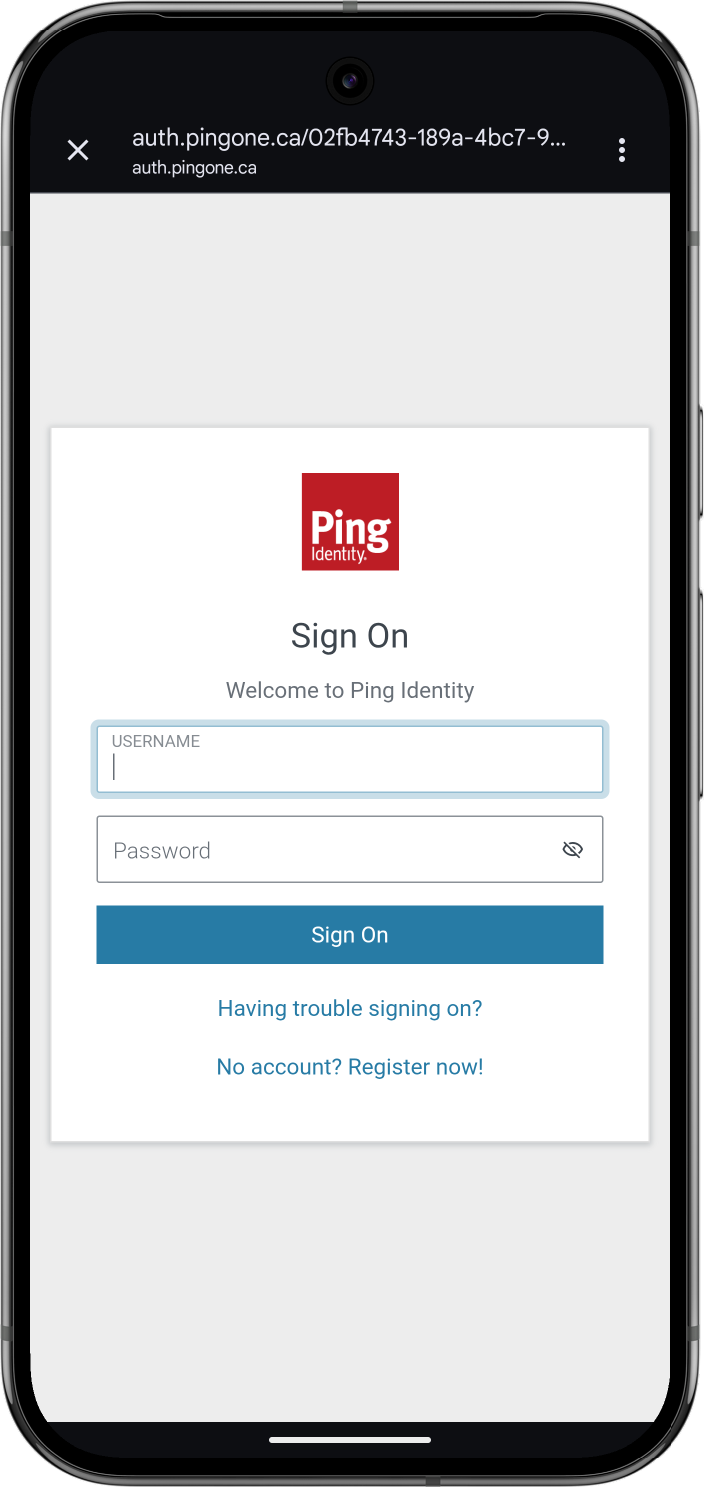 Figure 1. Signing on in the 'kotlin-oidc' sample app
 -
Sign on as a demo user:
-
Name:
demo -
Password:
Ch4ng3it!
If authentication is successful the app displays user info:
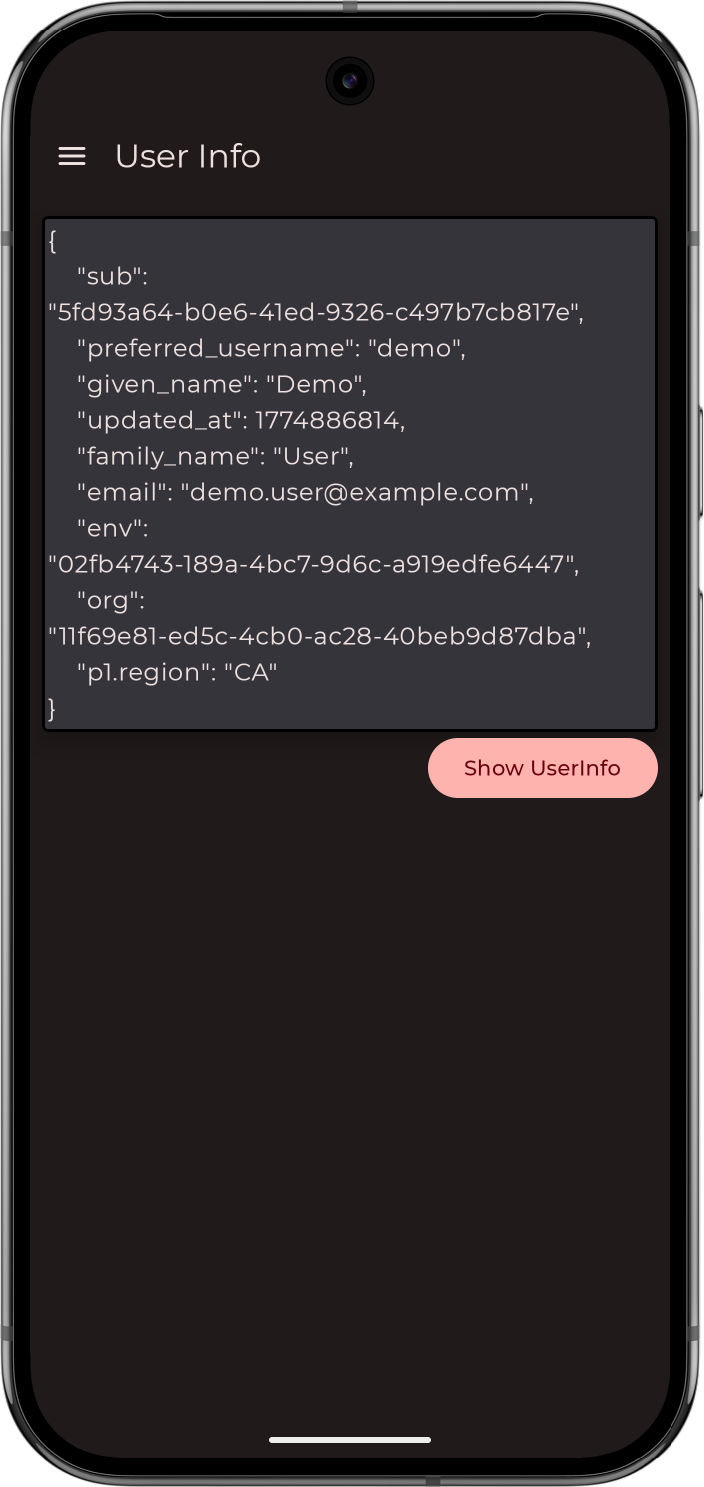 Figure 2. Showing user info in the 'kotlin-oidc' sample app
 -
-
Tap the menu icon (), and then tap Show Token.
The app displays the user’s access and refresh tokens, if issued:
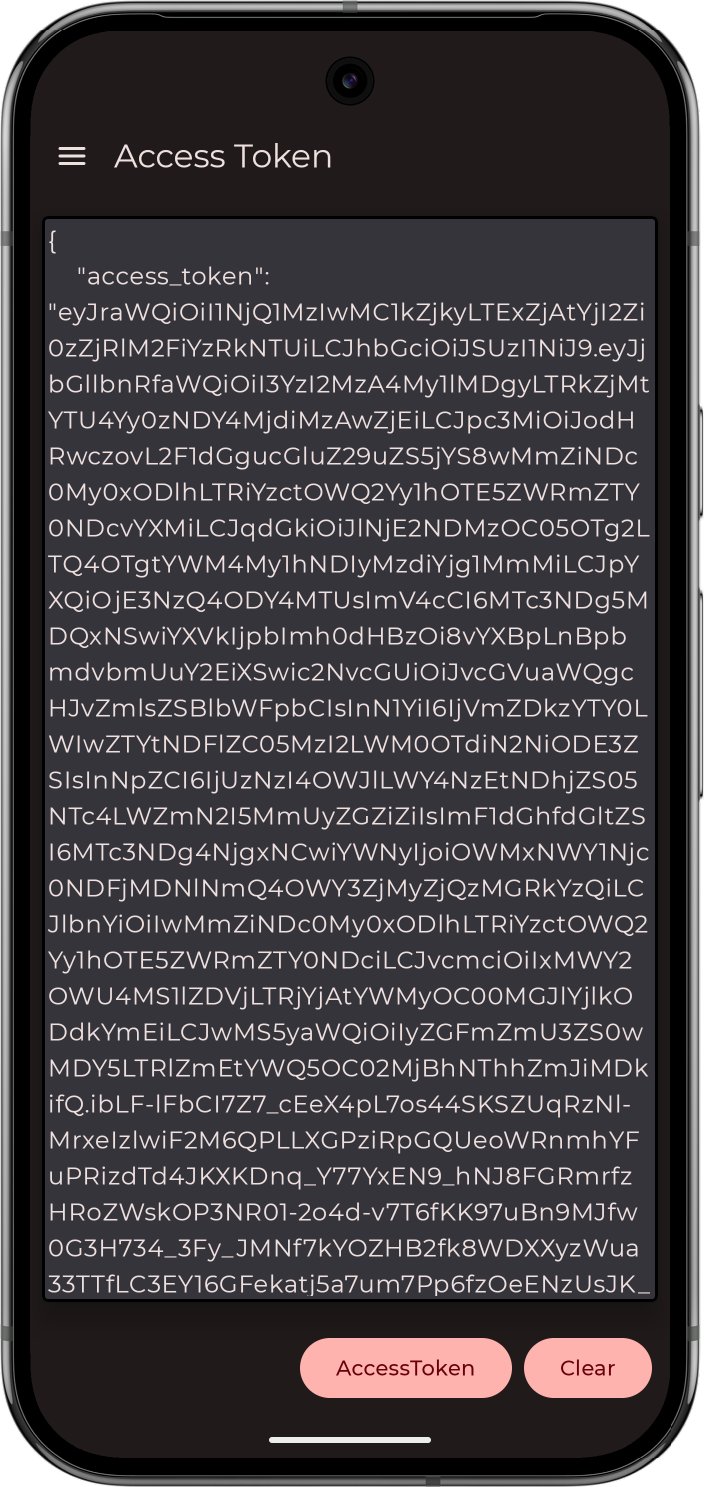 Figure 3. Showing access tokens in the 'kotlin-oidc' sample app
 -
Tap the menu icon (), and then tap Logout.
The app logs the user out of PingOne, revokes the tokens, and returns to the sign on page.
To verify the user is signed out:
-
In the PingOne administration console, navigate to Directory > Users.
-
Select the user you signed in as.
-
From the Services dropdown, select Authentication:
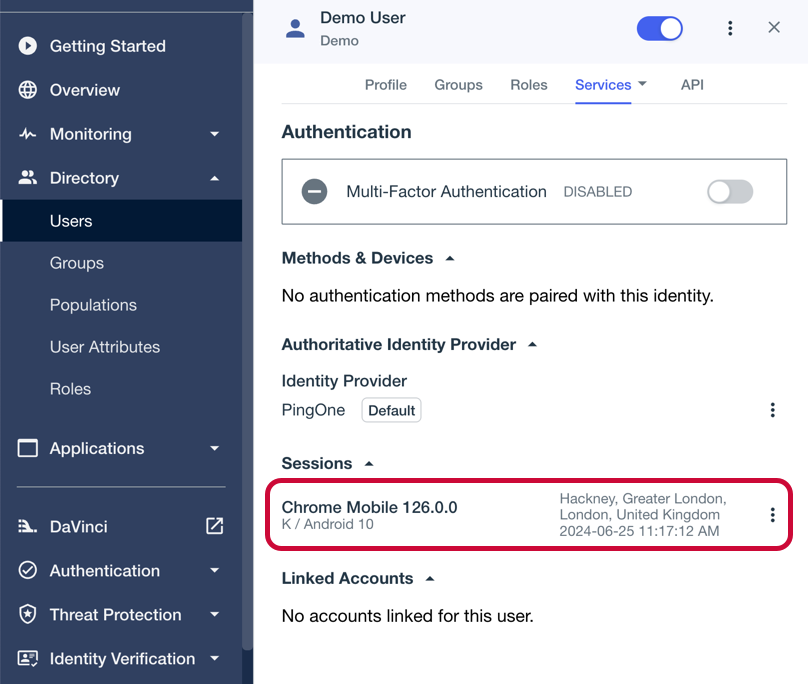 Figure 4. Checking a user’s sessions in PingOne.
The Sessions section displays any existing sessions the user has, and whether they originate from a mobile device.
-