Trying the DaVinci module sample app for Android
PingOne Android
This tutorial walks you through updating the provided kotlin-davinci sample app so that it connects to a PingOne tenant to authenticate a user using the PingOne sign-on with sessions DaVinci flow.
What functionality does the kotlin-davinci sample demonstrate?
| Feature | Supported by sample |
|---|---|
Orchestration |
|
Implementation |
|
Language |
|
DaVinci Fields |
|
DaVinci Buttons |
|
DaVinci Toolbox |
|
The kotlin-davinci application is a lightweight Android client.
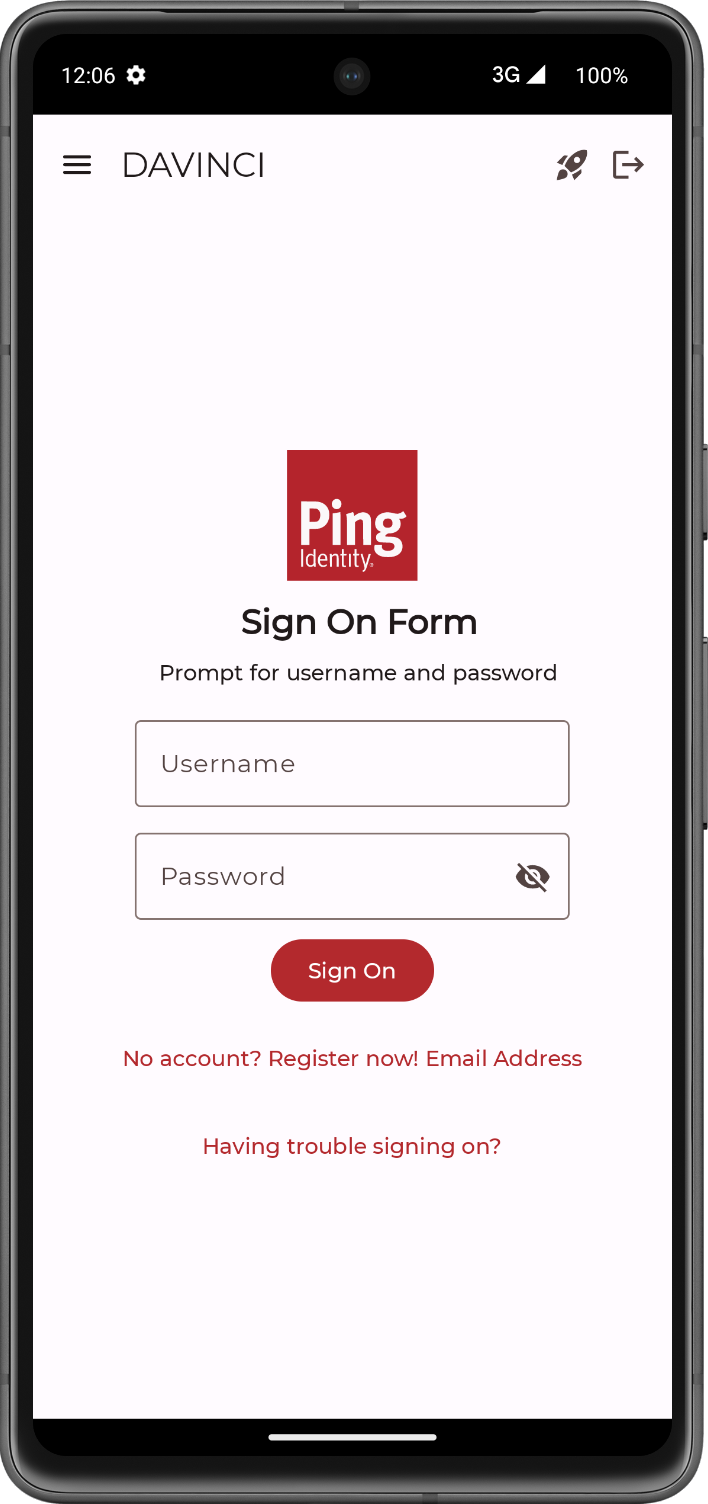
It is designed to demonstrate a core capability of the DaVinci module for Android: rendering a dynamic user interface based on signals received from a DaVinci flow.
Instead of having a hardcoded login screen, the app starts a DaVinci flow and waits for the server to send instructions on what to display. It then constructs the UI on-the-fly, whether it’s a username/password form, a message, or other interactive elements defined in your DaVinci flow.
The application’s code showcases several important implementation patterns for integrating with DaVinci:
1. Dynamic UI Rendering with Jetpack Compose
The app uses modern Android development practices, leveraging Jetpack Compose to build its user interface. The core logic resides in the DaVinciScreen.kt file.
-
It observes a state object from the
DaVinciViewModel. -
It uses a
whenstatement to react to the current state of the DaVinci flow (Login,Success, orFailure). -
For the
Loginstate, it iterates through the list of collectors returned from the DaVinci flow and renders the appropriate Composable for each one.This is the dynamic part—if you change the DaVinci flow the UI will change without needing to recompile the app.
2. State Management with ViewModel and StateFlow
The application follows the recommended Android architecture by separating UI logic from business logic.
-
DaVinciViewModel.ktis responsible for all interactions with the Ping Identity SDK. -
It uses a
MutableStateFlowto hold the current state of the DaVinci flow (DaVinciAction). The UI (Composable functions) subscribes to this flow and automatically updates whenever the state changes.This decouples the SDK interaction from the UI, making the code cleaner and easier to test.
3. SDK Initialization and Configuration
The app demonstrates how to initialize and configure the SDK to connect to your specific PingOne and DaVinci environment. In DaVinciViewModel, it shows how to:
-
Provide the necessary DaVinci module configuration
-
Start the DaVinci flow by calling
start().
4. Handling User Input
The sample shows how to collect data from the dynamically rendered input fields, such as username and password fields, package it into a Map, and submit it back to DaVinci using the action.next() method.
This is the mechanism for advancing the flow after a user provides their credentials or makes a choice.
This flow allows users to register, authenticate, and verify their email address with PingOne.