Step 2. Configure connection properties
PingOne JavaScript
There are two projects in this tutorial that require configuration:
- Client ReactJS app
-
The front-end client app, written in ReactJS, that handles the UI and authentication journeys.
- Backend API server
-
A backend REST API server that uses a confidential OAuth 2.0 client to contact the authorization server. The API server handles storage and retrieval of your personal "Todo" items.
Configure the ReactJS client app
-
In the IDE of your choice, open the
sdk-sample-appsfolder you cloned previously. -
Copy the
.env.examplefile in thesdk-sample-apps/javascript/reactjs-todo-oidcfolder and save it with the name.envwithin this same directory.Example clientsdk-sample-apps/javascript/reactjs-todo-oidc/.envfileWEB_OAUTH_CLIENT= WELLKNOWN_URL= SCOPE= #SERVER - 'PINGAM' or 'PINGONE' SERVER= API_URL=http://localhost:9443 PORT=8443 DEBUGGER_OFF=true DEVELOPMENT=true -
Update the configuration block with the details of your server environment.
- WEB_OAUTH_CLIENT
-
The client ID of the public OAuth 2.0 application in PingOne.
For example,
6c7eb89a-66e9-ab12-cd34-eeaf795650b2 - WELLKNOWN_URL
-
The
.well-knownendpoint from your server.How do I find my PingOne .well-known URL?
To find the
.well-knownendpoint for an OAuth 2.0 client in PingOne:-
Log in to your PingOne administration console.
-
Go to Applications > Applications, and then select your OAuth 2.0 client.
For example, sdkPublicClient.
-
On the Overview tab, expand the Connection Details section, and then copy the OIDC Discovery Endpoint value.
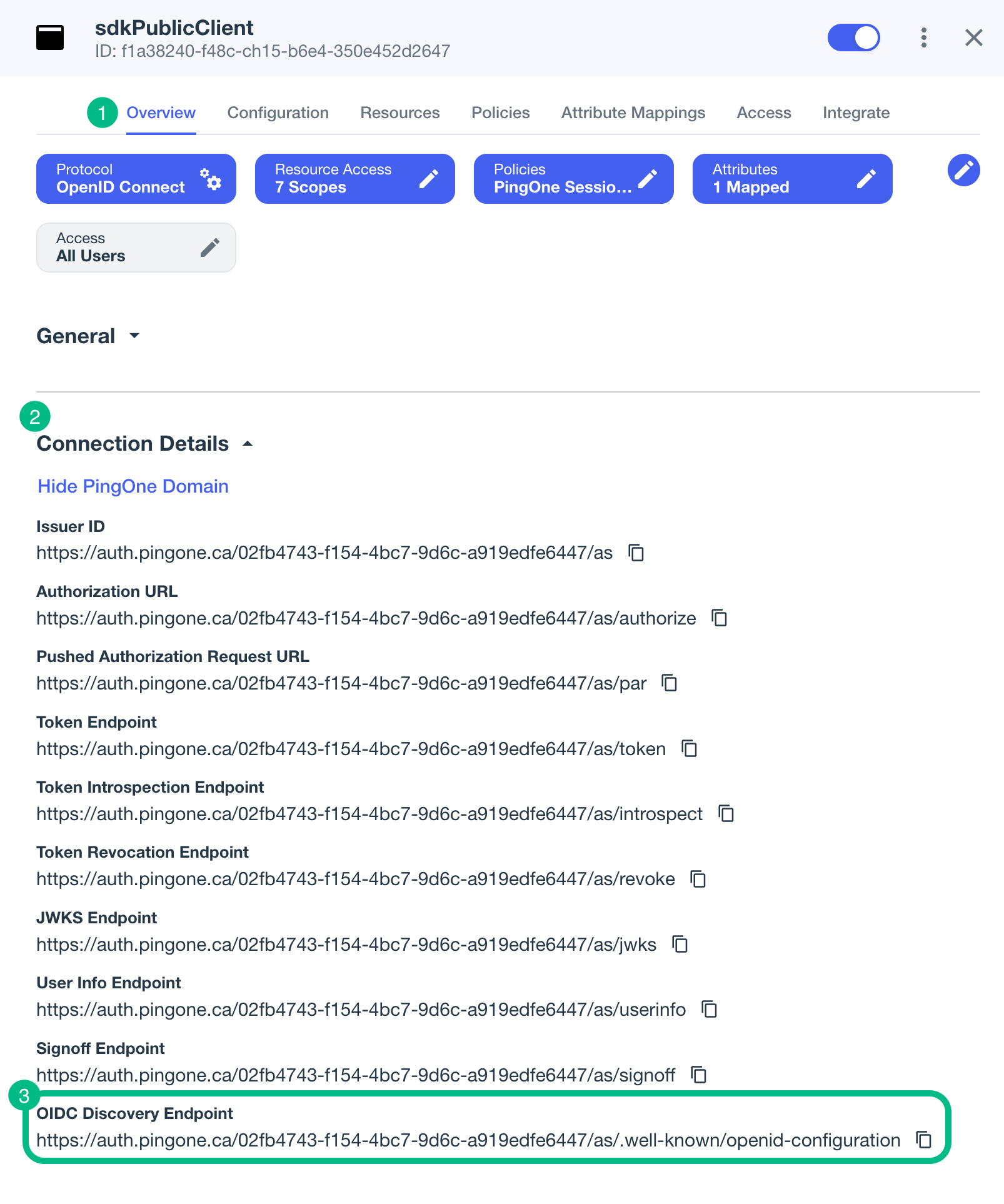
For example,
https://auth.pingone.com/3072206d-c6ce-ch15-m0nd-f87e972c7cc3/as/.well-known/openid-configuration -
- SCOPE
-
The scopes you added to your public OAuth 2.0 application.
Scopes should be space-separated, and the entire value should be enclosed in single-quotes.
For example,
'openid profile email phone revoke' - SERVER
-
Enter
'PINGONE'for PingOne servers. - API_URL
-
The URL and port number on which you are running the TODO API backend server.
For example,
http://localhost:9443 - PORT
-
The port number from which to server the client app.
Defaults to
8443 - DEBUGGER_OFF
-
Set to
true, to disabledebugstatements in the app.These statements are for learning the integration points at runtime in your browser.
When you open the browser’s developer tools, the app pauses at each integration point. Code comments are placed above each one explaining their use.
- DEVELOPMENT
-
When
true, this provides better debugging during development.
The result will resemble the following:
Example clientsdk-sample-apps/javascript/reactjs-todo-oidc/.envfileWEB_OAUTH_CLIENT=6c7eb89a-66e9-ab12-cd34-eeaf795650b2 WELLKNOWN_URL=https://auth.pingone.com/3072206d-c6ce-ch15-m0nd-f87e972c7cc3/as/.well-known/openid-configuration SCOPE='openid profile email phone revoke' #SERVER - 'PINGAM' or 'PINGONE' SERVER=PINGONE API_URL=http://localhost:9443 PORT=8443 DEBUGGER_OFF=true DEVELOPMENT=true -
Save your changes.
Configure the API server app
-
In the IDE of your choice, open the
sdk-sample-appsfolder you cloned previously. -
Copy the
.env.examplefile in thesdk-sample-apps/javascript/todo-apifolder and save it with the name.envwithin this same directory.The file contains configuration to connect to the same public OAuth 2.0 client as the TODO app itself:
Example default API serversdk-sample-apps/javascript/todo-api/.envfile# 'AIC' or 'PINGONE' SERVER_TYPE= # AM URL for AIC or PingOne base URL with env ID for PingOne SERVER_URL= PORT= # 'alpha' or 'bravo' for AIC server type. Not used for PingOne. REALM_PATH= # Confidential client ID for AIC or WebApp public client ID for PingOne REST_OAUTH_CLIENT= # Confidential client secret for AIC. Not used for PingOne. REST_OAUTH_SECRET= -
Update the configuration block with the details of your server environment.
- SERVER_TYPE
-
Ensures the sample app uses the correct behavior for the different servers it supports, for example the endpoint to use for introspecting tokens received from the client app.
For PingOne tenants, specify
PINGONE. - SERVER_URL
-
The URL of the authorization server to connect to. Enter the base URL of the authentication endpoint for your PingOne instance, followed by the environment ID.
For example, in the Canada region, your server URL value might be
https://auth.pingone.ca/3072206d-c6ce-ch15-m0nd-f87e972c7cc3Do not use the console URL (
https://console.pingone.ca) or app URL (https://apps.pingone.ca) for this property. - PORT
-
The port number on which to run the TODO API server.
You’ll need this port number when configuring the client app to connect to the TODO API server.
If not specified, the TODO API server defaults to running on port
9443 - REALM_PATH
-
This value is not required for PingOne servers.
- REST_OAUTH_CLIENT
-
Enter the ID of the same public client you used for the client application earlier.
For example,
6c7eb89a-66e9-ab12-cd34-eeaf795650b2 - REST_OAUTH_SECRET
-
This value is not required for PingOne servers.
The result will resemble the following:
Example completed API serversdk-sample-apps/javascript/todo-api/.envfile# 'AIC' or 'PINGONE' SERVER_TYPE=PINGONE # AM URL for AIC or PingOne base URL with env ID for PingOne SERVER_URL=https://auth.pingone.ca/3072206d-c6ce-ch15-m0nd-f87e972c7cc3 PORT=9443 # 'alpha' or 'bravo' for AIC server type. Not used for PingOne. REALM_PATH= # Confidential client ID for AIC or WebApp public client ID for PingOne REST_OAUTH_CLIENT=6c7eb89a-66e9-ab12-cd34-eeaf795650b2 # Confidential client secret for AIC. Not used for PingOne. REST_OAUTH_SECRET= -
Save your changes.