Step 4. Configuring Android apps for push notifications
PingOne Advanced Identity Cloud PingAM Android
In this step, you configure your application project to use Firebase Cloud Messaging.
-
In Android Studio, open your project and switch to the Project view.
-
Copy the
google-services.jsonfile that you downloaded from the Firebase console into the app-level root directory of your project: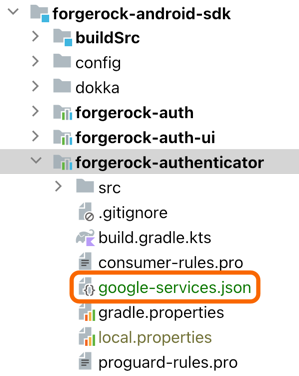 Figure 1. Adding the
google-services.jsonto the app root in Android Studio. -
To make the file available to the app, add the Google services Gradle plugin (
com.google.gms.google-services) as a dependency to your project.-
In your root-level Gradle file:
-
Kotlin
-
Groovy
build.gradle.ktsplugins { // ... // Add the dependency for the Google services Gradle plugin id("com.google.gms.google-services") version "4.4.2" apply false }build.gradleplugins { // ... // Add the dependency for the Google services Gradle plugin id 'com.google.gms.google-services' version '4.4.2' apply false } -
-
In your app-level Gradle file:
-
Kotlin
-
Groovy
build.gradle.ktsplugins { // ... // Add the Google services Gradle plugin id("com.google.gms.google-services") }build.gradleplugins { // ... // Add the Google services Gradle plugin id 'com.google.gms.google-services' } -
-
-
Switch to the Android view in Android Studio, and add the
android.permission.POST_NOTIFICATIONSpermission inside the<manifest>element in theAndroidManifest.xmlfile:Adding post notification permission toAndroidManifest.xml<uses-permission android:name="android.permission.POST_NOTIFICATIONS" />