Handling push notifications on iOS
PingOne iOS
When a user signs on from an accessing device, the PingOne MFA service can send a push notification to the user’s paired mobile device.
Your app processes this notification, shows the approve and deny actions to the user, and reports their response back to PingOne, which completes the sign-on on the accessing device.
The pingonemfa module provides the functions for each step:
-
The user signs on at the accessing device and PingOne sends a push notification to the paired device.
-
Your app receives the message from APNs and passes it to
processRemoteNotification, which returns aPushNotificationobject. -
Your app shows the approve and deny options, or the number-matching challenge if the push type is
.challenge. -
Your app calls
approveNotificationordenyNotificationon thePushNotificationobject with the user’s response.
Registering the push token
The PingOne MFA service sends push notifications through APNs, so it needs the current push token to know where to reach the device. The pingonemfa module’s setDeviceToken method sends the token to the PingOne MFA service, which records it against the device identity that the module established when it was initialized.
Registering the push token is independent of pairing. You can call setDeviceToken before the device is paired to a user: it updates the service’s record of the device only, and the token becomes usable only after the device claims a pairing key in a DaVinci flow.
Register the token at application startup and again whenever the system delivers a new token, typically from application(_:didRegisterForRemoteNotificationsWithDeviceToken:). The module must be initialized before you call setDeviceToken (see Setup and initialization):
func application(_ application: UIApplication,
                 didRegisterForRemoteNotificationsWithDeviceToken deviceToken: Data) {
    Task {
        do {
            try await PingOneMFA.setDeviceToken(deviceToken)
            // #if DEBUG
            // print("Registered. APNs push token: \(deviceToken.base64EncodedString())")
            // #endif
        } catch {
            print("Token registration failed: \(error.localizedDescription)")
        }
    }
}|
It can aid debugging to display the push token in the log during testing. It is best practice not to display these tokens in production code. For example, you could guard the log statement with a debug check, and leave it commented out. Uncomment it when testing. |
The module uses the APNs sandbox environment in DEBUG builds and the production environment otherwise. See the note in Configuring push notifications about matching the environment to your build configuration.
Registering notification categories
To receive actionable banner notifications, register the module’s notification categories with UNUserNotificationCenter at app launch:
let categories = PingOneMFA.getNotificationCategories()
UNUserNotificationCenter.current().setNotificationCategories(categories)
Receiving and processing the notification
Notifications arrive through APNs.
In your UNUserNotificationCenterDelegate or app delegate, pass the notification’s userInfo dictionary to the pingonemfa module’s processRemoteNotification method, which returns a PushNotification object:
// In application(_:didReceiveRemoteNotification:fetchCompletionHandler:):
do {
    if let push = try await PingOneMFA.processRemoteNotification(userInfo: userInfo) {
        switch push.pushType {
        case .default:   showApproveDenyUI(push)
        case .challenge: showNumberChallengeUI(push)
        case .dry:       break // test push — no user action required
        }
    }
} catch {
    // Thrown when the push is not a PingOne MFA notification
    print("Push processing failed: \(error.localizedDescription)")
}
A returned nil means the module handled the notification internally, and no UI is needed from your app. This happens when the push is a test push sent during device registration or pairing: the module completes the registration and never delivers a PushNotification object to your app.
A thrown error means the notification was not a PingOne MFA push, so the module could not process it.
The PushNotification object provides the fields and properties your app works with:
| Field or property | Type | Description |
|---|---|---|
|
|
Approves the push authentication request. Pass the challenge number for number-matching pushes, |
|
|
Denies the push authentication request. |
|
String |
Unique identifier for this notification instance. |
|
Bool |
Returns |
|
[Int] |
The numbers to display for number matching. Empty when the policy expects the user to enter the number manually. |
|
|
The type of push: |
|
String? |
Notification title extracted from the APNs payload. |
|
String? |
Notification body extracted from the APNs payload. |
The type of push determines what your app shows the user:
.default-
A standard authentication request that the user approves or denies with a single tap.
.challenge-
Uses number matching, where the user enters or selects the correct number before the authentication completes.
.dry-
A test push that verifies push registration, delivered to your app as a
PushNotificationwhen the push is processed through the normal path described above, rather than during pairing. No user action is required, so your app can safely ignore it.
Handling a default push
A .default push carries the notification title and message from the PushNotification object. Show the approve and deny options to the user, for example as buttons in your app or as actions on the system notification banner:
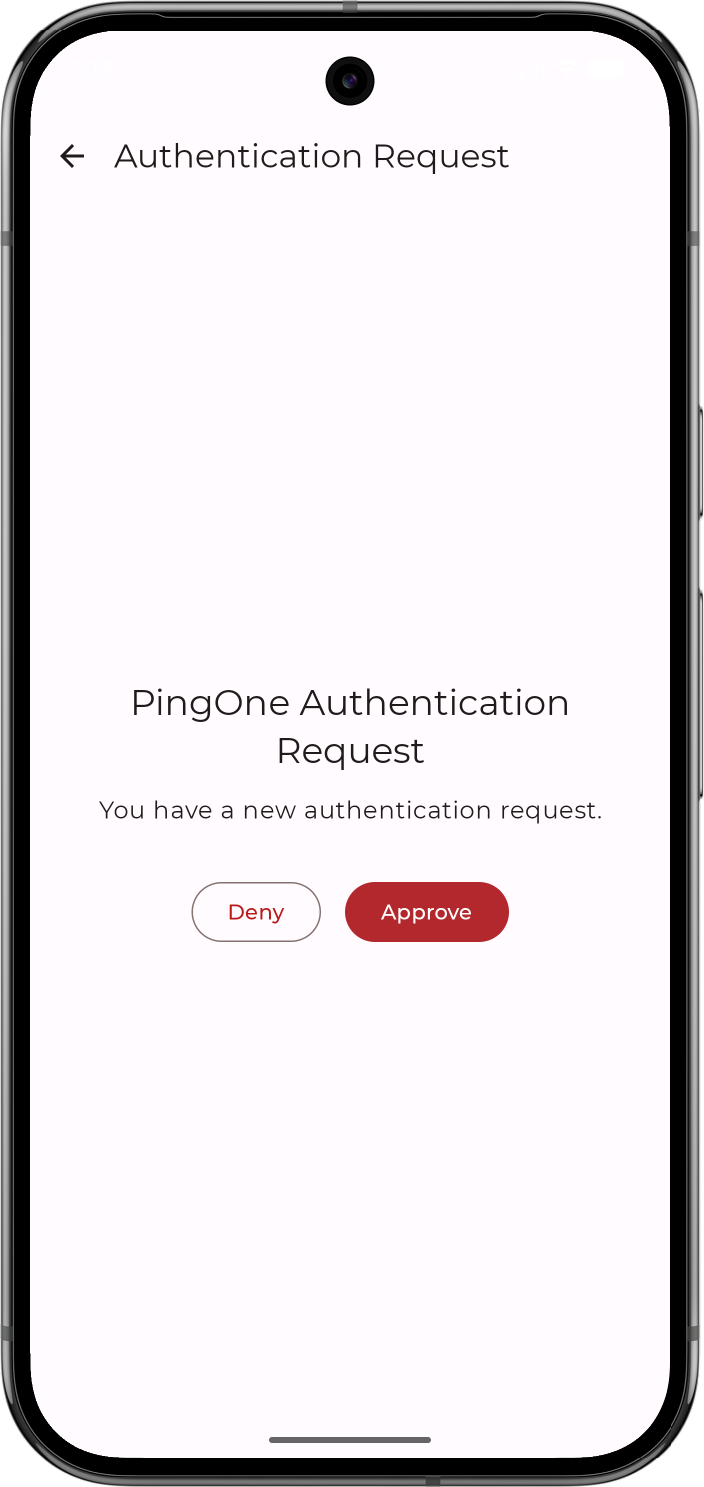
default push authentication requestIf the user approves, call approveNotification on the PushNotification object. This completes the authentication: the DaVinci flow on the accessing device is waiting on the device authentication transaction, and it resumes as soon as PingOne records the response.
The call takes an authMethod value that records how the user verified themselves in your app; pass "user" when the user simply tapped a button, or "biometric" if your app gated the approval behind a biometric prompt.
For .default pushes, pass nil as numberChallenge:
try await push.approveNotification(authMethod: "user", numberChallenge: nil)If the user denies, call denyNotification. The sign-on on the accessing device fails, and the DaVinci flow continues down its failure path:
try await push.denyNotification()Both functions are async throws. A successful return means PingOne recorded the response, not that the user authenticated; the outcome of the sign-on itself is determined by the DaVinci flow on the accessing device.
Handling a challenge push
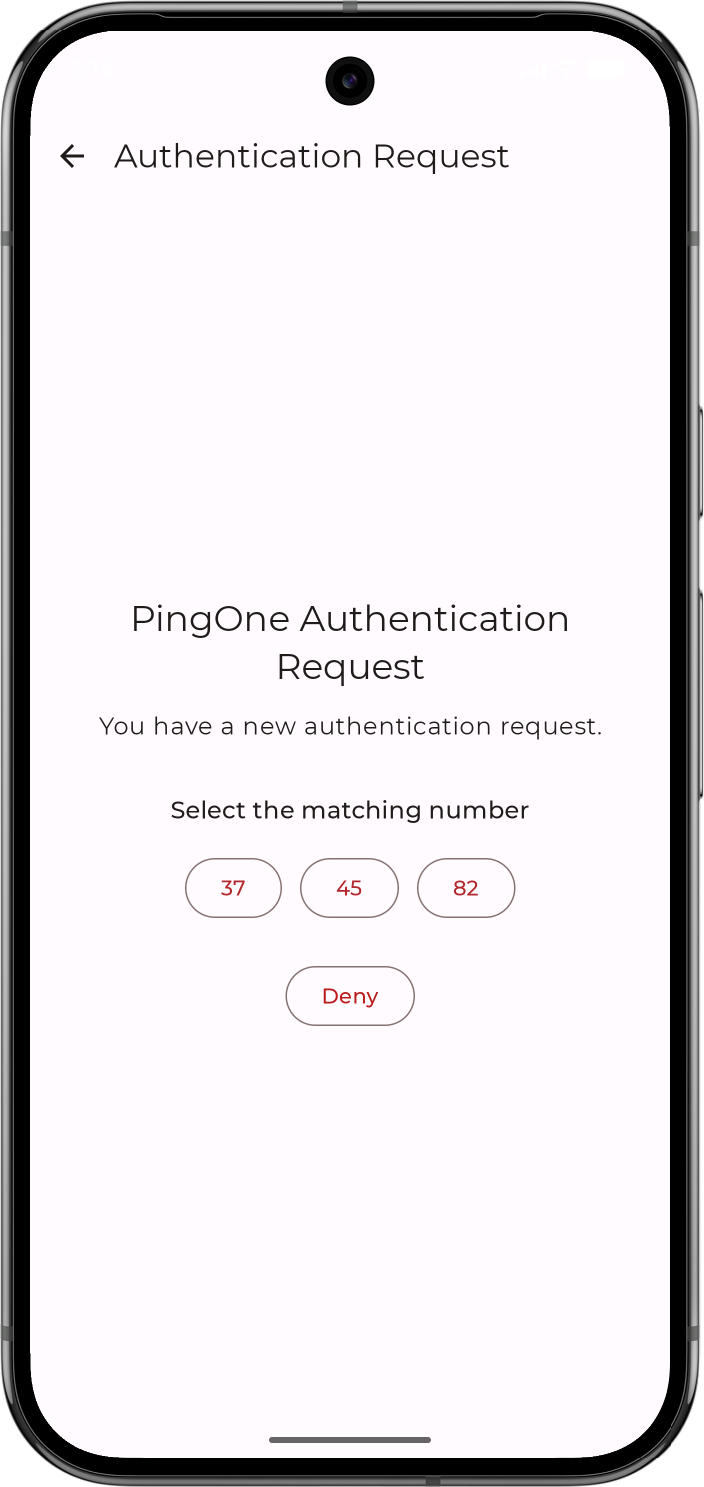
If your PingOne MFA policy uses number matching, the push type is .challenge and the PushNotification object carries the challenge numbers. Use getNumbersChallenge to get them and present them to the user:
-
If PingOne is configured so the user selects the correct number from a group of numbers displayed, the property returns those numbers.
-
If PingOne requires the user to type the number in, the property is empty. Your app prompts the user to enter the number displayed on the accessing device.
|
To select the type of number matching, configure the Number Matching Options property on the Mobile tab of your application in PingOne. |
let options: [Int] = push.getNumbersChallenge
// Empty array when the application expects the user to enter the number manually
Selecting the correct number, or entering it, approves the sign-on; there is no separate approve action. When the user selects or enters the number, pass it as numberChallenge when you call approveNotification:
try await push.approveNotification(authMethod: "user", numberChallenge: selectedNumber)If the user denies, call denyNotification as for a .default push. The sign-on on the accessing device fails, and the DaVinci flow continues down its failure path:
try await push.denyNotification()A successful return means PingOne recorded the response, not that the user authenticated; the outcome of the sign-on itself is determined by the DaVinci flow on the accessing device.
Handling banner actions with the app in the background
When the user taps Approve or Deny on the system notification banner while the app is in the background, handle the action in UNUserNotificationCenterDelegate by calling processRemoteNotificationAction with the response’s action identifier and userInfo:
func userNotificationCenter(_ center: UNUserNotificationCenter,
                            didReceive response: UNNotificationResponse,
                            withCompletionHandler completionHandler: @escaping () -> Void) {
    Task {
        do {
            let push = try await PingOneMFA.processRemoteNotificationAction(
                identifier: response.actionIdentifier,
                authenticationMethod: nil,
                userInfo: response.notification.request.content.userInfo
            )
            // push is nil when the SDK handled the action internally and no UI is needed
            if let push = push {
                // present approve/deny UI if needed
            }
        } catch {
            print("Notification action failed: \(error.localizedDescription)")
        }
        completionHandler()
    }
}