Step 4. Running and testing the app
PingOne React Native
In the following procedure, you run the PingSampleApp project configured in the previous steps.
Unless otherwise specified, run the commands from the PingSampleApp directory.
Starting the Metro bundler
Metro is the JavaScript bundler for React Native.
Start it in a terminal window and leave it running:
yarn startRunning on Android
In a separate terminal window, from the PingSampleApp directory, run the sample app on an Android emulator or connected device:
yarn androidRunning on iOS
In a separate terminal window, from the PingSampleApp directory, run the sample app on the iOS simulator:
yarn iosAuthenticating with a DaVinci flow
After launching the app, follow these steps to run an authentication flow:
-
On the home screen, tap DaVinci flow.
The app starts the DaVinci flow and renders the fields and actions returned as collectors:
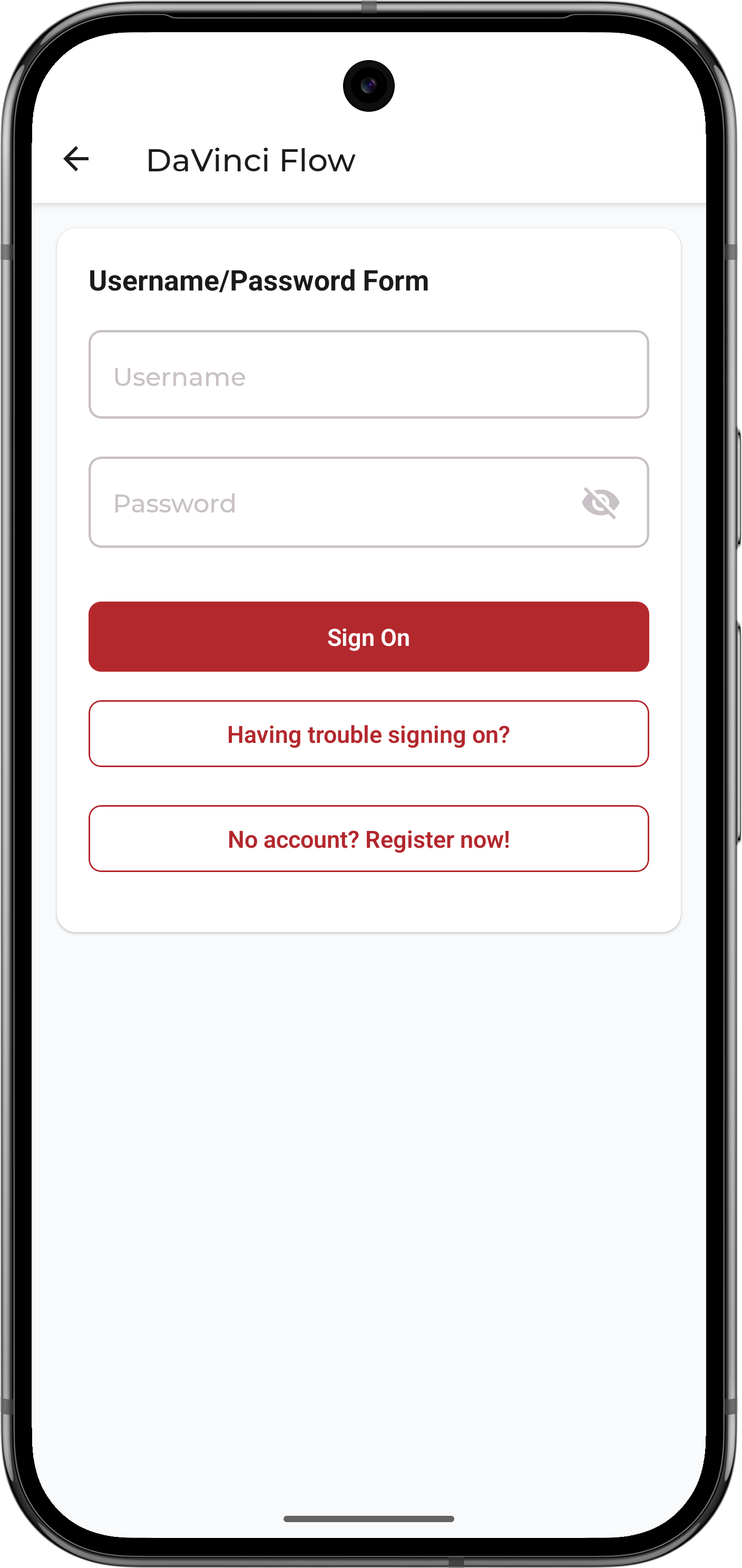 Figure 1. The DaVinci flow login screen
 -
Enter the credentials or other values requested by the flow, and submit each step.
The exact screens depend on the connectors and fields configured in your PingOne flow.
-
After successful authentication, the app displays the authenticated state:
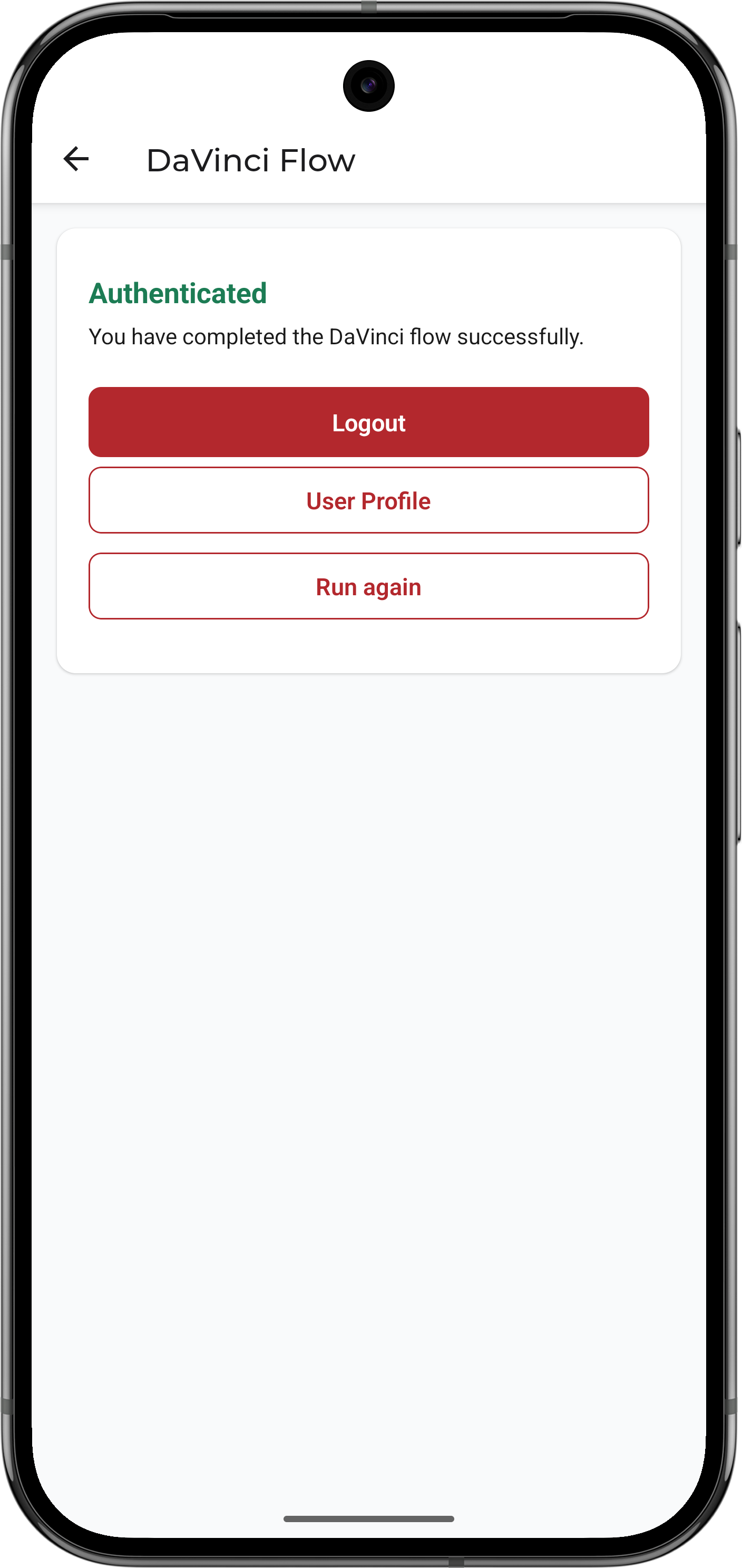 Figure 2. The authenticated state in the Android sample app
 -
Tap User Profile, and then select the DaVinci tab to view profile information gathered from the
/userinfoendpoint: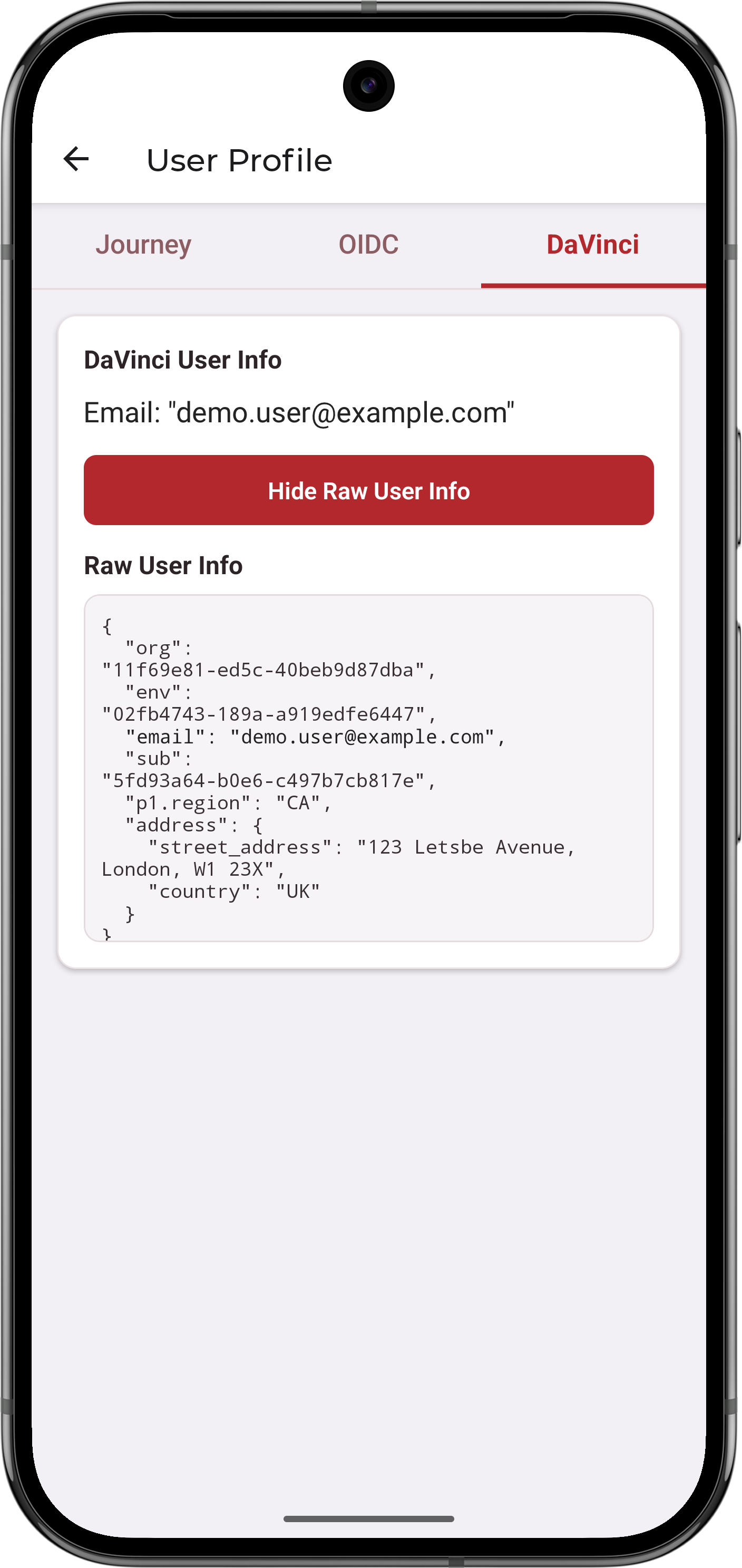 Figure 3. The DaVinci user profile screen
 -
Tap the back arrow () to return to the main menu, tap Access Token, and then select the DaVinci tab.
The sample app displays the issued access token, and provides buttons to refresh or revoke the token:
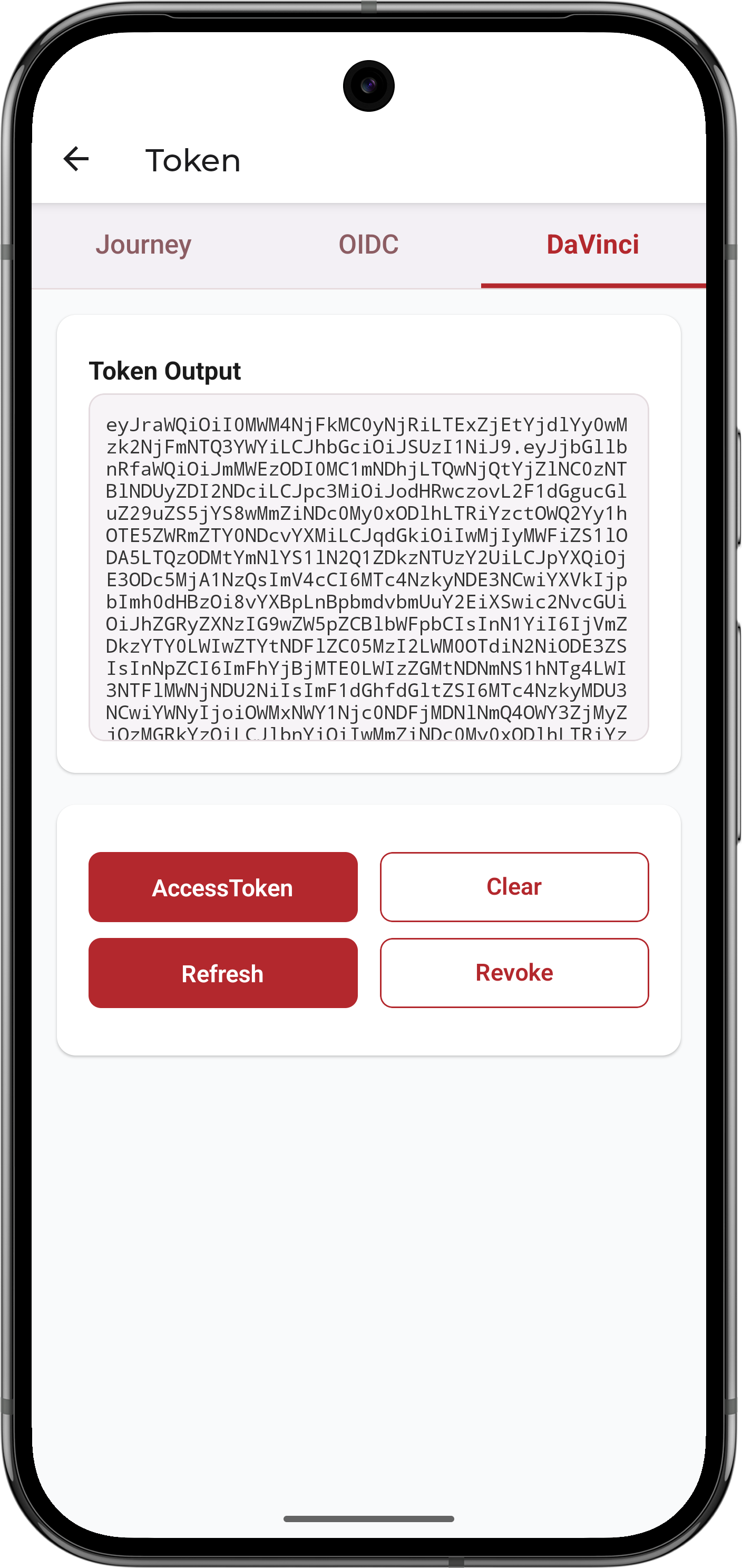 Figure 4. The DaVinci access token screen
 -
Tap the back arrow () to return to the main menu, tap Logout, and then tap Logout from DaVinci Session:
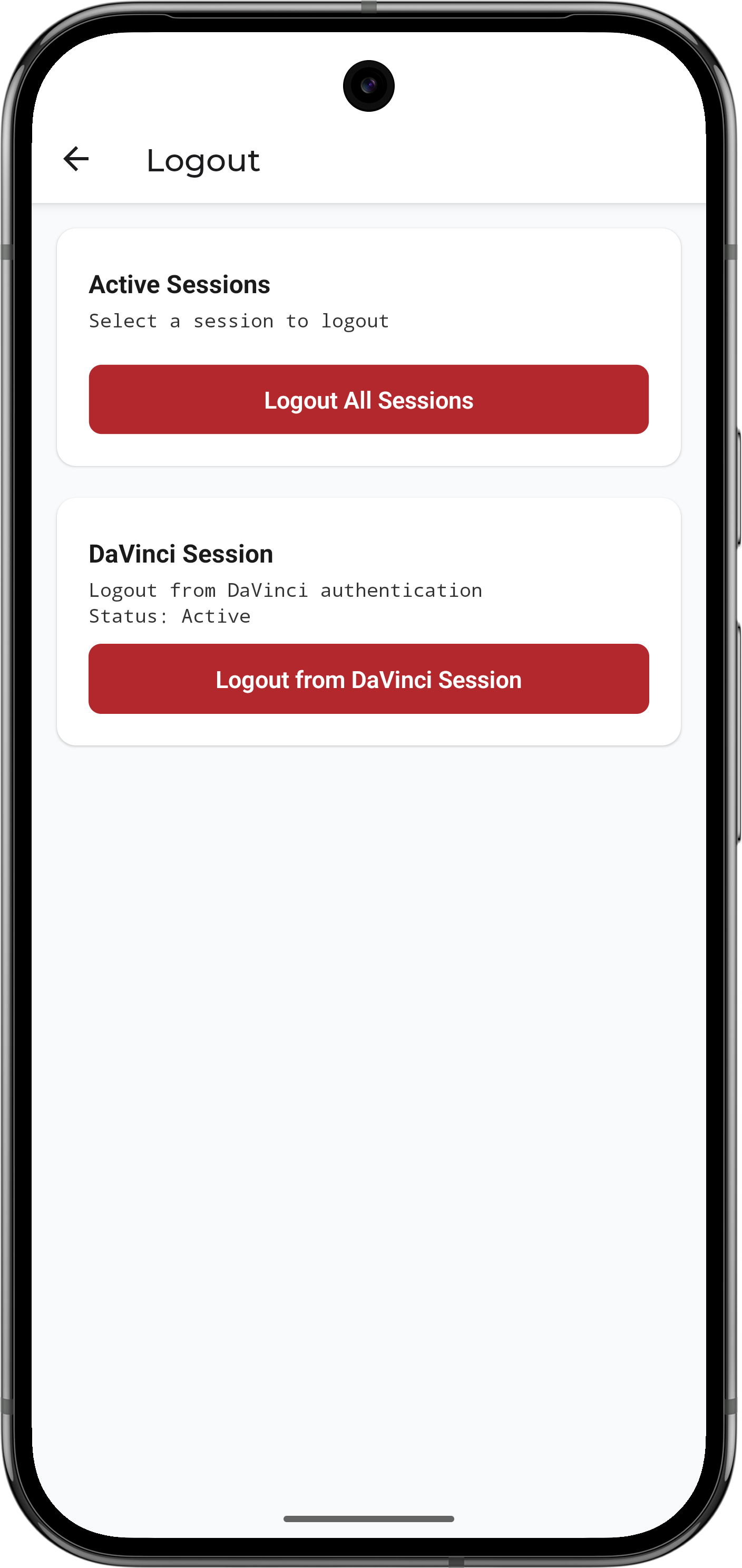 Figure 5. The DaVinci logout screen
The app signs out the active user.
Viewing session and token information
Use the sample app’s token screen to view the session information returned after authentication, including the access token and any refresh token issued by PingOne.
Use the user information screen to request claims from the OIDC user information endpoint when supported by the configured flow and session.
Signing out
Use the sample app’s logout action to sign the user out and clear the active DaVinci session.
If you need to revoke the access and refresh tokens explicitly, use the revoke() operation before signing out, as described in Managing sessions and tokens in React Native.
Troubleshooting
This section contains help if you encounter an issue running the sample app.
What can cause a redirect URI error?
If the authentication request fails with a redirect URI error, ensure that PINGONE_REDIRECT_URI exactly matches a redirect URI registered in your PingOne OAuth 2.0 application.
Also ensure that the redirect scheme matches the Android appRedirectUriScheme value and the iOS CFBundleURLSchemes value.
What can cause an Android SDK location error?
If Android cannot find the SDK, set ANDROID_HOME or create PingSampleApp/android/local.properties with the Android SDK path:
sdk.dir=/path/to/your/Android/SDKWhat can cause an iOS build error?
If the iOS build fails after native dependencies change, reinstall the CocoaPods dependencies:
bundle exec pod install --project-directory=iosIf Metro behaves unexpectedly after changing configuration, reset its cache:
yarn start --reset-cacheIf Android Studio cannot find Node, launch it from a terminal where Node is on your PATH:
open -a "Android Studio"