Configuring logging in JavaScript
PingOne Advanced Identity Cloud PingAM JavaScript
When you develop applications with the Orchestration SDK, you might need to understand its internal workings or troubleshoot unexpected behavior.
Use logging to gain crucial insights into your application’s operations, identify issues, verify expected functionality, and better understand authentication flows.
This section covers how to configure and customize the logging output from the Orchestration SDK for JavaScript.
Configuring JavaScript logging
To configure the logging output from the Orchestration SDK for JavaScript, inside the logger object, specify the level to use for logging in the level property in the client module configuration:
const journeyClient = await journey({
  logger: {
    level: 'warn',
  },
  config: {
    serverConfig: {
      baseUrl: 'https://openam-forgerock-sdks.forgeblocks.com/am',
      timeout: 5000,
    },
    realmPath: 'alpha'
  },
});
The Orchestration SDK for JavaScript supports the following logger levels:
| Level | Priority | Description |
|---|---|---|
|
|
Does not output any log messages. |
|
|
Log messages describing errors that have occurred. |
|
|
Log messages detailing possible issues that aren’t yet errors. |
|
|
Log messages for expected activities during regular usage. This is the default value. |
|
|
Log messages intended only for development and troubleshooting. |
The Orchestration SDK outputs messages that have a priority equal to, or less than your chosen level.
For example, if you set the level to warn, the module outputs warn and error messages.
Customizing JavaScript logging
The Orchestration SDK for JavaScript allows developers to customize the default logger behavior. For example, you might want to redirect the logs to an external service, or pipe them to a file.
To customize how the Orchestration SDK outputs logger messages:
-
Create a function that implements the
LoggerFunctionsinterface.For example, the following code adds a prefix to output from the SDK before logging it to the console:
const customLogger = {
  error: (...args) => console.error(`[Ping SDK Error]:`, ...args),
  warn: (...args) => console.warn(`[Ping SDK Warning]:`, ...args),
  info: (...args) => console.info(`[Ping SDK Info]:`, ...args),
  debug: (...args) => console.debug(`[Ping SDK Debug]:`, ...args)
};
The signature of the interface defaults to the following:
(...msgs: unknown[]) => void -
Specify the custom logger to use in the
customproperty in theloggerobject of your client module configuration:Setting the logging level in the journey client configurationconst journeyClient = await journey({ logger: { level: 'debug', custom: customLogger, }, config: { serverConfig: { baseUrl: 'https://openam-forgerock-sdks.forgeblocks.com/am', timeout: 5000, }, realmPath: 'alpha' }, });
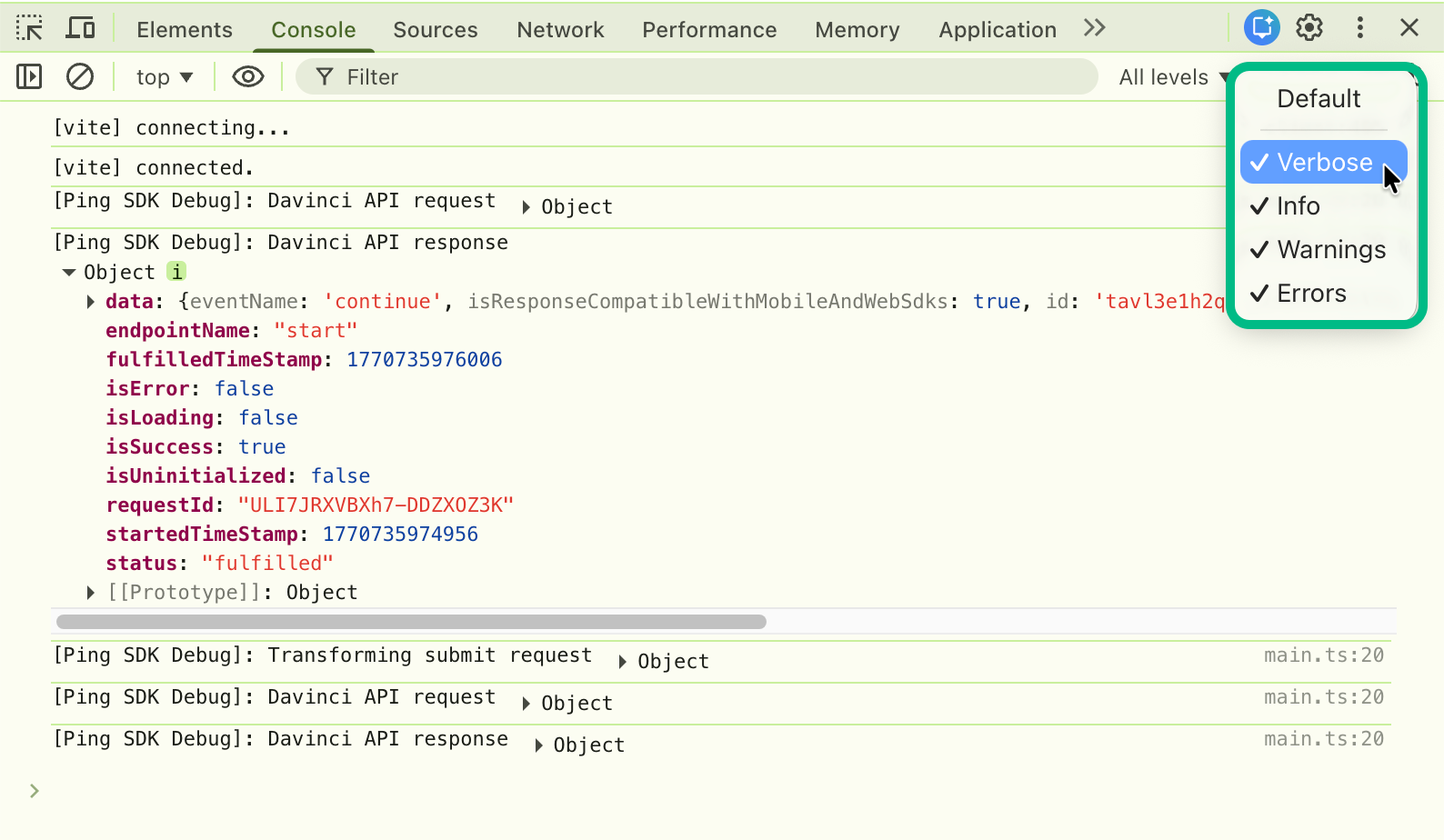
The Orchestration SDK redirects its logging output to your custom logger:
|
You might need to adjust the default console output filters in your browser’s developer console, to view output from the Orchestration SDK. For example, to view |