Step 3. Test the app
PingFederate Android
In the following procedure, you run the sample app that you configured in the previous step. The app performs a centralized login on your PingFederate instance.
Log in as a demo user
-
In Android Studio, select Run > Run 'oidc'.
The Android emulator launches the default browser and starts the authentication journey:
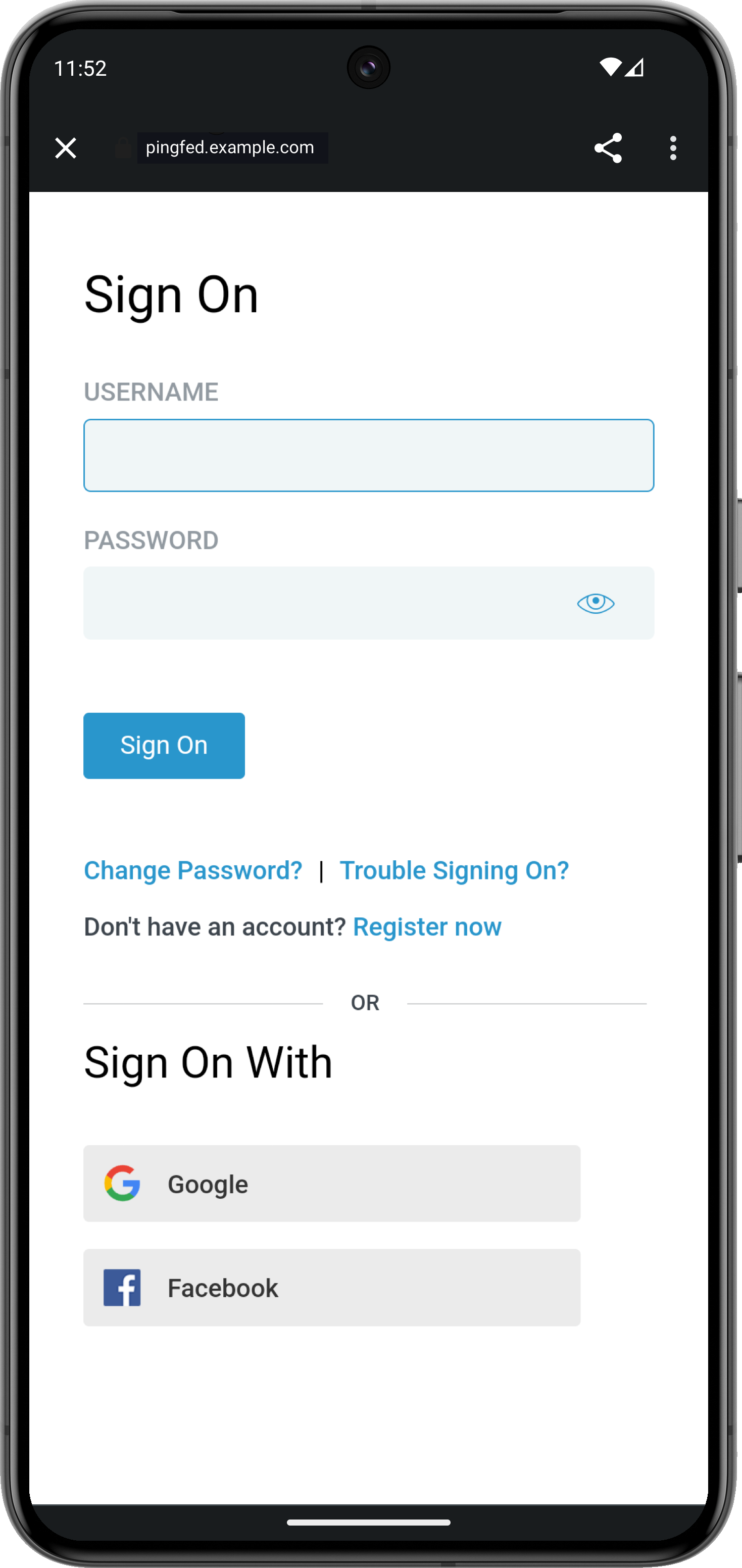 Figure 1. Signing on to PingFederate in the 'kotlin-oidc' sample app
 -
Sign on as a demo user:
-
Name:
demo -
Password:
Ch4ng3it!
If authentication is successful the app displays user info:
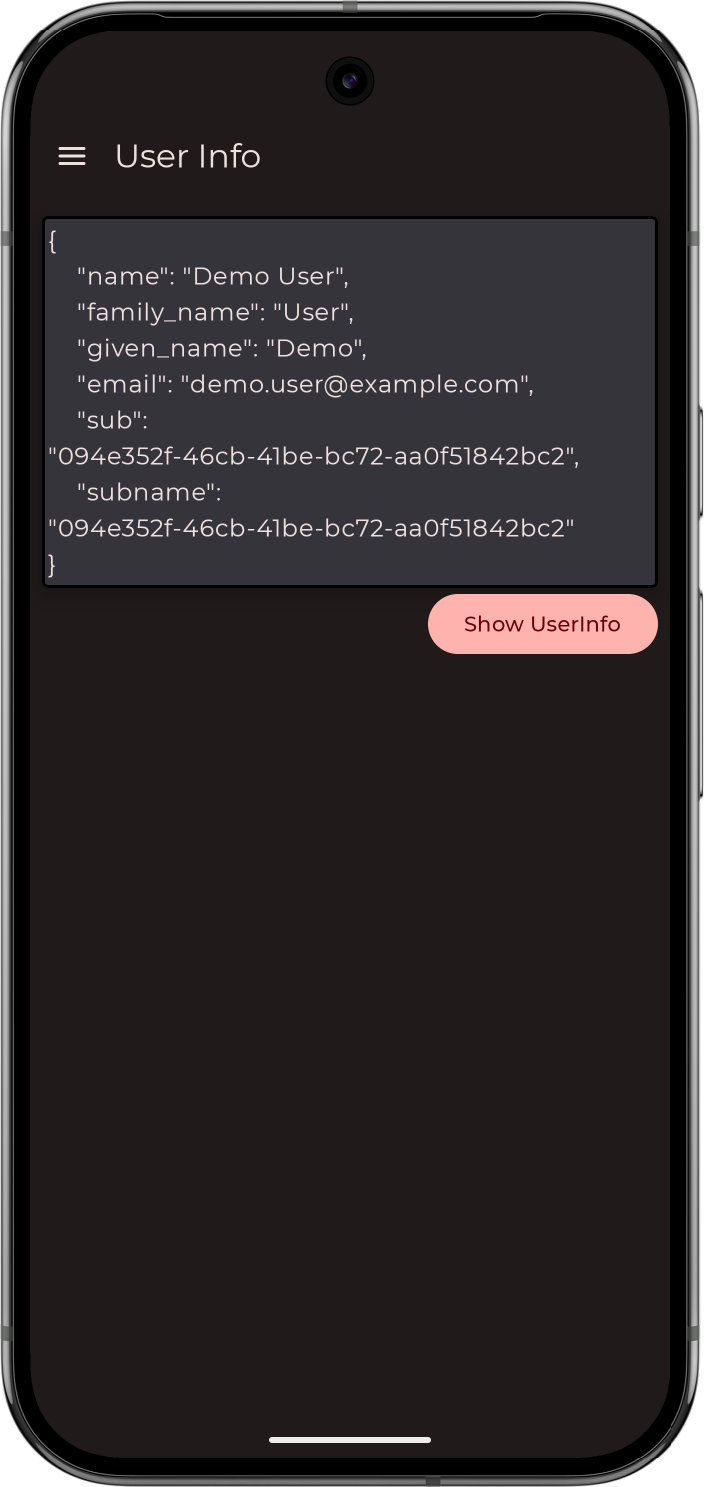 Figure 2. Showing user info in the 'kotlin-oidc' sample app
 -
-
Tap the menu icon (), and then tap Show Token.
The app displays the user’s access and refresh tokens, if issued:
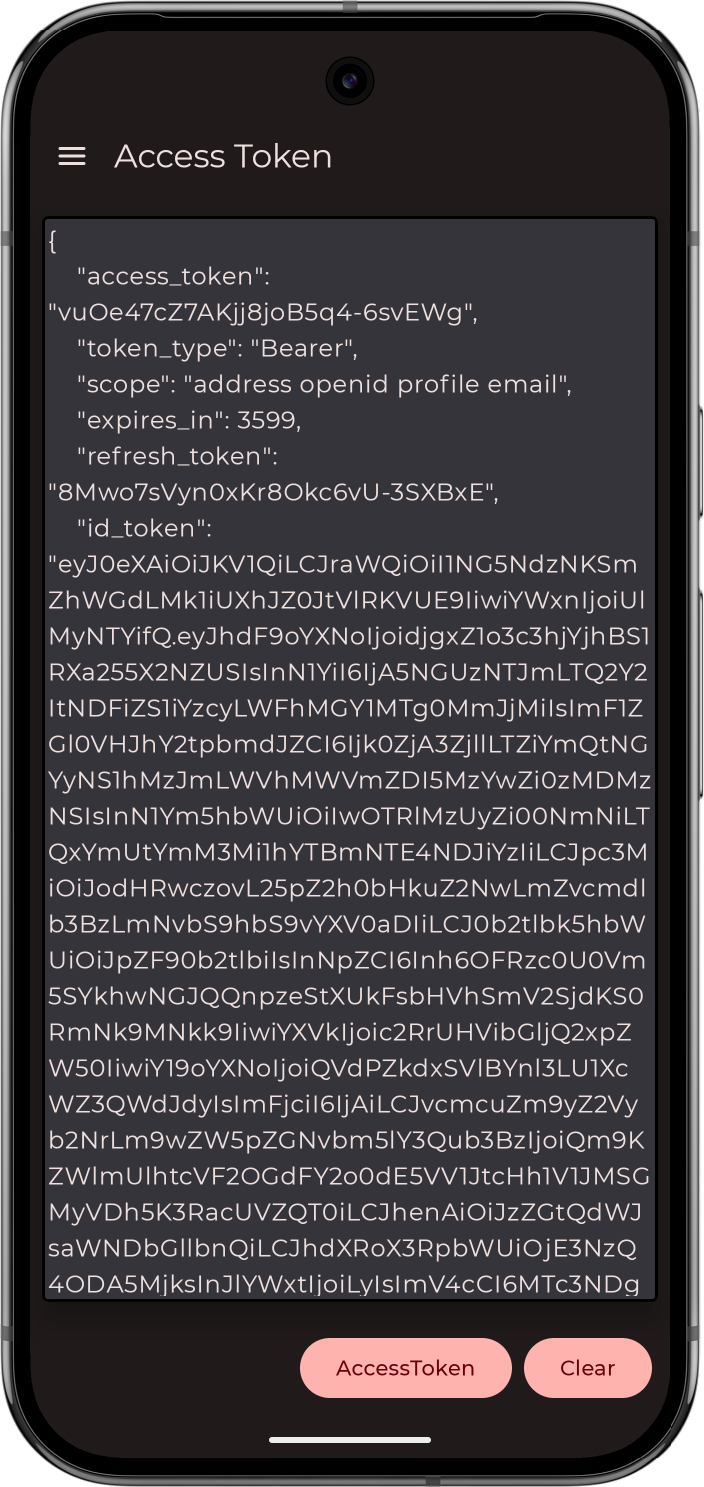 Figure 3. Showing access tokens in the 'kotlin-oidc' sample app
 -
Tap the menu icon (), and then tap Logout.
The app logs the user out of PingFederate, revokes the tokens, and returns to the sign on page.