Step 3. Test the app
PingOne Advanced Identity Cloud iOS
In this step, run the sample app that you configured in the previous step. The app performs OIDC login to your PingOne Advanced Identity Cloud instance.
-
In Xcode, select .
Xcode launches the sample app in the iPhone simulator:
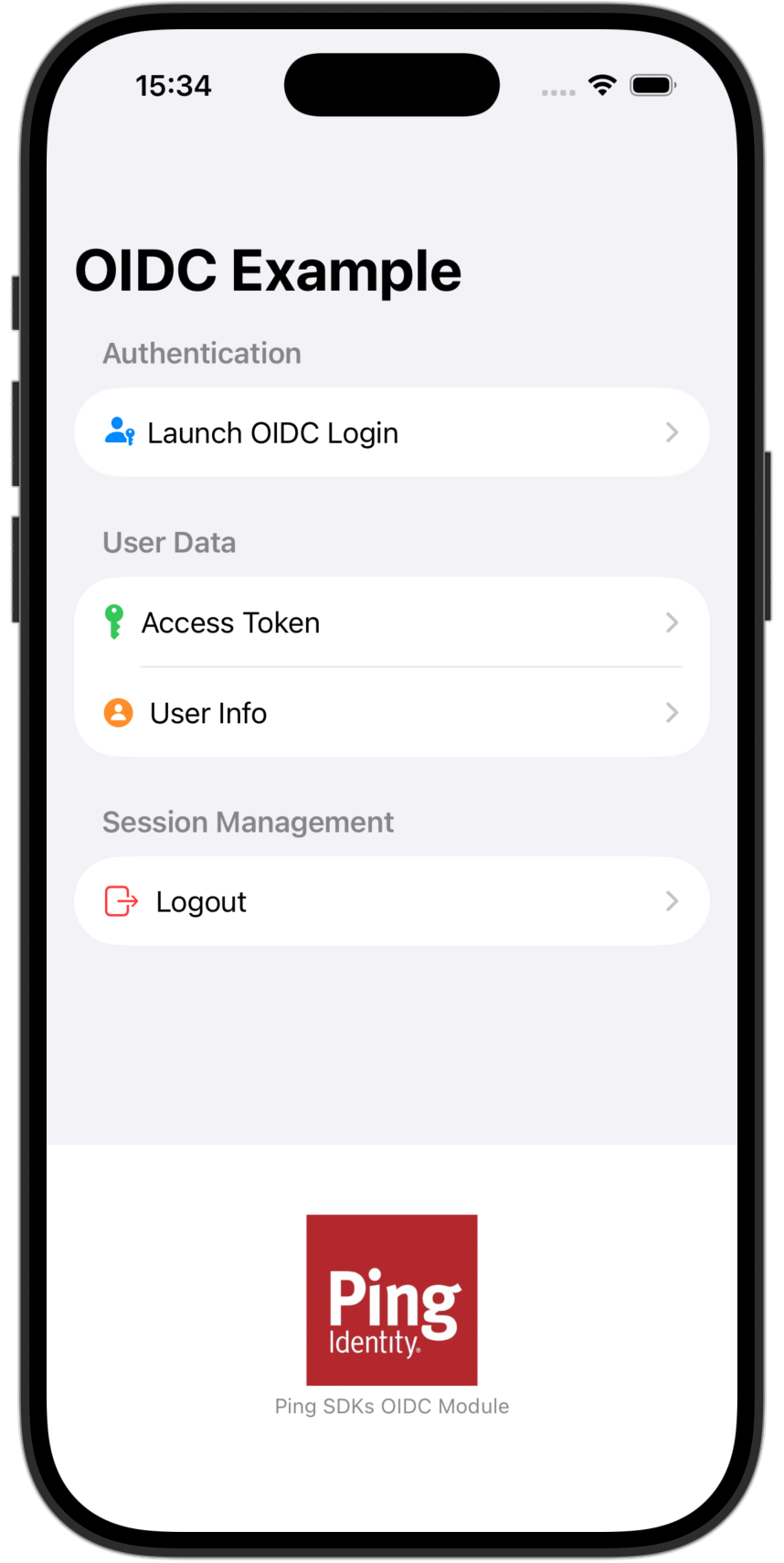 Figure 1. Starting the 'swiftui-oidc-module' sample app on iOS
 -
In the sample app on the iPhone simulator, tap Launch OIDC Login, then tap Start OIDC Login.
The iPhone emulator launches the browser and starts the authentication journey.
You might see a dialog asking if you want to open a browser. If you do, tap Continue.
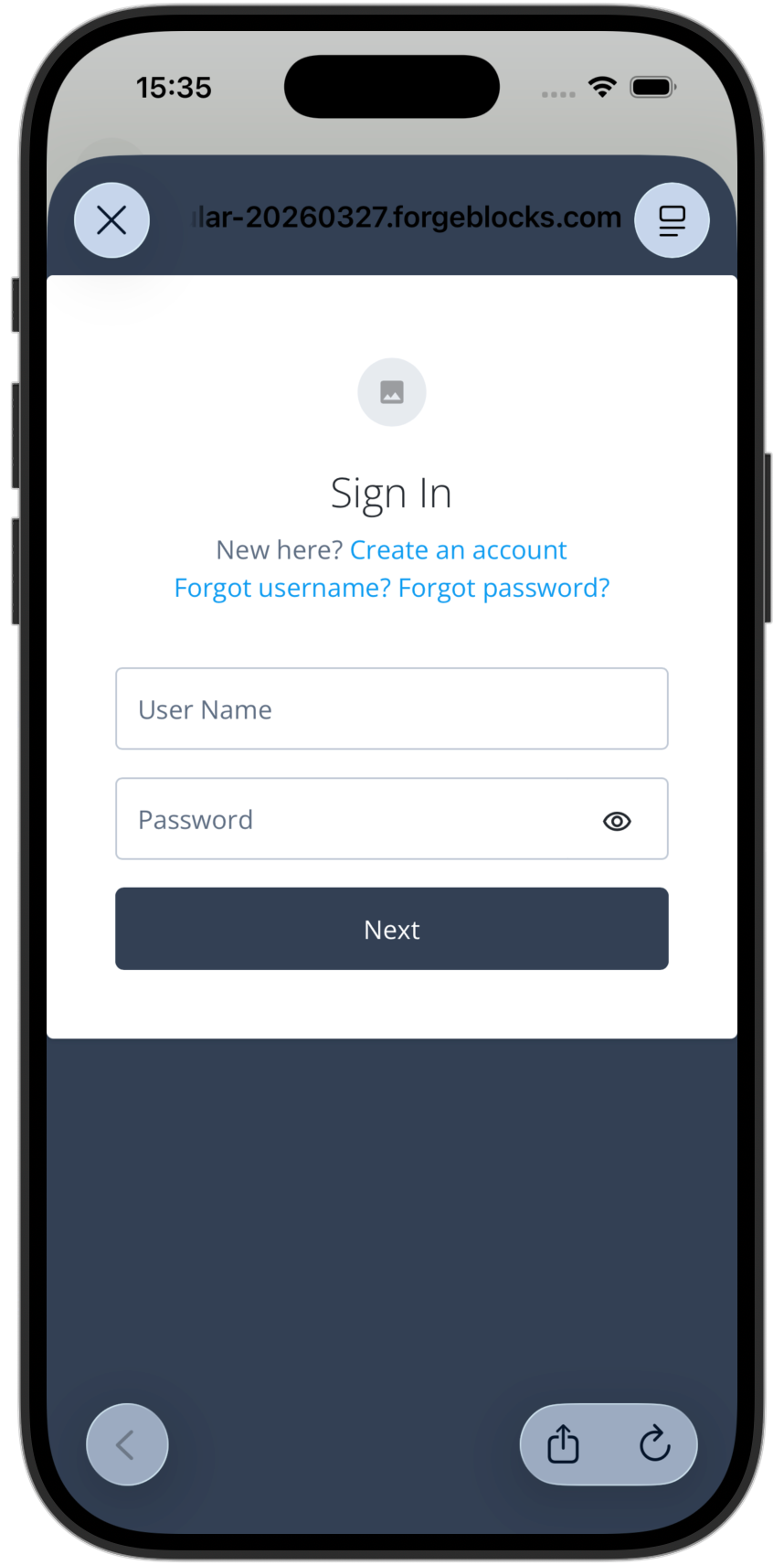 Figure 2. Signing on in the 'swiftui-oidc-module' sample app
 -
Sign on as a demo user:
-
Name:
demo -
Password:
Ch4ng3it!
If authentication is successful the app displays an Authentication Successful message.
-
-
Tap View Access Token to view the access token, and refresh token, if issued:
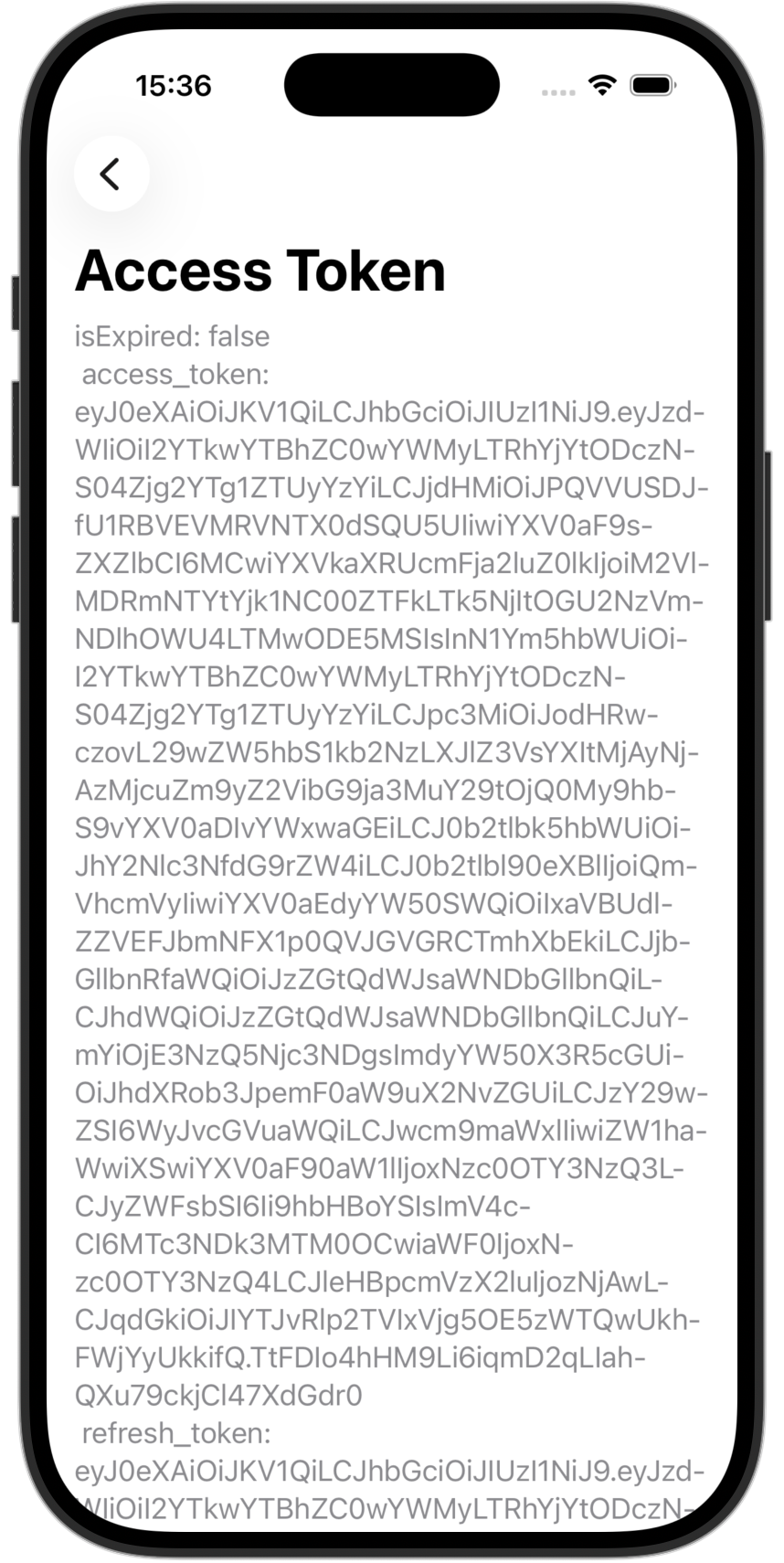 Figure 3. Access token in the 'swiftui-oidc-module' sample app
 -
Tap Back to return to the previous screen, tap Back again to go to the main menu, and then tap User Info.
The app displays the user information relating to the access token:
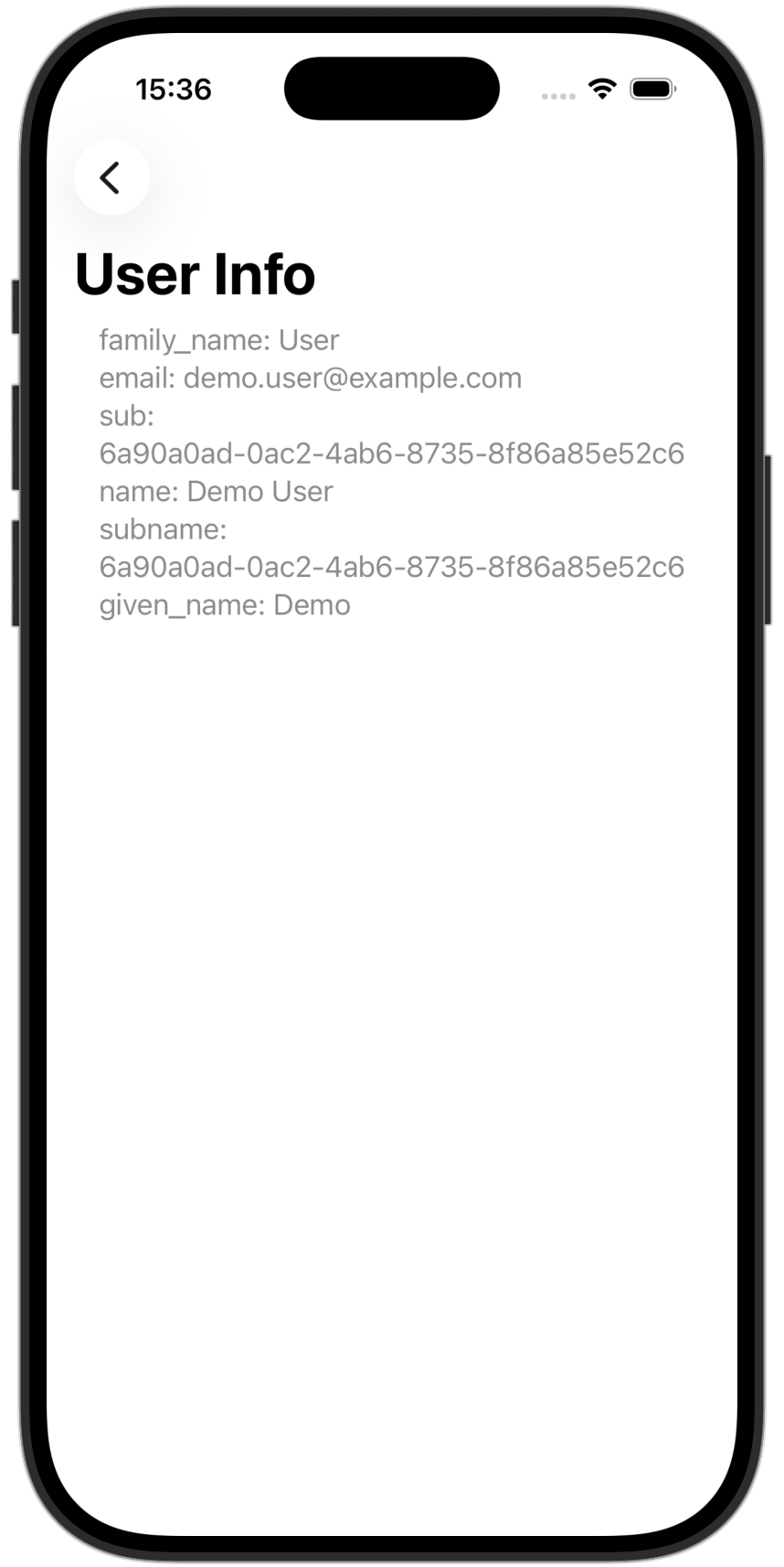 Figure 4. User info in the 'swiftui-oidc-module' sample app
 -
Tap Back to go back to the main menu, tap Logout, and then tap Proceed to Logout.
The app logs the user out of the authorization server, revokes OAuth 2.0 tokens, and returns to the OIDC launch page.
It also outputs the network calls it makes to sign out to the Xcode console:
[Ping SDK 2.1.1] SignOff...
[Ping SDK 2.1.1] ⬆
Request URL: https://openam-docs.forgeblocks.com:443/am/oauth2/alpha/token/revoke
Request Method: POST
Request Headers: ["Content-Type": "application/x-www-form-urlencoded", "x-requested-with": "ping-sdk", "x-requested-platform": "ios"]
[Ping SDK 2.1.1] ⬆
Request URL: https://openam-docs.forgeblocks.com:443/am/oauth2/alpha/connect/endSession?id_token_hint=eyJ0eXAiOiJKV1QiLCJraWQiORUsyYnN0RWc9IiwiYWxnIjoiUlMyNTYif