Integrating FIDO DaVinci flows into iOS apps
PingOne iOS
The FIDO module offers a streamlined API for handling FIDO interactions.
It abstracts away the complexities of the underlying FIDO protocols, allowing you to quickly add strong authentication to your applications.
Before you begin
To enable FIDO authentication in your app you must complete the following tasks:
Adding FIDO entitlements to an iOS app
-
In Xcode, in the Project Navigator, double-click your application to open the Project pane.
-
On the Signing & Capabilities tab, click Capability, type
Associated Domains, and then double click the result to add the capability. -
In Domains, click the Add () button, and enter the following entries:
-
webcredentials:, followed by the hostname where you uploaded theapple-app-site-associationfile earlier.For example,
webcredentials:my-rp-domain.comThe result will resemble the following:
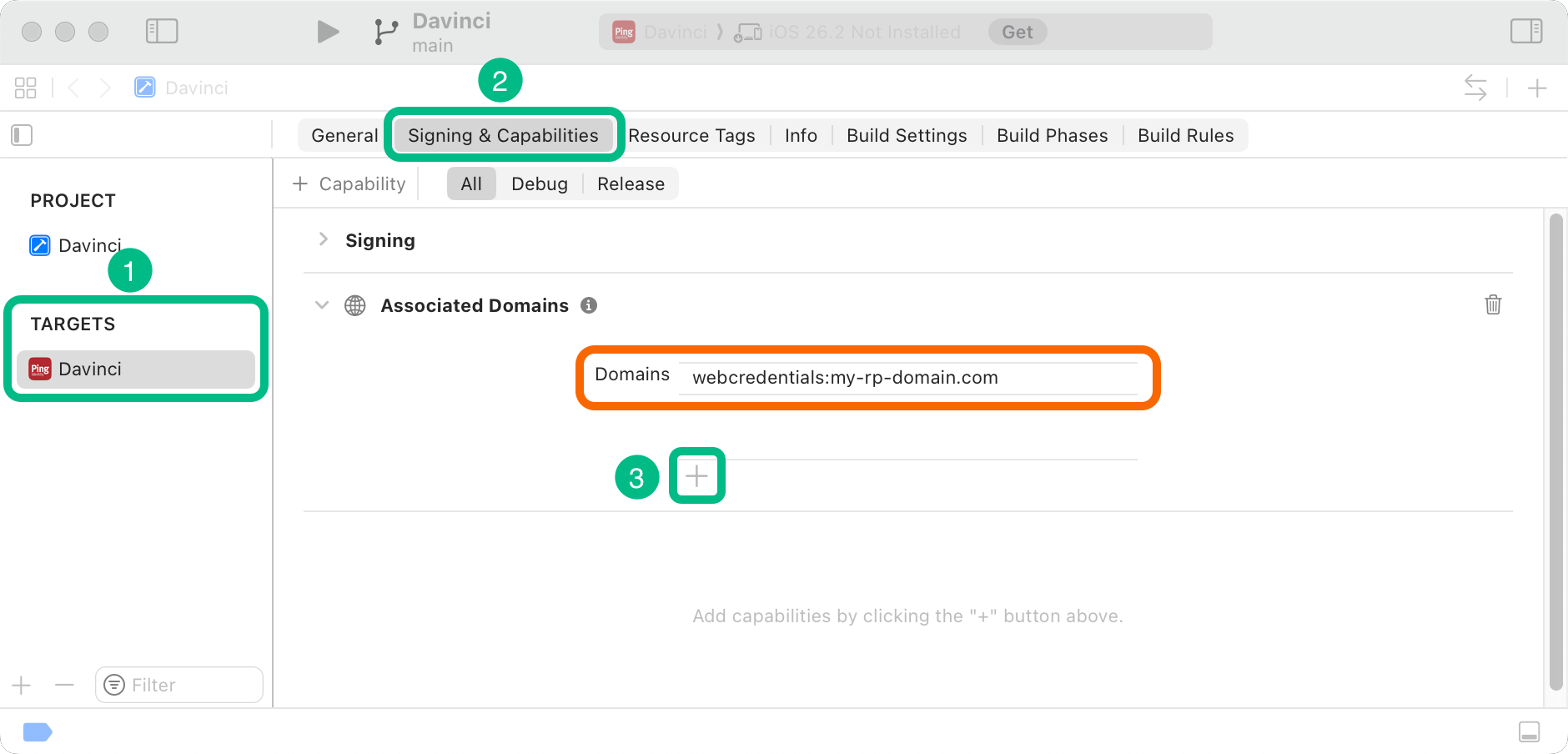 Figure 1. Configuring Associated Domains entitlements in iOS.
-
Step 1. Installing modules
To install the FIDO module for iOS, use Swift Package Manager (SPM) or Cocoapods to add the dependency to your project.
-
SPM (Swift Package Manager)
-
CocoaPods
You can install packages by using SPM (Swift Package Manager) on the iOS project.
-
In Xcode, in the Project Navigator, right-click your project, and then click Add Package Dependencies….
-
In the Search or Enter Package URL field, enter the URL of the repo containing the Orchestration SDK for iOS,
https://github.com/ForgeRock/ping-ios-sdk.git. -
In Add to Project, select the name of your project, and then click Add Package.
Xcode shows a dialog containing the libraries available for iOS.
-
Select the
PingFidolibrary, and in the Add to Target column select the name of your project. -
Repeat the previous step for any other packages you want to use in your project.
-
Click Add Package.
Xcode displays the chosen packages and any prerequisites they might have in the Package Dependencies pane of the Project Navigator.
-
If you don’t already have CocoaPods, install the latest version.
-
If you don’t already have a Podfile, in a terminal window, run the following command to create a new Podfile:
pod init
-
Add the following lines to your Podfile:
pod 'PingFido'
-
Run the following command to install pods:
pod install
Step 2. Registering FIDO authenticators
To register a FIDO authenticator, use the register() function. The function returns either success or failure.
The Orchestration SDK provides the FidoRegistrationCollector class for handling the FIDO registration requests:
ForEach(continueNode.collectors, id: \.id) { collector in
  switch collector {
    case let fidoRegistrationCollector as FidoRegistrationCollector:
      FidoRegistrationCollectorView(collector: fidoRegistrationCollector, onNext: { onNext(true) })
  }
}register in FidoRegistrationCollectorViewTask {
// Get the window
guard let windowScene = UIApplication.shared.connectedScenes.first as? UIWindowScene,
let window = windowScene.windows.first else {
print("Could not find active window scene.")
return // Exit if no window found
}
// Call the async function and await its Result
let result = await collector.register(window: window)
// Handle the Result
switch result {
case .success(let attestationValue):
// Optional: Use attestationValue if needed
print("FIDO Registration successful: \(attestationValue)")
// Call onNext only on success
onNext()
case .failure(let error):
// Handle errors
print("FIDO Registration failed: \(error.localizedDescription)")
}
}Step 3. Authenticating using a FIDO authenticator
To authenticate using a registered FIDO authenticator, use the authenticate() function. The function returns either success or failure.
The Orchestration SDK provides the FidoAuthenticationCollector class for handling the FIDO authentication requests:
ForEach(continueNode.collectors, id: \.id) { collector in
  switch collector {
    case let fidoAuthenticationCollector as FidoAuthenticationCollector:
      FidoAuthenticationCollectorView(collector: fidoAuthenticationCollector, onNext: { onNext(true) })
  }
}authenticate in FidoAuthenticationCollectorViewTask {
// Get the window
guard let windowScene = UIApplication.shared.connectedScenes.first as? UIWindowScene,
let window = windowScene.windows.first else {
print("Could not find active window scene.")
return // Exit if no window found
}
// Call the async function and await its Result
let result = await collector.authenticate(window: window)
// Handle the Result
switch result {
case .success(let attestationValue):
// Optional: Use attestationValue if needed
print("FIDO Authentication successful: \(attestationValue)")
// Call onNext only on success
onNext()
case .failure(let error):
// Handle errors
print("FIDO Authentication failed: \(error.localizedDescription)")
}
}Optionally, pass preferImmediatelyAvailableCredentials: true to authenticate() to fail immediately if no local passkey is already available on the device:
let result = await collector.authenticate(window: window, preferImmediatelyAvailableCredentials: true)Without the switch, the OS displays a dialog offering remote passkey options, rather than failing immediately:
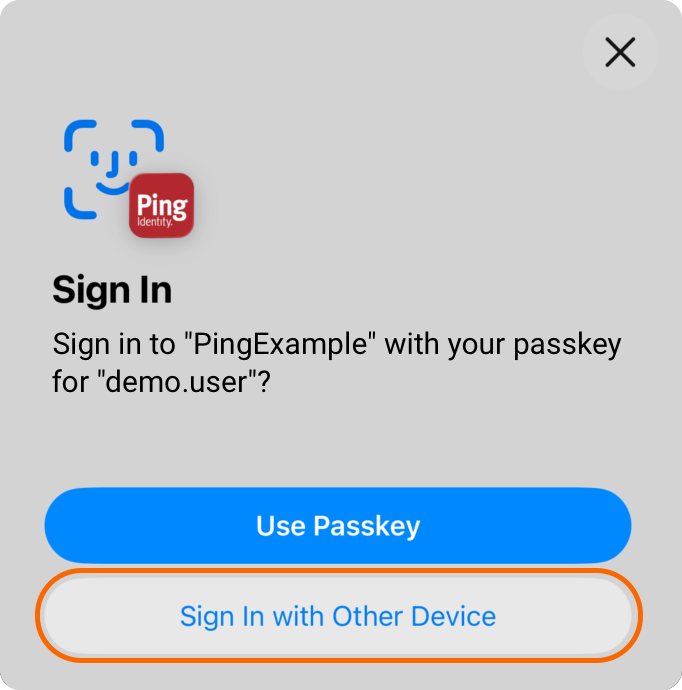
The switch does not prevent the iOS-supplied dialog if local passkeys do exist, and the dialog always offers remote passkeys as an option.
By default, preferImmediatelyAvailableCredentials is false.