Step 2. Configure connection properties
PingOne iOS
In this step, you configure the "swiftui-oidc-module" app to connect to the OAuth 2.0 application you created in PingOne, and display the login UI of the server.
-
In Xcode, on the File menu, click Open.
-
Navigate to the
sdk-sample-appsfolder you cloned in the previous step, navigate toiOS>swiftui-oidc-module, selectOidcExample.xcodeproj, and then click Open. -
In the Project Navigator pane, navigate to OidcExample > OidcExample > ViewModels, and open the
OidcLoginViewModelfile. -
Locate the
OidcWebClient.createOidcWebClientmethod and update it with the values from your PingOne tenant.The function is commented with //TODO:in the source to make it easier to locate.public let oidcLogin = OidcWebClient.createOidcWebClient { config in //TODO: Provide here the Server configuration. config.browserMode = .login config.browserType = .authSession config.logger = LogManager.standard config.module(PingOidc.OidcModule.config) { oidcValue in oidcValue.clientId = "6c7eb89a-66e9-ab12-cd34-eeaf795650b2" oidcValue.scopes = Set(["openid", "email", "address", "profile", "phone"]) oidcValue.redirectUri = "com.example.demo://oauth2redirect" oidcValue.discoveryEndpoint = "https://auth.pingone.com/3072206d-c6ce-ch15-m0nd-f87e972c7cc3/as/.well-known/openid-configuration" // Optional: Add ACR values if required by your authentication flow // oidcValue.acrValues = "ACR_VALUE" } }- clientId
-
The client ID from your OAuth 2.0 application in PingOne.
For example,
6c7eb89a-66e9-ab12-cd34-eeaf795650b2You must specify the client ID value, such as
6c7eb89a-66e9-ab12-cd34-eeaf795650b2.Do not enter the application name, such as
sdkNativeClient. - scopes
-
The scopes you added to your OAuth 2.0 application in PingOne.
For example,
"openid", "email", "address", "profile", "phone" - redirectUri
-
The
redirect_urito return to after logging in with the server UI, for example the URI to your client app.This value must exactly match a value configured in your OAuth 2.0 client. For example,
com.example.demo://oauth2redirect. - discoveryEndpoint
-
The
.well-knownendpoint from your PingOne tenant.How do I find my PingOne .well-known URL?
To find the
.well-knownendpoint for an OAuth 2.0 client in PingOne:-
Log in to your PingOne administration console.
-
Go to Applications > Applications, and then select your OAuth 2.0 client.
For example, sdkPublicClient.
-
On the Overview tab, expand the Connection Details section, and then copy the OIDC Discovery Endpoint value.
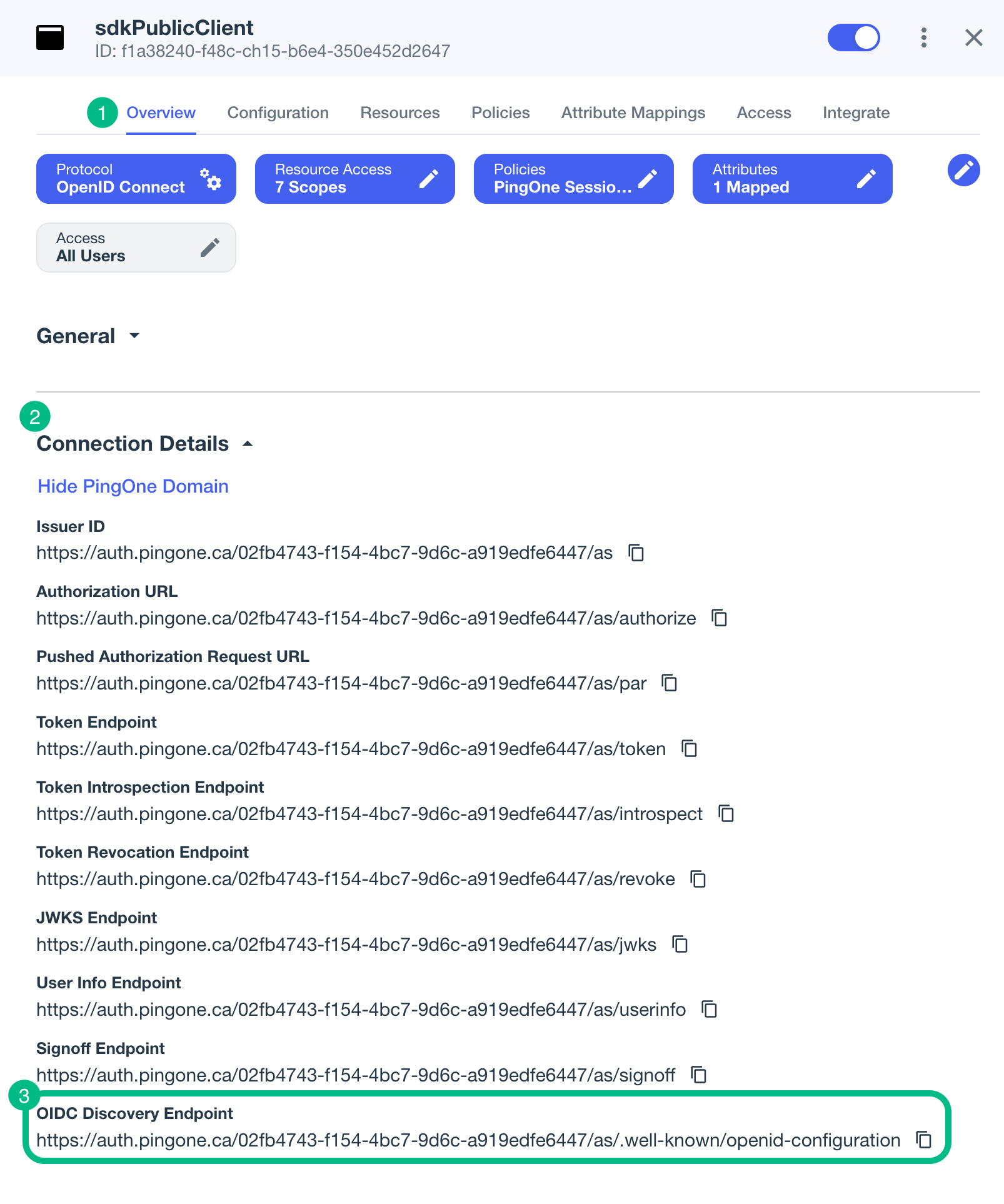
For example,
https://auth.pingone.com/3072206d-c6ce-ch15-m0nd-f87e972c7cc3/as/.well-known/openid-configuration -
Optionally, customize the following properties:
- browserType
-
You can specify what type of browser the client iOS device opens to handle centralized login.
Each browser has slightly different characteristics, which make them suitable to different scenarios, as outlined in this table:
Browser type Characteristics .authSessionOpens a web authentication session browser.
Designed specifically for authentication sessions, however it prompts the user before opening the browser with a modal that asks them to confirm the domain is allowed to authenticate them.
This is the default option in the Orchestration SDK for iOS.
.ephemeralAuthSessionOpens a web authentication session browser, but enables the
prefersEphemeralWebBrowserSessionparameter.This browser type does not prompt the user before opening the browser with a modal.
The difference between this and
.authSessionis that the browser does not include any existing data such as cookies in the request, and also discards any data obtained during the browser session, including any session tokens.When is
ephemeralAuthSessionsuitable:-
ephemeralAuthSessionis not suitable when you require single sign-on (SSO) between your iOS apps, as the browser will not maintain session tokens. -
ephemeralAuthSessionis not suitable when you require a session token to log a user out of the server, for example for logging out of PingOne, as the browser will not maintain session tokens. -
Use
ephemeralAuthSessionwhen you do not want the user’s existing sessions to affect the authentication.
.nativeBrowserAppOpens the installed browser that is marked as the default by the user. Often Safari.
The browser opens without any interaction from the user. However, the browser does display a modal when returning to your application.
.sfViewControllerOpens a Safari view controller browser.
Your client app is not able to interact with the pages in the
sfViewControlleror access the data or browsing history.The view controller opens within your app without any interaction from the user. As the user does not leave your app, the view controller does not need to display a warning modal when authentication is complete and control returns to your application.
-
- acrValues
-
Specify which of the configured policies PingOne uses to authenticate users.
Enter either a single DaVinci policy by using its flow policy ID, or one or more PingOne policies by specifying the policy names, separated by spaces or the encoded space character
%20.Examples:
- DaVinci flow policy ID
-
d1210a6b0b2665dbaa5b652221badba2 - PingOne policy names
-
Single_Factor%20Multi_Factor
-
Save your changes.