Step 3. Test the app
PingOne Advanced Identity Cloud PingAM iOS
In the following procedure, you run the sample app that you configured in the previous step. The app steps through the login journey, rendering a UI to collect the required data for each node, for example a username and password node, together inside a page node.
-
In Xcode, select Product > Run.
Xcode launches the sample app in the iPhone simulator.
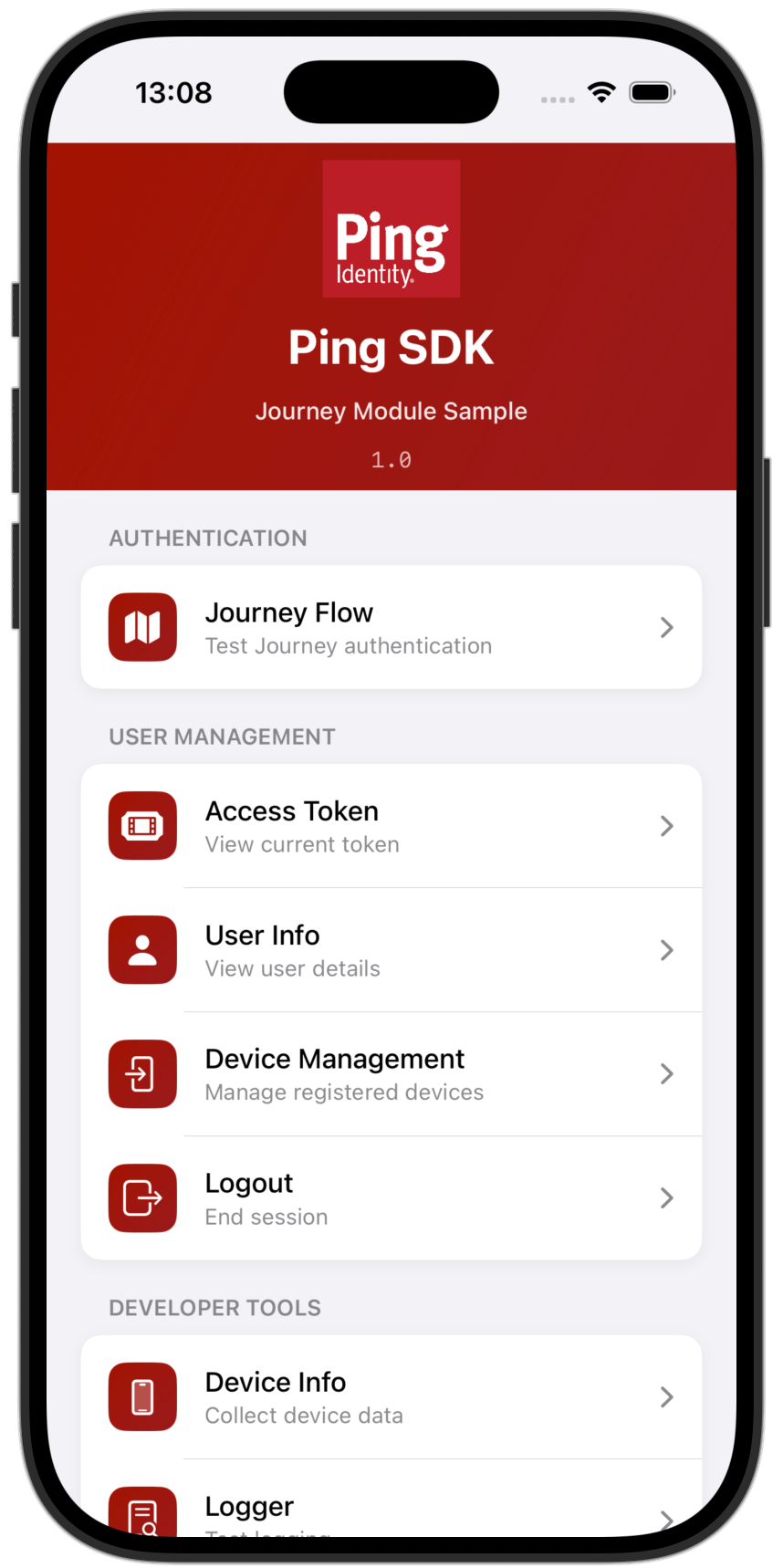 Figure 1. Starting the "swiftui-journey-module" app in an iOS simulator
 -
In the sample app on the iPhone simulator, tap Journey Flow.
-
Enter the name of the journey to launch, for example
LoginorsdkUsernamePasswordJourneyand then tap Start Journey. -
Sign on as a demo user:
-
Name:
demo -
Password:
Ch4ng3it!
After successful authentication the app displays the access token:
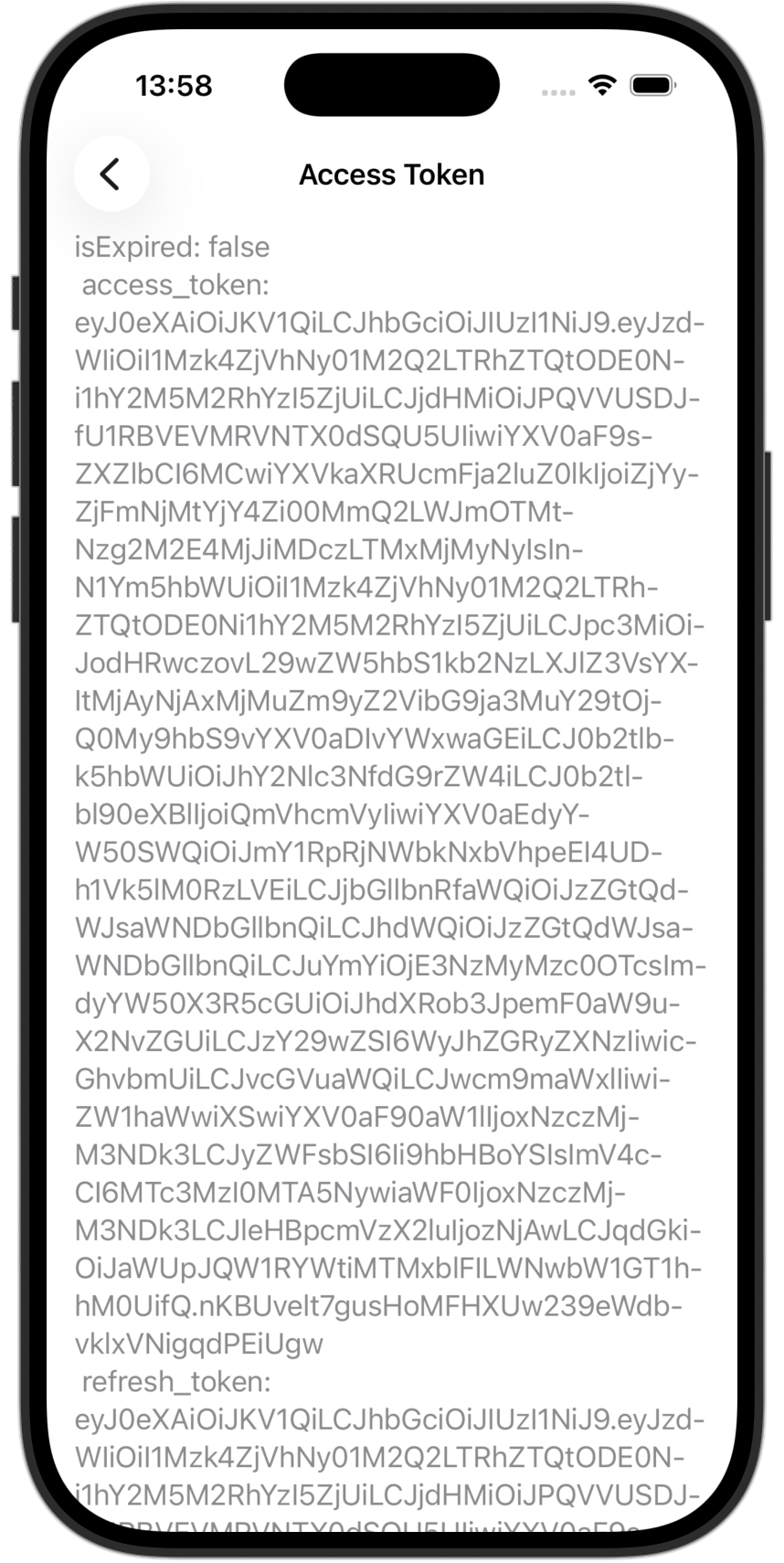 Figure 2. Viewing access token in the iOS sample app.
 -
-
Tap Back () to return to the menu, and then tap User Info.
The app displays the user info related to the session token:
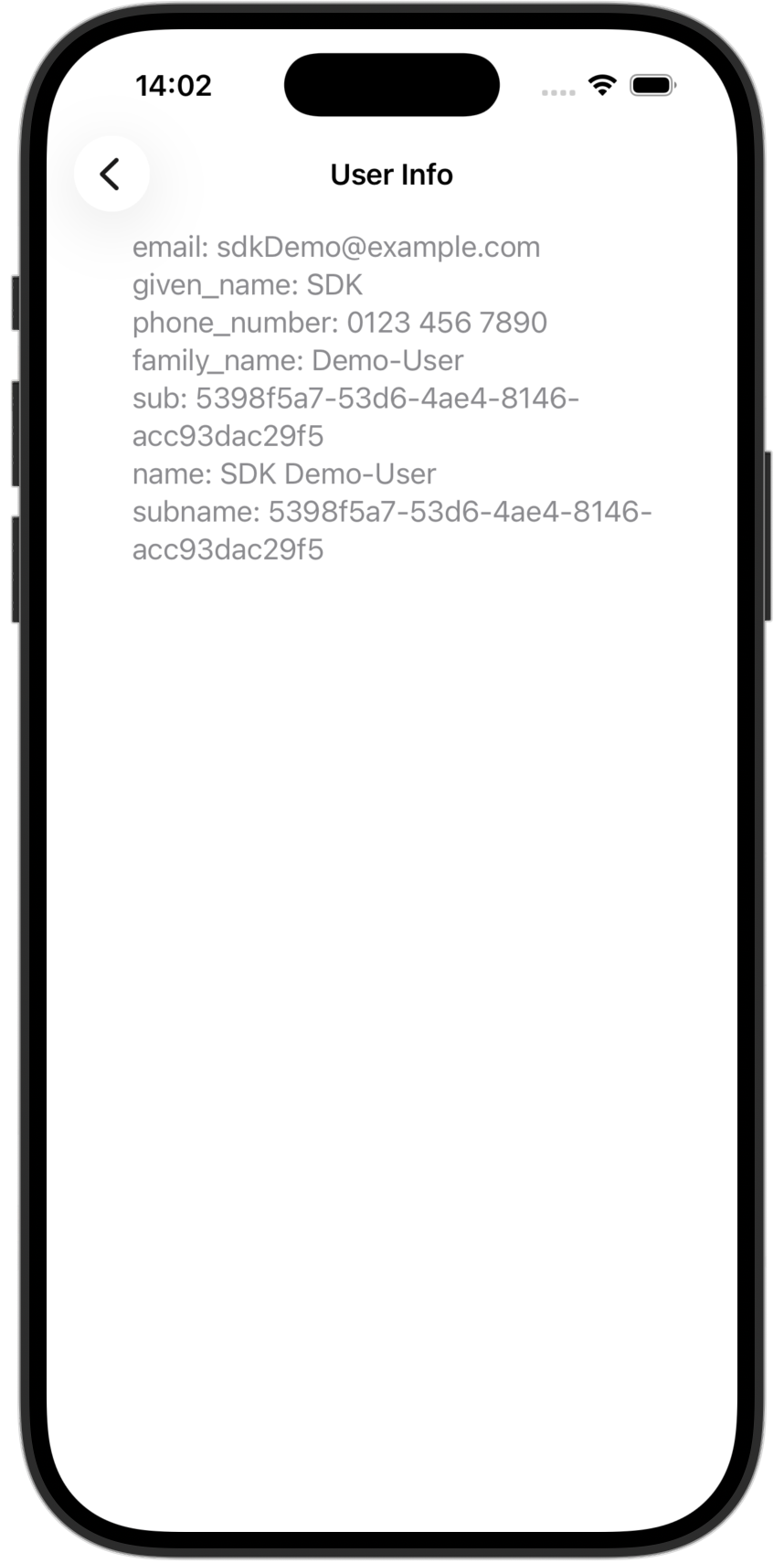 Figure 3. Viewing userinfo for an account in the iOS sample app.
 -
Tap Back () to return to the menu, and then tap Device Management.
The app displays buttons to select the device type, and information about registered devices:
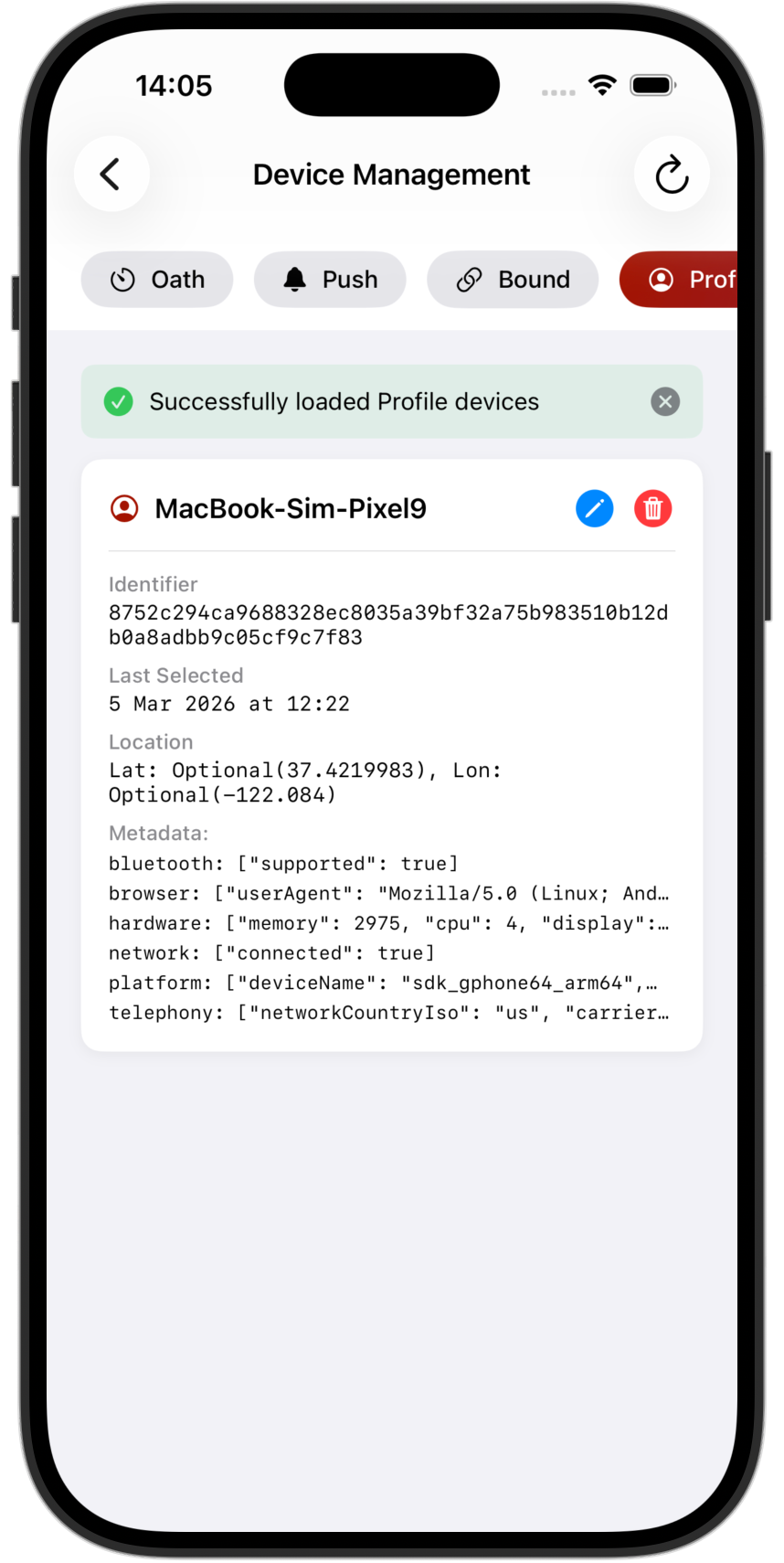 Figure 4. Viewing registered devices for an account in the iOS sample app.
 -
Tap Back () to return to the menu, tap Logout, and then tap Proceed to logout .
The app ends the session, revokes tokens on the server, and deletes them from storage on the device.