Step 3. Test the app
PingOne React Native
In the following procedure, you run the sample app that you configured in the previous step. The app performs a centralized login on your PingOne instance.
All commands should be run from the sdk-sample-apps/reactnative/reactnative-oidc directory unless otherwise specified.
Starting the Metro bundler
Metro is the JavaScript bundler for React Native.
Start it from the project root in a terminal window, and leave it running:
yarn startRunning on Android
In a separate terminal window, make sure you are in the project root, and run the sample app on an Android emulator or a connected device:
yarn androidRunning on iOS
In a separate terminal window, make sure you are in the project root, and run the app on the iOS simulator:
yarn iosSelect the Configuration to use
-
On the home screen, tap Configuration under the SETUP section.
The app displays the servers you set up in the
.envfile: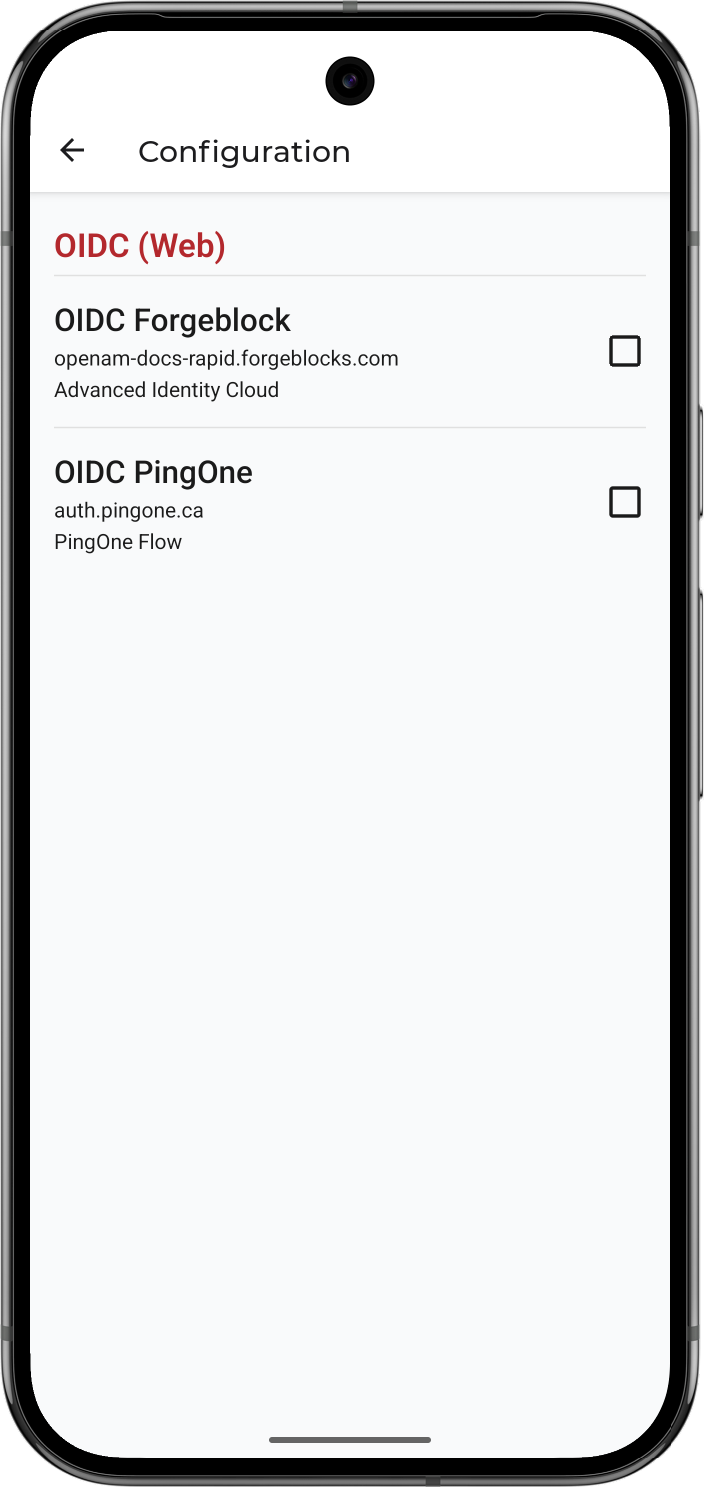 Figure 1. Configuration screen in the 'reactnative-oidc' sample app
 -
Select the server you want to connect to, and then tap the back arrow () to return to the home screen.
Log in as a demo user
-
On the home screen, tap OIDC Login under the AUTHENTICATION section.
The app displays the OIDC Demo page:
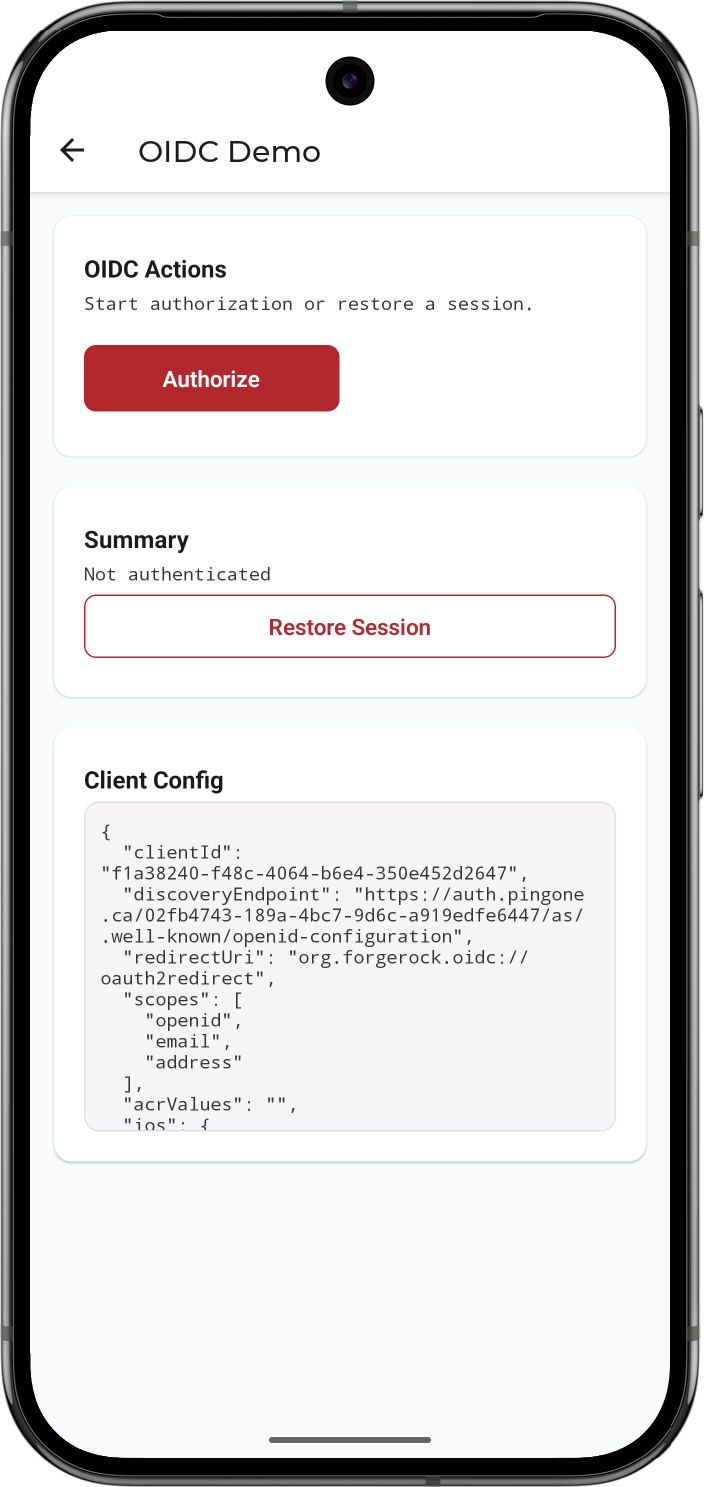 Figure 2. OIDC Demo page in the 'reactnative-oidc' sample app before authentication
 -
Click Authorize.
The app launches the browser and opens the sign-on page:
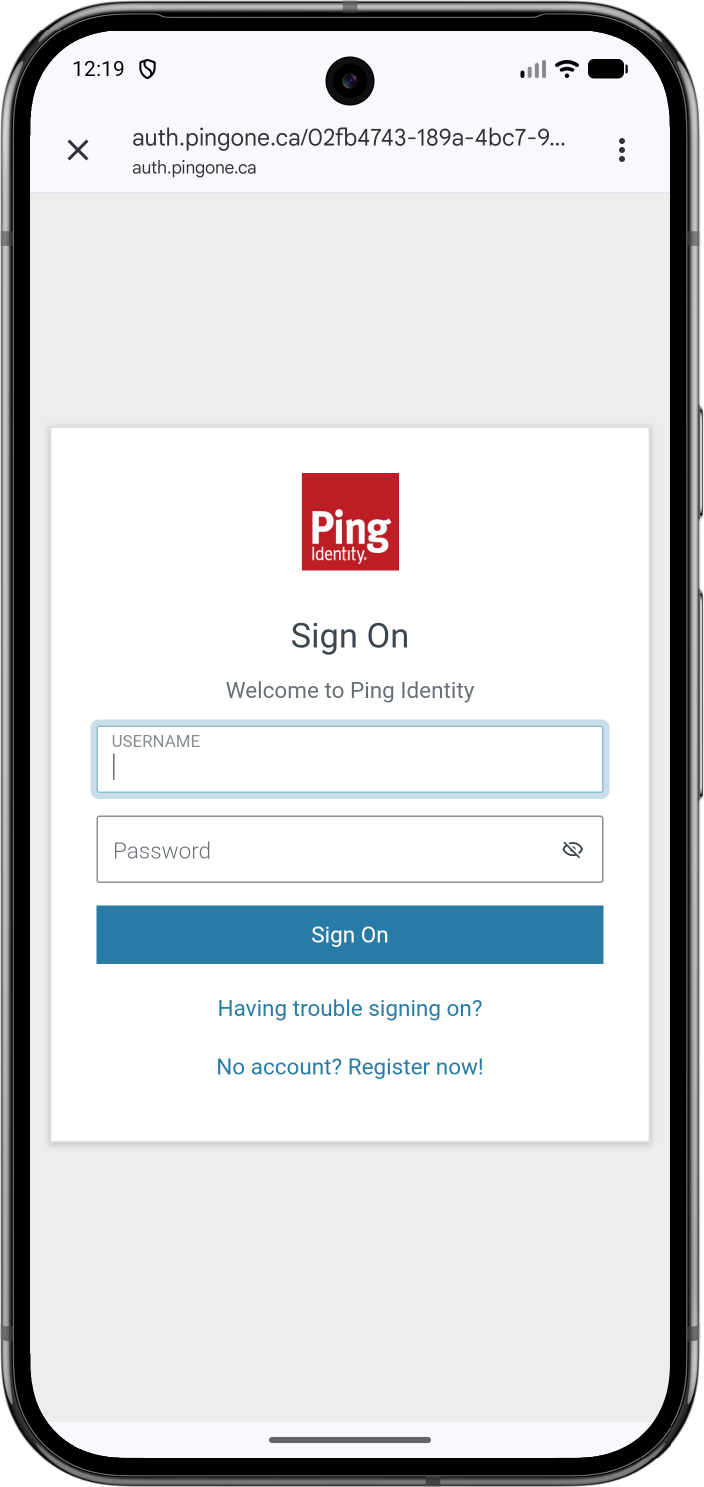 Figure 3. Starting the OIDC login flow in the 'reactnative-oidc' sample app
 -
Sign on as a demo user:
-
Name:
demo -
Password:
Ch4ng3it!
If authentication is successful the app displays the authenticated user screen:
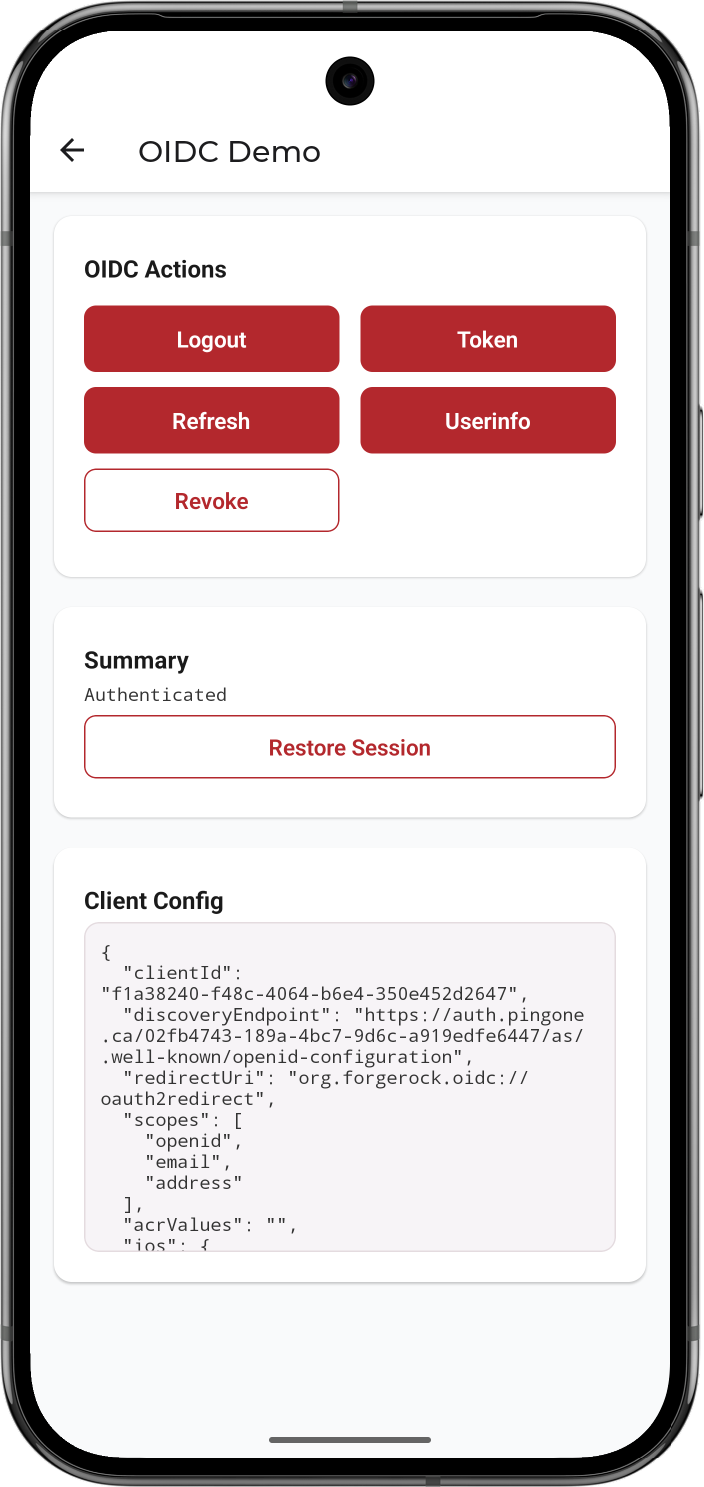 Figure 4. Authenticated state in the 'reactnative-oidc' sample app
 -
-
Tap Userinfo to view a summary of the details returned from the server:
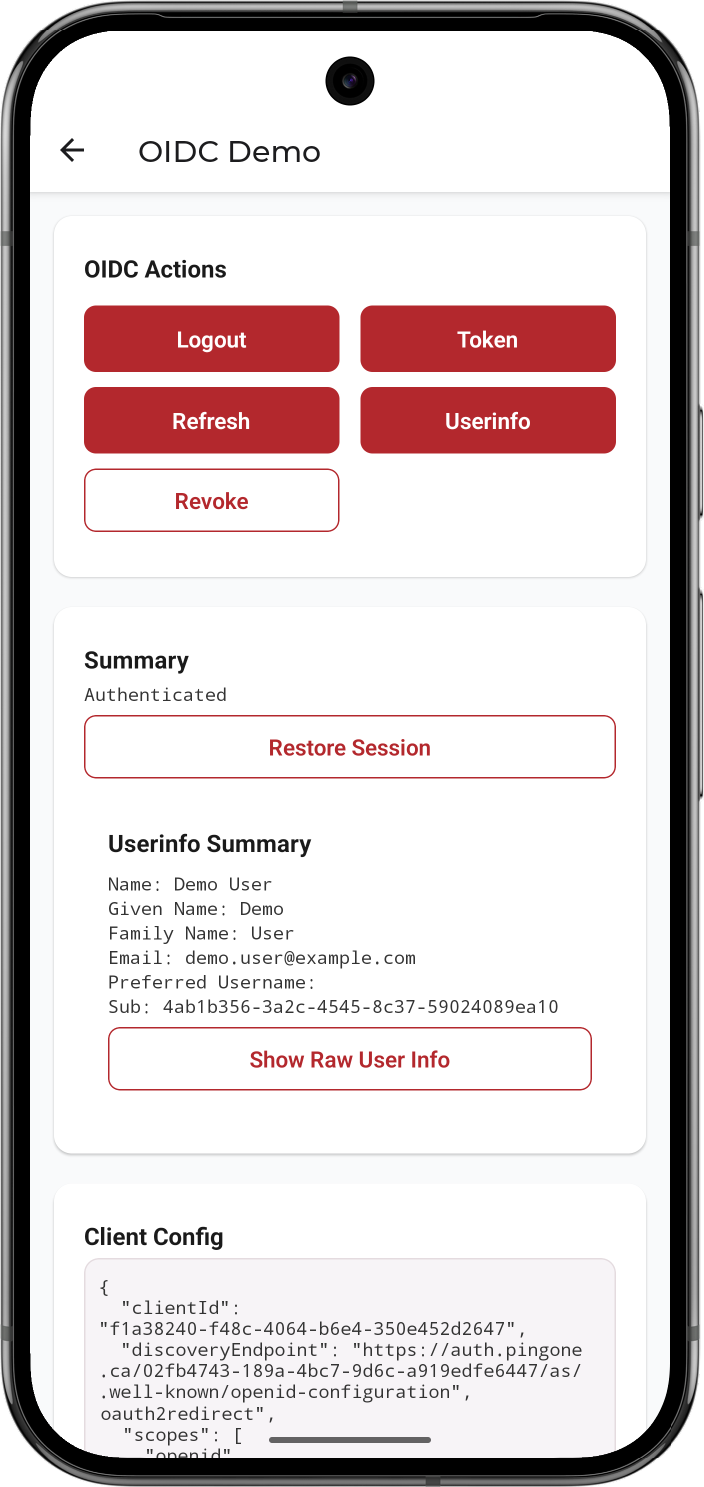 Figure 5. Userinfo summary in the 'reactnative-oidc' sample app
 -
Tap Token to view the access, refresh, and ID tokens, if available:
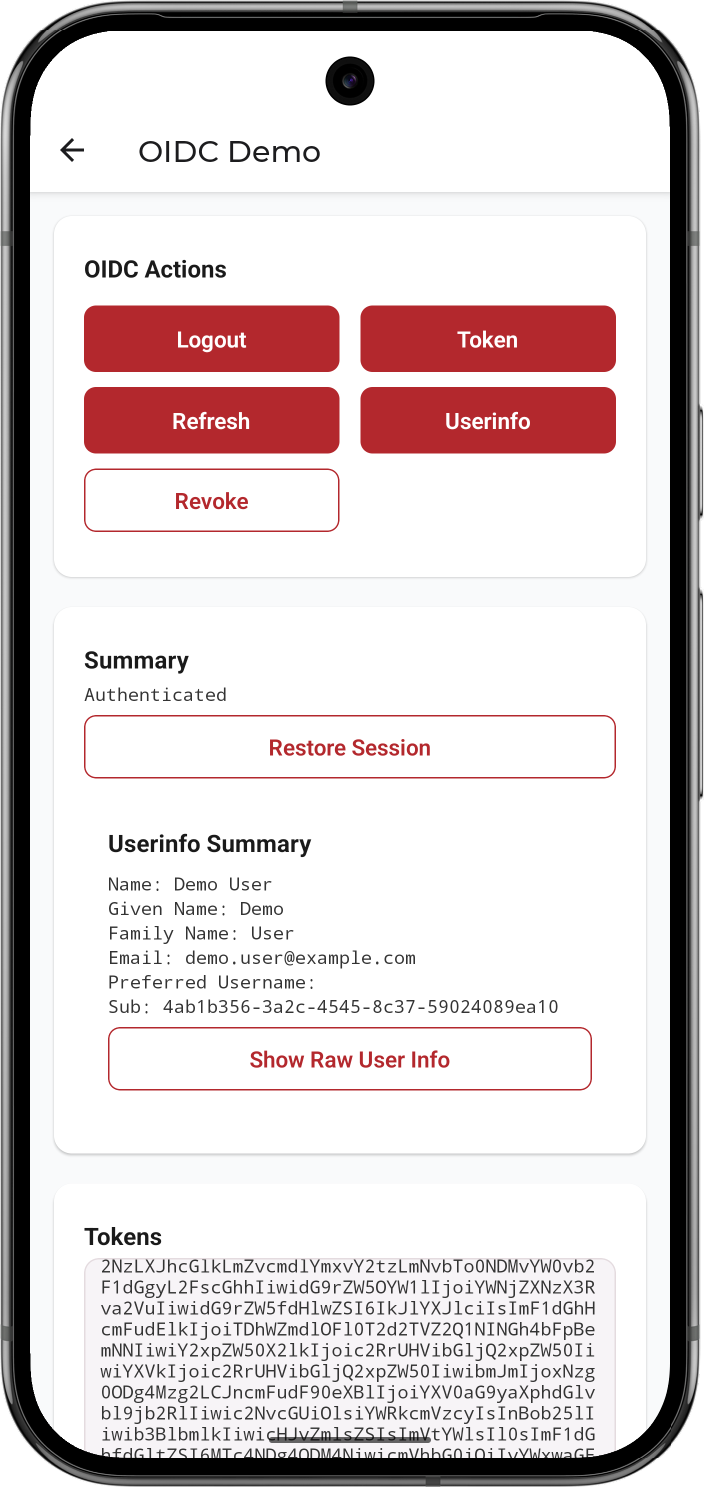 Figure 6. Tokens section in the 'reactnative-oidc' sample app
 -
Tap Logout to sign the user out of PingOne, revoke the tokens, and clear them from secure storage on the device.
To verify the user is signed out:
-
In the PingOne administration console, navigate to Directory > Users.
-
Select the user you signed in as.
-
From the Services dropdown, select Authentication:
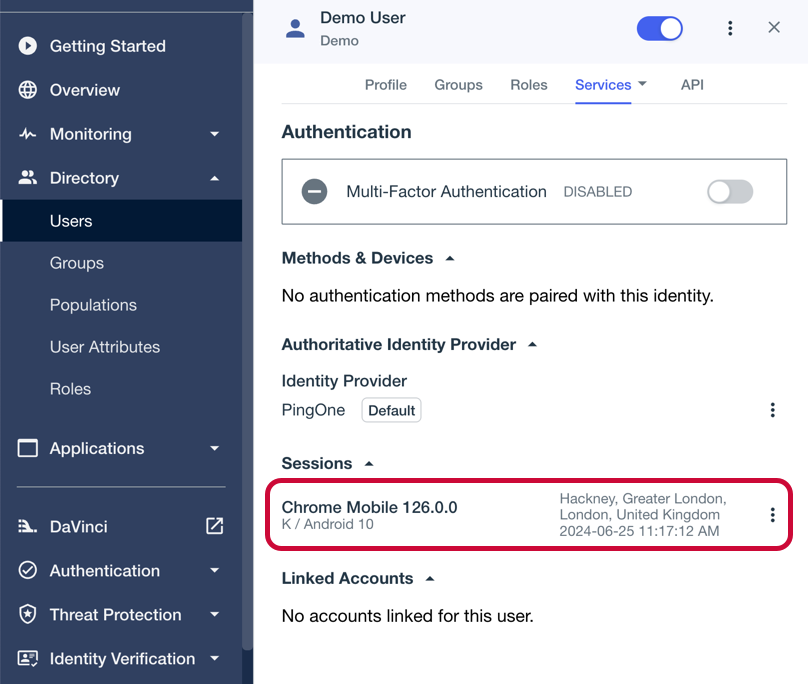 Figure 7. Checking a user’s sessions in PingOne.
The Sessions section displays any existing sessions the user has, and whether they originate from a mobile device.
-