Testing push notifications on iOS
PingOne iOS
Before testing push authentication end to end, confirm that PingOne can reach your app through APNs.
This step needs everything in Configuring push notifications and the token registration code in Handling push notifications to be in place first: the app must be running on a device with the Push Notifications capability enabled so that the system issues an APNs token, and the app must register that token with PingOne using setDeviceToken.
Getting the device token
The token registration snippet in Handling push notifications includes a commented-out log statement that prints the token after a successful registration.
Uncomment those lines, run the app on a physical device, and copy the token from the console:
Registered. APNs push token: 8f3a1c...
Push notifications do not work in the iOS simulator; a device token from a simulator is not usable for real pushes.
If the app was already registered before you completed the APNs configuration, the system might not call the delegate method again on startup. Uninstall and reinstall the app to force a fresh token, or register for remote notifications explicitly at startup:
UIApplication.shared.registerForRemoteNotifications()Sending the test push
The token the app registers depends on the build configuration: a DEBUG build registers with the APNs sandbox environment and a release build with production. A test push only arrives when the sending environment matches the token’s environment.
To send a test push notification from the PingOne admin console:
-
Log in to your PingOne administration console.
-
In the left panel, navigate to Applications > Applications.
-
Select the Native App (OpenID Connect) application that represents your mobile app, for example pingone-mfa-ios.
-
On the Mobile tab, click the pencil icon ()
The page displays the date when you uploaded the APNs authentication key:
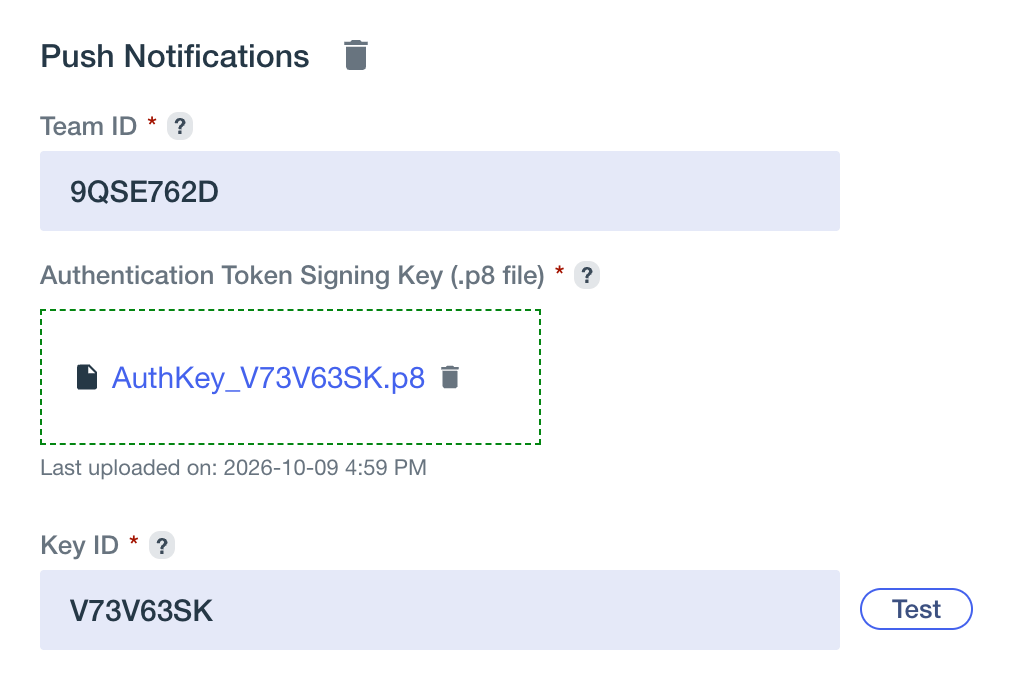 Figure 1. The Mobile tab of a PingOne native application, showing the Test button.
-
Click Test.
PingOne displays the Test Push Notification dialog:
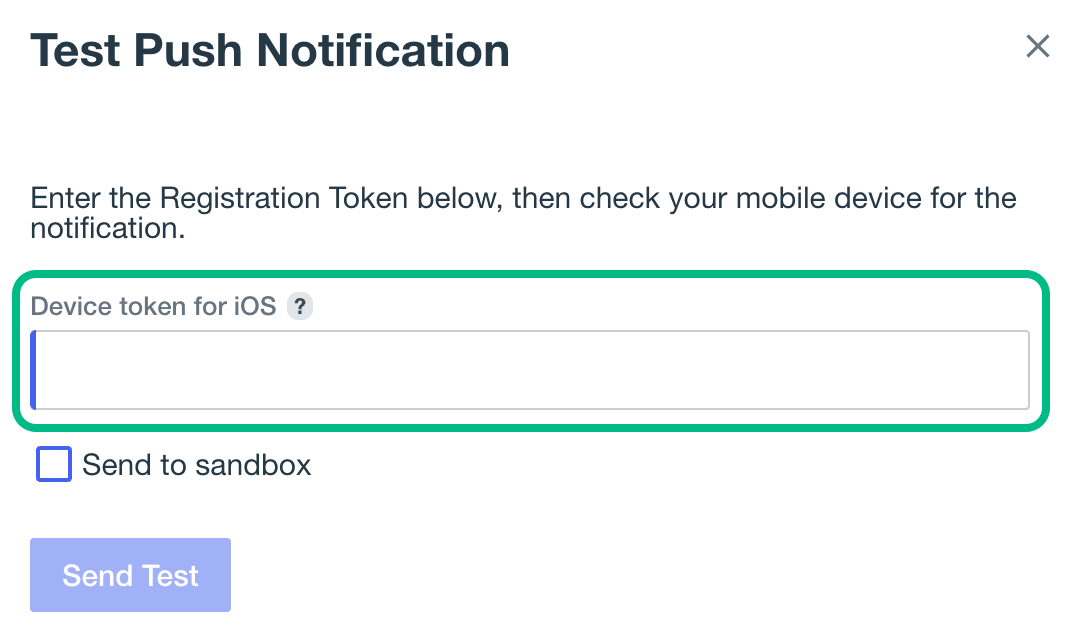 Figure 2. The Test Push Notification dialog.
-
In the token field, paste the APNs device token you copied from the console.
-
Click Send Test.
The device receives a notification if PingOne can reach the app through APNs:
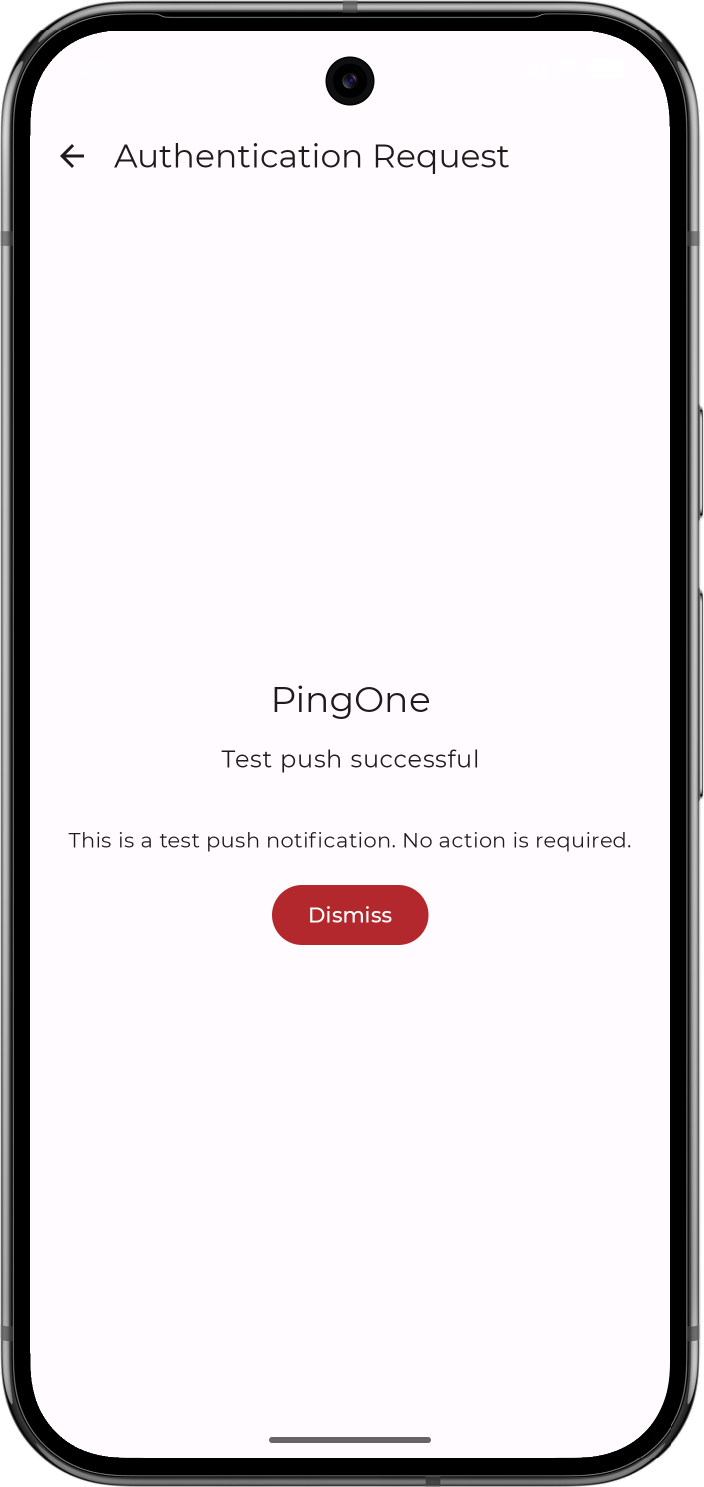
A successful test confirms that the APNs authentication key is correct and that PingOne can deliver to your app. If the push does not arrive, check that:
-
The APNs authentication key, Key ID, and Team ID configured in PingOne come from the same Apple Developer team as the app’s signing certificate.
-
The test push environment matches the build you are testing: a sandbox token needs a sandbox test push, a production token needs a production test push.
-
The device has a network connection and notifications are enabled for the app.