Step 3. Test the app
PingOne Advanced Identity Cloud React Native
In the following procedure, you run the sample app that you configured in the previous step. The app performs a centralized login on your PingOne Advanced Identity Cloud instance.
All commands should be run from the sdk-sample-apps/reactnative/reactnative-oidc directory unless otherwise specified.
Starting the Metro bundler
Metro is the JavaScript bundler for React Native.
From the sdk-sample-apps/reactnative/reactnative-oidc directory, in a terminal window, start Metro as follows, and leave it running:
yarn startThe result will resemble the following:
yarn run v1.22.22
$ react-native start

Welcome to React Native v0.80
Starting dev server on http://localhost:8081


                        ▒▒▓▓▓▓▒▒
                     ▒▓▓▓▒▒░░▒▒▓▓▓▒
                  ▒▓▓▓▓░░░▒▒▒▒░░░▓▓▓▓▒
                 ▓▓▒▒▒▓▓▓▓▓▓▓▓▓▓▓▓▒▒▒▓▓
                 ▓▓░░░░░▒▓▓▓▓▓▓▒░░░░░▓▓
                 ▓▓░░▓▓▒░░░▒▒░░░▒▓▒░░▓▓
                 ▓▓░░▓▓▓▓▓▒▒▒▒▓▓▓▓▒░░▓▓
                 ▓▓░░▓▓▓▓▓▓▓▓▓▓▓▓▓▒░░▓▓
                 ▓▓▒░░▒▒▓▓▓▓▓▓▓▓▒░░░▒▓▓
                  ▒▓▓▓▒░░░▒▓▓▒░░░▒▓▓▓▒
                     ▒▓▓▓▒░░░░▒▓▓▓▒
                        ▒▒▓▓▓▓▒▒


                Welcome to Metro v0.82.5
              Fast - Scalable - Integrated


 INFO  Dev server ready. Press Ctrl+C to exit.
 INFO  Key commands available:

   r  - reload app(s)
   d  - open Dev Menu
   j  - open DevTools
Running on Android
In a separate terminal window, make sure you are in the sdk-sample-apps/reactnative/reactnative-oidc directory, and run the sample app on an Android emulator or a connected device:
yarn androidRunning on iOS
In a separate terminal window, make sure you are in the sdk-sample-apps/reactnative/reactnative-oidc directory, and run the app on the iOS simulator:
yarn iosSelect the Configuration to use
-
On the home screen, tap Configuration under the SETUP section.
The app displays the servers you set up in the
.envfile: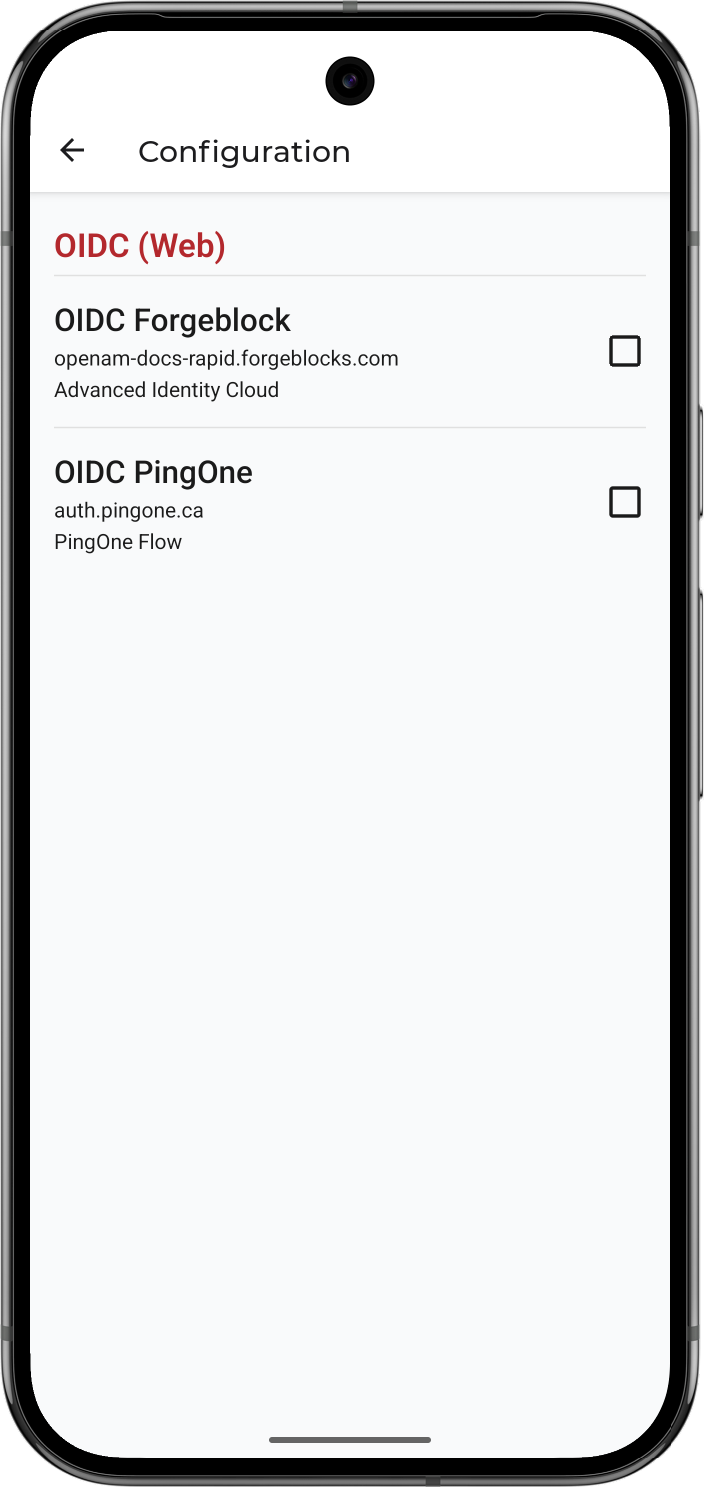 Figure 1. Configuration screen in the 'reactnative-oidc' sample app
 -
Select the server you want to connect to, and then tap the back arrow () to return to the home screen.
Log in as a demo user
-
On the home screen, tap OIDC Login under the AUTHENTICATION section.
The app displays the OIDC Demo page:
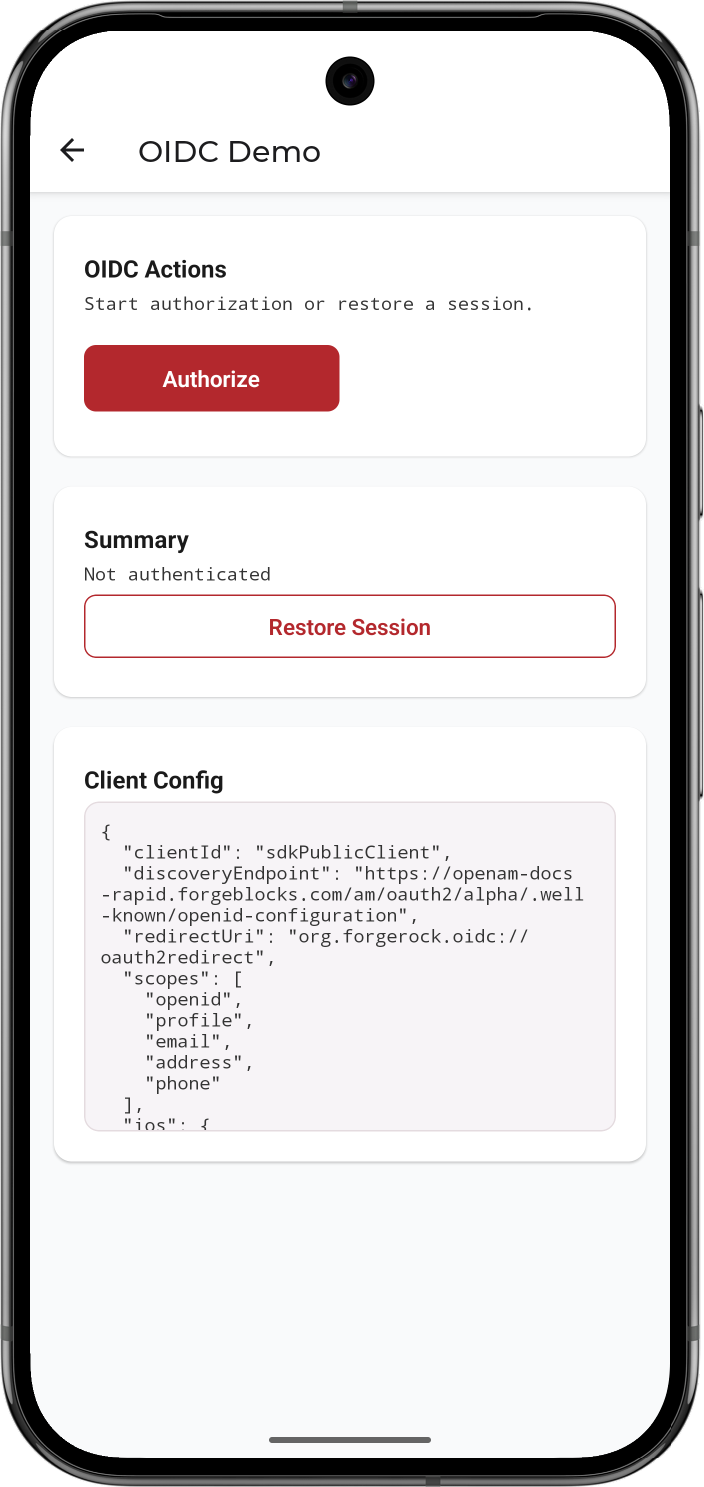 Figure 2. OIDC Demo page in the 'reactnative-oidc' sample app before authentication
 -
Click Authorize.
The app launches the browser and starts the default authentication journey:
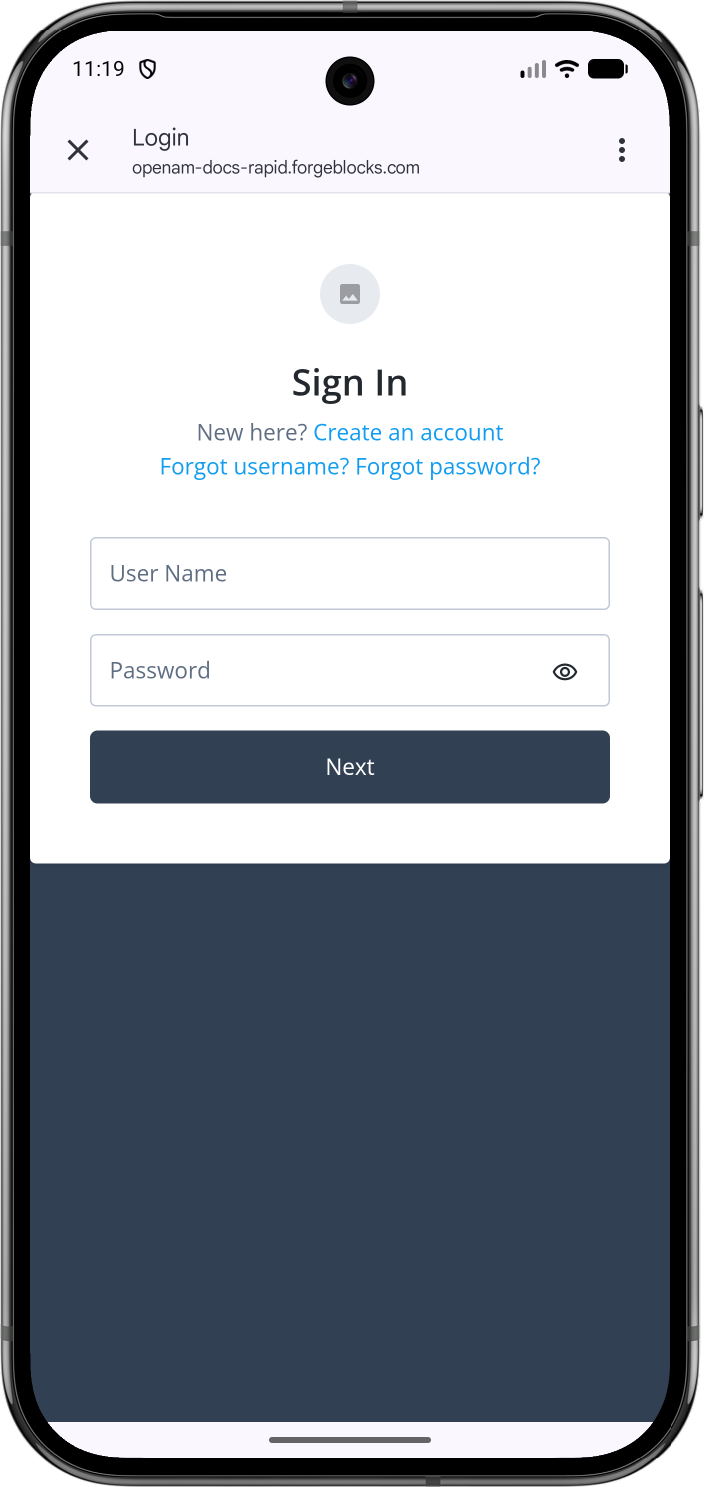 Figure 3. Starting the OIDC login flow in the 'reactnative-oidc' sample app
 -
Sign on as a demo user:
-
Name:
demo -
Password:
Ch4ng3it!
If authentication is successful the app displays the authenticated user screen:
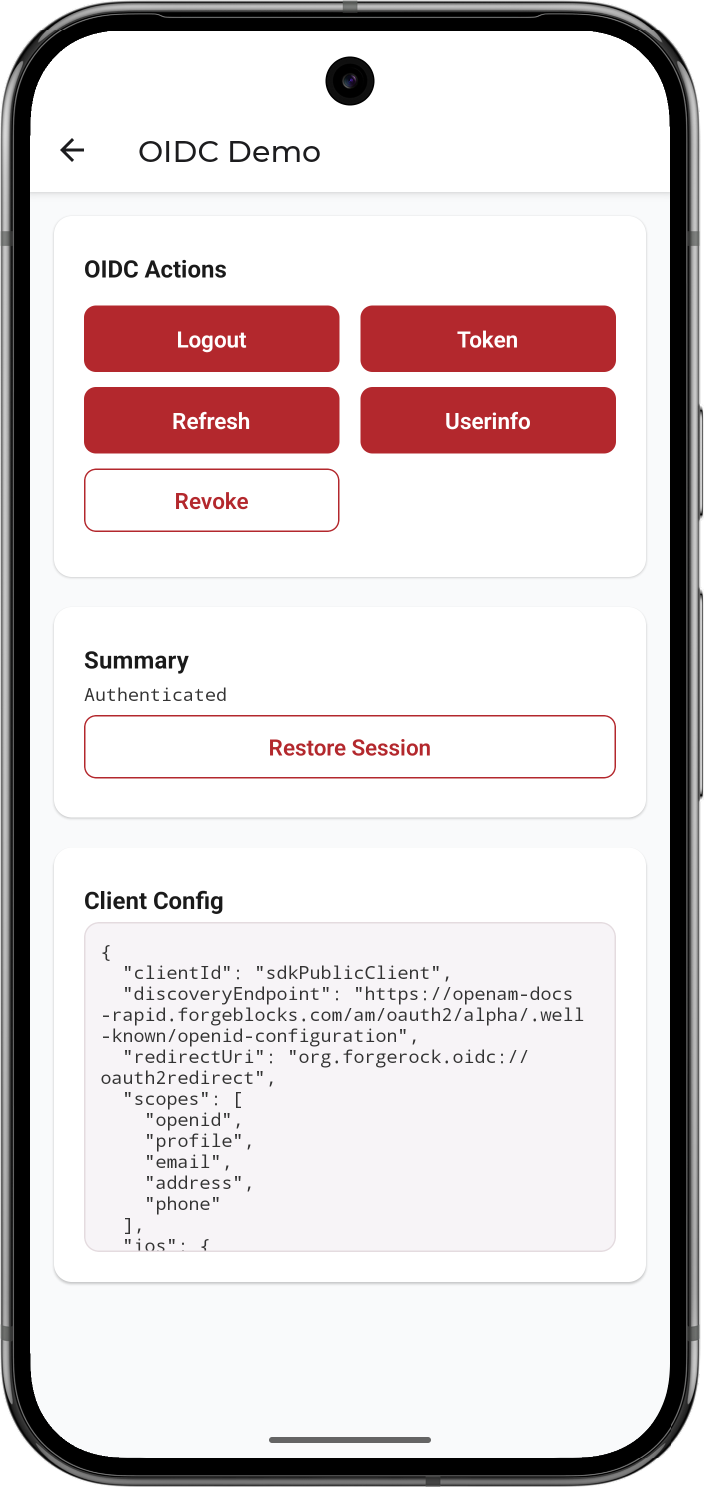 Figure 4. Authenticated state in the 'reactnative-oidc' sample app
 -
-
Tap Userinfo to view a summary of the details returned from the server:
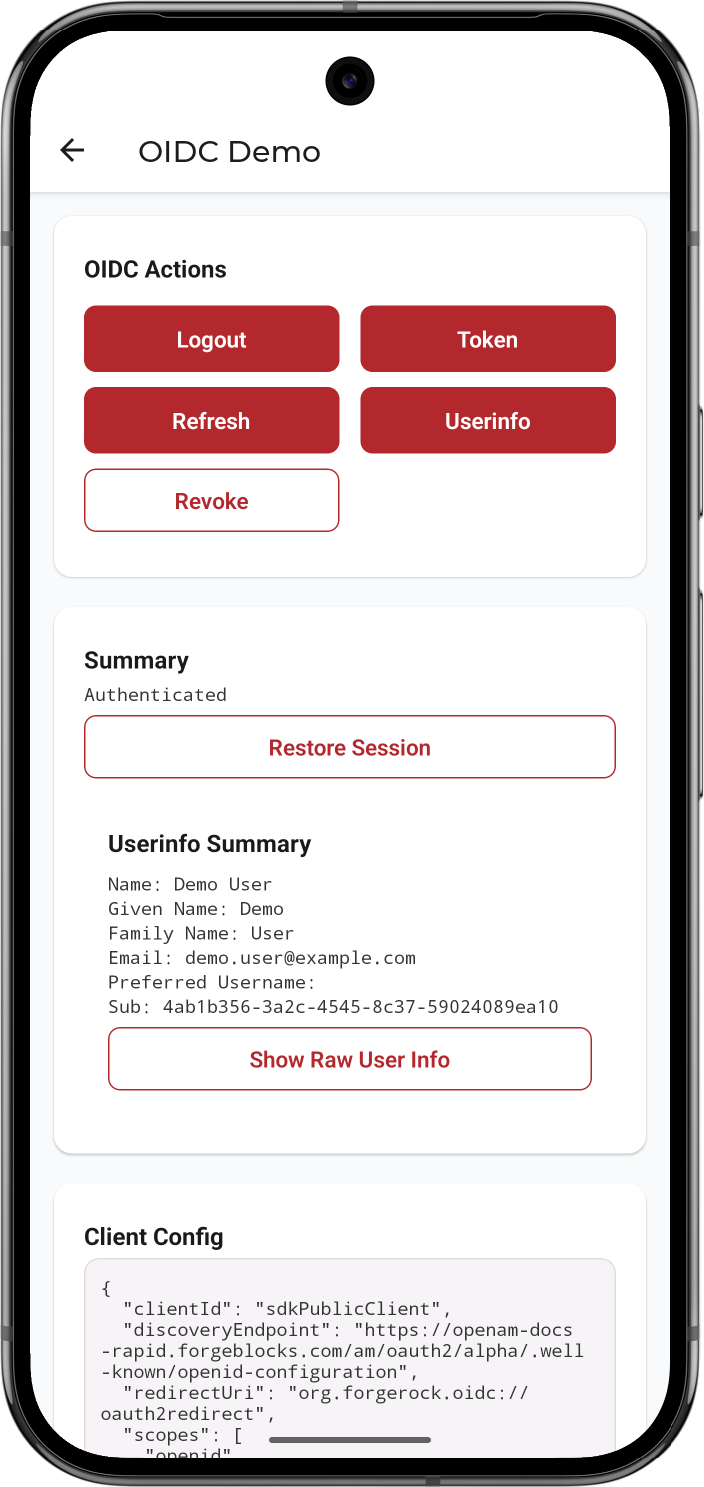 Figure 5. Userinfo summary in the 'reactnative-oidc' sample app
 -
Tap Token to view the access, refresh, and ID tokens, if available:
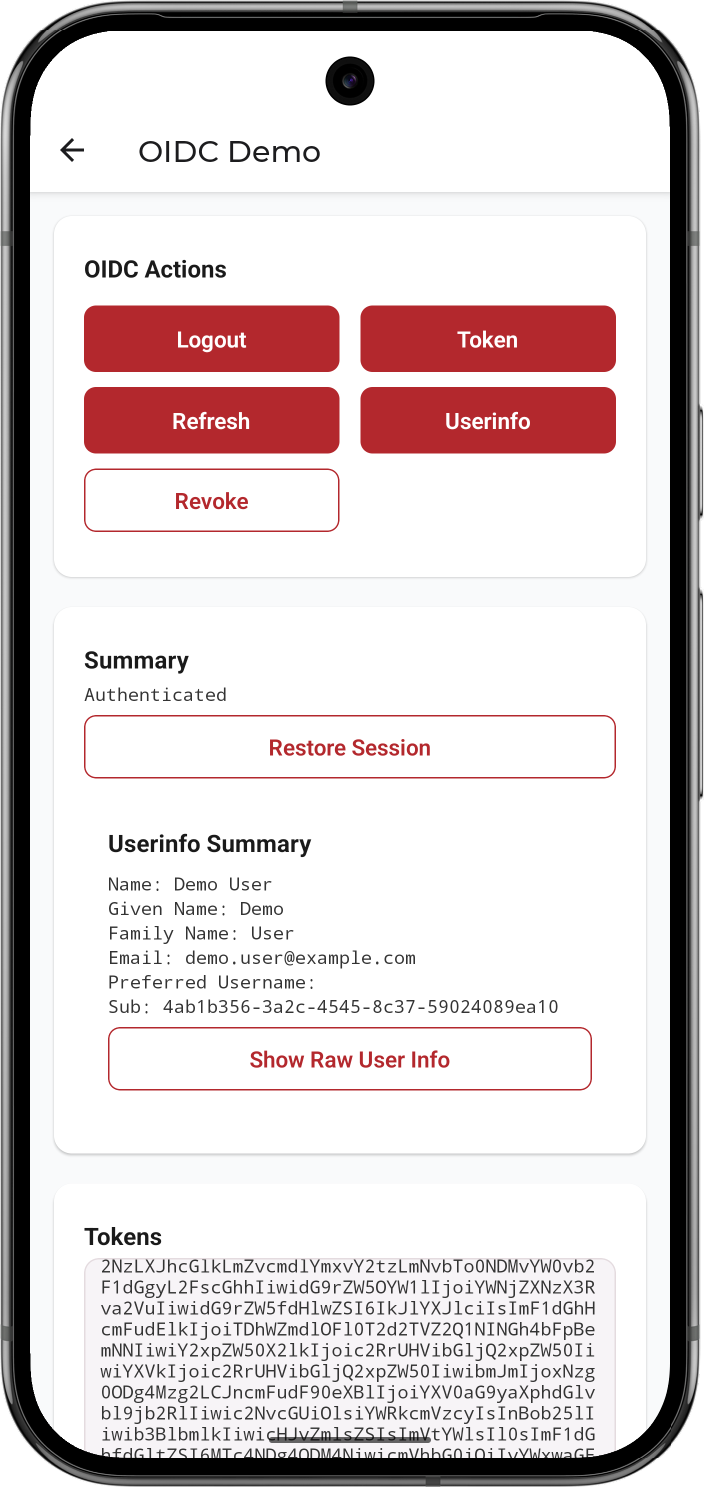 Figure 6. Tokens section in the 'reactnative-oidc' sample app
 -
Tap Logout to sign the user out of PingOne Advanced Identity Cloud, revoke the tokens, and clear them from secure storage on the device.