Step 3. Test the app
PingOne Advanced Identity Cloud PingAM Android
In this step, you run and test the sample app.
You run it in the emulator or on your Android device and perform authentication with a demo user.
-
If not already open, in Android Studio, open the
sdk-sample-apps/android/kotlin-journeyfolder you cloned in a previous step. -
Select Run > Run 'journey'.
Android Studio launches the sample app on the connected device or simulator.
-
Tap the menu icon (), tap Launch Journey.
-
Enter the name of the journey to launch, for example
LoginorsdkUsernamePasswordJourneyand then tap Submit. -
Sign on as a demo user:
-
Name:
demo -
Password:
Ch4ng3it!
After successful authentication the app displays user info:
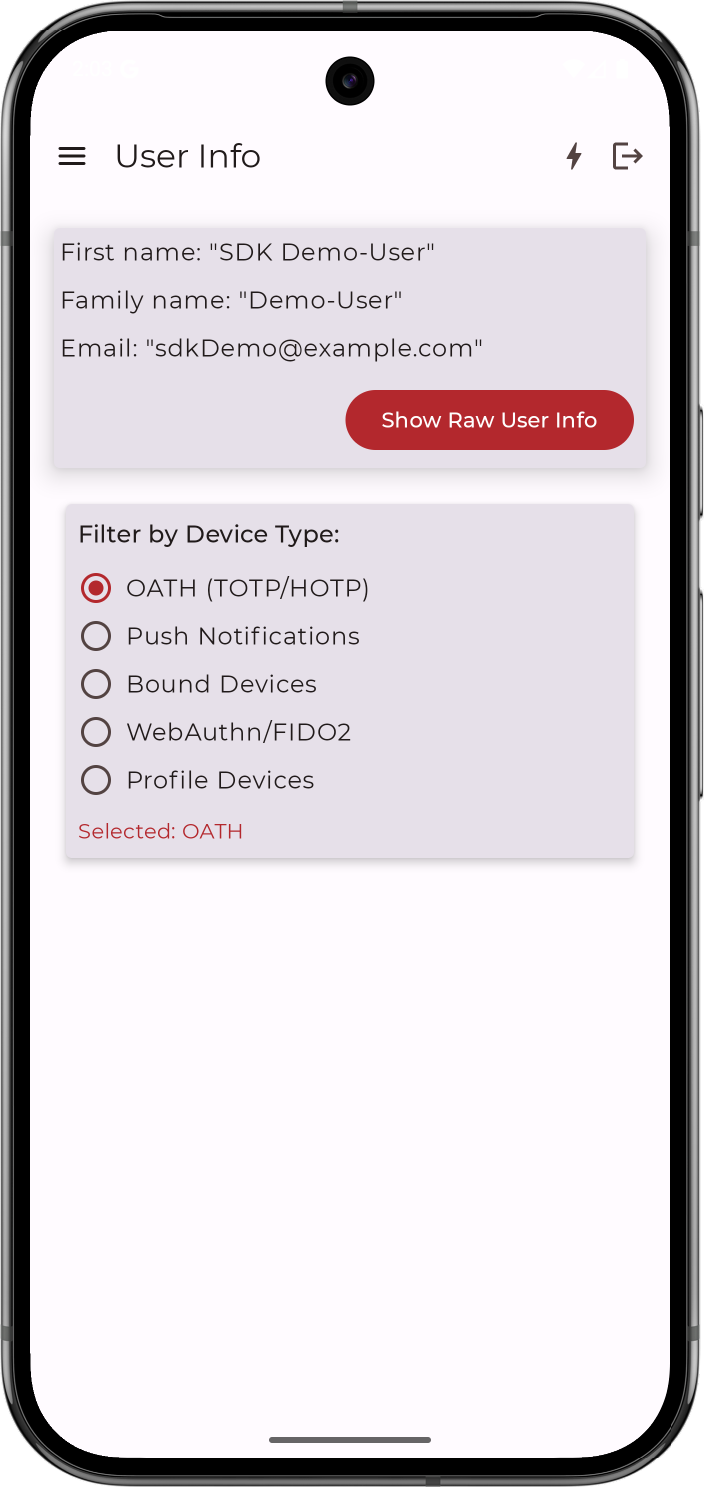 Figure 1. Viewing userinfo for an account in the Android sample app.
 -
-
Tap the menu icon (), and then tap Show Token.
The app displays the access, refresh, and ID tokens for the account. You can also view the scopes granted to the user.
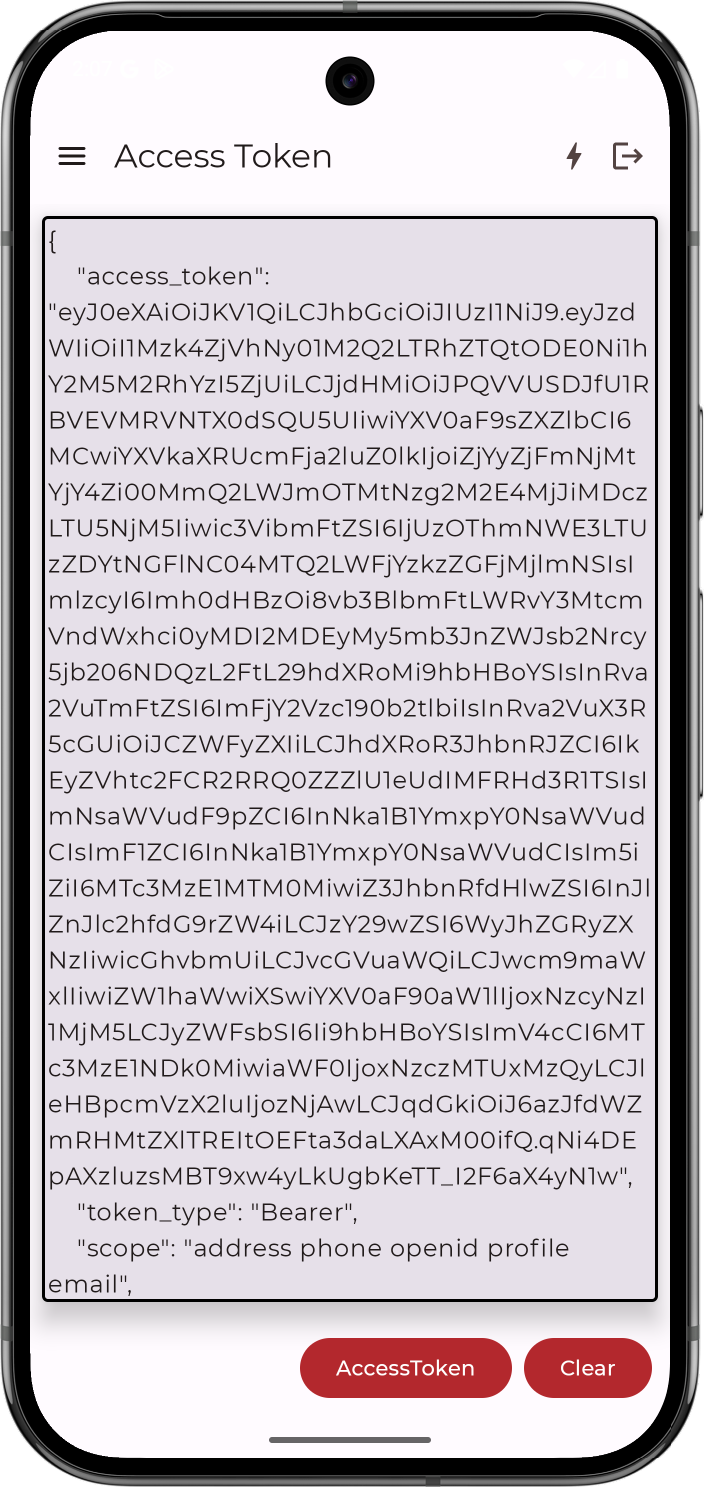 Figure 2. Viewing OAuth 2.0 tokens for an account in the Android sample app.
 -
Tap the menu icon (), and then tap Logout.
The app terminates the user session and returns to the Launch Journey page.