Configuring and managing Postman
When using the Postman collections linked to PingOne use cases, you’ll need to configure any of your Postman requests for authorization and authentication to not follow redirects automatically. You’ll also need to do this for requests that require a redirect to the authorization server. These requests will not execute the steps in the Postman collection as intended if Postman’s Automatically follow redirects setting is turned on.
To disable the Automatically follow redirects setting for requests in Postman:
-
Open your Postman application, and for each relevant request, select Settings.
-
Ensure that the Automatically follow redirects setting is set to OFF.
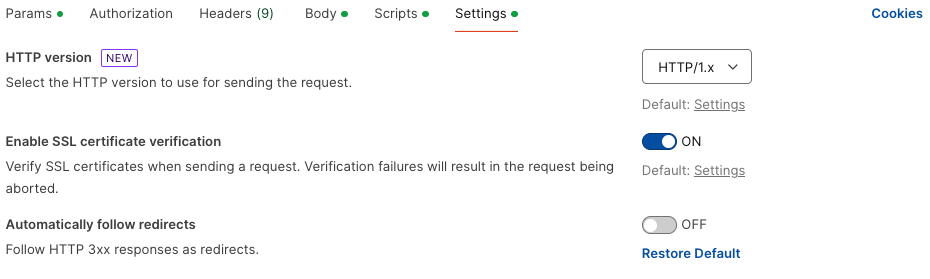
For more information about Postman preferences, refer to Setting up Postman.
Removing session cookies in Postman
When you run use case collections that involve authentication flows, the PingOne API uses session token cookies to establish the user’s authentication session and maintain the session throughout the workflow. Postman functions as the calling client to save these cookies, allowing the flow to redirect back to the authorization server to get an access token.
Before you run any use case workflows, we recommend that you remove all old session token cookies from Postman. To remove these cookies:
-
For the workflow you want to run, open the Step 1 request.
-
Click the Cookies link, which is directly under the Send button.
-
On the Manage Cookies page, delete all session token cookies listed until you see the No Cookies available message.
For more information about Postman and cookie management, refer to Using cookies.