DaVinci flow triggers
DaVinci flows can be categorized as User interactive or Non-interactive flow types. Each type determines the possible triggers and the supported integration methods. User interactive flows support end-user-facing experiences such as login, registration, and MFA. They are triggered by either a DaVinci application or a PingOne application. Non-interactive flows support machine-to-machine flow actions and are triggered by a DaVinci application.
The following diagram shows the application types and the supported integration methods.
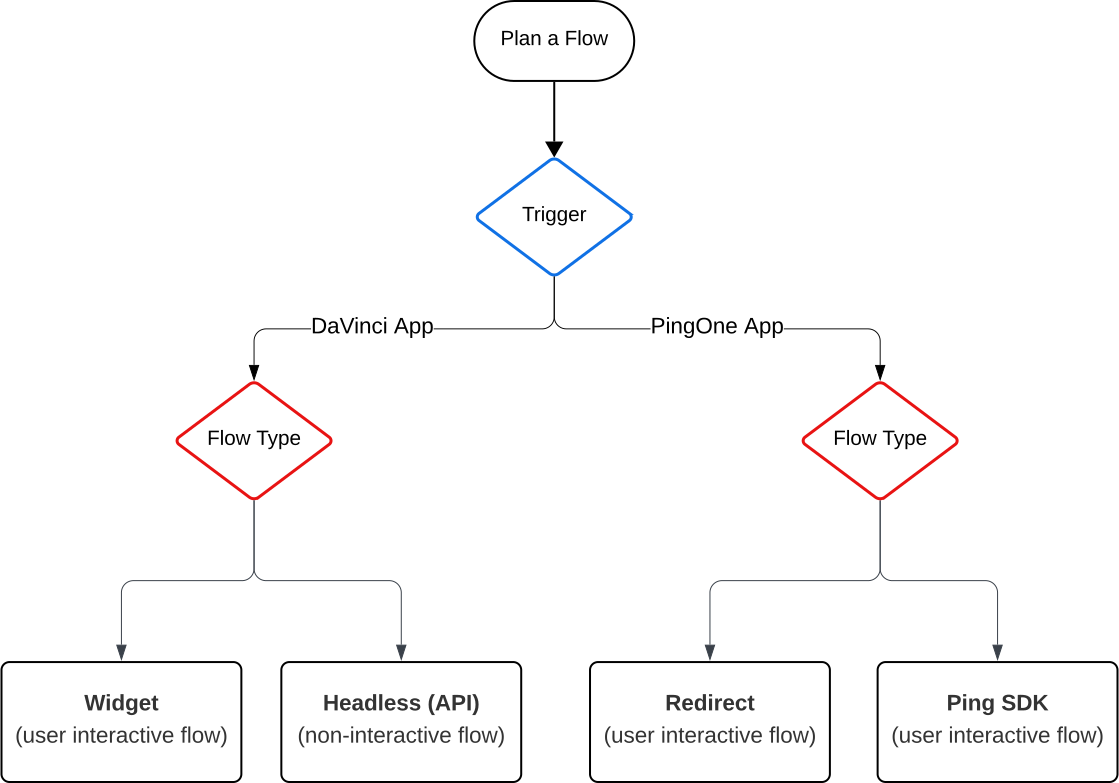
How DaVinci and PingOne applications invoke and manage flows
Both DaVinci and PingOne applications invoke flows through a flow policy associated with a DaVinci application. For DaVinci applications, the flow is launched using the DaVinci flow-orchestration /start method, and this method is authenticated using the application’s API key.
For PingOne applications, the flow is launched using the PingOne /authorize endpoint. After the DaVinci flow completes successfully, the flow is returned to the PingOne authorization server, where the /token request returns the access token.
|
Flow policies associated with DaVinci applications control which flows can be run and by what method. The DaVinci Admin Flows service includes an optional |
DaVinci applications
Flows that do not set the trigger property are DaVinci application flows. These flows use the widget or API call integration methods.
Widget (embedded)
The widget method launches the flow embedded in a widget on the current page without redirecting the user to a new URL.
When to use:
-
You have a web application, and you want to use DaVinci to enhance the account registration and sign-on workflows.
-
Your flow is a web-based user-interactive flow where the domain should stay the same.
How it works:
-
The flow runs inside a rendered widget on your page.
-
The user stays on the same URL.
-
The interface is provided by DaVinci HTML (SK-Components or custom HTML templates). To learn more about user interface options, see DaVinci user interface options.
To learn more, refer to Launching a flow with the widget.
API call (headless)
The API call method launches the flow using a direct API call. No interface HTML is rendered. This method is used for a one-and-done flow for a targeted flow action. There is no back-and-forth interaction.
When to use:
-
The flow has no user-facing interactive component (for example, a backend orchestration flow that evaluates risk, creates accounts, or enriches user data).
-
The flow includes a machine-to-machine flow action.
How it works:
-
The application makes a
POSTrequest to the DaVinci orchestration API. -
The flow runs server-side; the response is returned as JSON.
-
Input parameters can be passed to the flow through its input schema.
To learn more, refer to Launching a flow with an API call.
PingOne applications
PingOne applications invoke DaVinci flows through a flow policy associated with a DaVinci application. Flows launched through PingOne applications support redirect (OIDC/SAML and external IdP) and SDK integration methods.
Redirect (OIDC/SAML)
The redirect method redirects the browser to DaVinci to run the flow, then redirects back to the originating application when all flow actions complete.
When to use:
-
You want whole-page redirect behavior with OIDC or SAML authentication (for example, a standard sign-on flow launched from a PingOne-registered application).
How it works:
-
The user’s browser is redirected to DaVinci.
-
Supports OIDC and SAML protocols.
-
The user interface is provided by DaVinci HTML or PingOne forms. To learn more about user interface options, see DaVinci user interface options.
-
The flow must be configured as a PingOne Flow (enabled in flow settings).
-
The flow must end with
Return a Success Response (Redirect Flows)andReturn an Error Response (Redirect Flows)nodes from the PingOne Authentication connector. -
On success, DaVinci creates a PingOne session and returns the requested scopes, access token, ID token, or SAML assertion to the application.
To learn more, refer to Launching a PingOne flow with a redirect.
Redirect through an external IdP
This method is a variation of the OIDC/SAML PingOne redirect. It configures DaVinci as an external identity provider (IdP) in PingOne.
When to use:
-
Your environment is already configured for DaVinci as an external IdP in PingOne.
-
Your DaVinci flow is not configured as a PingOne triggered flow.
|
This method is not recommended for new integrations. Use the standard PingOne redirect unless your environment already uses this configuration. |
To learn more, refer to Launching a PingOne flow with a redirect using an external IdP.
SDK
This method launches the flow from a native mobile or single-page application built with the Ping SDK.
When to use:
-
You want complete control of the user experience in a native iOS, Android, or JavaScript single-page application while using a DaVinci flow for orchestration behind the scenes.
How it works:
-
The application uses the Ping SDK for iOS, Android, or JavaScript to step through the flow.
-
The UI is provided entirely by your native application.
-
The flow must use only SDK-compatible UI nodes: the HTTP connector’s Custom HTML Template capability or the Form connector’s Show Form capability.
-
Compatible UI elements include text inputs, password fields, submit buttons, flow buttons, dropdowns, and labels.
To learn more, refer to Launching a flow with a Ping SDK.
Switching between integration methods
You can switch an existing flow between widget and PingOne redirect integrations without rebuilding the flow. The key steps involve:
-
Removing the flow policy from the current application.
-
Toggling the PingOne Flow setting in the flow’s Flow Settings.
-
Redeploying the flow.
-
Attaching the flow policy to the new application type.
To learn more, refer to Switching between PingOne and DaVinci widget integrations.
You can switch an existing flow between PingOne redirect and PingOne Native SDK (mobile) integrations without rebuilding the flow or changing the flow policy. The key steps involve:
-
Update the client’s authorize request configuration to set the
response_modeproperty topi.flow. -
Add the
X-Requested-With: ping-sdkheader to returns JSON instead of HTML.
|
Different integration methods call for flows to start or end in unique ways, making it impractical to build for one integration method then change to another. For this reason, it’s important to identify your integration approach early in the flow design process. Here are some cases where changing the integration method requires a redesign:
|
Summary
| Trigger | Integration Method | Best For | UI Provider |
|---|---|---|---|
DaVinci application |
Widget (embedded) |
Web apps; inline flow on same page; no redirect; standard sign-in widget use case |
DaVinci HTML |
DaVinci application |
API call (headless) |
Backend/headless flows without user interaction |
Customer application |
PingOne application |
Redirect (standard) |
OIDC/SAML flows; whole-page redirect; PingOne session required |
DaVinci HTML or PingOne forms |
PingOne application |
Redirect through an external IdP |
Existing external IdP configurations only |
DaVinci HTML or PingOne forms |
PingOne application |
SDK |
Native iOS, Android, or JavaScript SPA; full UI control; mobile-first use cases |
Customer application (native) |