Authorizing Gemini agents on behalf of users with Ping Identity solutions
This use case secures an agent that calls protected tools and resources on behalf of a human user. The human proves their identity, and that identity is preserved through every delegation boundary between the user, agent, and downstream services. The Agent Gateway Service Extension asks PingOne Authorize for a policy decision and, when approved, mints a scoped, short-lived token that identifies the human user. The extension then forwards the request to the MCP server, which calls downstream resources to execute operations for the human.
This use case builds on the Integrating Gemini Enterprise Agent Platform with Ping Identity solutions architecture by adding a human in the loop to the flow. You can find more information about token exchange with delegation in the PingOne documentation.
How this works
Consider an agent that purchases products on behalf of an authenticated user. The following diagram shows the components involved:
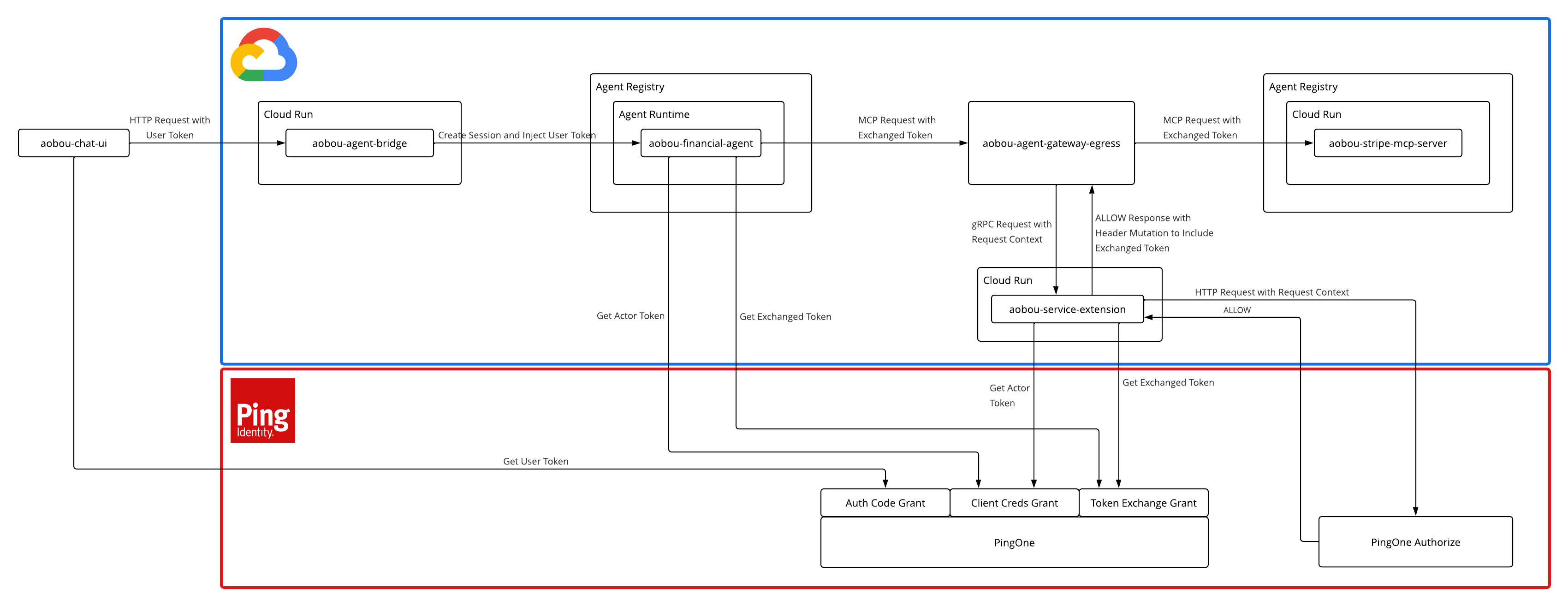
-
The user signs on with PingOne through the Chat UI.
-
The agent exchanges the user’s token for a delegated token that names the agent as the actor.
-
The agent runtime routes Model Context Protocol (MCP) requests through the Agent Gateway to the Agent Gateway Service Extension.
-
The Agent Gateway Service Extension validates the delegated token, resolves the user’s email, and asks PingOne Authorize whether this agent is permitted to act for this user on this transaction.
-
Upon permit, the Agent Gateway Service Extension performs a second token exchange, minting a token audienced for the Stripe MCP Server that preserves the user’s identity and records the full delegation chain. The extension then injects the token and forwards the request.
Components
| Component | Role |
|---|---|
Chat interface that the user signs on to PingOne and interacts with. |
|
Financial agent acting as an MCP client. Reads the user token and performs token exchange. |
|
Google Cloud entry point. Validates the user token and stores it in the agent session state. |
|
Google-managed policy enforcement point that forwards agent requests to the Agent Gateway Service Extension over the gRPC remote procedure call framework. |
|
Handler that sends requests to PingOne Authorize, exchanges the agent’s token, and injects the resulting token into the request. |
|
Downstream resource that the agent invokes to make a purchase. |
|
Identity provider (IdP) that issues the agent’s token, the delegated agent token, and the delegated tool token. |
|
External policy decision point that evaluates authorization requests. |
Token chain
The token flow begins when the user signs on with PingOne through the Chat UI. The Financial Agent presents the user’s token to PingOne as the subject of a token exchange, together with its own client credentials token as the actor. PingOne checks the user token’s may_act claim against the acting client before minting the delegated token, which still names the user as the subject. The Agent Gateway Service Extension later exchanges that delegated token the same way, minting the final tool token for the Stripe MCP Server. Each exchange adds its actor to the act claim, so the final token records the full delegation chain. The agent and Agent Gateway’s actor tokens are omitted from this overview for simplicity.
- User token: the Chat UI’s token
-
{ "iss": "https://auth.pingone.<region>/<env-id>/as", "sub": "<alice-user-id>", "client_id": "<chat-ui-client-id>", "aud": "finance-agent", "scope": "openid stripe_mcp:invoke", "grant_type": "authorization_code", "may_act": { "sub": "<finance-agent-client-id>" } }-
sub: Identifies the human user as the principal subject of the token. -
client_id: Identifies the chat bot as the OAuth client that requested the token. -
aud: Identifies the Financial Agent resource as the recipient of the token. -
scope: Grants the privileges required to invoke the Stripe tools. -
may_act: Authorizes the Financial Agent to delegate next.
-
- Delegated token: the agent’s exchanged token
-
{ "iss": "https://auth.pingone.<region>/<env-id>/as", "sub": "<alice-user-id>", "client_id": "<finance-agent-client-id>", "aud": "google-agent-gateway", "scope": "stripe_mcp:invoke", "grant_type": "urn:ietf:params:oauth:grant-type:token-exchange", "act": { "sub": "<finance-agent-client-id>", "act": null }, "may_act": { "sub": "<agent-gw-extension-client-id>" } }-
sub: Identifies the human user as the principal subject of the token. -
client_id: Identifies the Financial Agent as the OAuth client that requested the token. -
aud: Identifies the Agent Gateway as the recipient of the token. -
scope: Grants the privileges required to invoke the Stripe tools. -
act: Identifies the Financial Agent as the source of delegation. -
may_act: Authorizes only the Agent Gateway Service Extension to delegate next.
-
- MCP tool token: the Agent Gateway’s delegated (exchanged) token
-
{ "iss": "https://auth.pingone.<region>/<env-id>/as", "sub": "<alice-user-id>", "client_id": "<agent-gw-extension-client-id>", "aud": "stripe-mcp-server", "scope": "stripe_mcp:invoke", "grant_type": "urn:ietf:params:oauth:grant-type:token-exchange", "act": { "sub": "<agent-gw-extension-client-id>", "act": { "sub": "<finance-agent-client-id>", "act": null } } }-
sub: Identifies the human user as the principal subject of the token. The user’s identity is preserved end to end. -
client_id: Identifies the Agent Gateway Service Extension as the OAuth client that requested the token. -
aud: Identifies the Stripe MCP Server as the recipient of the token. -
scope: Grants the privileges required to invoke the Stripe tools. -
act: Identifies the Agent Gateway Service Extension as the source of delegation, on behalf of the agent.
-
Benefits of this approach
-
No standing credentials in the agent: The agent never holds a token that acts directly on a resource. It only receives a delegated token scoped to the Agent Gateway.
-
Compound authorization: PingOne Authorize evaluates the user and the agent together. A rogue agent can’t use a stolen user token, and a user can’t call the tool through an unauthorized agent.
-
Delegation proof: The tool token carries a nested
actchain naming every actor in order: the Agent Gateway Service Extension and then the agent. PingOne only builds that chain after checking each token’smay_actclaim at exchange time, so the tool can see exactly who acted for whom, end to end. -
Centralized policy: PingOne Authorize owns the authorization decision. Policies can be updated centrally without modifying or redeploying the agent, the gateway, or the MCP server.
Goals
-
Demonstrate how to authorize an agent to call a protected tool on behalf of a human user.
-
Use PingOne to perform a token exchange that mints a delegated token for a downstream tool.
What you’ll do
-
Deploy the MCP server to Google Cloud Run and register it in Google Agent Registry.
-
Create PingOne Authorize policies that decide whether the Agent Gateway Service Extension permits agent requests to the MCP server.
-
Deploy the Agent Gateway Service Extension to Cloud Run.
-
Create the Agent Gateway and attach the Service Extension to it.
-
Deploy the agent and create a PingOne resource that licenses the Agent Gateway Service Extension as the only actor allowed to exchange tokens bound for the Agent Gateway.
-
Deploy the Agent Bridge to Cloud Run.
-
Deploy the Chat UI to Cloud Run.
Before you begin
In addition to meeting the prerequisites in the integration overview, ensure you have a Stripe account with products and customers configured. Learn more in Set up your account in the Stripe documentation.
Tasks
You can find implementation files and code samples for this use case in the Agent On-Behalf-Of User GitHub repository.
Deploy the Stripe MCP Server
The Stripe MCP Server exposes Stripe tools to an agent.
On every request, it:
-
Validates the
iss,aud,scope, andsignatureclaims of the inbound token injected by the Agent Gateway Service Extension. -
Reads the caller’s email from the
X-User-Emailheader injected by the Agent Gateway Service Extension. -
Executes Stripe operations on behalf of that user.
You’ll configure Stripe, deploy the MCP Server to Cloud Run, register it in Agent Registry, and configure a matching resource in PingOne to ensure every token issued for tool access carries claims that prove delegation.
Configure Stripe
In the Stripe Dashboard, create the products and customers the agent operates on. Each customer must have a saved payment method attached to their account so that the create_stripe_payment_intent tool can charge them without requiring card details at runtime.
| The customer email in Stripe must match the user’s email in PingOne. |
Create the MCP server resource in PingOne
Add a custom resource in PingOne that represents the Stripe MCP Server the agent is allowed to access.
Two grant types are used to request tokens for this resource: the Agent Gateway Service Extension’s client_credentials grant (which has no subject or actor) and the token exchange grant, where the subject token carries the user’s identity. You’ll configure three attributes with attribute mappings to ensure each grant yields the correct claims:
-
sub: Stampsno-subjecton theclient-credentialsgrant. On a token exchange, it carries the subject token’ssubthrough, so the user’s identity is preserved all the way to the Stripe MCP Server. -
act: StampsnoActoron theclient-credentialsgrant. On a token exchange,actis set only if the subject token’smay_actclaim names the exchanging actor. Otherwise it returnsnull, and becauseactis required, anullfails the exchange. This enforces the security boundary that only the agent can exchange a user token onto this resource.
| You can find more details about adding custom resources in the PingOne documentation. |
-
In the PingOne admin console, go to Applications > Resources and click the icon.
-
Define the resource:
-
Resource Name:
AOBOU Stripe MCP Server -
Audience:
stripe-mcp-server
-
-
Click Next.
-
Define attributes for the resource:
Detailed steps follow the table.
Attribute Required Expression subNo
(#root.context.requestData.grantType == "client_credentials") ? "no-subject" : #root.context.requestData.subjectToken.subactYes
(#root.context.requestData.grantType == "client_credentials")?"noActor":((#root.context.requestData.subjectToken.may_act.sub == #root.context.requestData.actorToken.client_id)?{"sub":#root.context.requestData.actorToken.client_id,"act":#root.context.requestData.subjectToken.act}:null)grant_typeNo
#root.context.requestData.grantType-
Click the Gear icon () next to the
subattribute, enter the expression, and click Save.Learn more about expressions in Using the expression builder in the PingOne documentation.
-
Click + Add and name the attribute
act. -
Click , enter the expression, and click Save.
-
Select the Required checkbox for the
actattribute.This ensures that any token exchange that fails to set
actis rejected. -
Click + Add and name the attribute
grant_type. -
Click , enter the expression, and click Save.
-
-
Click Next, then click + Add Scope.
-
Name the scope
stripe_mcp:invoke. -
Click Save.
Deploy the MCP server to Cloud Run
Build the MCP server with configured environment variables and deploy it as a Cloud Run service.
-
Set environment variables for the MCP server:
-
In the cloned Gemini Enterprise Agent Platform Integrations repository, go to the
pingone/agent-on-behalf-of-user/services/stripe-mcp-serverdirectory. -
Make a copy of the
.env.samplefile and name it.env:cp .env.sample .env -
Set environment variables in the
.envfile:Variable Value GC_REGIONYour Google Cloud Platform region. For example:
us-central1.GC_CLOUD_RUN_SERVICE_NAMEThe Cloud Run service name:
aobou-stripe-mcp-server`.IDP_ISSUERThe PingOne issuer URL:
[.userinput]https://auth.pingone.<region>/<env-id>/as``.Set the placeholders:
-
<region>: The country code top-level domain (ccTLD), such as
.com,.eu,.asia. You can find this in your PingOne admin console URL. For example:"https://console.pingone.com/index.html?env=12345678-1234-1234-1234-123456789012has a ccTLD of.com. -
<env-id>: The PingOne environment ID. In the example PingOne admin console URL, the ID is
12345678-1234-1234-1234-123456789012.
STRIPE_SECRET_KEYThe Stripe secret key. To find this value, in the Stripe Dashboard, go to Developers > API keys and copy the value of the Secret key field.
IDP_REQUIRED_AUDIENCEThe expected
audclaim. This matches the audience you gave the Stripe MCP Server resource in PingOne:stripe-mcp-server.IDP_REQUIRED_SCOPEThe scope the inbound token must carry to invoke the Stripe MCP Server:
stripe_mcp:invoke. -
-
-
In the
pingone/agent-on-behalf-of-user/services/stripe-mcp-serverdirectory, run the following command:make deployThis builds the Docker image, pushes it to Google Container Registry, and deploys it to Cloud Run.
Register the MCP server in Agent Registry
Register the MCP server in Agent Registry so the Agent Gateway recognizes it as an approved egress destination.
-
In Google Cloud, go to Agent Platform > Agents > Govern > Agent Registry and click Add MCP Server.
-
Enter the following values:
-
Name:
AOBOU Stripe MCP Server -
Description:
Stripe MCP Server for Agent On-Behalf-Of User demo
-
-
Select your Region. For example:
us-central1. -
Enter the MCP server URL:
-
To find the URL, duplicate the browser tab and go to Cloud Run > Services. Click the aobou-stripe-mcp-server service. Copy the URL at the top of the page. For example:
https://aobou-stripe-mcp-server-909399354423.us-central1.run.app. -
In the Agent Registry, paste the URL in the MCP server URL field and then add
/mcpto the end of the URL.
-
-
Enter the MCP specification JSON. This is the tool specification that describes the MCP server’s endpoints and expected request and response formats.
-
In the
pingone/agent-on-behalf-of-user/services/stripe-mcp-serverdirectory in the cloned repository, copy the contents of thetool-spec.jsonfile. -
In the Agent Registry, paste the contents of the
tool-spec.jsonfile in the JSON field, then click Next.Keep tool-spec.jsonin sync with themcp.NewTooldefinitions inmcp_tools.go. If the definitions change, updatetool-spec.jsonand re-register in Agent Registry.
-
-
Click Save to complete the registration.
Create a Stripe customers group in PingOne
-
In the PingOne admin console, go to Directory > Groups and click the icon.
-
In the Name field, enter
stripe_customers, and then click Save. -
In the Users tab, click Add Individually.
-
Select any PingOne users who have a matching customer email in Stripe, and then click Save.
Create the policies in PingOne Authorize
Create the policies that decide whether the Agent Gateway Service Extension permits the agent’s request to the MCP Server. You’ll create a policy for the agent’s identity, one for the user’s group membership, and one for the purchase amount.
Add attributes in the Trust Framework
Add the following attributes that will be used to make a decision.
| Name | Type | Resolver Parameter |
|---|---|---|
Agent Client ID |
String |
agent_client_id |
User Sub |
String |
user_sub |
Tool Name |
String |
tool_name |
Amount Cents |
Number |
amount_cents |
-
In the PingOne admin console, go to Authorization > Trust Framework.
-
On the Attributes tab, click the icon.
-
Name the attribute
Agent Client ID. -
In the Resolvers section, click Add Resolver and keep the default Request Parameter resolver.
-
Optional: Name the resolver
agent_client_idto match the parameter name in the agent’s request. -
For the Value Settings Type, keep the default value of String.
-
Click Save Changes.
-
Repeat the steps above to add the
User Sub,Tool Name, andAmount Centsattributes, with the corresponding value settings types and optional resolver parameters.
Create the AOBOU Agent Gateway Policies policy set
Add a policy set in PingOne Authorize that contains the policies governing the agent’s access to the MCP server.
-
In the PingOne admin console, go to Authorization > Policies.
-
Click the icon and select Add Policy Set.
-
Name the policy set
AOBOU Agent Gateway Policies. -
For the Combining Algorithm, select Unless one decision is deny, the decision will be permit.
-
Click Save changes.
Create the Only Permit Delegated Agent policy
Create a policy that permits only the delegated agent to access the MCP server.
-
In Authorization > Policies, select the AOBOU Agent Gateway Policies policy set.
-
Click the icon and select Add Policy.
-
Name the policy
Only Permit Delegated Agent. -
In Applies When:
-
For the Combining Algorithm, select Unless one decision is deny, the decision will be permit.
-
Click + Add Rule, then for Effect, select Deny.
-
Click Save changes.
Create the Only Permit Users in Stripe Group policy
Create a policy that permits only users in the stripe_customers group to access the MCP server.
-
In Authorization > Policies, select the AOBOU Agent Gateway Policies policy set.
-
Click the icon and select Add Policy.
-
Name the policy
Only Allow Stripe Group. -
In Applies When:
-
Click + Comparison and select the User Sub attribute.
-
Select the Is Not Member Of operator.
-
For the value, enter
stripe_customers.
-
-
For the Combining Algorithm, select Unless one decision is deny, the decision will be permit.
-
Click + Add Rule, then for Effect, select Deny.
-
Click Save changes.
Create the Only Permit Stripe Purchases Below $100 policy
Create a policy that permits only purchases below $100 (10,000 cents) to access the MCP server.
-
In Authorization > Policies, select the AOBOU Agent Gateway Policies policy set.
-
Click the icon and select Add Policy.
-
Name the policy
Only Permit Stripe Purchases Below $100. -
In Applies When:
-
Click + Comparison and select the Tool Name attribute.
-
Select the Equals operator.
-
For the value, enter
create_stripe_payment_intent. -
Click + Comparison and select the Amount Cents attribute.
-
Select the Greater Than operator.
-
For the value, enter
10000.
-
-
For the Combining Algorithm, select Unless one decision is deny, the decision will be permit.
-
Click + Add Rule, then for Effect, select Deny.
-
Click Save changes.
Publish an authorization policy version
Publish a policy version to deploy your policies to a decision endpoint and make them available for decision evaluations.
-
In the PingOne admin console, go to Authorization > Version History.
-
Click the More Options (⋮) icon next to the Latest Version and select Publish Version.
-
In the Publish to list, select a decision endpoint.
-
For the version Name, enter
AOBOU. -
Click Publish.
The version name and the endpoint the version is published to are displayed in Version History.
-
Go to Authorization > Decision Endpoints and expand the decision endpoint where you published the policy version. Copy the decision endpoint URL and save it somewhere convenient. You’ll need it in the next task when you deploy the Agent Gateway Service Extension.
Deploy the Agent Gateway Service Extension
The Agent Gateway Service Extension is an Envoy ext_proc gRPC handler that the Agent Gateway calls to request authorization decisions and perform token exchanges.
You’ll deploy the service to Cloud Run to govern requests bound for the Stripe MCP Server. During this flow, the service:
-
Validates the agent’s delegated token, specifically checking the
iss,aud, andscopeclaims. -
Calls PingOne Authorize on
tools/callrequests to evaluate the agent’s identity and the purchase amount. Non-invocation requests (initialize,tools/list) skip this authorization check. -
Upon a permit decision, performs a token exchange to generate a token restricted to the Stripe MCP Server (
aud). -
Injects the new credential as an
Authorization: Bearerheader before forwarding the request to the Stripe MCP Server.
Create a PingOne worker application
Create a PingOne worker application that the Agent Gateway Service Extension uses to call PingOne Authorize for authorization decisions.
-
In the PingOne admin console, go to Applications > Applications.
-
Click the icon and create the application profile:
-
Name the application
AOBOU PingOne Authorize Worker App. -
For the Application Type, click Worker.
-
Click Save.
-
-
To enable the application, click the toggle next to the application name in the details panel.
-
On the Configuration tab, click the Pencil icon (), make sure Client Credentials is the Grant Type, then click Cancel.
-
On the Roles tab, click Grant Roles.
-
Expand the Environment Admin and Identity Data Read Only roles and select your environment for each.
-
Click Save.
Create a PingOne application for token exchange
Create a PingOne application that the Agent Gateway Service Extension uses to perform token exchanges for the MCP server.
-
In the PingOne admin console, go to Applications > Applications.
-
Click the icon and create the application profile:
-
Name the application
AOBOU Agent Gateway Extension. -
For the Application Type, click OIDC Web App.
-
Click Save.
-
-
To enable the application, click the toggle next to the application name in the details panel.
-
On the Configuration tab, click .
-
For Grant Type, select Client Credentials and Token Exchange.
-
Clear the Code and Authorization Code checkboxes.
-
Click Save
-
-
On the Resources tab, click , then select the stripe_mcp:invoke scope on the AOBOU Stripe MCP Server.
This scope isn’t available yet. Complete this step after you deploy the Financial Agent.
-
Click Save.
-
On the Overview tab, copy the Client ID for this application and save it somewhere convenient. You’ll need it later when you create the Agent Gateway resource in PingOne.
Deploy the Agent Gateway Service Extension to Cloud Run
Build the service with configured environment variables and deploy it as a Google Cloud Run service.
-
Set environment variables for the Agent Gateway Service Extension:
-
In the cloned repository, go to the
pingone/agent-on-behalf-of-user/services/agent-gateway-extension-servicedirectory. -
Make a copy of the
.env.samplefile and name it.env:cp .env.sample .env -
Set environment variables in the
.envfile:Variable Value GC_REGIONYour Google Cloud Platform region. For example:
us-central1.GC_SERVICE_EXTENSION_NAMEThe name of the Service Extension resource created when this service is registered:
aobou-agent-gateway-extension.GC_CLOUD_RUN_SERVICE_NAMEThe Cloud Run service name:
aobou-agent-gateway-extension-service.IDP_ISSUERThe AOBOU PingOne Authorize Worker App token endpoint:
https://auth.pingone.<region>/<env-id>/as. Copy this from the Connection Details > Issuer ID field on the Overview tab of the AOBOU PingOne Authorize Worker App application in PingOne.EXCHANGE_CLIENT_IDToken-exchange worker app Client ID.
EXCHANGE_CLIENT_SECRETToken-exchange worker app Client Secret.
AUTHZ_CLIENT_IDAuthorize worker app Client ID.
AUTHZ_CLIENT_SECRETAuthorize worker app Client Secret.
The PingOne Authorize decision endpoint URL from when you published the policy version in the previous task.
IDP_REQUIRED_AUDIENCEThe expected
audon the inbound token from the gateway resource:google-agent-gateway.IDP_REQUIRED_SCOPEThe scope the inbound token must carry to invoke the Stripe MCP Server:
stripe_mcp:invoke.TOOL_URLThe MCP tool’s Cloud Run base URL. To find this URL:
-
Go to Cloud Run > Services and click the
aobou-stripe-mcp-serverservice. -
Copy the URL at the top of the page (for example
https://aobou-stripe-mcp-server-909399354427.us-central1.run.app).
TOOL_SCOPEThe scope requested on the outbound tool token:
stripe_mcp:invoke. -
-
-
In the
pingone/agent-on-behalf-of-user/services/agent-gateway-extension-servicedirectory, run the following commands:make deployThis builds the Docker image, pushes it to Google Container Registry, and deploys it to Cloud Run.
make registerThis registers your deployed Cloud Run service as an available service extension in Google Cloud. Behind the scenes, it renders the
service-extension.tmpl.yamltemplate with the live Cloud Run URL and imports the configuration, preparing the extension for use by the Agent Gateway.
Create the Agent Gateway
The Agent Gateway is a Google-managed resource that acts as the policy enforcement point for all agent egress traffic. It intercepts all outbound traffic bound for downstream tools and routes it to the Agent Gateway Service Extension.
You’ll configure the gateway to call the Agent Gateway Service Extension, using Envoy external processing (ext_proc), on every request to the Stripe MCP Server. This includes attaching the Agent Gateway Service Extension to the gateway, registering the egress destinations it can reach, and creating the PingOne resource that licenses the Agent Gateway Service Extension as the only actor allowed to exchange tokens bound for the gateway.
Configure environment variables
-
In the cloned Gemini Enterprise Agent Platform Integrations repository, go to the
pingone/agent-on-behalf-of-user/services/agent-gatewaydirectory. -
Make a copy of the
.env.samplefile and name it.env:cp .env.sample .env -
Check the environment variables in the
.envfile. Most are already defined.Variable Value GC_REGIONYour Google Cloud Platform region. For example:
us-central1.GC_GATEWAY_NAMEThe Agent Gateway’s name. For example:
aobou-agent-gateway.GC_SERVICE_EXTENSION_NAMEThe deployed Agent Gateway Service Extension name, created when the service extension was registered. For example:
aobou-agent-gateway-extension.GC_AUTHZ_POLICY_NAMEName of the policy resource this creates. For example:
aobou-authz-policy.
Create the Agent Gateway in the Google Cloud Console
Create the Egress Agent Gateway in the Google Cloud Console.
-
In Google Cloud, go to Agent Platform > Agents > Govern > Gateways and click Add gateway.
-
Enter the following values:
-
Name: Name the gateway
aobou-agent-gateway. -
Region: Your Google Cloud Platform region. For example:
us-central1. -
Deployment mode: Keep the default Google-managed.
-
Governed Access Path: Keep the default Agent-to-Anywhere (egress).
-
Access Authorization: Select Enforce policies.
-
Policy Model: Select Allow Policy.
-
-
Click Save gateway.
Attach the Agent Gateway Service Extension to the Agent Gateway
To enforce your access policies, you must connect the Agent Gateway Service Extension to the Agent Gateway. The make attach command populates authz-policy.tmpl.yaml with your project, region, and gateway name, and then imports it with gcloud, creating an authorization policy that binds the extension to the gateway as a CONTENT_AUTHZ policy scoped to the /mcp path.
In the pingone/agent-on-behalf-of-user/services/agent-gateway directory, run the following command:
make attach
You can run make render alone to inspect the generated YAML without importing.
|
There are now two complementary authorization extensions attached to the Agent Gateway:
| Extension | Service role | Target | Description |
|---|---|---|---|
|
|
|
A Google-managed extension automatically created with the gateway. It enforces the Identity-Aware Proxy (IAP) identity and egress check ( |
|
|
Cloud Run service extension |
The extension created in the previous step. It routes traffic to your Cloud Run host and requests an authorization decision. Upon permit, the extension performs the PingOne token exchange and injects the resulting delegated token in the |
Register egress destinations for the Agent Gateway
The gateway governs all agent egress, so every host the agent reaches must be a registered destination in Agent Registry. Your environment currently includes the following registered destinations:
-
Stripe MCP Server: This was registered as an MCP server (rather than a standard endpoint) when you deployed it.
The registered URL must match the host URL invoked by the agent exactly. Because IAP resolves egress destinations by host name, any mismatch causes IAP to block the request before it ever reaches the service extension. For example, a failure occurs if the registry holds the stable Cloud Run URL (
…-<project-number>.<region>.run.app), but the agent calls a direct revision URL (…-<hash>-<region>.a.run.app). If this happens, you’ll see aDENIEDentry in the gateway logs with noagentRegistryResource. -
Google APIs: Endpoints for
aiplatform,iamcredentials, and telemetry (*.mtls.googleapis.com) were automatically generated during the gateway deployment to support the runtime’s internal egress. Don’t modify these endpoints.
You’ll register the PingOne host as the final required egress endpoint.
| If you completed xref:integrations:idai-authorizing-gemini-autonomous-agents-with-ping.adoc, you already registered the PingOne host as an endpoint. You can skip this task. |
-
In Google Cloud, go to Agent Platform > Agents > Govern > Agent Registry and click Add Endpoint.
-
Enter the following values:
-
Name:
PingOne. -
Region: Your Google Cloud Platform region. For example:
us-central1. -
Destination URL: Your PingOne host. For example:
https://auth.pingone.com.
-
-
Click Save.
Create the Agent Gateway resource in PingOne
Add a custom resource in PingOne that represents the Agent Gateway.
In addition to configuring the sub, act, and grant_type attributes, you’ll configure the may_act attribute to license the Agent Gateway Service Extension as the next actor on every token minted for this resource. Any other client presenting an exchanged token fails the tool resource’s act check.
Set the may_act value to the client ID of the AOBOU Agent Gateway Extension application you created in PingOne.
|
-
In the PingOne admin console, go to Applications > Resources and click the icon.
-
Define the resource:
-
Resource Name:
AOBOU Google Cloud Agent Gateway -
Audience:
google-agent-gateway
-
-
Click Next.
-
Define attributes for the resource:
Detailed steps follow the table.
Attribute Required Expression subNo
(#root.context.requestData.grantType == "client_credentials") ? "no-subject" : #root.context.requestData.subjectToken.subactYes
(#root.context.requestData.grantType == "client_credentials")?"noActor":((#root.context.requestData.subjectToken.may_act.sub == #root.context.requestData.actorToken.client_id)?{"sub":#root.context.requestData.actorToken.client_id,"act":#root.context.requestData.subjectToken.act}:null)may_actNo
{"sub":"<GATEWAY_SERVICE_EXT_CLIENT_ID>"}grant_typeNo
#root.context.requestData.grantType-
Click the Gear icon () next to the
subattribute, enter the expression, and click Save.Leave the Required checkbox cleared. If marked required, standard client_credentialsrequests are rejected by PingOne before the attribute expression is evaluated.Learn more about expressions in Using the expression builder in the PingOne documentation.
-
Click + Add and name the attribute
act. -
Click , enter the expression, and click Save.
-
Select the Required checkbox for the
actattribute.This ensures that any token exchange that fails to set
actis rejected. Unauthorized requests evaluate to null and explicitly fail. -
Click + Add and name the attribute
may_act. -
Click , enter the expression, replace the
<GATEWAY_SERVICE_EXT_CLIENT_ID>placeholder with the Agent Gateway Service Extension application’s Client ID in PingOne that you created in the previous task, and click Save. -
Repeat the steps to configure the
grant_typeattribute with its respective values.
-
-
Click Next, then click + Add Scope.
-
Name the scope
stripe_mcp:invoke. -
Click Save.
Deploy the Financial Agent
The Financial Agent is an ADK-based agent deployed to the Google Cloud Agent Runtime. Operating as an MCP client, it connects to the Stripe MCP Server to execute the stripe_mcp:invoke tool.
You’ll create an identity for the agent in PingOne and deploy the agent to the Agent Runtime, binding it to the Agent Gateway.
Create the Financial Agent in PingOne
-
In the PingOne admin console, go to AI Agents and click the icon.
-
In the Name field, enter
AOBOU Financial Agent. -
Click Save.
-
To enable the application, click the toggle next to the application name in the details panel.
-
On the Configuration tab, click :
-
For Grant Type, select Token Exchange and Client Credentials.
-
Clear the Code check box.
-
Click Save.
-
-
On the Resources tab, click , then select the stripe_mcp:invoke scope on the AOBOU Google Cloud Agent Gateway.
-
Click Save.
-
On the Overview tab, copy the Client ID for this agent and save it somewhere convenient. You’ll need it in the next step when you create the Financial Agent resource in PingOne.
Create the Financial Agent resource in PingOne
Create a custom resource in PingOne to represent the Financial Agent.
This resource mints the Chat UI’s sign-on token, the user identity that enters the delegation chain at hop 1. Only the authorization_code grant type requests tokens from this resource at login, so you’ll just configure the may_act attribute.
-
In the PingOne admin console, go to Applications > Resources and click the icon.
-
Define the resource:
-
Resource Name:
AOBOU Financial Agent -
Audience:
finance-agent
-
-
Click Next.
-
Define an attribute for the resource:
Attribute Required Expression may_actNo
{"sub":"<AGENT_CLIENT_ID>"}-
Click + Add and name the attribute
may_act. -
Click , enter the expression, replace the
<AGENT_CLIENT_ID>placeholder with the Financial Agent application’s Client ID in PingOne that you created in the previous step, and click Save.Learn more about expressions in Using the expression builder in the PingOne documentation.
-
-
Click Next, then click + Add Scope.
-
Name the scope
stripe_mcp:invoke.The Financial Agent requests this scope when it exchanges the user’s sign-on token during token exchange.
-
Click Save.
Deploy and register the agent in Agent Registry
To finish the agent setup, deploy it to the Google Cloud Agent Runtime. This deployment automatically registers the agent in the Agent Registry and routes all of its egress traffic through the Agent Gateway.
-
Set environment variables for the agent:
-
In the cloned Gemini Enterprise Agent Platform Integrations repository, go to the
pingone/agent-on-behalf-of-user/services/agentdirectory. -
Make a copy of the
.env.samplefile and name it.env:cp .env.sample .env -
Set environment variables in the
.envfile:Variable Value GC_REGIONYour Google Cloud Platform region. For example:
us-central1.AGENT_DISPLAY_NAMEDisplay name for the Reasoning Engine:
aobou-financial-agent.IDP_ISSUERThe PingOne issuer URL:
https://auth.pingone.<region>/<env-id>/as.To find this endpoint, go to the AOBOU Financial Agent in PingOne. Copy the Issuer ID under Connection Details on the Overview tab.
GC_AGENT_GATEWAYDisplay name for the Agent Gateway:
aobou-agent-gateway.GATEWAY_AUDIENCEAudience that the Agent Gateway Service Extension expects:
google-agent-gateway.AGENT_CLIENT_IDThe AOBOU Financial Agent’s Client ID. This is located above Connection Details on the agent’s Overview tab in PingOne.
AGENT_CLIENT_SECRETThe AOBOU Financial Agent’s Client Secret. This is located above Connection Details on the agent’s Overview tab.
TOOL_MCP_URLThe MCP tool’s Cloud Run base URL. To find this URL:
-
Go to Cloud Run > Services and click the aobou-stripe-mcp-server service.
-
Copy the URL at the top of the page (for example:
https://aobou-stripe-mcp-tool-909399354453.us-central1.run.app). -
Paste the URL in the
.envfile and add/mcpat the end.
TOOL_SCOPEThe scope the agent requests during token exchange to authorize access to the downstream MCP server:
stripe_mcp:invoke. -
-
-
In the
pingone/agent-on-behalf-of-user/services/agentdirectory, run the following command:make deployThe
deploy.pyscript provisions the Reasoning Engine usingidentity_type = AGENT_IDENTITY. The script also binds the engine to the gateway and grants it theroles/iap.egressorrole on the Agent Registry, authorizing the agent to securely reach all registered downstream endpoints. -
Complete the Financial Agent’s
AGENT_ENGINE_IDplaceholder in the service extension’s.envfile, then redeploy the service extension. -
In PingOne, go to the Agent Gateway Service Extension application and assign the
stripe_mcp:invokescope on the Financial Agent.
Deploy the Agent Bridge
The Agent Bridge links the PingOne identity of the Chat UI with the Google Agent Runtime identity of the agent. It receives each chat request, validates the user’s PingOne token, creates the agent session, and stores the token in the session state where the agent reads it.
Deploy the Agent Bridge to Cloud Run
Build the Agent Bridge with configured environment variables and deploy it as a Google Cloud Run service.
-
Set environment variables for the Agent Bridge:
-
In the cloned repository, go to the
pingone/agent-on-behalf-of-user/services/agent-bridgedirectory. -
Make a copy of the
.env.samplefile and name it.env:cp .env.sample .env -
Set environment variables in the
.envfile:Variable Value GC_REGIONYour Google Cloud Platform region. For example:
us-central1.GC_CLOUD_RUN_SERVICE_NAMEThe Cloud Run service name:
aobou-agent-bridge.IDP_ISSUERThe PingOne issuer URL:
https://auth.pingone.<region>/<env-id>/as. Copy this from the Connection Details > Issuer ID field on the Overview tab of the AOBOU Financial Agent configuration in PingOne.IDP_REQUIRED_AUDIENCEThe required audience for this resource:
finance-agent.CORS_ORIGINThe Chat UI Cloud Run URL. For example:
https://aobou-chat-ui-<project-id>.<region>.run.app.This is a placeholder. After you deploy the Chat UI in the next task, update this value with the actual URL, then redeploy the Agent Bridge.
AGENT_ENGINE_IDThe Financial Agent’s Reasoning Engine ID. To find this ID, go to Agents > Agent Registry in Google Agent Platform and copy the value following
reasoningEngines:in theaobou-financial-agent's Agent ID. For example:6179839738431282994.
-
-
In the
pingone/agent-on-behalf-of-user/services/agent-bridgedirectory, run the following command:make deployThis builds the Docker image, pushes it to Google Container Registry, and deploys it to Cloud Run.
Deploy the Chat UI
The Chat UI is a single-page application (SPA) built with React/Vite. End users authenticate with PingOne PKCE and chat with the Financial Agent through the Agent Bridge.
Create the Chat UI application in PingOne
-
In the PingOne admin console, go to Applications > Applications.
-
Click the icon and create the application profile:
-
Name the application
AOBOU Chat UI. -
For the Application Type, click Single-Page.
-
Click Save.
-
-
To enable the application, click the toggle next to the application name in the details panel.
-
On the Configuration tab, click :
-
Make sure Authorization Code with S256_REQUIRED is the Grant Type.
-
In the Redirect URIs and Signoff URLs fields, enter your Chat UI URL from Cloud Run. For example:
https://aobou-chat-ui-PROJECT_ID.REGION.run.app.These are placeholders. After you deploy the Chat UI to Cloud Run in the next step, update these values with the actual URL.
-
-
Click Save.
-
On the Resources tab, click , and select
stripe_mcp:invokeon the AOBOU Financial Agent. -
Click Save.
Deploy the Chat UI to Cloud Run
Configure the environment variables required to deploy the Chat UI and connect it to the Agent Bridge.
-
Set environment variables for the Chat UI:
-
In the cloned repository, go to the
pingone/agent-on-behalf-of-user/services/chat-uidirectory. -
Make a copy of the
.env.samplefile and name it.env:cp .env.sample .env -
Set environment variables in the
.envfile:Variable Value GC_REGIONYour Google Cloud Platform region. For example:
us-central1.GC_CLOUD_RUN_SERVICE_NAMEThe Cloud Run service name:
aobou-chat-ui.VITE_IDP_ISSUERYour PingOne issuer:
https://auth.pingone.<region>/<env-id>/as.To find this endpoint, go to the AOBOU Chat UI application in PingOne. Copy the Issuer ID under Connection Details on the Overview tab.
VITE_CLIENT_IDThe AOBOU Chat UI application’s Client ID. This is located above Connection Details on the Overview tab.
VITE_REDIRECT_URIYour Chat UI Cloud Run URL:
https://aobou-chat-ui-<project-id>.<region>.run.app.After you deploy the Chat UI to Cloud Run, update this value with the actual URL. To find the URL, go to Cloud Run > Services and click the aobou-chat-ui service. Copy the URI at the top of the page.
This redirect URI must exactly match the Redirect URIs and Signoff URLs configured in the Chat UI application in PingOne. VITE_AGENT_BRIDGE_URLYour Agent Bridge Cloud Run URL. For example:
https://aobou-agent-bridge-<project-id>.<region>.run.app.VITE_SCOPESEnter
openid profile email stripe_mcp:invoke.
-
-
In the
pingone/agent-on-behalf-of-user/services/chat-uidirectory, run the following command:make deployThis builds the Vite app, packages it in a Docker image, and deploys it to Cloud Run.
-
Complete the Chat UI’s
CORS_ORIGINplaceholder in the Agent Bridge’s.envfile, then redeploy the Agent Bridge. -
Complete the Chat UI’s
VITE_REDIRECT_URIplaceholder in the Chat UI’s.envfile, then redeploy the Chat UI. -
In the Chat UI application in PingOne, enter the deployed
aobou-chat-uiservice’s Cloud Run URL in the Redirect URIs and Signoff URLs placeholders.This ensures that the Chat UI can successfully redirect users back to the application after authentication.
Validation
Use the Chat UI as an end user to make a purchase through Stripe.
-
Go to the Chat UI URL (https://aobou-chat-ui-<project-id>.<region>.run.app) and click Sign In.
-
Authenticate as a PingOne user that has a matching email configured in Stripe.
-
Ask the agent to list the products and make a purchase.
-
Confirm the amount and payment method.
The transaction completes and a receipt email is sent.
You can observe the delegation by following the logs of the two Cloud Run services (aobou-agent-gateway-extension-service and aobou-stripe-mcp-server) while the chat runs. In order, you should see:
# Extension service: every MCP request (initialize, tools/list, tools/call)
# is validated, exchanged, and forwarded with a fresh tool token.
[ExtSvc] request authority="aobou-stripe-mcp-server-...run.app" path="/mcp"
[ExtSvc] aobou-stripe-mcp-server-... /mcp — user=<user-sub> agent=<agent-client-id> email=alice@example.com
[ExtSvc] tool token minted (ttl 59m30s)
[ExtSvc] injecting tool token for aobou-stripe-mcp-server-...run.app

# Extension service: PingOne Authorize is consulted on tools/call only.
[ExtSvc] authorize user=<user-sub> agent=<agent-client-id> tool=create_stripe_payment_intent amount_cents=10000 hour=14
[ExtSvc] PingOne Authorize PERMIT user=<user-sub> agent=<agent-client-id>

# Stripe MCP server: every request's token is verified (signature, issuer,
# audience, scope) before handling. The log shows who the call is for (sub,
# the user throughout), which audience it was minted for (aud), who acted for
# it (act.sub, the extension service - the delegation proof), the granted
# scope, and the resolved caller email.
[SupplyChain] Token verified — sub=<user-sub> aud=[stripe-mcp-server] act.sub=<ext-svc-client-id> scope="stripe_mcp:invoke" caller=alice@example.com

# Stripe MCP server: the purchase itself runs only after the PERMIT above.
[SupplyChain] tool=create_stripe_payment_intent - caller=alice@example.com product_id=prod_... quantity=1 total_price=100.00
[SupplyChain] tool=create_stripe_payment_intent - success: caller=alice@example.com product_id=prod_... quantity=1
The initialize and tools/list requests are the agent and tool negotiating the tool schema. Only the final tools/call is routed through PingOne Authorize, which is why the authorize line appears once per purchase and not during browsing.
|
Troubleshooting
If you encounter issues while deploying or testing the agent, use the following information to help resolve common problems:
- Chat UI authentication fails
-
Verify that the AOBOU Chat UI application in PingOne is configured with the Authorization Code grant type with PKCE. Additionally, check that the configured redirect URI exactly matches the URL of your deployed Cloud Run service.
- Chat UI configuration changes aren’t applied after deployment
-
If you update a
VITE_*environment variable (such asVITE_SCOPES) but the deployed UI doesn’t reflect the change, the Docker build cache probably reused a stale compilation layer. Rebuild and deploy the application using the--no-cacheflag to force Vite to statically embed the new variables in the JavaScript bundle. - Financial Agent doesn’t receive the user token
-
Verify that the Agent Bridge is correctly deployed to Cloud Run and that the Chat UI is successfully sending the token to the bridge payload during the initial chat request.
- Requests are blocked before they reach the service extension
-
If the Agent Gateway returns a 403 Forbidden error or logs a
DENIEDmessage with noagentRegistryResource, the request is failing Google Cloud’s IAP egress check.-
Make sure the Reasoning Engine identity has the
roles/iap.egressorrole applied. -
Verify that the downstream URL registered in Agent Registry exactly matches the host URL the agent is configured to call. IAP resolves egress destinations by host name, and a mismatch causes an immediate denial.
-
- Order Status Agent or MCP server doesn’t receive the delegated token
-
Confirm that the Agent Gateway Service Extension is correctly deployed and attached to the Agent Gateway. Check the service extension logs in Cloud Run to verify that it’s successfully intercepting the request and performing the RFC 8693 token exchange for the target audience.
If the Order Status MCP Server fails to receive the delegated token, check that the Agent Gateway Service Extension is correctly reminting the token for the MCP server and that the MCP server is correctly validating the token.
- Token validation or token exchange fails
-
Verify that your PingOne resources are configured with the correct custom attributes.
-
Ensure the
may_actclaims are set to the client ID of the next permitted actor in the delegation chain. -
If a token exchange fails with a 400 error during a
client_credentialsgrant, verify that the Required checkbox is cleared for thesubattribute on the target PingOne resource.
-
- PingOne Authorize policies aren’t enforced
-
Make sure the PingOne Authorize decision endpoint URL is correctly configured in your service extension environment variables. In PingOne Authorize Version History, verify that your policies are published to the correct version.
- PingOne Authorize denies the agent’s request
-
-
Verify that you replaced the <FINANCE_AGENT_CLIENT_ID> placeholder in the Only Permit Delegated Agent policy with the client ID of the deployed Finance Agent. If this placeholder isn’t updated, the policy can’t identify the agent and will reject the request.
-
Review Recent Decisions in PingOne Authorize to identify which policy condition caused the denial.
Enable Record recent decisions on your PingOne Authorize decision endpoint to view full request payloads and step-by-step policy evaluation results. This provides visibility into why a specific request was denied.
-
What’s next
Learn how to authorize Gemini Agent2Agent chains.
To prepare your environment for agent chaining, clean up the resources you deployed for agents on behalf of users. From the pingone/agent-on-behalf-of-user directory, run the make destroy command to safely remove the Google Cloud infrastructure specific to this use case.
|