Authorizing autonomous Gemini agents with Ping Identity solutions
This use case secures an autonomous agent that calls protected tools without human interaction. Because the agent doesn’t act on behalf of a human, it proves only its own identity. The Agent Gateway Service Extension requests an authorization decision from PingOne Authorize. Upon an permit decision, the service extension mints a scoped, short-lived token and injects it into the tool request.
This use case builds on the Integrating Gemini Enterprise Agent Platform with Ping Identity solutions architecture by adding a delegation token exchange to the flow. You can find more information about token exchange with delegation in the PingOne documentation.
How this works
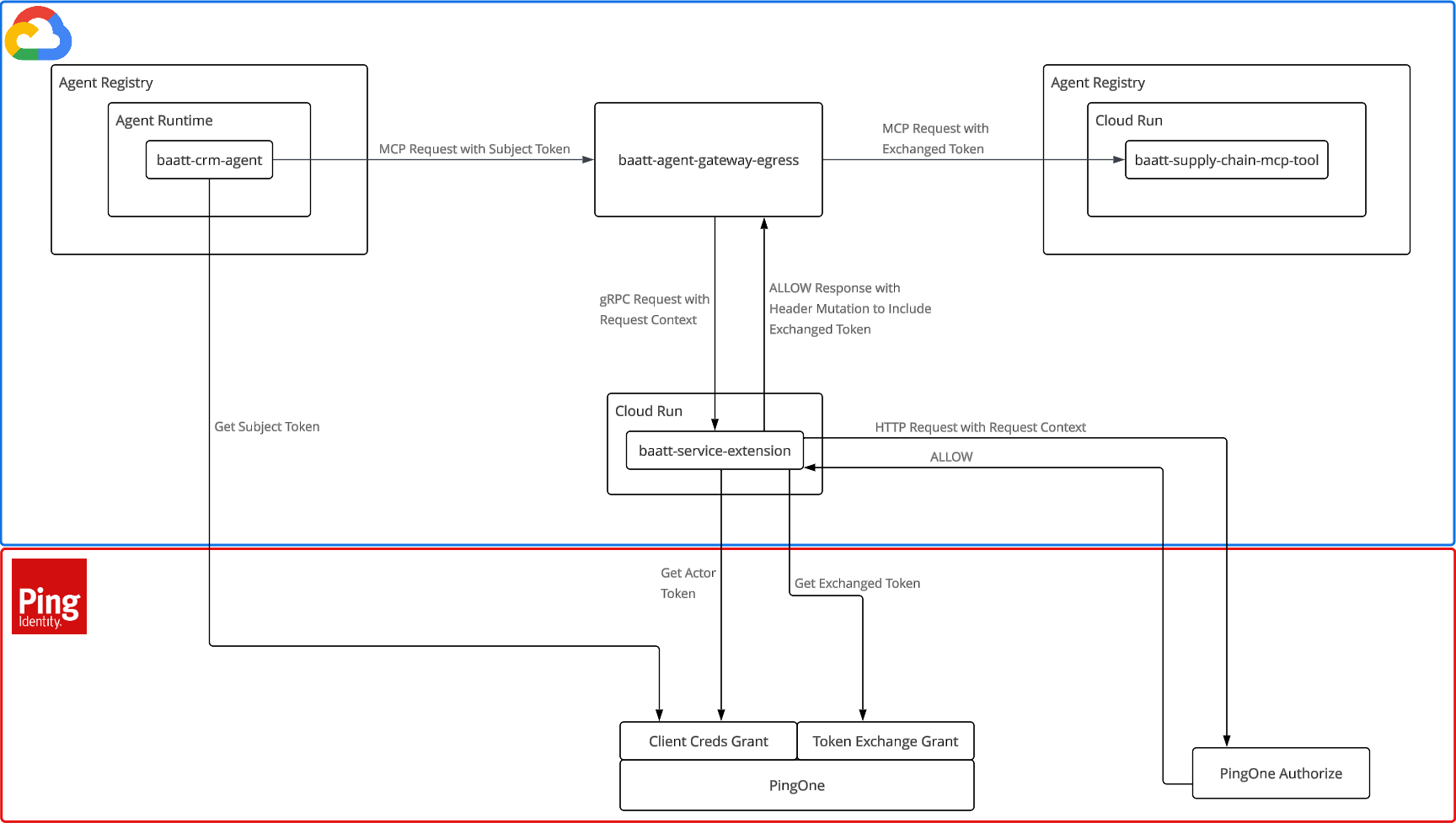
Consider a CRM agent that calls an external supply chain Model Context Protocol (MCP) tool to restock inventory. The following diagram shows the flow and components:
-
The agent authenticates to PingOne to establish its own client identity.
-
The agent runtime routes MCP requests through the Agent Gateway to the service extension.
-
The service extension requests an authorization decision from PingOne Authorize.
-
If the decision is permit, the service extension performs a delegation token exchange, mints a token specifically for the Supply Chain MCP Tool, and injects it into the request before forwarding it to the MCP server. If the decision is deny, the service extension returns an error that blocks agent access to the tool.
Components
| Component | Role |
|---|---|
CRM Agent that acts as an MCP client and obtains its own token. |
|
Google-managed policy enforcement point that forwards agent requests to the service extension over the gRPC remote procedure call framework. |
|
Service extension that sends requests to PingOne Authorize, exchanges the agent’s token, and injects the resulting token into the request. |
|
Downstream resource that the agent invokes to restock inventory. |
|
Identity provider that issues the agent’s token and the delegated tool token. |
|
External policy decision point that evaluates authorization requests. |
Token chain
The token flow begins when the autonomous agent obtains a subject token from PingOne using the Client Credentials grant. The agent presents this subject token to the Agent Gateway Service Extension, which exchanges it, along with the Agent Gateway’s actor token, for a delegated token restricted to the MCP server. The resulting token preserves the agent as the subject and identifies the service extension as the actor. For simplicity, the Agent Gateway’s actor token isn’t included here.
- Subject token: the agent’s token
-
{ "iss": "https://auth.pingone.<region>/<env>/as", "client_id": "<agent-client-id>", "aud": "agent-gateway", "scope": "supply-chain:restock", "grant_type": "client_credentials", "may_act": { "sub": "<agent-gw-extension-client-id>" } }-
client id: Identifies the agent as the OAuth client that requested the token. -
aud: Identifies the Agent Gateway as the intended recipient of the token. -
scope: Grants the privileges required to invoke the downstream restock tool. -
may_act: Authorizes the service extension to act on behalf of the agent during a token exchange.
-
- MCP tool token: the Agent Gateway’s delegated (exchanged) token
-
{ "iss": "https://auth.pingone.<region>/<env>/as", "sub": "<agent-client-id>", "client_id": "<agent-gw-extension-client-id>", "aud": "supply-chain-mcp-tool", "scope": "supply-chain:restock", "grant_type": "urn:ietf:params:oauth:grant-type:token-exchange", "act": { "sub": "<agent-gw-extension-client-id>" } }-
sub: Identifies the agent as the principal subject of the token. -
client id: Identifies the service extension as the OAuth client that requested the exchanged token. -
aud: Identifies the Supply Chain MCP Tool as the intended recipient of the token. -
scope: Grants the privileges required to invoke the Supply Chain MCP Tool. -
act: Identifies the service extension as the current actor to whom authority has been delegated.
-
Benefits of this approach
-
No standing tool credentials in the agent: The agent never holds a token that grants access to the tool, preventing a compromised agent from leaking credentials.
-
Least privilege: Each tool token is scoped to a single resource and expires quickly.
-
Delegation proof: The tool token carries an
actclaim specifying that the service extension acted for the agent. PingOne mints this claim only after confirming that the agent’s token authorizes the extension (using themay_actclaim). -
Centralized policy: PingOne Authorize owns the authorization decision. Administrators can update policies centrally without modifying or redeploying the agent or the MCP server.
Goals
-
Securely authenticate an autonomous agent with PingOne and perform a token exchange that mints a delegated token for a downstream tool.
-
Deploy the Agent Gateway to act as the central Policy Enforcement Point (PEP) for all outbound requests originating from the agent.
-
Use PingOne Authorize to evaluate runtime context and make authorization decisions before the agent reaches downstream tools.
What you’ll do
-
Deploy the Supply Chain MCP Tool to Google Cloud Run and register it in Google Agent Registry.
-
Create authorization policies that decide whether the service extension permits agent request to the MCP server.
-
Deploy the Agent Gateway Service Extension to Cloud Run and configure it to request authorization decisions on every tool call.
-
Deploy the Agent Gateway and attach the service extension to it.
-
Deploy the agent and create a PingOne resource that licenses the service extension as the only actor allowed to exchange tokens bound for the gateway.
Before you begin
Ensure you meet the prerequisites in the Gemini Enterprise Agent Platform integration overview.
Tasks
You can find implementation files and code samples for this use case in the Baseline Autonomous Agent to Tool GitHub repository.
Deploy the Supply Chain MCP Tool
The Supply Chain MCP Tool is an MCP server that simulates a supply chain tool. It exposes a single restock tool (a mock tool that returns a hard-coded accepted order), which is the downstream resource the agent will invoke. To access the tool, the agent’s request is routed through the Agent Gateway and the Agent Gateway Service Extension. The MCP server verifies the OAuth token injected by the gateway.
You’ll deploy the Supply Chain MCP Tool to Cloud Run, register it in Agent Registry, and configure it with a matching resource in PingOne to ensure every token issued for tool access carries claims that prove delegation.
Create the Supply Chain MCP Tool resource in PingOne
Add a custom resource in PingOne that represents the Supply Chain MCP Tool the agent accesses to restock inventory.
Two grant types are used to request tokens for this resource: the client_credentials grant (which has no subject or actor) and the token exchange grant, where the subject is an autonomous agent with no sub claim. You’ll configure two attributes with attribute mappings to ensure each grant yields the correct claims:
-
subattribute: For a standardclient_credentialsgrant involving no delegation, this mapping assigns the literal valueno-subject. During a token exchange, the agent’s subject token lacks asubclaim, so the mapping extracts the subject token’sclient_idinstead. This dynamic mapping ensures the resulting tool token identifies the calling agent. -
actattribute: Forclient_credentialsgrants, this mapping assigns the literal valuenoActor. During a token exchange, it sets theactclaim to the exchanging actor’s identity only if the subject token’smay_actclaim explicitly authorizes that actor (the service extension). If there’s no match, it returnsnull. Because you’ll make this attribute required, anullvalue fails the token exchange outright. This enforces the security boundary that only the service extension can exchange an agent token for this resource.
|
You can find more details about adding custom resources in the PingOne documentation. |
-
In the PingOne admin console, go to Applications > Resources and click the icon.
-
Define the resource:
-
Resource Name:
BAATT Supply Chain MCP Tool -
Audience:
supply-chain-mcp-tool
-
-
Click Next.
-
Define attributes for the resource:
Detailed steps follow the table.
Attribute Required Expression subNo
(#root.context.requestData.grantType == "client_credentials") ? "no-subject" : #root.context.requestData.subjectToken.client_idactYes
(#root.context.requestData.grantType == "client_credentials")?"noActor":((#root.context.requestData.subjectToken.may_act.sub == #root.context.requestData.actorToken.client_id)?{"sub":#root.context.requestData.actorToken.client_id}:null)-
Click the Gear icon () next to the
subattribute, enter the expression, and click Save.Learn more about expressions in Using the expression builder in the PingOne documentation.
-
Click + Add and name the attribute
act. -
Click , enter the expression, and click Save.
-
Select the Required checkbox for the
actattribute.This ensures that any token exchange that fails to set
actis rejected.
-
-
Click Next, then click + Add Scope.
-
Name the scope
supply-chain:restock. -
Click Save.
Deploy the Supply Chain MCP Tool to Google Cloud Run
Build the MCP server with configured environment variables and deploy it as a Google Cloud Run service.
-
Set environment variables for the MCP server:
-
In the cloned Gemini Enterprise Agent Platform Integrations repository, go to the
pingone/baseline-autonomous-agent-to-tool/services/supply-chain-mcp-tooldirectory. -
Make a copy of the
.env.samplefile and name it.env:cp .env.sample .env -
Set environment variables in the
.envfile:Variable Value GC_REGIONYour Google Cloud Platform region. For example:
us-central1.GC_CLOUD_RUN_SERVICE_NAMEThe Cloud Run service name:
baatt-supply-chain-mcp-tool.IDP_ISSUERThe PingOne issuer URL:
https://auth.pingone.<region>/<env-id>/as.Set the placeholders:
-
<region>: The country code top-level domain (ccTLD), such as
.com,.eu,.asia. You can find this in your PingOne admin console URL. For example,https://console.pingone.com/index.html?env=12345678-1234-1234-1234-123456789012has a ccTLD of.com. -
<env-id>: The PingOne environment ID. In the example PingOne admin console URL, the ID is
12345678-1234-1234-1234-123456789012.
IDP_REQUIRED_AUDIENCEThe expected
audclaim. Enter the audience you gave the BAATT Supply Chain MCP Tool resource in PingOne:supply-chain-mcp-tool.IDP_REQUIRED_SCOPEThe scope the inbound token must carry. Enter the scope you gave the BAATT Supply Chain MCP Tool resource in PingOne:
supply-chain:restock. -
-
-
In the
pingone/baseline-autonomous-agent-to-tool/services/supply-chain-mcp-tooldirectory, run the following command:make deployThis builds the Docker image, pushes it to Google Container Registry, and deploys it to Cloud Run.
Register the Supply Chain MCP Tool in Agent Registry
Register the MCP server in Agent Registry to ensure the Agent Gateway recognizes it as an approved egress destination.
-
In Google Cloud, go to Agent Platform > Govern > Agent Registry and click Add MCP Server.
-
Enter the following values:
-
Name:
BAATT Supply Chain MCP Tool -
Description:
Simple Restock tool for BAATT demo
-
-
Select your Region. For example:
us-central1. -
Enter the MCP server URL:
-
To find the URL, duplicate the browser tab and go to Cloud Run > Services. Click the baatt-supply-chain-mcp-tool service.
-
Copy the URL at the top of the page. For example:
https://baatt-supply-chain-mcp-tool-909399354423.us-central1.run.app. -
In Agent Registry, paste the URL in the MCP server URL field, and then add
/mcpto the end of the URL.
-
-
Enter the MCP specification JSON, which defines the MCP server’s endpoints and expected request and response formats.
-
In the cloned repository, go to the
pingone/baseline-autonomous-agent-to-tool/services/supply-chain-mcp-tooldirectory and copy the contents of thetool-spec.jsonfile. -
In Agent Registry, paste the copied contents into the JSON field.
-
Click Next.
-
-
Click Save to complete the registration.
|
Keep the |
Create authorization policies in PingOne Authorize
Create policies that decide whether the service extension permits the agent’s request to the MCP server. You’ll create a policy for the agent’s identity and another policy for the time of the request.
Create attributes in the Trust Framework
Create attributes in PingOne Authorize that extract information from service extension decision requests. These attributes are used in authorization policies to determine whether the agent is allowed to access the MCP server.
|
You can find more details about adding authorization attributes in the PingOne Authorize documentation. |
| Name | Type | Resolver Parameter |
|---|---|---|
|
String |
|
|
Number |
|
-
In the PingOne admin console, go to Authorization > Trust Framework.
-
On the Attributes tab, click the icon.
-
Name the attribute
Agent Client ID.The attribute name must match the parameter key in the decision request. It’s case-sensitive.
-
In the Resolvers section, click Add Resolver and keep the default Request Parameter resolver.
-
(Optional) Name the resolver
agent_client_idto match the parameter name in the agent’s request.Request Parameter resolvers extract values from decision requests and pass them to PingOne Authorize for evaluation. The resolver name is a label only and isn’t matched to the parameter name in the request.
-
For the Value Settings Type, keep the default value of String.
-
Click Save Changes.
-
Repeat the steps above to add the
Request Hourattribute, with a resolver optionally namedrequest_hourand the value settings type Number. Delete the Parent to keep the attribute at the top level.
Create the BAATT Agent Gateway Policies policy set
Create a policy set in PingOne Authorize that contains the policies governing the agent’s access to the MCP server.
|
You can find more details about adding policy sets in the PingOne Authorize documentation. |
-
In the PingOne admin console, go to Authorization > Policies.
-
Click the icon and select Add Policy Set.
-
Name the policy set
BAATT Agent Gateway Policies. -
For the Combining Algorithm, select Unless one decision is deny, the decision will be permit.
-
Click Save changes.
Create the Only Permit CRM Agent policy
Create a policy that permits only the CRM Agent to access the MCP server. Agents that don’t match the CRM Agent’s client ID are denied access.
|
You can find more details about adding policies in the PingOne Authorize documentation. |
-
In Authorization > Policies, select the BAATT Agent Gateway Policies policy set.
-
Click the icon and select Add Policy.
-
Name the policy
Only Permit CRM Agent. -
In Applies When:
-
Click + Comparison and select the Agent Client ID attribute.
-
Select the Does Not Equal operator.
-
For the value, enter this placeholder:
<CRM_AGENT_CLIENT_ID>.Later, you’ll replace this with the client ID of the CRM Agent you want to permit.
-
-
For the Combining Algorithm, select Unless one decision is deny, the decision will be permit.
-
Click + Add Rule, name the rule
Deny, then for Effect, select Deny. -
Click Save changes.
Create the Only Permit During Business Hours policy
Create a policy that permits access to the MCP server only during business hours. PingOne Authorize will deny access if the request hour is before 8:00 AM or after 5:00 PM.
The service extension converts from UTC before sending a decision request to ensure permitted hours are in local time. For example, a request at 3:00 PM UTC is converted to 8:00 AM Pacific and is permitted, while a request at 3:00 AM UTC is converted to 8:00 PM Pacific and is denied.
|
You can find more details about adding policies in the PingOne Authorize documentation. |
-
In Authorization > Policies, select the BAATT Agent Gateway Policies policy set.
-
Click the icon and select Add Policy.
-
Name the policy
Only Permit During Business Hours. -
In Applies When:
-
Click + Comparison, then select Any.
-
Select the Request Hour attribute.
-
Select the Greater Than operator.
-
For the value, enter
17. -
Click + Comparison and select the Request Hour attribute.
-
Select the Less Than operator.
-
For the value, enter
8.
-
-
For the Combining Algorithm, select Unless one decision is deny, the decision will be permit.
-
Click + Add Rule, name the rule
Deny, then for Effect, select Deny. -
Click Save changes.
Publish an authorization policy version
Publish a policy version to deploy your policies to a decision endpoint and make them available in decision evaluations.
|
You can find more details about publishing policy versions in the PingOne Authorize documentation. |
-
In the PingOne admin console, go to Authorization > Version History.
-
Click the More Options (⋮) icon next to the Latest Version and select Publish Version.
-
In the Publish to list, select a decision endpoint.
-
For the version Name, enter
BAATT. -
Click Publish.
The version name and the endpoint the version is published to are displayed in Version History.
-
Go to Authorization > Decision Endpoints and expand the decision endpoint where you published the policy version. Copy the decision endpoint URL and save it somewhere convenient. You’ll need it later.
Deploy the Agent Gateway Service Extension
The Agent Gateway Service Extension is an Envoy ext_proc gRPC handler that the Agent Gateway calls to request authorization decisions and perform token exchanges.
You’ll deploy the service extension to Cloud Run to govern requests bound for the Supply Chain MCP Tool. During this flow, the service extension:
-
Validates the agent’s token, specifically checking the
iss,aud, andscopeclaims. -
Calls PingOne Authorize on
tools/callrequests to evaluate the agent’s identity and the request hour. Non-invocation requests (initialize,tools/list) skip this authorization check. -
Upon a permit decision, performs an RFC 8693 token exchange to generate a token restricted to the supply chain tool (
aud). -
Injects the new credential as an
Authorization: Bearerheader before forwarding the request to the Supply Chain MCP Tool.
Create a PingOne worker application
Create a PingOne worker application that the service extension uses to call PingOne Authorize for authorization decisions.
|
You can find more details about adding applications in the PingOne documentation. |
-
In the PingOne admin console, go to Applications > Applications.
-
Click the icon and create the application profile:
-
Name the application
BAATT PingOne Authorize Worker App. -
For the Application Type, click Worker.
-
Click Save.
-
-
To enable the application, click the toggle next to the application name in the details panel.
-
On the Configuration tab, click the Pencil icon (), make sure Client Credentials is the Grant Type, then click Cancel.
-
On the Roles tab, click Grant Roles.
-
Expand the Environment Admin role and select your environment.
-
Click Save.
Create a PingOne application for token exchange
Create a PingOne OIDC application that the service extension uses to perform token exchanges for the MCP server.
|
You can find more details about adding applications in the PingOne documentation. |
-
In the PingOne admin console, go to Applications > Applications.
-
Click the icon and create the application profile:
-
Name the application
BAATT Agent Gateway Extension. -
For the Application Type, click OIDC Web App.
-
Click Save.
-
-
To enable the application, click the toggle next to the application name in the details panel.
-
On the Configuration tab, click :
-
For Grant Type, select Client Credentials and Token Exchange.
-
Clear the Code and Authorization Code checkboxes.
-
Click Save
-
-
On the Resources tab, click , then select the supply-chain:restock scope on the BAATT Supply Chain MCP Tool.
-
Click Save.
Deploy the Agent Gateway Service Extension to Cloud Run
Build the service extension with configured environment variables and deploy it as a Google Cloud Run service.
-
Set environment variables for the service extension:
-
In the cloned repository, go to the
pingone/baseline-autonomous-agents-to-tool/services/agent-gateway-extension-servicedirectory. -
Make a copy of the
.env.samplefile and name it.env:cp .env.sample .env -
Set environment variables in the
.envfile:Variable Value GC_REGIONYour Google Cloud Platform region. For example:
us-central1.GC_CLOUD_RUN_SERVICE_NAMEThe Cloud Run service name:
baatt-agent-gateway-extension-service.GC_SERVICE_EXTENSION_NAMEThe deployed service extension’s name (created when the service extension was registered):
baatt-agent-gateway-extension.IDP_ISSUERThe PingOne issuer URL:
https://auth.pingone.<region>/<env-id>/as.To find this endpoint, go to the BAATT Agent Gateway Extension application in PingOne. Copy the Issuer ID under Connection Details on the Overview tab.
EXCHANGE_CLIENT_IDThe BAATT Agent Gateway Extension application’s Client ID. This is located above Connection Details on the Overview tab.
EXCHANGE_CLIENT_SECRETThe BAATT Agent Gateway Extension application’s Client Secret. This is located above Connection Details on the Overview tab.
AUTHZ_CLIENT_IDThe BAATT PingOne Authorize Worker App’s Client ID. This is located above Connection Details on the Overview tab for this application.
AUTHZ_CLIENT_SECRETThe BAATT PingOne Authorize Worker App’s Client Secret. This is located above Connection Details on the Overview tab.
The PingOne Authorize decision endpoint URL where you published the policy version earlier.
IDP_REQUIRED_AUDIENCEThe expected
audon the inbound token. Enter the audience you gave the BAATT Supply Chain MCP Tool resource in PingOne:google-cloud-agent-gateway.IDP_REQUIRED_SCOPEThe scope the inbound token must carry. Enter the scope you gave the BAATT Supply Chain MCP Tool resource in PingOne:
supply-chain:restock.TOOL_URLThe MCP tool’s Cloud Run base URL:
https://baatt-supply-chain-mcp-tool-<your-project-number>.<your-deployment-region>.run.app.To find this URL, go to Cloud Run > Services and click the baatt-supply-chain-mcp-tool service. Copy the URL at the top of the page (for example,
https://baatt-supply-chain-mcp-tool-909399354423.us-central1.run.app). Paste the URL in the.envfile.TOOL_SCOPEThe scope the service extension requests during token exchange to authorize access to the downstream MCP server:
supply-chain:restock.
-
-
In the
pingone/baseline-autonomous-agent-to-tool/services/agent-gateway-extension-servicedirectory, run the following commands:make deployThis builds the Docker image, pushes it to Google Container Registry, and deploys it to Cloud Run.
make registerThis command registers your deployed Cloud Run service as an available service extension in Google Cloud. Behind the scenes, it renders the
service-extension.tmpl.yamltemplate with the live Cloud Run URL and imports the configuration, preparing the extension for use by the Agent Gateway.
Create the Agent Gateway
The Agent Gateway is a Google-managed resource that acts as the policy enforcement point for all agent egress traffic. It intercepts all outbound traffic bound for downstream tools and routes it to the service extension.
You’ll configure the gateway to call the service extension, using Envoy external processing (ext_proc), on every request to the Supply Chain MCP Tool. This includes attaching the Agent Gateway Service Extension to the gateway, registering the egress destinations it can reach, and creating the PingOne resource that licenses the service extension as the only actor allowed to exchange tokens bound for the gateway.
Configure Agent Gateway environment variables
Configure the environment variables required to deploy the Agent Gateway and link it to the service extension.
-
Set environment variables for the Agent Gateway:
-
In the cloned repository, go to the
pingone/baseline-autonomous-agents-to-tool/services/agent-gatewaydirectory. -
Make a copy of the
.env.samplefile and name it.env:cp .env.sample .env -
Check the environment variables in the
.envfile. Most are already defined.Variable Value GC_REGIONYour Google Cloud Platform region. For example:
us-central1.GC_GATEWAY_NAMEThe Agent Gateway’s name:
baatt-agent-gateway.GC_SERVICE_EXTENSION_NAMEThe deployed service extension’s name (created when the service extension was registered):
baatt-agent-gateway-extension.GC_AUTHZ_POLICY_NAMEThe name of the Google Cloud authorization policy resource that binds the extension to the gateway:
baatt-authz-policy.
-
Create the Agent Gateway in Google Cloud
Use the Google Cloud Console to deploy the Agent Gateway. This creates the service that intercepts agent egress and hands requests to the service extension.
-
In Google Cloud, go to Agent Platform > Govern > Gateways and click Add gateway.
-
Enter the following values:
-
Name:
baatt-agent-gateway. -
Region: Your Google Cloud Platform region. For example:
us-central1. -
Deployment mode: Keep the default Google-managed.
-
Agent registries: Keep the default Regional registry.
-
Governed Access Path: Keep the default Agent-to-Anywhere (egress).
-
Access Authorization: Select Enforce policies.
-
Policy Model: Select Allow Policy.
-
-
Click Save gateway.
Attach the Agent Gateway Service Extension to the Agent Gateway
To enforce your access policies, you must connect the service extension to the Agent Gateway. The make attach command populates authz-policy.tmpl.yaml with your project, region, and gateway name, and then imports it with gcloud. This creates an authorization policy that binds the extension to the gateway as a CONTENT_AUTHZ policy scoped to the /mcp path.
-
In the
pingone/baseline-autonomous-agent-to-tool/services/agent-gatewaydirectory, run the following command:make attachYou can run
make renderalone to inspect the generated YAML without importing.
There are now two complementary authorization extensions attached to the Agent Gateway:
| Extension | Service role | Target | Description |
|---|---|---|---|
|
|
|
A Google-managed extension automatically created with the gateway. It enforces the Identity-Aware Proxy (IAP) identity and egress check ( |
|
|
Cloud Run service extension |
The extension created in the previous step. It routes traffic to your Cloud Run host and requests an authorization decision. Upon permit, the extension performs the PingOne token exchange and injects the resulting delegated token in the |
Register egress destinations for the Agent Gateway
Because the Agent Gateway governs all agent egress, every host the agent communicates with must be registered as a destination in Agent Registry. Your environment currently includes the following registered destinations:
-
MCP tools: The BAATT Supply Chain MCP Server was registered as an MCP server (rather than a standard endpoint) when you deployed it.
-
Google APIs: Endpoints for
aiplatform,iamcredentials, and telemetry (*.mtls.googleapis.com) were automatically generated during the gateway deployment to support the runtime’s internal egress. Don’t modify these endpoints.
You’ll register the PingOne host as the final required egress endpoint.
-
In Google Cloud, go to Agent Platform > Govern > Agent Registry and click Add Endpoint.
-
Enter the following values:
-
Name:
PingOne. -
Region: Your Google Cloud Platform region. For example:
us-central1. -
Destination URL: Your PingOne host. For example:
https://auth.pingone.com.
-
-
Click Save.
Create the Agent Gateway resource in PingOne
The Agent Gateway resource is used to issue the agent’s initial subject token. To ensure secure delegation, this resource must explicitly authorize the service extension to perform token exchanges on the agent’s behalf.
You’ll configure a may_act attribute to identify the service extension as the sole authorized actor. During a token exchange, the downstream tool resource evaluates the may_act claim to verify the extension’s authority. Any other client attempting an exchange will fail the tool’s validation.
Because tokens for this gateway resource are only generated using the client_credentials grant, and never through a token exchange, an act attribute isn’t required. The delegation proof is handled by the downstream tool resource (you’ve already mapped a corresponding act attribute to validate this delegation). The agent’s identity is preserved in the client_id.
|
You can find more details about adding custom resources in the PingOne documentation. |
-
In the PingOne admin console, go to Applications > Resources and click the icon.
-
Define the resource:
-
Resource Name:
BAATT Google Cloud Agent Gateway -
Audience:
google-cloud-agent-gateway
-
-
Click Next.
-
Define an attribute for the resource:
Attribute Required Expression may_actNo
{"sub":"<EXT-SVC-CLIENT-ID>"}-
Click + Add and name the attribute
may_act. -
Click the Gear icon () next to the
may_actattribute, enter the expression, and click Save.Learn more about expressions in Using the expression builder in the PingOne documentation.
-
-
Click Next, then click + Add Scope.
-
Name the scope
supply-chain:restock. -
Click Save.
Deploy the CRM Agent
The CRM Agent is an ADK-based agent deployed to the Google Cloud Agent Runtime. Operating as an MCP client, it connects to the Supply Chain MCP Tool to execute the restock tool.
The agent authenticates to PingOne as an independent client and includes its token in the Authorization: Bearer header of each outbound MCP request. The Agent Runtime routes this egress traffic through the Agent Gateway, where the service extension uses the agent’s token as the subject of an RFC 8693 token exchange to generate a new token scoped specifically for the downstream tool.
You’ll create an identity for the agent in PingOne and deploy the agent to the Agent Runtime, binding it to the Agent Gateway.
Create the CRM Agent in PingOne
Create an AI agent in PingOne to establish a dedicated identity for the CRM Agent. This identity enables the agent to authenticate and acquire an initial access token. The Agent Gateway will use the agent’s token as the subject token during the delegation exchange.
|
You can find more details about adding AI agents in the PingOne documentation. |
-
In the PingOne admin console, go to AI Agents and click the icon.
-
Name the agent
BAATT CRM Agent. -
Click Save.
-
To enable the agent, click the toggle next to the agent name in the details panel.
-
On the Configuration tab, click :
-
In Grant Type, select Client Credentials.
-
Clear the Code and Authorization Code checkboxes.
-
Click Save
-
-
On the Resources tab, click , then select the supply-chain:restock scope on the BAATT Google Cloud Agent Gateway.
-
Click Save.
-
On the Overview tab, copy the agent’s Client ID. Use this value to replace the
<CRM_AGENT_CLIENT_ID>placeholder in the Only Permit CRM Agent policy you created earlier.
Deploy and register the CRM Agent in Agent Registry
To finish CRM Agent setup, deploy it to the Google Cloud Agent Runtime. This deployment automatically registers the agent in Agent Registry and routes all of its egress traffic through the Agent Gateway.
-
Set environment variables for the agent:
-
In the cloned repository, go to the
pingone/baseline-autonomous-agents-to-tool/services/agentdirectory. -
Make a copy of the
.env.samplefile and name it.env:cp .env.sample .env -
Set environment variables in the
.envfile:Variable Value GC_REGIONYour Google Cloud Platform region. For example:
us-central1.AGENT_DISPLAY_NAMEDisplay name for the Reasoning Engine:
baatt-crm-agent.IDP_ISSUERThe PingOne issuer URL:
https://auth.pingone.<region>/<env-id>/as.To find this endpoint, go to the BAATT CRM Agent in PingOne. Copy the Issuer ID under Connection Details on the Overview tab.
GC_AGENT_GATEWAYThe Agent Gateway resource name:
baatt-agent-gateway.AGENT_CLIENT_IDThe BAATT CRM Agent’s Client ID. This is located above Connection Details on the agent’s Overview tab in PingOne.
AGENT_CLIENT_SECRETThe BAATT CRM Agent’s Client Secret. This is located above Connection Details on the agent’s Overview tab.
TOOL_MCP_URLThe MCP tool’s Cloud Run base URL:
https://baatt-supply-chain-mcp-tool-<your-project-number>.<your-deployment-region>.run.app/mcp.To find this URL, go to Cloud Run > Services and click the baatt-supply-chain-mcp-tool service. Copy the URL at the top of the page (for example,
https://baatt-supply-chain-mcp-tool-909399354423.us-central1.run.app). Paste the URL in the.envfile and add/mcpat the end.TOOL_SCOPEThe scope the agent requests during token exchange to authorize access to the downstream MCP server:
supply-chain:restock.
-
-
In the
pingone/baseline-autonomous-agent-to-tool/services/agentdirectory, run the following command:make deployThe
deploy.pyscript provisions the Reasoning Engine usingidentity_type = AGENT_IDENTITY. The script also binds the engine to the gateway and grants it theroles/iap.egressorrole on Agent Registry, authorizing the agent to securely reach all registered downstream endpoints.
Validation
To validate the autonomous workflow, trigger a test restock to prompt the CRM Agent to invoke the Supply Chain MCP Server. A successful run ends with the agent returning a restock confirmation.
-
In the
pingone/baseline-autonomous-agent-to-tooldirectory, run the following command:make testA successful run ends with the agent reporting back. For example:
Your restock order for 500 units of WIDGET-9000 has been accepted. The order ID is ORD-20240101-001. -
To trace the delegation, follow the Cloud Run service logs (
baatt-agent-gateway-extension-serviceandbaatt-supply-chain-mcp-tool) while the command runs. In order, you should see:# service extension: every MCP request (initialize, tools/list, tools/call) # is validated, exchanged, and forwarded with a fresh tool token. [ExtSvc] request authority="baatt-supply-chain-mcp-tool-...run.app" path="/mcp" governed=true [ExtSvc] delegated tool token minted [ExtSvc] injecting delegated token for baatt-supply-chain-mcp-tool-...run.app # service extension: {p1-paz} is consulted on tools/call only. [ExtSvc] authorize agent=<agent-client-id> hour=15 [ExtSvc] {p1-paz} PERMIT agent=<agent-client-id> # Supply chain tool: every request's token is verified (signature, issuer, # audience, scope) before handling. The log shows who the call is for (sub), # which audience it was minted for (aud), who acted for it (act.sub, the # delegation proof), and the granted scope. [SupplyChain] Token verified — sub=<agent-client-id> aud=[supply-chain-mcp-tool] act.sub=<ext-svc-client-id> scope="supply-chain:restock" forwarding to MCP handler # Supply chain tool: the restock itself runs only after the PERMIT above. [SupplyChain] tools/call restock — 500 units of WIDGET-9000 for region us-west-2
When reviewing the logs, the following is important:
-
The initial
initializeandtools/listrequests represent the agent and the MCP server negotiating the tool schema. Only the finaltools/callrequest is subject to PingOne Authorize policy enforcement. -
If the restock operation fails, review the service extension log. It includes PingOne Authorize deny decisions, failed token exchanges, and token validation errors.
Troubleshooting
If you encounter issues while deploying or testing the agent, use the following information to help resolve common problems.
- Agent requests are dropped before authorization
-
Check the service extension logs in Cloud Run to determine if the request was blocked during initial token validation before it reached PingOne Authorize.
- PingOne Authorize denies the agent’s request
-
-
Verify that you replaced the <CRM_AGENT_CLIENT_ID> placeholder in the Only Permit CRM Agent policy with the client ID of the deployed CRM agent. If this placeholder isn’t updated, the policy can’t identify the agent and will reject the request.
-
Review Recent Decisions in PingOne Authorize to identify which policy condition caused the denial.
Enable Record recent decisions on your PingOne Authorize decision endpoint to view full request payloads and step-by-step policy evaluation results. This provides visibility into why a specific request was denied.
-
- Token exchange fails
-
Verify that the
TOOL_SCOPEenvironment variable configured in Cloud Run exactly matches the scope defined on the downstream tool resource in PingOne. Additionally, confirm that the Agent Gateway resource’smay_actattribute correctly licenses the service extension. - The agent can’t reach egress destinations
-
If the gateway returns a 403 Forbidden error indicating that the egress request isn’t authorized, verify that the Reasoning Engine identity has the
roles/iap.egressorrole in Google Cloud. The agent requires this role on Agent Registry to pass the IAP egress check. You can also verify IAP allow or deny decisions in the Google Cloud IAP audit logs.
What’s next
Learn how to authorize Gemini agents to act on behalf of users.
|
To prepare your environment for authorizing agents on behalf of users, clean up the resources you deployed for autonomous agents. From the |