Try It Out
|
For new projects, it’s recommended that you use a remote MCP server. Remote MCP servers are hosted endpoints that require no local installation, and future tooling and feature development is prioritized for them. Learn more in Remote MCP Servers. |
Get the AIC MCP Server running in your AI agent in minutes.
Prerequisites
Before you start, make sure you have:
-
A PingOne Advanced Identity Cloud sandbox or development tenant
-
An MCP-compatible client, such as:
-
CLIs: Claude Code, Gemini CLI, Codex
-
Desktop apps: Claude Desktop
Install
Choose an installation method:
NPX (recommended)
The AIC MCP Server requires the AIC_BASE_URL environment variable to be set to your PingOne Advanced Identity Cloud hostname.
Add this to your MCP client configuration:
{
  "mcpServers": {
    "aic-mcp-server": {
      "type": "stdio",
      "command": "npx",
      "args": ["-y", "@ping-identity/aic-mcp-server"],
      "env": {
        "AIC_BASE_URL": "your-tenant.forgeblocks.com"
      }
    }
  }
}-
VS Code (GitHub Copilot)
-
Claude Code / Claude Desktop
-
Cursor
-
Gemini CLI
-
Codex (OpenAI)

|
Before clicking the install button, open VS Code with a project or working directory. When the MCP server panel opens, click Install in Workspace. The Install button might be unresponsive. 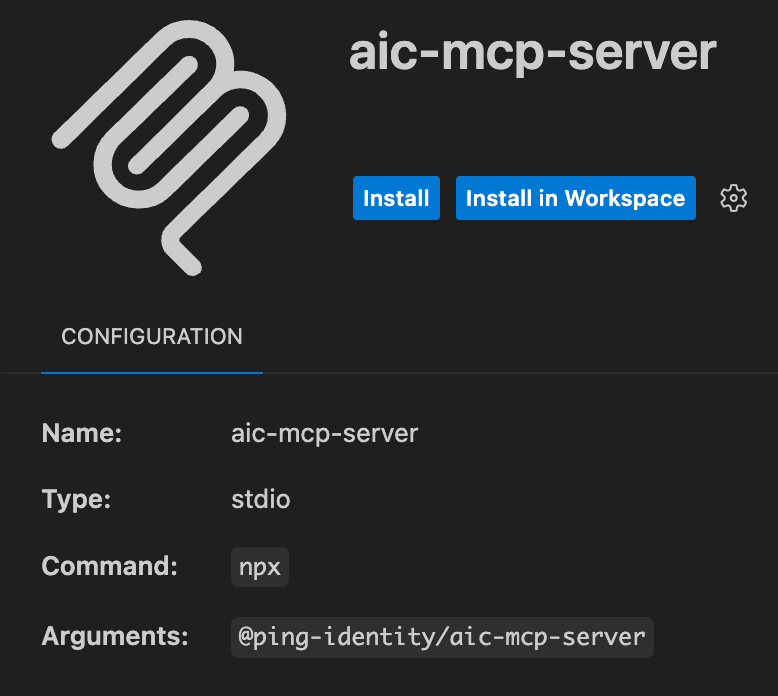
|
Or add the configuration above to your Copilot MCP settings (mcp.json).
Learn more in Microsoft’s MCP documentation.
Add the configuration to your Claude MCP configuration file:
-
Claude Code:
claude.json -
Claude Desktop:
claude_desktop_config.json

Or add the configuration to your Cursor MCP configuration (.cursor/mcp.json).
Add the configuration to your Gemini CLI MCP configuration (settings.json).
Add the following to your Codex configuration file (~/.codex/config.toml):
[mcp_servers.aic-mcp-server]
command = "npx"
args = ["-y", "@ping-identity/aic-mcp-server"]
env = {"AIC_BASE_URL" = "your-tenant.forgeblocks.com"}
Docker
You can also run the AIC MCP Server in a Docker container.
|
Docker deployment uses OAuth 2.0 Device Code Flow with MCP form elicitation. This requires MCP client support for form elicitation, which is currently limited. If your client doesn’t support it, use the NPX method instead. |
Add this to your MCP client configuration:
{
  "mcpServers": {
    "aic-mcp-server": {
      "command": "docker",
      "args": [
        "run",
        "--rm",
        "-i",
        "-e",
        "AIC_BASE_URL=your-tenant.forgeblocks.com",
        "pingidentity/aic-mcp-server:latest"
      ]
    }
  }
}
When authentication is required, your MCP client displays a URL. Click it to authenticate in your browser, then accept the prompt in your client.
|
Authentication-related operations such as journey creation, app creation, and other AM-based tools are not currently available when using Docker. These tools require browser-based PKCE authentication, which is incompatible with the Device Code Flow used in containers. |
Build from source
To build the AIC MCP Server from source:
# Clone the repository
git clone https://github.com/pingidentity/aic-mcp-server.git
cd aic-mcp-server

# Install dependencies
npm install

# Compile TypeScript
npm run build
Then configure your MCP client to use the local build:
{
  "mcpServers": {
    "aic-mcp-server": {
      "command": "node",
      "args": ["/absolute/path/to/aic-mcp-server/dist/index.js"],
      "env": {
        "AIC_BASE_URL": "your-tenant.forgeblocks.com"
      }
    }
  }
}
Start using the AIC MCP Server
-
Restart your MCP client after adding the configuration.
-
Start asking questions about your PingOne Advanced Identity Cloud environment.
-
On first tool use, your browser opens automatically for authentication at PingOne Advanced Identity Cloud.
-
After authenticating, your AI agent can interact with your tenant.
Try prompts like:
-
"What managed object types are available in my environment?"
-
"Show me all themes in the alpha realm"
-
"Find all users with admin in their username"