Web Authentication Policy API
| The API described here can be used for reading and creating web authentication policies. Currently there is no API for SSH and VPN authentication policies. |
Basic rules for creating policies
When using the API to create authentication policies, it’s important to keep in mind the following information about authentication policies in PingID:
-
You can create as many policies as you like, however, as soon as PingID finds a policy that matches the application and user, it will use that policy and not continue to the other policies in the list.
-
Policies are processed in the order in which they appear in the list.
-
In addition to the policies that you create, there is always a default policy that applies to all applications and users. If the combination of user and application does not match any of the policies that you created, the default authentication policy is applied.
-
For each policy, you can define the authentication methods that are allowed. These cannot include any methods that were disallowed on the PingID Configuration page.
-
Within each policy, you also specify specific rules that should apply for different scenarios, for example, accessing applications from specific countries or accessing applications when a successful authentication was recently performed.
-
The logic that applies to the processing of policies applies also to the processing of rules within a policy: rules are processed in the order in which they appear in the list, and PingID stops processing rules once it finds a rule that applies to the current situation.
API-specific issues when creating policies
In addition to the general rules that apply to policies, keep the following points in mind when creating policies with the API:
-
Using the API, policies are written as a set, not individually. So if you are adding policies to an account with existing policies, you must first read the existing policies with
readbulkauthenticationpolicy, process the returned JSON object, and then write the entire set of policies withcreatebulkauthenticationpolicy. -
In the UI, policies are processed in the order in which they appear in the list. To set the order of policies when using the API, you must set the
priorityfield, whose value must be an integer. The number represents the place in the list, so if you assign a priority of 1, this will be the first policy processed. The highest value forprioritymust be assigned to the default policy. -
The same approach is used for processing rules within a policy. Set the
priorityfield for each rule. The rule with the value of 1 will be processed first.
Structure of requests
Like the other PingID APIs, the Policy API uses JSON Web Tokens (JWTs). For information on the general steps for creating the JWTs, see the PingID API overview.
The request token header to use is the same token header used for all other PingID API requests.
The request token payload uses the same structure as the other PingID API requests. The reqHeader object in the payload is identical to that used for all other API requests.
The content to include in the reqBody object of the payload is described in the remaining sections of this page.
Reading existing policies (readbulkauthenticationpolicy)
The URL to use to read the existing policies is:
https://idpxnyl3m.pingidentity.com/pingid/rest/4/readbulkauthenticationpolicy/do
The request payload should consist of the following objects
{
	"reqHeader": { ... },
	"reqBody": {
	  "authenticationSource": "WEB"
	}
}
The content of reqHeader is similar to that used in all other requests in the PingID API. For details, see the PingID API overview.
The reqBody object consists of a single field, authenticationSource, whose value must be "WEB".
Below is a sample response to a readbulkauthenticationpolicy request:
{
	"authenticationPolicies":
	[
		{
			"policyName": "My First Policy"
			"priority": 1
			"targets":
			{
				"APPLICATION":["com.pingidentity.webportal.mfa","com.pingidentity.cdp.managedevices"],
				"GROUP":["My Group"]
			}
			"showAuthenticationScreen": true
			"authenticationMethodsPolicy": null
			"accessingCountryPolicy": null
			"companyNetworkOriginatedPolicy": null
			"knownDevicePolicy": null
			"mobileOSPolicy": null
			"newAccessingDevicePolicy": null
			"userInCompanyOfficeAndKnownDevicePolicy": null
			"recentAuthenticationFromCompanyNetwork": null
			"geoVelocityPolicy": null
			"anonymousNetworkPolicy": null
			"userRiskBehaviorPolicy": null
			"ipReputationPolicy": null
			"riskLevelPolicy": null
			"defaultPolicyAction": "AUTHENTICATE"
		},
		{
			"priority": 2
			"targets": {}
 			"showAuthenticationScreen": true
			"policyName": "Default Policy"
			"authenticationMethodsPolicy": null
			"accessingCountryPolicy": null
			"companyNetworkOriginatedPolicy": null
			"knownDevicePolicy": null
			"mobileOSPolicy": null
			"newAccessingDevicePolicy": null
			"notInWorkingDaysPolicy": null
			"userInCompanyOfficeAndKnownDevicePolicy": null
			"recentAuthenticationFromCompanyNetwork": null
			"geoVelocityPolicy": null
			"anonymousNetworkPolicy": null
			"userRiskBehaviorPolicy": null
			"ipReputationPolicy": null
			"riskLevelPolicy": null
			"rateLimitPushNotificationPolicy": null
			"defaultPolicyAction": "APPROVE"
		}
	],
	"errorId": 200,
	"errorMsg": "ok",
	"policyVersion": 8,
	"uniqueMsgId": "webs_GCzFltyFl7g_XjoOII1hk19eTOm_XdDeLE9_M7bv2kw"
}
Points to note about the body of the response:
-
The general response information (
errorId,errorMsg,uniqueMsgId) is the same as that returned for other methods in the PingID API. -
authenticationPoliciesis an array of policy objects. -
Each policy returned contains all of the possible rules that can be defined, but if the rule is not used in the policy, its value is null.
-
The second policy returned in this example is the default policy. You can recognize it as the default policy by the fact that its [
targets] (#targetSection) object is empty. -
The collection of policies is assigned a version number, and this is reflected in the read-only field
policyVersion. Each time the existing policies are modified, the version number is incremented. This is used to prevent policies from being modified simultaneously by multiple administrators. If the version number sent in a request does not match the current version, the error 10610 is returned. If this error is received, you must usereadbulkauthenticationpolicyto reread the policies, and then make the relevant changes to the policies and callcreatebulkauthenticationpolicyagain with the updated policies.
Creating a set of policies (createbulkauthenticationpolicy)
The createbulkauthenticationpolicy method is used to create a set of policies for a PingID account.
In requests to create a set of policies, the reqBody object must contain the following two elements:
-
authenticationSource(String) - must be set to "WEB" -
authenticationPolicies- an array of policy objects
Below is a very simple example that creates two policies, the second being the default policy.
{
	"reqHeader": { ... },
	"reqBody": {
	   "authenticationSource": "WEB",
	   "authenticationPolicies":
	   [
	       {
	           "policyName": "My First Policy",
	           "targets":
	               {
	                "APPLICATION":["com.pingidentity.webportal.mfa","com.pingidentity.cdp.managedevices"],
	                "GROUP":["My Group"]
	               },
	           "defaultPolicyAction": "AUTHENTICATE",
	           "showAuthenticationScreen": true,
	           "priority": 1
	       },
	       {
	           "defaultPolicyAction": "AUTHENTICATE",
	           "showAuthenticationScreen": true,
	           "priority": 2
	       }
	   ]
	}
}
Points to note about this simple example:
-
The content of
reqHeaderis similar to that used in all other requests in the PingID API. For details, see the PingID API overview. -
authenticationPoliciesis an array of policy objects. -
The policies in the example do not use any of the rules that are available for policies.
-
The policies do not specify a list of allowed methods, which means that they permit all of the PingID authentication methods that are allowed by the PingID configuration.
-
The second policy in the array is the default policy. You can recognize it as the default policy by the fact that it does not include a targets object.
-
The default policy does not include the
policyNamefield. If you specify a name, it will be ignored.
The table below lists the mandatory and optional fields contained in policy objects.
| Parameter | DataType | Description |
|---|---|---|
policyName |
String |
The name to use for the policy. Cannot exceed 230 characters. Mandatory for ordinary policies, but this field should not be used for the default policy, since it is always called "Default Policy". You cannot use the same name for two policies (field is not case-sensitive), and you cannot use the name "Default Policy" for a non-default policy. |
targets |
Object |
Used to specify the groups and applications that the policy should apply to. Not used for the Default Policy. Mandatory for all other policies. For more information, see Targets. |
priority |
int |
The priority of the policy in terms of processing. Mandatory. The number represents the place in the policy list, so if you assign a priority of 1, this will be the first policy processed. The values assigned for policy priorities must not skip any numbers. The highest value for |
showAuthenticationScreen |
Boolean |
Optional. For each authentication policy that you define, you can specify whether or not you want to display the authentication approval screen when a user is automatically approved without a challenge. When defining policies with the API, this is done with the |
defaultPolicyAction |
String |
The action to take if none of the criteria of the rules included in the policy are met. The possible values are Approve, Deny, Authenticate, or a collection of specific authentication actions. Authenticate means that any of the allowed methods can be used. If you want to allow only a subset of the allowed methods, you can specify the methods to allow, for example, |
Targets
Every policy, other than the "Default Policy", must specify the users and applications that it should apply to.
When using the API for creating policies, this is done with the targets object.
The targets object consists of two arrays, one named APPLICATION and one named GROUP, for example:
"targets":
	{
	   "APPLICATION":["com.pingidentity.webportal.mfa","com.pingidentity.cdp.managedevices"],
	   "GROUP":["My Group"]
	}
Note that the array names must be upper-case.
The policy is applied only if the user belongs to one of the groups specified and is trying to access one of the applications specified.
The targets object is mandatory for all policies other than the default policy.
Because the default policy applies to all users and all applications, this object should not be included for the default policy. In fact, the absence of the targets object is the criterion used to recognize the default policy.
The APPLICATION array should consist of one or more application IDs.
The following applications have hard-coded application IDs:
-
Device Management:
com.pingidentity.cdp.managedevices -
Password Reset:
com.pingidentity.pf.passwordreset -
Admin Portal:
com.pingidentity.webportal.mfa -
AD FS:
adfs.com.pingidentity -
Azure AD Integration:
7e732f70-c0a9-4908-98d2-46fd11b2c1b3 -
Mac Login:
com.pingidentity.mac.login -
Windows Login:
com.pingidentity.win.loginYou can use this application ID only if the ENFORCE POLICY FOR WINDOWS LOGIN setting is enabled at the configuration level. This setting can only be enabled in the user interface - there is no API equivalent. -
Windows Remote Desktop:
com.pingidentity.win.remoteYou can use this application ID only if the ENFORCE POLICY FOR WINDOWS LOGIN setting is enabled at the configuration level. This setting can only be enabled in the user interface - there is no API equivalent.
If you want the policy to apply to all applications, you must include APPLICATION as an empty array:
"APPLICATION":[]
The application names in the APPLICATION array are case-sensitive.
| No validation is carried out on the application IDs to verify that the application ID exists. |
If you want to add an application to the PingFederate application list, use addapplication from the PingID Application Policy Management API for PingFederate.
The GROUP array should consist of one or more group names. Note that any group name can be used. If the name specified does not yet exist in the PingOne list of groups, it will be added automatically to the list if the request completes successfully.
If you want the policy to apply to all groups, you must include GROUP as an empty array:
"GROUP":[]
The names of groups in the GROUP array are case-sensitive. So, "group1" and "Group1" would be considered two different groups.
Actions
Listed below are the action names that can be used for the default action of a policy or for the action to use for a specific rule within a policy.
The default action for a policy is set with defaultPolicyAction. The action for a rule is set with policyAction.
-
APPROVE
-
DENY
-
AUTHENTICATE
-
SMS
-
VOICE
-
YUBIKEY
-
EMAIL
-
DESKTOP
-
OTP_ONLY (used for one-time passcode)
-
SWIPE_ONLY
-
FINGERPRINT_ONLY (used for Mobile App Biometrics)
-
OATHTOKEN
-
AUTHENTICATOR_APP
-
NUMBER_MATCHING
-
WEBAUTHN (used for Security Key)
-
WEBAUTHN_PLATFORM (used for FIDO2 Biometrics)
Use AUTHENTICATE when you want the action to be any of the allowed methods for the policy. If you only want to allow a subset of the methods allowed for the policy, use a comma-separated list of the specific actions you want to allow, for example:
{
     "authenticationSource": "WEB",
     "authenticationPolicies":
     [
     	{
     	"defaultPolicyAction": "OTP_ONLY, SWIPE_ONLY",
       "showAuthenticationScreen": false,
       "priority": 1
       }
     ]
 }
The following actions cannot be used in conjunction with other actions: APPROVE, DENY, AUTHENTICATE.
You cannot specify an action that is disallowed at the level of the PingID configuration, or an action that was not included in the "allowed methods" for the policy.
Certain actions cannot be used for specific rules. For example, APPROVE cannot be used with the accessing from countries rule.
Allowed Methods
For each policy, you can specify the specific authentication methods that you want to allow for the policy, or you can specify that you want to allow all of the authentication methods that PingID supports.
In the UI for defining policies, the Allowed Methods section is separate from the Rules section. However, when defining policies with the API, the allowed methods are considered a type of rule. So as is the case for the specific rules, you must specify a priority value for the allowed methods "rule". The allowed methods are processed before any of the specific rules, so the value for the priority field must be 1.
The allowed methods that you can specify are limited by the methods that were defined in the Configuration for your PingID account. For example, "EMAIL" cannot be specified as an allowed method if it is disabled at the configuration level.
The following example shows a policy list consisting of two policies, one of which is the default policy. Within the non-default policy you can see the structure of the authenticationMethodsPolicy ` object. The object consists of the `priority field and an array of allowed methods called authenticationMethods. In this example, the allowed authentication methods are SMS and EMAIL.
Note also that while the allowed methods are contained within the definition of a policy, the field itself, `authenticationMethodsPolicy `, still contains the word "policy".
{
   "authenticationSource": "WEB",
   "authenticationPolicies":
   [
       {
           "policyName": "my first policy",
           "targets":
               {"APPLICATION":["com.pingidentity.webportal.mfa"]
               ,"GROUP":[]
               },
           "authenticationMethodsPolicy": {
               "authenticationMethods":["SMS","EMAIL"],
               "priority": 1,
           },
           "defaultPolicyAction": "AUTHENTICATE",
           "showAuthenticationScreen": true,
           "priority": 1
       },
       {
           "defaultPolicyAction": "AUTHENTICATE",
           "showAuthenticationScreen": true,
           "priority": 2
       }
   ]
}| Parameter | DataType | Description |
|---|---|---|
authenticationMethods |
Array |
Mandatory. Contents of the array should be the methods you want to allow from this list: SWIPE, FINGERPRINT, SMS, VOICE, YUBIKEY, EMAIL, OTP, DESKTOP, RESCUE, WEBAUTHN, WEBAUTHN_PLATFORM, OATHTOKEN, AUTHENTICATOR_APP, NUMBER_MATCHING. The method names must be upper case. |
priority |
int |
Mandatory, must be set to 1. |
If you want to allow all the current authentication methods as well as any that might be supported in the future (the equivalent of the "All Methods" option in the user interface), do not include the authenticationMethodsPolicy object in the request.
Accessing device and authenticating device
In the specific rules that you can include in policies, some of the parameters relate to the device on which the user is trying to access an application. For example, the accessing from countries rule checks the IP of the device you are using in order to check what country you are in.
There are other parameters that refer to the device that the user uses for authenticating. For example, the mobile OS version rule lets you specify a minimum required OS version on the device on which the PingID mobile app is installed.
To prevent any confusion, in the descriptions of the various rules and their parameters these device types are referred to as "the accessing device" and "the authenticating device".
Rules
In addition to defining the groups and applications that a policy applies to, and the allowed authentication methods, you can use the individual rules that PingID provides to allow you to specify actions for specific scenarios, such as users trying to access an application from another country.
Since the various rules address different scenarios, each rule has its own set of parameters.
For some of the rules, the list of actions you can specify is limited to a subset of the available actions.
Since the order in which rules are processed is significant, you must specify the priority for each rule that you define.
Note that while the individual rules are contained within the definition of a policy, the names of the objects that represent the different rules all contain the word "policy", for example, accessingCountryPolicy.
Parameters relevant for all rules
| Parameter | DataType | Description |
|---|---|---|
priority |
int |
Mandatory. Determines the order in which the rules are processed. A lower number is processed before a higher number. If you have specified allowed methods for the policy with the |
policyAction |
String |
One or more of the actions listed in the Actions section. |
Mobile OS version rule
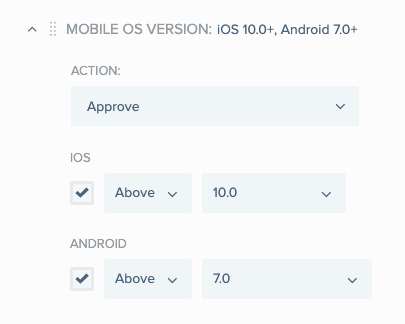
You can use the mobile OS version rule to specify an action to take if the operating system version of the authenticating device is above or below a certain version. For example, you might want to define stricter authentication requirements for older, more vulnerable versions of an operating system.
This rule is relevant only if the policy allows at least one of the mobile device authentication methods, such as the PingID mobile app.
The following sample demonstrates the use of this rule.
{
    "authenticationSource": "WEB",
    "authenticationPolicies":
    [
        {
            "policyName": "Policy based on OS version",
            "targets":
                {"APPLICATION":["com.pingidentity.webportal.mfa"]
                ,"GROUP":["My Group"]
                },
            "mobileOSPolicy": {
                "androidCondition":{
                    "operator": "LOWER",
                    "version": "4.1"
                },
                 "iOsCondition":{
                    "operator": "LOWER",
                    "version": "8.1"
                },
                "policyAction": "DENY",
                "priority": 1
            },
            "defaultPolicyAction": "EMAIL",
            "showAuthenticationScreen": true,
            "priority": 1
        },
        {
            "defaultPolicyAction": "AUTHENTICATE",
            "showAuthenticationScreen": true,
            "priority": 2
        }
    ]
}
Rule-specific parameters
Conditions for Android are set in the androidCondition object, and conditions for iOS are set in the iOsCondition object. You can omit androidCondition if you don’t want to set a condition for Android devices, and you can omit iOsCondition if you don’t want to set a condition for iOS devices.
Within each condition, you must provide a value for the operator and version parameters.
| Parameter | DataType | Description |
|---|---|---|
operator |
String |
Mandatory. Possible values: LOWER, GREATER. Must be upper case. |
version |
String |
Mandatory. The operating system version, for example, "8.1". Note that for this parameter, you can only use one of the values that are listed in the UI for defining the mobile OS rule. You can also set the value of version to ALL if you want to include every version of the OS that was released. |
Accessing from countries rule
This rule allows you to specify the specific action to take when a user attempts to access an application from one or more specific countries.
The following sample demonstrates the use of this rule.
{
   "authenticationSource": "WEB",
   "authenticationPolicies":
   [
       {
           "policyName": "my first policy",
           "targets":
               {"APPLICATION":["com.pingidentity.webportal.mfa"]
               ,"GROUP":[]
               },
           "accessingCountryPolicy": {
               "countryCode": ["GB", "CH"],
               "policyAction": "DENY",
               "priority": 1
           },
           "defaultPolicyAction": "AUTHENTICATE",
           "showAuthenticationScreen": true,
           "priority": 1
       },
       {
           "defaultPolicyAction": "AUTHENTICATE",
           "showAuthenticationScreen": true,
           "priority": 2
       }
   ]
}
Note that for this rule, policyAction cannot take the value APPROVE.
Rule-specific parameters
| Parameter | DataType | Description |
|---|---|---|
countryCode |
Array |
Mandatory. Collection of country codes for the countries where you want the rule to apply |
List of country codes
| Code | Country |
|---|---|
Afghanistan |
AF |
Åland Islands |
AX |
Albania |
AL |
Algeria |
DZ |
American Samoa |
AS |
Andorra |
AD |
Angola |
AO |
Anguilla |
AI |
Antarctica |
AQ |
Antigua and Barbuda |
AG |
Argentina |
AR |
Armenia |
AM |
Aruba |
AW |
Australia |
AU |
Austria |
AT |
Azerbaijan |
AZ |
Bahamas |
BS |
Bahrain |
BH |
Bangladesh |
BD |
Barbados |
BB |
Belarus |
BY |
Belgium |
BE |
Belize |
BZ |
Benin |
BJ |
Bermuda |
BM |
Bhutan |
BT |
Bolivia |
BO |
Bosnia and Herzegovina |
BA |
Botswana |
BW |
Brazil |
BR |
British Antarctic Territory |
BQ |
British Indian Ocean Territory |
IO |
British Virgin Islands |
VG |
Brunei |
BN |
Bulgaria |
BG |
Burkina Faso |
BF |
Burundi |
BI |
Cambodia |
KH |
Cameroon |
CM |
Canada |
CA |
Cape Verde |
CV |
Cayman Islands |
KY |
Central African Republic |
CF |
Chad |
TD |
Chile |
CL |
China |
CN |
Christmas Island |
CX |
Cocos [Keeling] Islands |
CC |
Colombia |
CO |
Comoros |
KM |
Congo - Brazzaville |
CG |
Congo - Kinshasa |
CD |
Cook Islands |
CK |
Costa Rica |
CR |
Côte d’Ivoire |
CI |
Croatia |
HR |
Cuba |
CU |
Cyprus |
CY |
Czech Republic |
CZ |
Denmark |
DK |
Djibouti |
DJ |
Dominica |
DM |
Dominican Republic |
DO |
Ecuador |
EC |
Egypt |
EG |
El Salvador |
SV |
Equatorial Guinea |
GQ |
Eritrea |
ER |
Estonia |
EE |
Ethiopia |
ET |
Falkland Islands |
FK |
Faroe Islands |
FO |
Fiji |
FJ |
Finland |
FI |
France |
FR |
French Guiana |
GF |
French Polynesia |
PF |
French Southern Territories |
TF |
Gabon |
GA |
Gambia |
GM |
Georgia |
GE |
Germany |
DE |
Ghana |
GH |
Gibraltar |
GI |
Greece |
GR |
Greenland |
GL |
Grenada |
GD |
Guadeloupe |
GP |
Guam |
GU |
Guatemala |
GT |
Guernsey |
GG |
Guinea-Bissau |
GW |
Guinea |
GN |
Guyana |
GY |
Haiti |
HT |
Honduras |
HN |
Hong Kong SAR China |
HK |
Hungary |
HU |
Iceland |
IS |
India |
IN |
Indonesia |
ID |
Iran |
IR |
Iraq |
IQ |
Ireland |
IE |
Isle of Man |
IM |
Israel |
IL |
Italy |
IT |
Jamaica |
JM |
Japan |
JP |
Jersey |
JE |
Jordan |
JO |
Kazakhstan |
KZ |
Kenya |
KE |
Kiribati |
KI |
Kuwait |
KW |
Kyrgyzstan |
KG |
Laos |
LA |
Latvia |
LV |
Lebanon |
LB |
Lesotho |
LS |
Liberia |
LR |
Libya |
LY |
Liechtenstein |
LI |
Lithuania |
LT |
Luxembourg |
LU |
Macau SAR China |
MO |
Macedonia |
MK |
Madagascar |
MG |
Malawi |
MW |
Malaysia |
MY |
Maldives |
MV |
Mali |
ML |
Malta |
MT |
Marshall Islands |
MH |
Martinique |
MQ |
Mauritania |
MR |
Mauritius |
MU |
Mayotte |
YT |
Mexico |
MX |
Micronesia |
FM |
Moldova |
MD |
Monaco |
MC |
Mongolia |
MN |
Montenegro |
ME |
Montserrat |
MS |
Morocco |
MA |
Mozambique |
MZ |
Myanmar [Burma] |
MM |
Namibia |
NA |
Nauru |
NR |
Nepal |
NP |
Netherlands |
NL |
New Caledonia |
NC |
New Zealand |
NZ |
Nicaragua |
NI |
Niger |
NE |
Nigeria |
NG |
Niue |
NU |
Norfolk Island |
NF |
North Korea |
KP |
Northern Mariana Islands |
MP |
Norway |
NO |
Oman |
OM |
Pakistan |
PK |
Palau |
PW |
Palestinian Territories |
PS |
Panama |
PA |
Papua New Guinea |
PG |
Paraguay |
PY |
Peru |
PE |
Philippines |
PH |
Pitcairn Islands |
PN |
Poland |
PL |
Portugal |
PT |
Puerto Rico |
PR |
Qatar |
QA |
Réunion |
RE |
Romania |
RO |
Russia |
RU |
Rwanda |
RW |
Saint Barthélemy |
BL |
Saint Helena |
SH |
Saint Kitts and Nevis |
KN |
Saint Lucia |
LC |
Saint Martin |
MF |
Saint Pierre and Miquelon |
PM |
Saint Vincent and the Grenadines |
VC |
Samoa |
WS |
San Marino |
SM |
São Tomé and Príncipe |
ST |
Saudi Arabia |
SA |
Senegal |
SN |
Serbia |
RS |
Seychelles |
SC |
Sierra Leone |
SL |
Singapore |
SG |
Slovakia |
SK |
Slovenia |
SI |
Solomon Islands |
SB |
Somalia |
SO |
South Africa |
ZA |
South Georgia and the South Sandwich Islands |
GS |
South Korea |
KR |
Spain |
ES |
Sri Lanka |
LK |
Sudan |
SD |
Suriname |
SR |
Svalbard and Jan Mayen |
SJ |
Swaziland |
SZ |
Sweden |
SE |
Switzerland |
CH |
Syria |
SY |
Taiwan |
TW |
Tajikistan |
TJ |
Tanzania |
TZ |
Thailand |
TH |
Timor-Leste |
TL |
Togo |
TG |
Tokelau |
TK |
Tonga |
TO |
Trinidad and Tobago |
TT |
Tunisia |
TN |
Turkey |
TR |
Turkmenistan |
TM |
Turks and Caicos Islands |
TC |
Tuvalu |
TV |
U.S. Minor Outlying Islands |
UM |
U.S. Virgin Islands |
VI |
Uganda |
UG |
Ukraine |
UA |
United Arab Emirates |
AE |
United Kingdom |
GB |
United States |
US |
Uruguay |
UY |
Uzbekistan |
UZ |
Vanuatu |
VU |
Vatican City |
VA |
Venezuela |
VE |
Vietnam |
VN |
Wallis and Futuna |
WF |
Yemen |
YE |
Zambia |
ZM |
Zimbabwe |
ZW |
Recent authentication rule
You can use the recent authentication rule to specify the action that should be taken if the last successful authentication request from the user’s device occurred within a given time period, such as within the last 30 minutes, and the authentication method used was one of the methods permitted for the application the user is trying to access now.
The following sample demonstrates the use of this rule.
{
    "authenticationSource": "WEB",
    "authenticationPolicies":
    [
        {
            "policyName": "Policy for recent authentication",
            "targets":
                {"APPLICATION":["com.pingidentity.webportal.mfa"]
                ,"GROUP":["My Group"]
                },
            "knownDevicePolicy": {
                "timeUnit": "MINUTES",
                "num": 30,
                "policyAction": "APPROVE",
                "priority": 1
            },
            "defaultPolicyAction": "EMAIL",
            "showAuthenticationScreen": true,
            "priority": 1
        },
        {
            "defaultPolicyAction": "AUTHENTICATE",
            "showAuthenticationScreen": true,
            "priority": 2
        }
    ]
}
Rule-specific parameters
| Parameter | DataType | Description |
|---|---|---|
timeUnit |
String |
Mandatory. The time unit for the |
num |
int |
Mandatory. The amount of time (using the units specified with |
Accessing from company network rule
You can use this rule to specify the action that should be taken when a user attempts to access an application from within the company network. You must specify the IP addresses that define the company network. In addition, you can specify that the user must be within a geographic region that represents a company office.
| While most rules relate to either the accessing device or the authenticating device, if you use the geofence option for this rule, the rule takes into account the IP address of the accessing device and the geographic location of the authenticating device. |
The following sample demonstrates the use of this rule.
{
    "authenticationSource": "WEB",
    "authenticationPolicies":
    [
        {
            "policyName": "Policy for company network",
            "targets":
                {"APPLICATION":["com.pingidentity.webportal.mfa"]
                ,"GROUP":["My Group"]
                },
            "companyNetworkOriginatedPolicy": {
                "accessingDeviceIPRange": ["1.1.1.1/24", "1.1.1.1/12"],
                "policyAction": "APPROVE",
                "useGeoFence": true,
                "priority": 1
            },
            "defaultPolicyAction": "AUTHENTICATE",
            "showAuthenticationScreen": true,
            "priority": 1
        },
        {
            "defaultPolicyAction": "AUTHENTICATE",
            "showAuthenticationScreen": true,
            "priority": 2
        }
    ]
}
Rule-specific parameters
| Parameter | DataType | Description |
|---|---|---|
accessingDeviceIPRange |
Array |
Mandatory. One or more ranges of IP addresses expressed in CIDR format, separated by commas, for example: ["1.1.1.1/24", "1.1.1.1/12"]. The user must be attempting to access the application from one of the IP addresses in the specified range. |
useGeoFence |
Boolean |
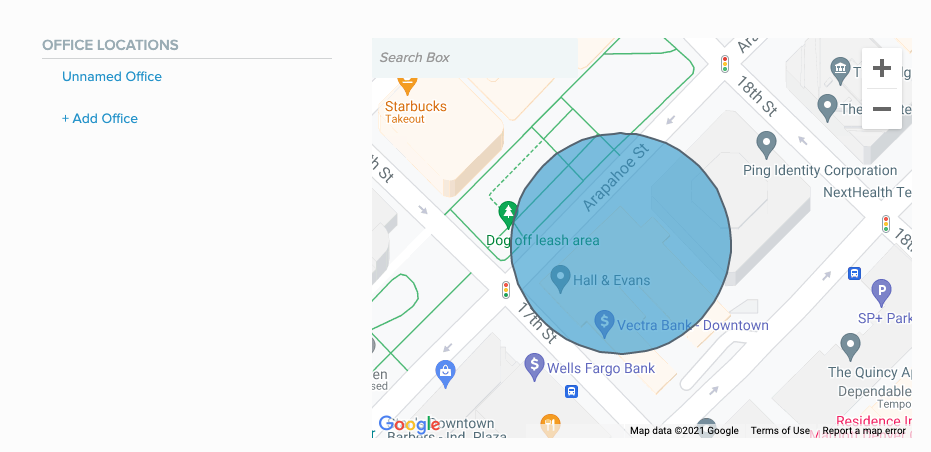
Optional. Indication of whether the rule requires that the user be within a specific geographical area that represents a company office. Note that this parameter is only a boolean value. The actual geographical region must be defined in the PingID admin console. There is no API equivalent for defining the region. The geofence option uses the location of the authenticating device - so this option is relevant only if the policy allows at least one of the mobile device authentication methods, such as the PingID mobile app. |
Recent authentication from company network rule
You can use the recent authentication from company network rule to specify the action that should be taken when the following conditions are met:
-
The last successful authentication request from the user’s device occurred within a given time period, such as within the last 30 minutes
-
The request was made from within the company network
-
The authentication method used was one of the methods permitted for the application the user is trying to access now
For example, if the previous request was made recently from within the company network, you might want to define less strict authentication requirements.
You must specify the IP addresses that define the company network. In addition, you can specify that the user must be within a geographic region that represents a company office.
| While most rules relate to either the accessing device or the authenticating device, if you use the geofence option for this rule, the rule takes into account the IP address of the accessing device and the geographic location of the authenticating device. |
The following sample demonstrates the use of this rule.
{
    "authenticationSource": "WEB",
    "authenticationPolicies":
    [
        {
            "policyName": "Policy for recent authentication from company network",
            "targets":
                {"APPLICATION":["com.pingidentity.webportal.mfa"]
                ,"GROUP":["My Group"]
                },
            "recentAuthenticationFromCompanyNetwork": {
                "num": 5,
                "timeUnit": "DAYS",
                "accessingDeviceIPRange": ["1.1.1.1/24"],
                "useGeoFence": true,
                "policyAction": "APPROVE",
                "priority": 1
            },
            "defaultPolicyAction": "AUTHENTICATE",
            "showAuthenticationScreen": true,
            "priority": 1
        },
        {
            "defaultPolicyAction": "AUTHENTICATE",
            "showAuthenticationScreen": true,
            "priority": 2
        }
    ]
}
Rule-specific parameters
| Parameter | DataType | Description |
|---|---|---|
timeUnit |
String |
Mandatory. The time unit for the |
num |
int |
Mandatory. The amount of time (using the units specified with |
accessingDeviceIPRange |
Array |
Mandatory. One or more ranges of IP addresses expressed in CIDR format, separated by commas, for example: ["1.1.1.1/24", "1.1.1.1/12"]. The user must be attempting to access the application from one of the IP addresses in the specified range. |
useGeoFence |
Boolean |
Optional. Indication of whether the rule requires that the user be within a specific geographical area that represents a company office. Note that this parameter is only a boolean value. The actual geographical region must be defined in the PingID admin console. There is no API equivalent for defining the region. The geofence option uses the location of the authenticating device - so this option is relevant only if the policy allows at least one of the mobile device authentication methods, such as the PingID mobile app. |
Recent authentication from office rule
You can use the recent authentication from office rule to specify the action that should be taken when the following conditions are met:
-
The last successful authentication request from the user’s device occurred within a given time period, such as within the last 30 minutes
-
The request was made from within an office location
-
The authentication method used was one of the methods permitted for the application the user is trying to access now
For example, if the previous request was made recently at an office location, you might want to define less strict authentication requirements.
The following sample demonstrates the use of this rule.
{
    "authenticationSource": "WEB",
    "authenticationPolicies":
    [
        {
            "policyName": "Recent authentication from office policy",
            "targets":
                {"APPLICATION":["com.pingidentity.webportal.mfa"]
                ,"GROUP":["My Group"]
                },
            "userInCompanyOfficeAndKnownDevicePolicy": {
                "num": 5,
                "timeUnit": "DAYS",
                "policyAction": "APPROVE",
                "priority": 1
            },
            "defaultPolicyAction": "AUTHENTICATE",
            "showAuthenticationScreen": true,
            "priority": 1
        },
        {
            "defaultPolicyAction": "AUTHENTICATE",
            "showAuthenticationScreen": true,
            "priority": 2
        }
    ]
}
Rule-specific parameters
| Parameter | DataType | Description |
|---|---|---|
timeUnit |
String |
Mandatory. The time unit for the |
num |
int |
Mandatory. The amount of time (using the units specified with |
This rule requires that a geographical region be defined for the office. The geographical region for the office must be defined in the PingID admin console. There is no API equivalent for defining the region.
Note that this rule uses the location of the authenticating device - so this option is relevant only if the policy allows at least one of the mobile device authentication methods, such as the PingID mobile app.
Authenticating from new device rule
Use the authenticating from new device rule to specify the action to be taken when a user tries to access an application from a new device for the first time. (This refers to the accessing device, not the authenticating device.)
You cannot use APPROVE or DENY as the value of policyAction for this rule.
|
The following sample demonstrates the use of this rule.
{
    "authenticationSource": "WEB",
    "authenticationPolicies":
    [
        {
            "policyName": "Policy for initial access",
            "targets":
                {"APPLICATION":["com.pingidentity.webportal.mfa"]
                ,"GROUP":["My Group"]
                },
            "newAccessingDevicePolicy": {
                "policyAction": "AUTHENTICATE",
                "priority": 1
            },
            "defaultPolicyAction": "APPROVE",
            "showAuthenticationScreen": true,
            "priority": 1
        },
        {
            "defaultPolicyAction": "AUTHENTICATE",
            "showAuthenticationScreen": true,
            "priority": 2
        }
    ]
}
Geovelocity anomaly rule
You can use the geovelocity anomaly rule to specify an action that should be taken in situations where the distance between the current location of the user and the location of the last authentication is such that the user could not have traveled between the two locations in the time that elapsed.
For example, if a user signs on from New York, USA at 12:00 p.m. and then attempts to sign on from London, UK two hours later, a geovelocity anomaly is detected and a rule action, such as DENY, can be applied.
Note that the APPROVE action cannot be used for this rule.
The following sample demonstrates the use of this rule.
{
    "authenticationSource": "WEB",
    "authenticationPolicies":
    [
        {
            "policyName": "Policy for geovelocity anomalies",
            "targets":
                {"APPLICATION":["com.pingidentity.webportal.mfa"]
                ,"GROUP":["My Group"]
                },
            "geoVelocityPolicy": {
                "whitelistIpRanges": ["1.1.1.1/24", "1.1.1.2/24"],
                "policyAction": "DENY",
                "priority": 1
            },
            "defaultPolicyAction": "APPROVE",
            "showAuthenticationScreen": true,
            "priority": 1
        },
        {
            "defaultPolicyAction": "AUTHENTICATE",
            "showAuthenticationScreen": true,
            "priority": 2
        }
    ]
}
Rule-specific parameters
| Parameter | DataType | Description |
|---|---|---|
whitelistIpRanges |
Array |
Optional. This parameter can be used to specify IP ranges to which this rule should not apply, meaning that if the user is attempting to access the application from one of the IP addresses in these ranges, geovelocity anomalies are ignored. The ranges of addresses should be expressed in CIDR format, separated by commas, for example: ["1.1.1.1/24", "1.1.1.1/12"]. |
IP reputation rule
You can use the IP reputation rule to specify an authentication action based on the risk score associated with the IP address of the user’s accessing device.
Based on the IP address data that PingID collects and analyzes, it assigns one of three scores to the IP address of the accessing device - High, Medium, or Low.
High: The IP address is considered high risk and might have recently been involved in numerous malicious activities, such as DDoS attacks or spam activity.
Medium: The IP address is considered medium risk and might have been involved in malicious activities, such as DDoS attacks or spam activity.
Low: The IP address is considered low risk.
You can define a different authentication method for each risk group. This makes it possible to define more restrictive authentication for IP addresses in a higher risk group.
You have the option of defining a whitelist of IP addresses to which the rule should not be applied.
The following sample demonstrates the use of this rule.
Note that while the priority field is required for this rule like for all other rules, the second required field, policyAction is not used because actions are defined individually for each risk score.
{
  "authenticationSource": "WEB",
  "authenticationPolicies":
  [
      {
          "policyName": "Policy for IP reputation",
          "targets":
              {"APPLICATION":["com.pingidentity.webportal.mfa"]
              ,"GROUP":["My Group"]
              },
          "ipReputationPolicy": {
              "ipRiskPolicies":[
                  {
                      "riskType": "HIGH",
                      "policyAction": "DENY"
                  },
                  {
                      "riskType": "MEDIUM",
                      "policyAction": "AUTHENTICATE"
                  },
                  {
                      "riskType": "LOW",
                      "policyAction": "APPROVE"
                  }
              ],
              "whitelistIpRanges":["1.1.1.1/24"],
              "priority": 1
          },
          "defaultPolicyAction": "AUTHENTICATE",
          "showAuthenticationScreen": true,
          "priority": 1
      },
      {
          "defaultPolicyAction": "AUTHENTICATE",
          "showAuthenticationScreen": true,
          "priority": 2
      }
  ]
}
Rule-specific parameters
The actions for the different risk scores are defined in an array called ipRiskPolicies.
| Parameter | DataType | Description |
|---|---|---|
ipRiskPolicies |
Array |
Mandatory. Contains objects that consist of two mandatory fields, |
whitelistIpRanges |
Array |
Optional. This parameter can be used to specify IP ranges to which this rule should not apply, meaning that if the user is attempting to access the application from one of the IP addresses in these ranges, the IP risk score is ignored. The ranges of addresses should be expressed in CIDR format, separated by commas, for example: ["1.1.1.1/24", "1.1.1.1/12"]. |
Anonymous network detection rule
| This rule can be used only if your organization has signed the required consent via a Ping Identity sales representative. |
The anonymous network detection rule lets you define the action to take if PingID’s analysis of the IP address of a user’s accessing device indicates that the authentication attempt is originating from an anonymous network (for example, an unknown VPN, proxy, or anonymous communication tools such as TOR).
The following sample demonstrates the use of this rule.
{
  "authenticationSource": "WEB",
  "authenticationPolicies":
  [
      {
          "policyName": "Policy with anonymous network rule",
          "targets":
              {"APPLICATION":["com.pingidentity.webportal.mfa"]
              ,"GROUP":["My Group"]
              },
          "anonymousNetworkPolicy": {
              "whitelistIpRanges":["1.1.1.1/24"],
              "policyAction": "DENY",
              "priority": 1
          },
          "defaultPolicyAction": "APPROVE",
          "showAuthenticationScreen": true,
          "priority": 1
      },
      {
          "defaultPolicyAction": "AUTHENTICATE",
          "showAuthenticationScreen": true,
          "priority": 2
      }
  ]
}
Rule-specific parameters
| Parameter | DataType | Description |
|---|---|---|
whitelistIpRanges |
Array |
Optional. This parameter can be used to specify IP ranges to which this rule should not apply, meaning that if the user is attempting to access the application from one of the IP addresses in these ranges, the anonymous network criterion is ignored. The ranges of addresses should be expressed in CIDR format, separated by commas, for example: ["1.1.1.1/24", "1.1.1.1/12"]. |
User risk behavior rule
| This rule can be used only if your organization has signed the required consent via a Ping Identity sales representative. |
The user risk behavior rule uses UEBA (User Entity Behavior Analytics) and machine learning to identify normal behavior patterns within your organization. User behavior varies between organizations, and can be learned through a variety of factors, such as the type of accessing device, the browser and operating system it is using, and the location from which a user signs on.
Ping’s machine learning engine learns the normal behavior patterns unique to your organization. It performs continuous training over time, to ensure that the machine learning model stays up-to-date with your company’s behavior patterns over time. It applies data intelligence to detect anomalies as they occur, in real-time, and categorizes them into low, medium, or high risk groups. The more serious the anomaly, the more likely it is that an authentication attempt is malicious. This rule allows you to specify an appropriate rule action for each risk group, such as defining a more restrictive authentication action for a higher risk group.
The user risk behavior rule is only applied if there is sufficient data to determine a risk score for the IP address of the accessing device.
The following sample demonstrates the use of this rule.
{
   "authenticationSource": "WEB",
   "authenticationPolicies":
   [
       {
           "policyName": "user risk behavior policy",
           "targets":
               {"APPLICATION":["com.pingidentity.webportal.mfa"]
               ,"GROUP":["My Group"]
               },
           "userRiskBehaviorPolicy": {
               "userRiskBehaviorInnerRiskPolicies":[
                   {
                       "userRiskBehaviorInnerRiskType": "HIGH",
                       "policyAction": "DENY"
                   },
                   {
                       "userRiskBehaviorInnerRiskType": "MEDIUM",
                       "policyAction": "AUTHENTICATE"
                   },
                   {
                       "userRiskBehaviorInnerRiskType": "LOW",
                       "policyAction": "APPROVE"
                   }
               ],
               "simulationMode": true,
               "priority": 1
           },
           "defaultPolicyAction": "AUTHENTICATE",
           "showAuthenticationScreen": true,
           "priority": 1
       },
       {
           "defaultPolicyAction": "AUTHENTICATE",
           "showAuthenticationScreen": true,
           "priority": 2
       }
   ]
}
Rule-specific parameters
The actions for the different risk levels are defined in an array called userRiskBehaviorInnerRiskPolicies.
| Parameter | DataType | Description |
|---|---|---|
userRiskBehaviorInnerRiskPolicies |
Array |
Mandatory. Contains objects that consist of two mandatory fields, |
simulationMode |
Boolean |
Optional. You can try out this rule in Evaluation mode. This mode allows you to view the effect of applying the user risk behavior rule in the PingID activity log, before it is actually applied to your organization. The PingID activity report records the risk scores generated per event, and the main factors influencing the risk scores. You can use this information to adjust the rule actions you apply to ensure the right users gain access to your organization, and are not blocked. If you want to use Evaluation mode, include the |
Risk level rule
The PingOne Risk service combines a number of predictors such as user risk behavior, IP reputation, and geovelocity anomaly to calculate a single risk score. If you have a license for PingOne Risk, you can include the risk level that it calculates in your PingID policies. For more information on PingOne Risk, see Introduction to PingOne Risk.
| Before adding a risk level rule, make sure that you have provided a value for the Resource ID field in the definition of the PingID adapter for PingFederate. For more information, see Configuring a PingID Adapter instance. Version 2.11 or higher of the PingID adapter is required for this feature. |
The following sample demonstrates the use of this rule.
Note that while the priority field is required for this rule like for all other rules, the second required field, policyAction is not used because actions are defined individually for each risk score category.
{
"authenticationSource": "WEB",
"authenticationPolicies":
[
   {
       "policyName": "Policy that uses risk level rule",
       "targets":
           {"APPLICATION":["com.pingidentity.webportal.mfa"]
           ,"GROUP":["My Group"]
           },
       "riskLevelPolicy": {
           "innerRiskLevelPolicies":[
               {
                   "riskLevel": "HIGH",
                   "policyAction": "DENY"
               },
               {
                   "riskLevel": "MEDIUM",
                   "policyAction": "AUTHENTICATE"
               },
               {
                   "riskLevel": "LOW",
                   "policyAction": "APPROVE"
               }
           ],
           "priority": 1
       },
       "defaultPolicyAction": "APPROVE",
       "showAuthenticationScreen": true,
       "priority": 1
   },
   {
       "defaultPolicyAction": "AUTHENTICATE",
       "showAuthenticationScreen": true,
       "priority": 2
   }
   ]
}
Rule-specific parameters
The actions for the different risk scores are defined in an array called innerRiskLevelPolicies.
| Parameter | DataType | Description |
|---|---|---|
innerRiskLevelPolicies |
Array |
Mandatory. Contains objects that consist of two mandatory fields, |
Limit push notifications rule
Use this rule to reduce the likelihood of a user acknowledging a malicious push notification as part of an MFA fatigue attack by limiting the number of push notifications the user can deny or ignore within a given time period.
If the number of push notifications the user receives exceeds the limit defined, specify an action from the allowed methods or choose to deny the user access. This limit is applied to push notifications that the user ignores or denies.
You can define an array of up to three push notification limits (subrules), and specify up to three actions that are triggered sequentially as the user reaches each limit. Select increasingly restrictive actions as the number of push notifications increases within the defined time period. For example, within a 5-minute period:
-
After 5 push notifications, the user must authenticate with a security key.
-
After 10 push notifications, the user must authenticate with biometrics.
-
After 15 push notifications, the user is denied access.
If you select Deny for the first or second limit action, no further actions can be specified.
|
The following sample demonstrates the use of this rule.
{
"authenticationSource": "WEB",
"authenticationPolicies":
[
   {
       "policyName": "Policy that uses rate limit push notification rule",
       "targets":
           {"APPLICATION":["com.pingidentity.webportal.mfa"]
           ,"GROUP":["My Group"]
           },
       "rateLimitPushNotificationPolicy": {
          "policyAction": null,
          "priority": 1,
          "rateLimitPushNotificationInnerPolicies": [
            {
              "policyAction": "WebAuthn",
              "priority": 1,
              "rateLimit": 5,
              "period": 5,
              "name": "inner_rate_limit_push_notification_policy"
            },
            {
              "policyAction": "WEBAUTHN_PLATFORM",
              "priority": 2,
              "rateLimit": 10,
              "period": 5,
              "name": "inner_rate_limit_push_notification_policy"
            },
            {
              "policyAction": "Deny",
              "priority": 3,
              "rateLimit": 15,
              "period": 5,
              "name": "inner_rate_limit_push_notification_policy"
            }
          ],
          "name": "rate_limit_push_notification_policy",
        },
       "defaultPolicyAction": "AUTHENTICATE",
       "showAuthenticationScreen": true,
       "priority": 1
   },
   {
       "defaultPolicyAction": "AUTHENTICATE",
       "showAuthenticationScreen": true,
       "priority": 2
   }
   ]
}
Rule-specific parameters
The actions for the different risk scores are defined in an array called rateLimitPushNotificationPolicy
| parameter | Data Type | Description |
|---|---|---|
rateLimitPushNotificationPolicy |
Array |
Mandatory. Define at least one limit and a maximum of three limits in the array. Each entry in the array must include three mandatory fields: |