Introducing the PingOne MCP server
The PingOne MCP Server brings your identity infrastructure into your development workflow. Configure environments, applications, and populations without leaving your IDE.

Introduction
Developers building applications using PingOne eventually hit the same friction point. Application code is in the IDE, while application configuration, audit logs, policies, and user journey flows are managed in the web console.
That context switch is the problem, not the task itself. Registering an application in PingOne or spinning up a new environment for development is straightforward. The cost is the frequent interruption leading to a break in flow, tab switching, and copying and pasting IDs.
Although frequent switching between IDE and the web console has been well accepted over the years, the expectations of application developers is shifting. Application developers are shifting to AI tools and agentic development practices. Generative code experiences such as VS Code Copilot, Claude Desktop, Claude Code, Gemini CLI, and GPT Codex are changing the ways that developers interact with their application code, and they’re changing the way developers interact with online services.
The PingOne MCP Server reduces the gap. It connects your PingOne tenant directly to MCP-compatible generative AI IDEs and CLIs. Instead of leaving your editor, you describe what you need from your application integration in natural language, and your agent handles the PingOne API calls, returns the IDs and configuration details you need, and lets you keep iterating on application code.
This isn’t about replacing the PingOne console for operational work. It’s about making identity platform configuration a first-class citizen of the development cycle, available in the same context where you write code, run tests, and ship features.
What Is MCP?
System configuration living outside the development cycle isn’t unique to PingOne. But it’s a fundamental challenge in building agentic systems: how do AI agents and IDE AI chat systems connect to the external services they need to act on?
The Model Context Protocol (MCP), originally developed by Anthropic, provides a specification for the interactions between AI systems (the abstract world of “intent”) and today’s systems (the concrete world of deterministic input/output). Before MCP, every integration between an AI agent and an external tool required custom code—bespoke connectors, point-in-time maintenance, duplicated effort across teams. MCP standardizes the connection layer, providing a “USB style” connector interface so that any MCP-compatible client (VS Code Copilot, Claude Desktop, Cursor, and others) can discover and invoke any MCP server’s capabilities using a common protocol, without needing custom code on either side.
In practical terms, an MCP server currently exposes three types of capabilities:
- Tools (executable actions the agent can invoke)
- Resources (contextual data to inform reasoning)
- Prompts (templated workflows)
The agent discovers tools at runtime, selects what it needs, and calls them through JSON-RPC messages. Prompts and resources are loaded at the user’s request.
You can find a deeper dive into MCP’s architecture, workflow, and security model in the Ping Identity MCP documentation.
What is the PingOne MCP Server?
The PingOne MCP Server implements the MCP standard for PingOne’s Management API, exposing 14 tools across 4 capability areas, and represents the start of the journey in producing useful tools to accelerate developer workflows.
In practical terms: your AI agent in your IDE can now interact with your PingOne tenant the same way it interacts with your filesystem, your terminal, or your version control. It becomes part of the same conversation as your application code.
The initial set of tools cover what developers need most when building on PingOne:
- Applications: List, retrieve, create, and update OIDC/OAuth 2.0 applications
- Environments: List, retrieve, create, and update PingOne environments; manage services (such as MFA and DaVinci)
- Populations: List, retrieve, create, and update user populations
- Directory: Generate per-day identity trend reports.
All operations execute as the authenticated user and are logged in PingOne’s audit trail. The agent never sees your access tokens or sign-on credentials; the MCP server handles authentication entirely, returning only the data the agent needs.
Missing something you need? Get in touch! Raise an enhancement request on the code repository. Your feedback helps drive what we do next.
Getting Started: From Zero to First Tool Call
To get started you need a PingOne account (Try Ping here), an MCP-compatible client (VS Code with Copilot, Cursor, Claude Desktop, or similar).
For the adventurous, in your favourite agent IDE, try:
Help me install and configure the PingOne MCP server from github.com/pingidentity/pingone-mcp-serverOtherwise, follow the instructions below.
1. Install the Server
The easiest path on macOS or Linux is Homebrew:
brew tap pingidentity/tap
brew install pingone-mcp-server
Verify:
pingone-mcp-server --versionFor Windows, the MCP server is built as an executable file, ready to download from the project releases. See the project README for full details for Windows installation and other options.
2. Set Up a Worker Application in PingOne
The server needs credentials. Create a worker application in your PingOne tenant:
- Sign on to the PingOne Administration Console.
- Open the environment for your Administrator users.
- Go to Applications > Add (+).
- Name it (for example, “PingOne MCP Server”) and choose type Worker.
- Go to Configuration and configure OAuth 2.0 settings:
- Set response type to Code.
- Set grant type to Authorization Code.
- Set PKCE Enforcement to S256_REQUIRED.
- Enable Refresh Token.
- Set redirect URI to
http://127.0.0.1:7464/callback - Set the Token Endpoint Authentication Method to None
- Save and capture your Environment ID and Client ID from the application details.
- Finally, remember to enable the MCP server application!
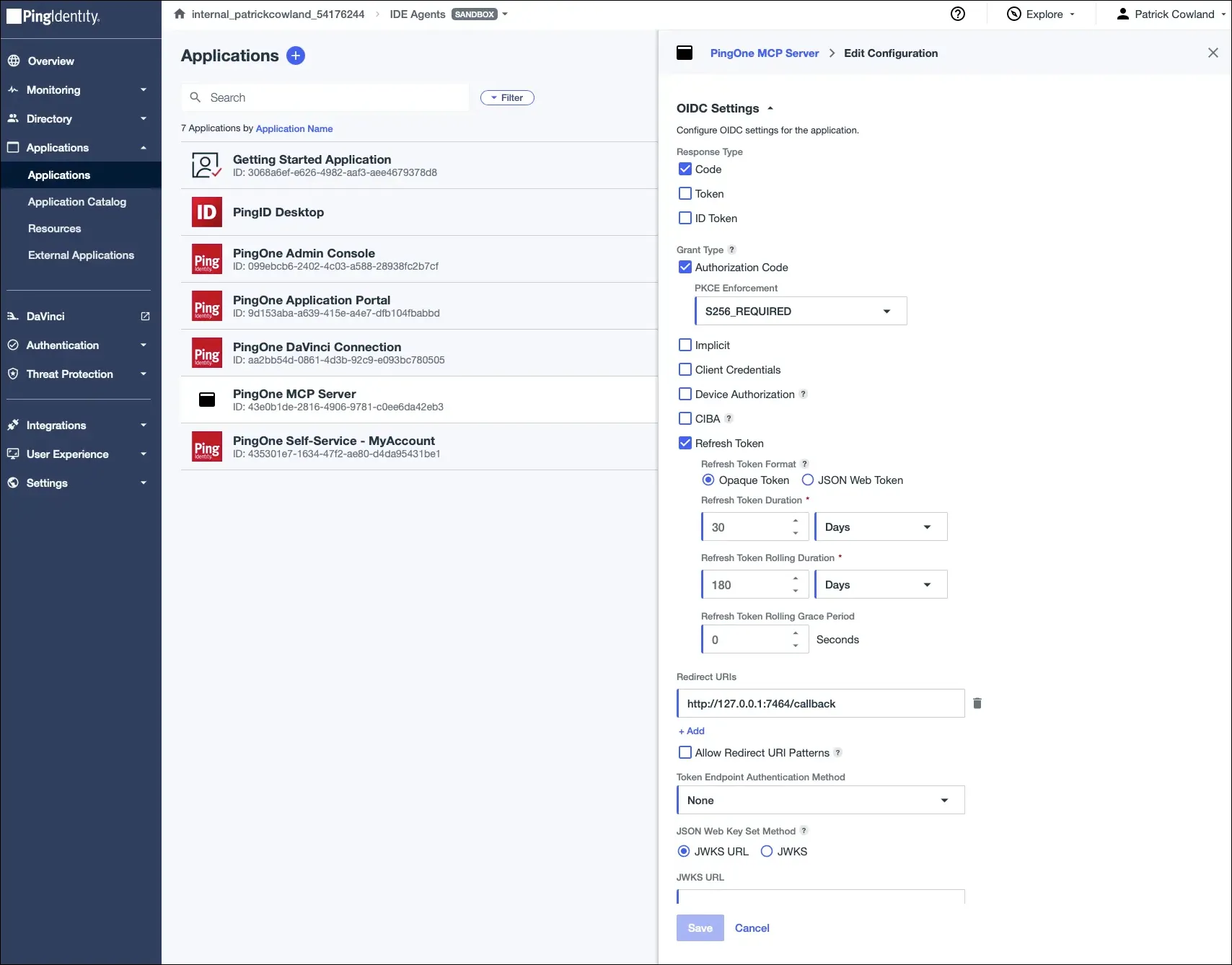
Although the example here uses the ‘Authorization Code’ grant type, ‘Device Code’ is also available. You can find more details in Setting Up PingOne Worker Applications for MCP Server.
3. Configure Your MCP Client
Once installed, add the server to your MCP client’s configuration. For VS Code with Copilot Chat:
{
  "servers": {
    "pingOne": {
      "type": "stdio",
      "command": "pingone-mcp-server",
      "args": [
        "run"
        // "--disable-read-only" // uncomment to enable write tools
      ],
      "env": {
        "PINGONE_MCP_ENVIRONMENT_ID": "your-environment-id-uuid",
        "PINGONE_AUTHORIZATION_CODE_CLIENT_ID": "your-client-id-uuid",
        "PINGONE_ROOT_DOMAIN": "pingone.com"
      }
    }
  }
}
If your tenant is in a different region, use pingone.ca, pingone.eu, pingone.com.au, pingone.sg or pingone.asia
To install to other IDEs, including Claude Code, Gemini and Cursor, refer to the project README.
That’s it. On first tool use, your browser opens your PingOne administrator sign-on page. After you authenticate with your admin credentials, the server caches your token securely in your OS keychain (where available) or is cached ephemerally. Every subsequent tool call validates and reuses the same token.
Real-World Use Case: Prepare an Environment for App Development
You’re building a new application feature that requires its own isolated identity configuration: a dedicated, ephemeral sandbox environment, a test user population, and an OIDC application for the OAuth flow your code will use.
Without the MCP server, you stop coding, switch to a browser, walk through the PingOne console to create the environment, toggle the services you need, create the population, register the application, copy the client ID and environment ID back into your project, and resume back.
With the PingOne MCP Server, you stay in your IDE:
Note that write tools must be enabled using
--disable-read-onlyat startup.
Step 1 — Understand what already exists:
"List my PingOne sandbox environments and show me which services are enabled in each."The agent calls list_environments and returns a structured overview. You can see your existing dev and staging environments, what’s running in each, and confirm there’s no overlap with what you’re about to create.
Step 2 — Create the new environment:
"Create a new sandbox environment called 'feature-payments-dev'.
Enable the MFA and DaVinci services."
The agent calls create_environment, then update_environment_services to add MFA and DaVinci, and returns the environment ID. You paste it into your .env file without leaving the editor.
Step 3 — Create the test population:
"Create a population called 'Payments Test Users' in the
feature-payments-dev environment."
The agent calls create_population. Returns the population ID. You add it to your test harness configuration inline.
Step 4 — Register the OIDC application:
"Create an OIDC application in feature-payments-dev called
'Payments App'. Use authorization code grant with PKCE enforced.
Redirect URI is http://localhost:3000/callback."
The agent calls create_oidc_application with the correct grant type, PKCE settings, and redirect URI. It returns the client ID.
Step 5 — Confirm and move on:
"Give me a summary of the feature-payments-dev environment:
environment ID, enabled services, population name and ID,
and the Payments App client ID."
The agent returns a clean summary, and you’re ready to move on. The entire flow took less than three minutes without switching context once. All four operations are in your PingOne audit log, associated with your user identity.
The process can be wrapped into a skill or an agent, and the rest of the team can benefit from the workflow.
Security Considerations
The most important thing to understand about the PingOne MCP Server’s security model: the agent is acting as you. The MCP server doesn’t have its own service account, its own permissions, or its own audit identity. When the agent calls a PingOne API through the MCP server, it calls it as your authenticated user account. Everything it does is bounded by the PingOne roles assigned to your admin account and actions are visible in the audit log, attributable to your identity.
Other features include:
Production environment restrictions. By default, all write actions are disabled on production environments. This is to protect against accidental or unintended configuration changes, even if your user has the ability to make changes to production configuration.
Write operations require an explicit decision when starting the MCP server. Running the server without --disable-read-only exposes only read tools. This is to allow you to explicitly opt in to write tools on your tenant.
Full audit trail. Every API call from the server includes a session ID and transaction ID in the request headers. You can trace any change back to the MCP server session through PingOne’s audit log.
Preview software. This is an early release. APIs and behavior may change. Use caution when using the MCP server against important environments. Found a bug? Open an issue.
Open source. Apache 2.0 licensed. Read the code, audit the dependencies, contribute a fix: github.com/pingidentity/pingone-mcp-server.
Next Steps: Try It Today, Give us Feedback
The current 14 tools cover a subset of what developers may need when developing on PingOne. But the goal is broader: PingOne configuration should be as accessible from your IDE as your database schema, your API spec, or your CI/CD pipeline. Manual steps you need to take between your code and your identity configuration is a point of friction that can be improved upon.
Near-term additions include Docker support for containerized workflows and simplified installation, expanded tool coverage across more PingOne APIs, and support for upcoming MCP specification changes as the standard evolves.
The roadmap is shaped by what you actually need. If there’s a specific tool or capability that would close a gap in your workflow, raise an enhancement request or start a discussion in the repository.
- Get a PingOne trial account if you don’t have one.
- Install and follow the project README.
- Think about the identity configuration steps in your current developer workflow. Where does context-switching slow you down?
- Share what you build with the Ping Identity community.
Your feedback shapes what comes next. Try it today and give us feedback on what you want to build.
References
- PingOne MCP Server code repository: https://github.com/pingidentity/pingone-mcp-server
- PingOne MCP Server releases: https://github.com/pingidentity/pingone-mcp-server/releases
- PingOne documentation: https://docs.pingidentity.com/pingone/latest/
- Model Context Protocol (MCP) specification: https://modelcontextprotocol.io/specification/2025-11-25
- PingOne Management API: https://apidocs.pingidentity.com/pingone/platform/v1/api/
- OAuth 2.0 PKCE (RFC 7636): https://tools.ietf.org/html/rfc7636
- Homebrew Tap: https://github.com/pingidentity/homebrew-tap