Getting Started with Agent Privilege
Discover, control, and secure the AI agents running in your environment with Agent Privilege - from connecting a single workstation to governing workload agents across cloud platforms.

Discover, control, and secure AI agents
AI agents are becoming part of everyday development and operations. An employee installs a coding assistant. A team connects an AI tool to a business application. A development team deploys an agent to automate a workflow.
Each of these uses drives productivity, but as agents gain access to business tools and sensitive information, IT and security teams need answers to a few basic questions:
- Which agents are running?
- Who’s using them?
- What can they access?
- Which actions are they allowed to take?
- How quickly can we revoke access if circumstances change?
A static list of approved software and services doesn’t answer all of these questions. It won’t tell you which tools employees are actually using, which local models are running, or what an agent can do with the access available to it.
In this series, we’ll show you how to gain deep visibility into the agents running in your environment and take control of their access using Agent Privilege.
In this first post, we’ll walk through connecting a single workstation, discovering the agents running on it, testing your first agent access policy, and finally extending that discovery to cloud environments and agent platforms. With the prerequisites in place, you can go from trial signup to your first enforced policy in less than an hour.
In the next part of the series, we’ll build on this by showing you how to control access to Model Context Protocol (MCP) tools and privileged resources, and set up protections for agent interactions.
What is Agent Privilege?
Agent Privilege brings AI agent discovery and access control to PingOne Privilege. It helps you discover agents, control which ones can be used, and govern their access to tools, services, and data across two broad categories:
- Personal agents that act on behalf of workforce users, such as coding assistants, desktop applications, or browser-based AI tools.
- Workload agents that run as part of an application, service, automation workflow, or agent platform.
Agent Privilege is a component of Ping’s broader Identity for AI offering. Identity for AI enables organizations to discover agents, establish trusted identities, authorize access, protect runtime interactions, and maintain accountability across agent activity.
Within this framework, Agent Privilege serves as the runtime control point for agent access, enabling security and development teams to:
- Gain visibility: Discover personal agents, workload agents, local large language models (LLMs), and MCP servers.
- Enforce governance: Define granular allow and deny policies for agents, scoped to specific users, groups, or the entire organization.
- Mediate access: Connect approved agents to tools and resources securely through an AI Gateway.
- Establish accountability: Register agents, assign custodians, and define authentication methods and permission scopes.
- Authenticate workloads: Use non-human identities (NHIs) to access resources through PingOne Privilege without exposing backend credentials.
- Control MCP tools: Apply tool-level access controls to MCP servers and their capabilities.
- Secure privileged resources: Extend just-in-time access, credential protection, approvals, and audit logging to privileged resources.
The high-level architecture below shows how these controls come together, with an AI Gateway enforcing access policies between agents and the resources they use.
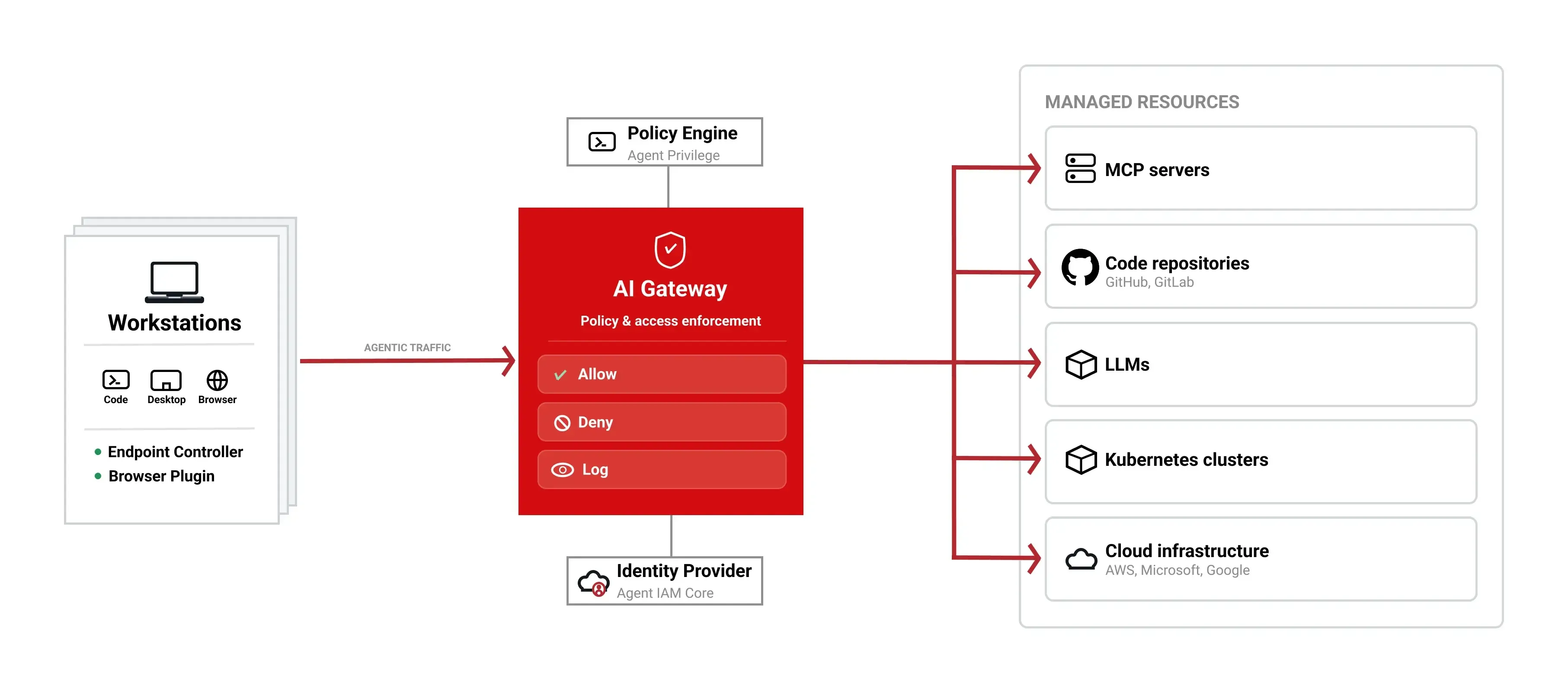
Agent Privilege gives teams a consistent control plane for managing agent access as their AI adoption grows, without requiring developers to implement a separate security model for every agent or integration.
From discovery to control
You can start seeing value from Agent Privilege with just a few initial steps. A good starting point is testing the workflow on a single workstation:
- Start a trial or prepare an existing PingOne Privilege environment.
- Connect one workstation.
- Discover the personal agents and MCP activity on that workstation.
- Apply an allow or deny policy.
- Verify its effect and review the available activity records.
This path gives you hands-on experience with agent discovery and access controls, so you can see how they work together before expanding to more use cases. When you’re ready, you can use an AI Gateway to control which business tools agents can access.
What you need
- A PingOne trial or an existing PingOne Privilege tenant
- An administrator account for configuring the environment
- A supported workstation for Endpoint Controller installation
- A user account for testing policies
- An AI agent installed on the test workstation for discovery and policy testing
If your PingOne Privilege environment is configured, and the Endpoint Controller is installed on your workstation, you can skip directly to Discover the agents running on your workstation.
Step 1: Prepare your PingOne Privilege environment
New to Ping Identity? Start by spinning up a free trial. Existing customers can create a new tenant in their organization or add PingOne Privilege to an existing environment.
Initial setup prepares your environment for discovery and policy testing. At a high level, you’ll:
- Configure PingOne Privilege as an Endpoint Controller-based environment.
- Set up users, groups, and permissions.
- Enroll yourself as a PingOne Privilege administrator.
- Install the Endpoint Controller.
Ready to start? Follow the Onboard users and configure the Endpoint Controller walkthrough to prepare your environment and connect your workstation.
Step 2: Discover the agents running on your workstation
You can’t govern what you can’t see. Before you decide which agents to allow or block, you need to know what people are using. Discovery shows which agents are running on which devices.
After you install the Endpoint Controller, you can start exploring AI activity on your workstation. Discovery can reveal:
- AI applications and coding assistants running on the machine
- Local LLMs
- MCP servers and related tool activity
- Users and endpoints associated with that activity
This goes beyond a static list of approved software and services. You can see what’s actually present on the device and use that context to decide what should be allowed, restricted, or investigated. Those decisions are the starting point for your access policies.
Review the personal agents shown in the PingOne Privilege console. Look for agents you recognize, any that need further review, and those that shouldn’t be available to a particular user or group.
Note: We’re starting with a single workstation, but for a wider rollout, you can deploy the Endpoint Controller through Jamf Pro or Microsoft Intune.
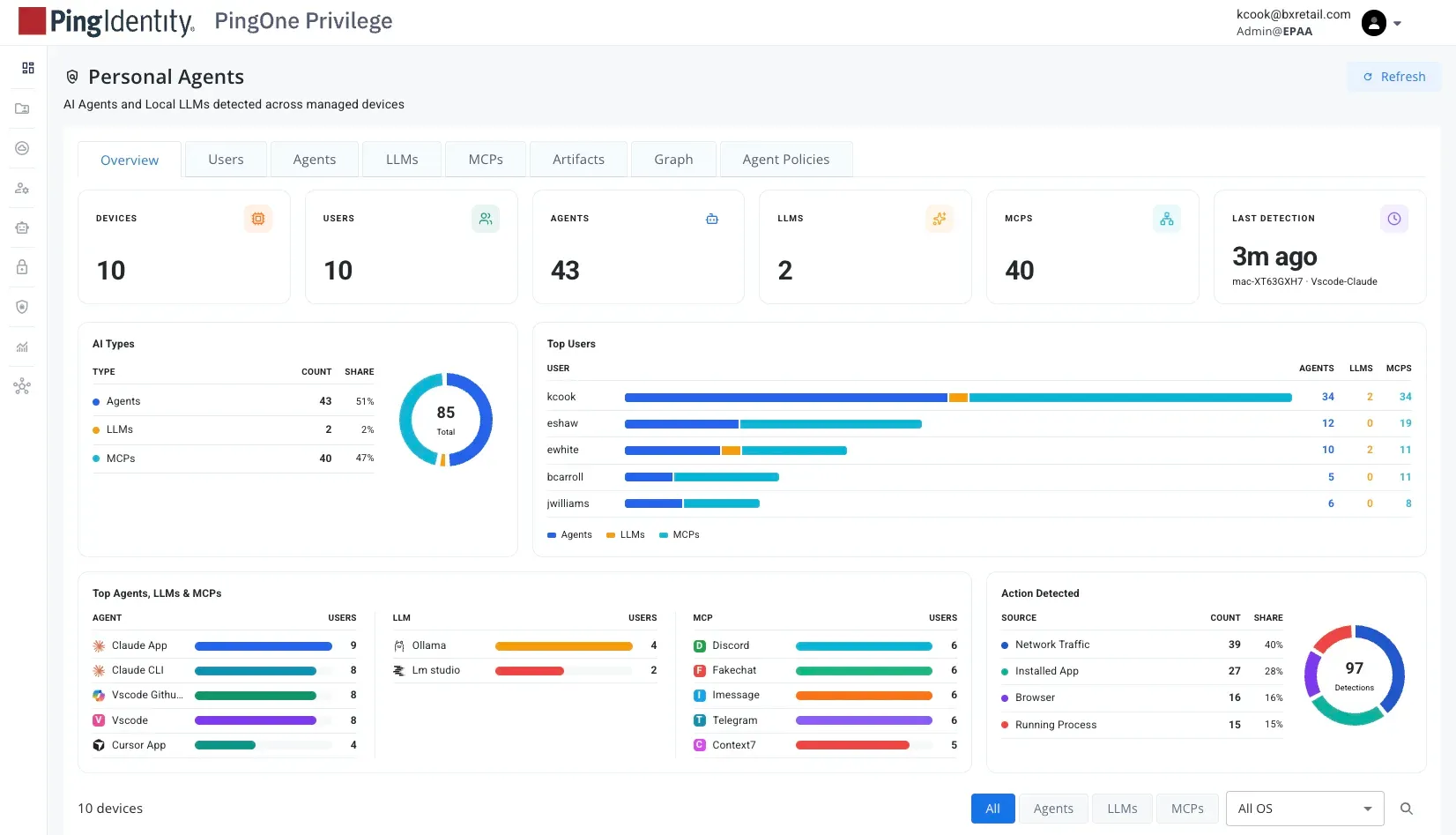
Try it yourself: Follow the Discover personal agents walkthrough to explore what’s running in your environment.
Step 3: Turn visibility into control
Visibility is only half the battle. After you can see which agents are running, the next step is to decide which ones to allow and who can use them. You might want to allow a coding assistant for your engineering team while blocking it for everyone else. Agent policies let you put those decisions into practice by applying allow or deny rules to individual users, groups, or the entire organization.
To see how a policy takes effect, try a deny policy:
- Select an agent discovered on your workstation and confirm that it’s running.
- Create a deny policy for that agent, assigned to your user.
- Confirm that the agent stops and can’t be restarted while the deny policy is active.
- Remove the deny policy and confirm that you can restart the agent.
Testing on your own workstation lets you see the effect of your policy before applying it to others. For a wider rollout, you can combine policies to block an agent for everyone while allowing it for a specific group. You can also create policies in a disabled state, preparing them in advance and enabling them when you’re ready to enforce them.
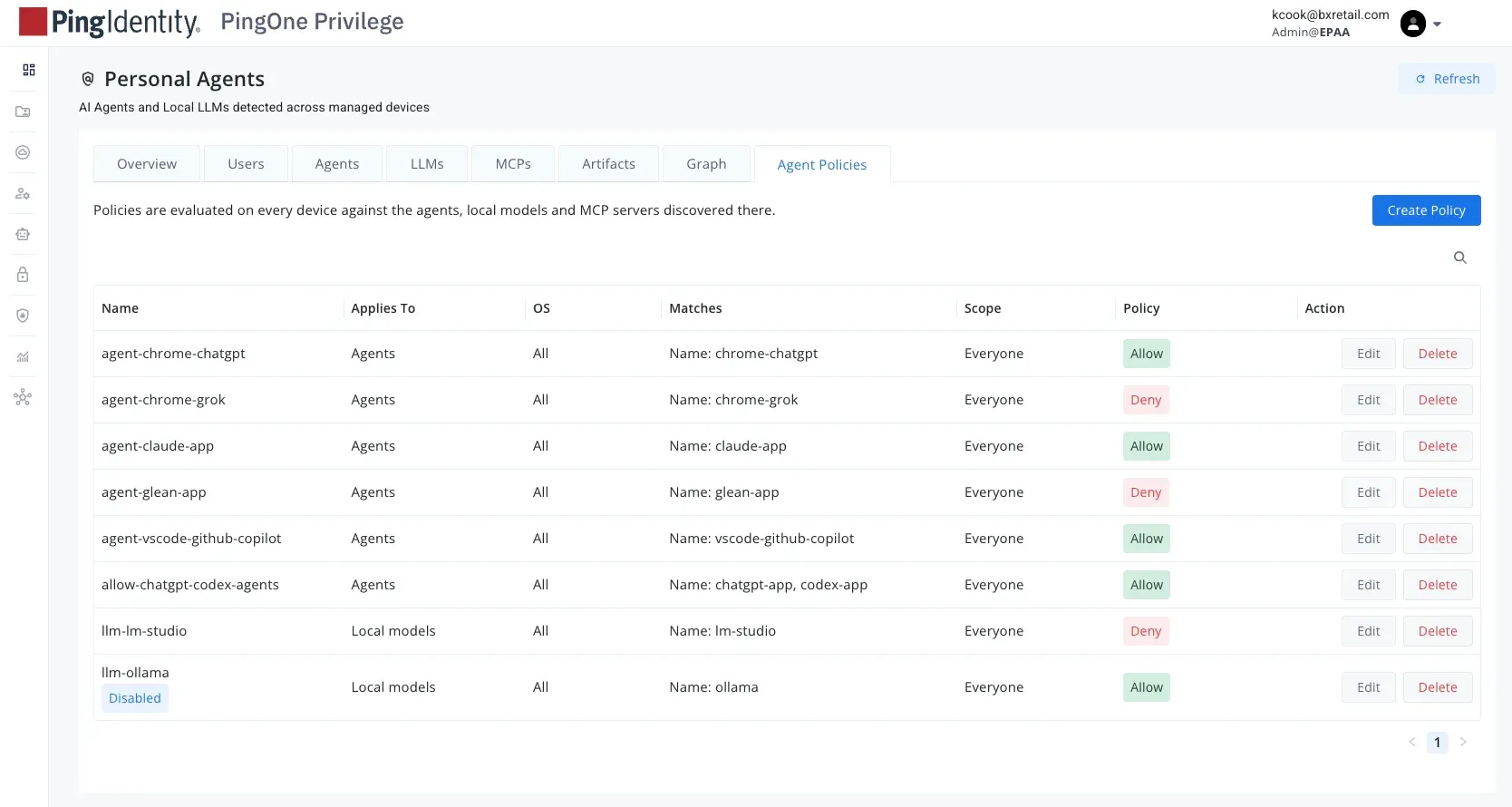
Try it yourself: Follow the personal agent policy documentation to configure and test your agent policies.
Step 4: Extend discovery to workload agents
Workstation discovery gives you visibility into the agents employees use, but it doesn’t cover the full picture. Teams also build and deploy agents across cloud environments and agent platforms. Extending discovery to these workload agents helps you identify what’s running, who owns it, and where to focus your access controls.
These agents can call internal APIs, connect to SaaS applications, or use MCP servers to access business tools. Understanding these connections gives you a starting point for reviewing their access:
- What is the agent?
- Who owns it?
- What platform or workload does it belong to?
- What can it access?
- How can its access be controlled or revoked?
Begin by connecting a supported platform, such as Amazon Bedrock, Microsoft Copilot Studio, or Google Vertex AI, then review the discovered workload agents in PingOne Privilege.
Agent platforms aren’t the only place workload agents run. If your organization deploys AI workloads in Kubernetes or Docker environments, the PingOne Privilege node sensor can discover them. In Part 2, we’ll cover deploying the sensor and registering the non-human identity it uses to authenticate to PingOne Privilege.
Whether you’re reviewing an employee’s assistant or an agent deployed in a cloud environment, the need for identity, ownership, policy, and audit remains the same.
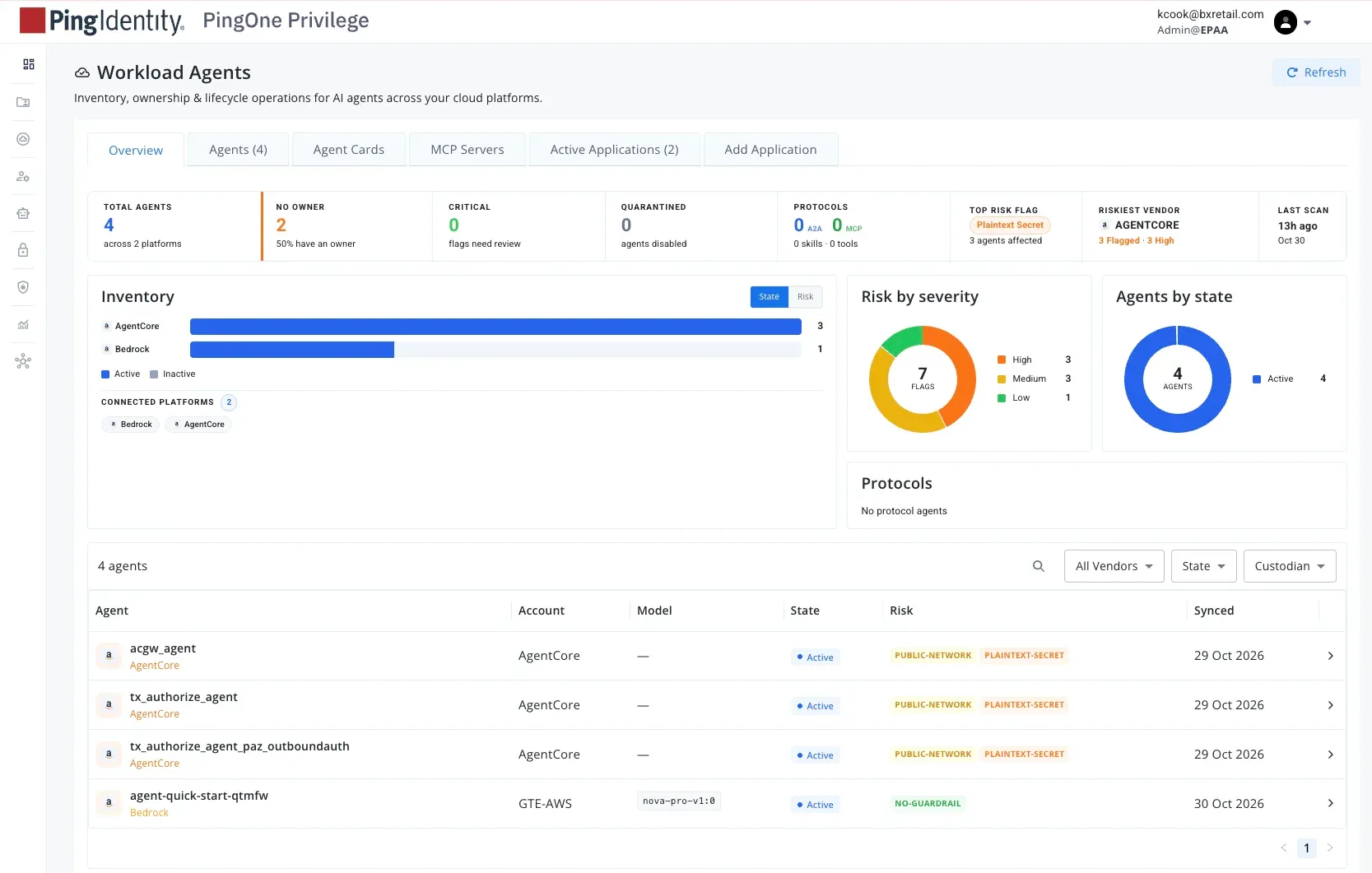
Try it yourself: Follow Configure applications for workload agents to connect your platform. Then follow Discover and manage workload agents to review the results.
What you’ve accomplished and what’s next
Starting with one workstation, you’ve built a foundation for understanding and controlling agent use with:
- Real-time visibility into personal agents, local LLMs, and MCP servers
- Verified policies that control which agents people can run
- Broader visibility into workload agents across connected cloud platforms
You can use those findings to identify agents that need review, make approved assistants available to the right users, and test policy changes before a wider rollout.
In the next post, Extending Control with Agent Privilege, we’ll build on this foundation by discovering self-hosted agents in Kubernetes and Docker using the node sensor, and controlling access through PingOne Privilege’s AI Gateway.
You’ll learn how to give agents access to MCP tools and privileged resources without exposing backend credentials, and how AI Guard adds protections for sensitive information and agent interactions.
Did you discover anything running in your environment that you didn’t expect? Join the discussion on the Ping Identity developer community!