Multi-Brand administration in PingOne with new group-level role assignments
How group-level role assignments in PingOne solve delegated administration challenges for multi-brand consumer identity deployments.

As you scale PingOne to support richer, multi-brand experiences, a familiar question tends to pop up: how do you delegate administration cleanly when the same end user belongs to many different business lines?
In this post, we’ll walk through what group-level assignments of administrative roles are, how they behave in PingOne, and the kinds of real-world problems they’re designed to solve.
Background: How PingOne administration worked before group level assignment
PingOne uses a hierarchy of organization → environment → population / environment → application to determine administration over different resources as shown below, before the new group-level assignment type.
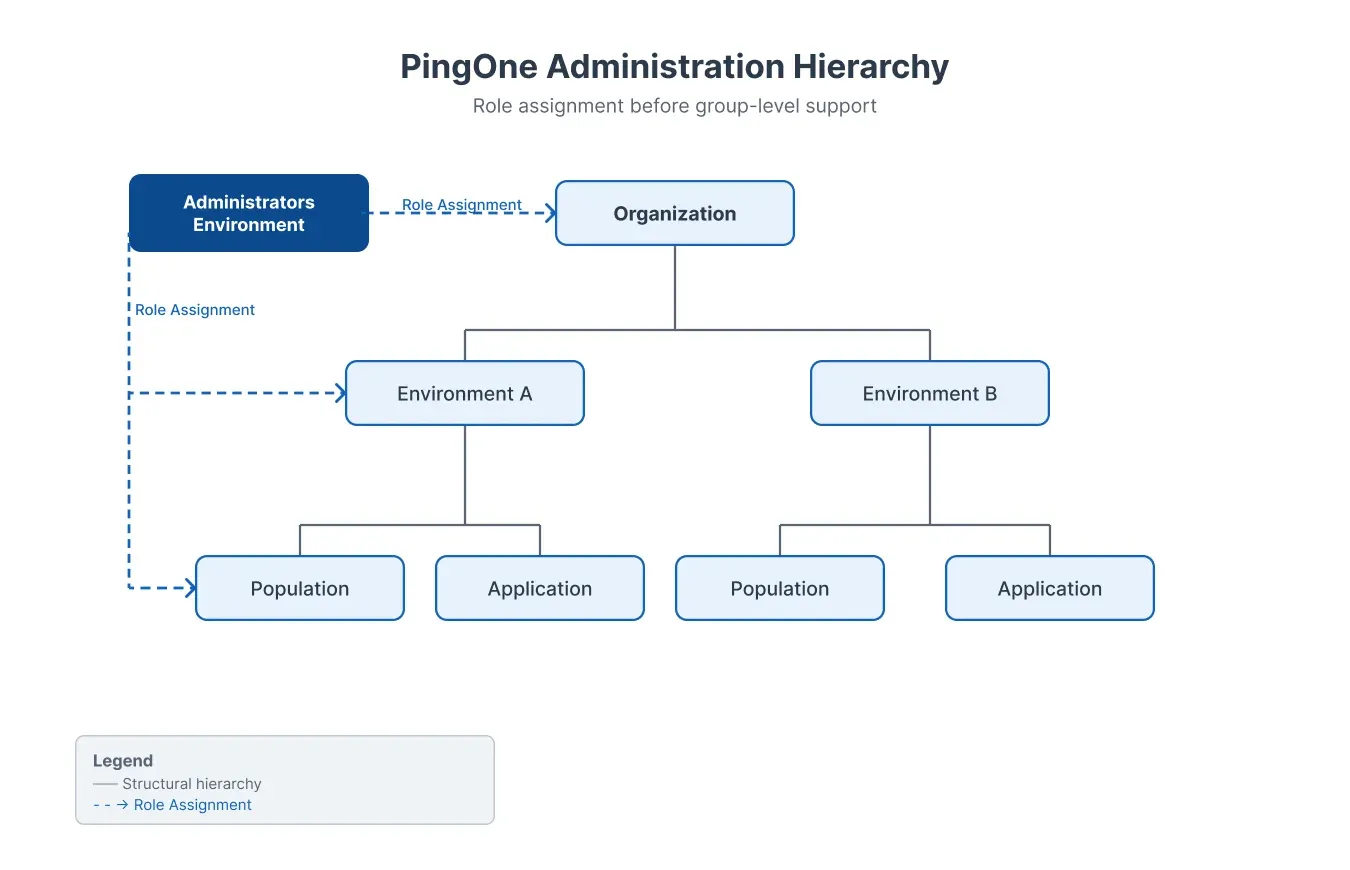 PingOne administration hierarchy — role assignments before group-level support
A few important concepts:
- Administrator environment: Each organization comes with a pre-created “administrators” environment. This is where we recommend managing platform administrators, separate from end users. (There are cases where delegated admins should live alongside end users)
- Built-in vs custom roles: Built-in roles cover common platform responsibilities (for example, Identity Data Admin and Help Desk Admin), while custom roles let you combine granular permissions to reach least privilege.
- Levels: Roles can be assigned at different levels (organization, environment, population, and — now — groups) so that an admin’s power is limited to exactly what they should manage. This can be done across environments so that a single admin identity has roles over other environments.
Today, population-level roles are the main way to segment administrator access to different user communities (for example, employees and contractors, or region A and region B) where a user can only exist in a single population. That works well for many B2B and workforce scenarios, but it starts to show its limits in some high-scale consumer use cases.
Learn more in Delegated Administration in PingOne for a full background on delegated admin and a breakdown of Populations and Groups in PingOne.
The customer problem: shared identity, many brands
If a large media company runs many consumer applications under different sub-brands, each brand has its own app and each app has its own help desk, but end users sign on with a single shared credential across all of them.
They need to:
- Let each brand’s help desk reset passwords, manage MFA devices, and troubleshoot issues only for their brand’s users.
- Avoid creating separate identities per brand, because the user experience should be “one login, many apps”.
- Avoid duplicating users into separate populations just to drive administration, because users commonly span multiple brands and populations aren’t designed for this overlap.
In other words, they need delegated administration segmented by groups, not just by populations.
How group-level roles behave
With group-level assignment, the goal is for the model to feel predictable and intuitive:
- If an admin has a role over a population, and a user belongs to that population, the admin can manage that user — just like today.
- If an admin has a role over a group, and the user is in that group, the admin can manage that user — even if the user is also in other groups or populations.
- If the admin has both population and group-level assignments, the effective access is the union: if the user matches either level, the admin can manage them.
Practically speaking: it’s enough for the admin to have an assignment at either the population level or group level to manage a given user.
This is exactly what customers like the multi-brand help desk scenario need: “if this user is in any of my brand groups, I should be able to help them, even if they also belong to other brands.”
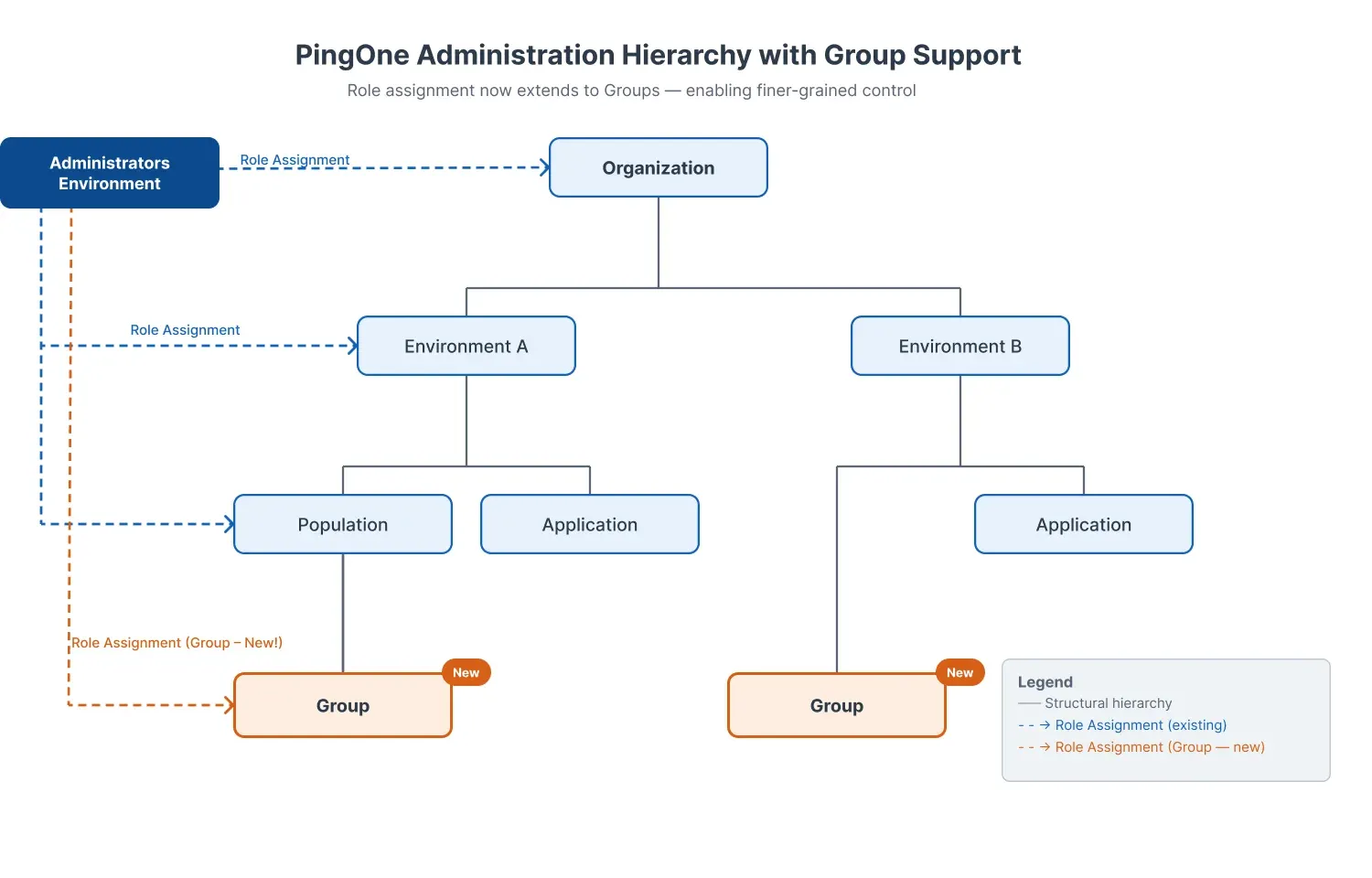 PingOne administration hierarchy with group-level role assignment support added
Tackling user creation
Group-level assignments introduced a chicken and egg problem: how can an admin create a user and then manage them when in PingOne you cannot assign a user to a group at creation time?
To solve this problem, we’ve introduced the ability to assign a user to a static group when creating them. This ensures that if an admin needs to create a user manually, they can do so and still manage them afterwards.
There are some caveats to keep in mind:
- If an admin creates a user in a group (given that they have a role assignment over that group) that is associated with a population, the user is created in that population.
- If an admin created a user in a group not associated with a population, then the user is created in the default population if there is one.
- If there is no default population (not recommended) and the admin is in the same environment, the user is created in the same population as the admin.
- In the event the admin is not in the same environment, user creation will fail.
In most cases the above isn’t a problem, but it is important to understand in more complex organizations.
Some example scenarios
With group-level assignments, you can model administration much more closely to how your business is structured.
1. Brand help desks
Scenario
A media company runs multiple fan sites and apps under different artist or label brands. Each brand has its own help desk team, but fans use the same account everywhere.
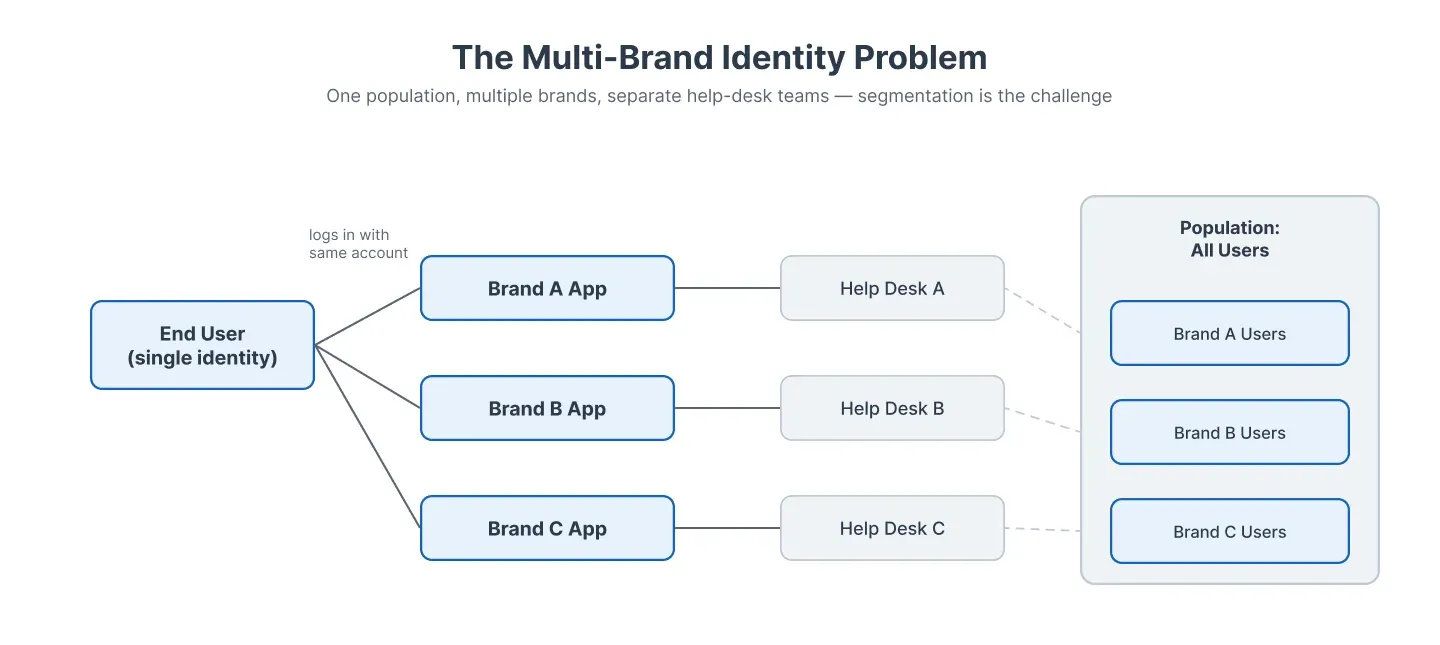 The multi-brand identity problem — one user identity, multiple brand help desks, separate support boundaries needed
How to set it up
- Create a group for each brand (or set of brands) your support team owns. For example,
Brand A Users,Brand B Users,VIP Fans, and so on. - Assign a Help Desk Admin (or equivalent custom role) at the
Brand A UsersGroup level and so on.
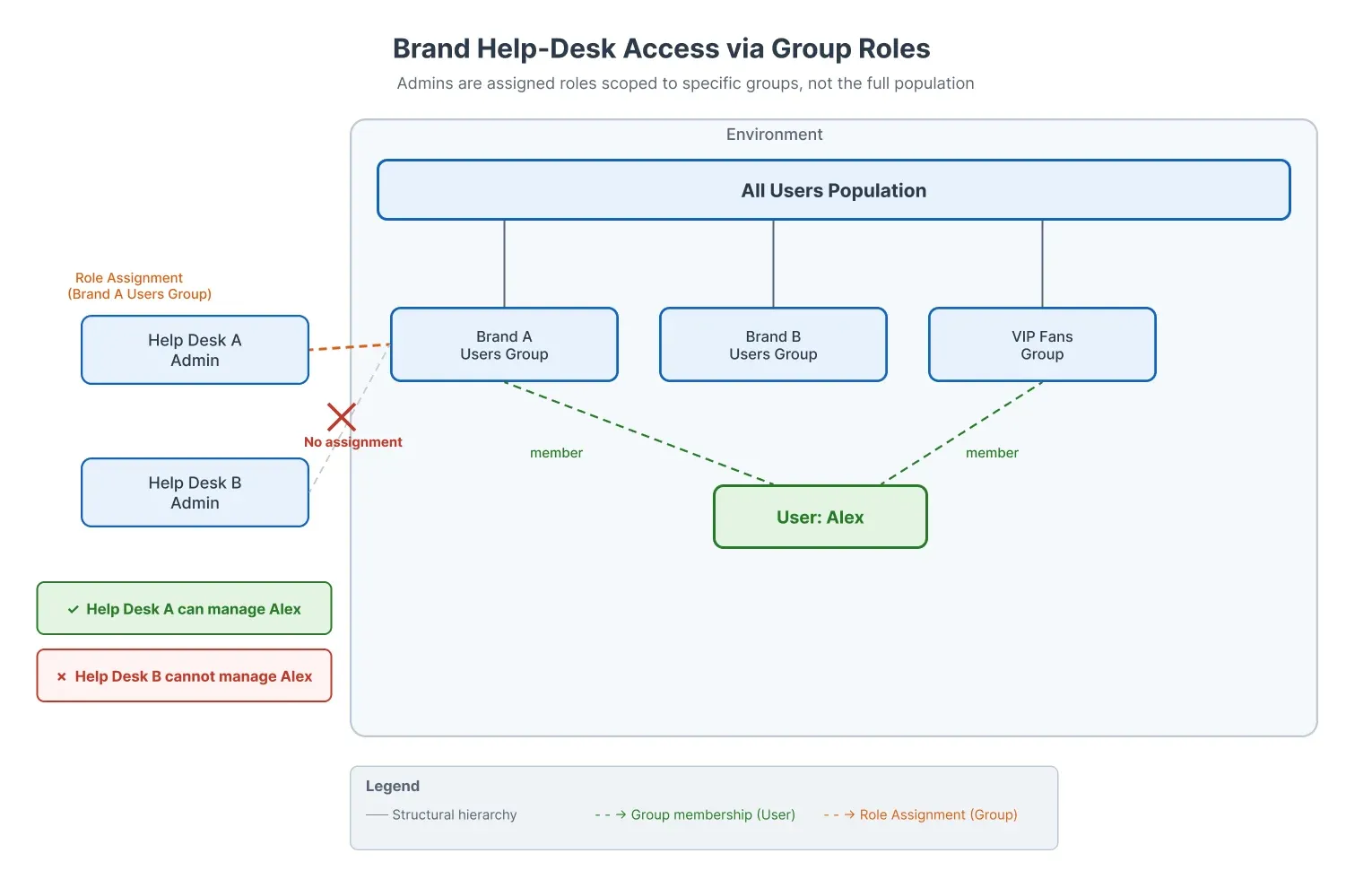 Brand Help Desk access via group roles — Help Desk A can manage Alex through a group-scoped role; Help Desk B has no assignment and cannot
What it does
-
The Brand A help desk can:
- Reset passwords
- Manage MFA devices
- Perform recovery actions
only for users in the Brand A group — even if those users also belong to other brands or global groups.
This lets you keep a single, clean user identity while still giving each support team exactly the access they need.
2. Specialized admin teams
Scenario
You have a small, expert team that handles high-risk operations, such as managing MFA devices for executives or handling escalated recovery flows.
How to set it up
- Create groups like
Executives,High-Risk Accounts, orEscalated Support. - Build a narrow custom role focused on the operations this team is allowed to perform (for example, MFA device management and account recovery only).
- Assign that custom role at the high-risk group level.
What it does
- The specialized team can perform sensitive operations only for the users you’ve explicitly grouped, without granting those permissions over the entire population or environment.
Designing your model with group-level assignments
When you’re planning how to use group-level assignments, a few guiding questions help:
-
How do I delegate based on my organizational structure? Think of your organizational structure and goals first, then align administration to it using groups and populations for finer delegation and environment or organization for those needing full visibility and control.
-
What’s the “home” for my admins? Generally continue to use the administrators environment as the home for admin identities, and then assign roles over the right mix of environments, populations, and groups from there. If your delegated admins are also end users, consider keeping them in the production environment rather than separate. Think about how you want to separate or combine the administrative responsibilities for a person from their end user identity.
The end result is an administration model that reflects how your teams actually work day to day, while still keeping a single, consistent identity for every user.
Do you have thoughts or questions on this article? Join the discussion on the Ping Identity developer community!